Frequently asked questions
This page covers support for iOS 14 and additional features you can configure after integrating BuzzAd SDK for iOS.
Support for iOS 14
This section describes the features BuzzAd SDK for iOS provides for iOS 14.
Display the tracking authorization prompt
BuzzAd SDK for iOS can display the tracking authorization prompt on iOS 14 and later. See Apple's documentation for details about tracking authorization.
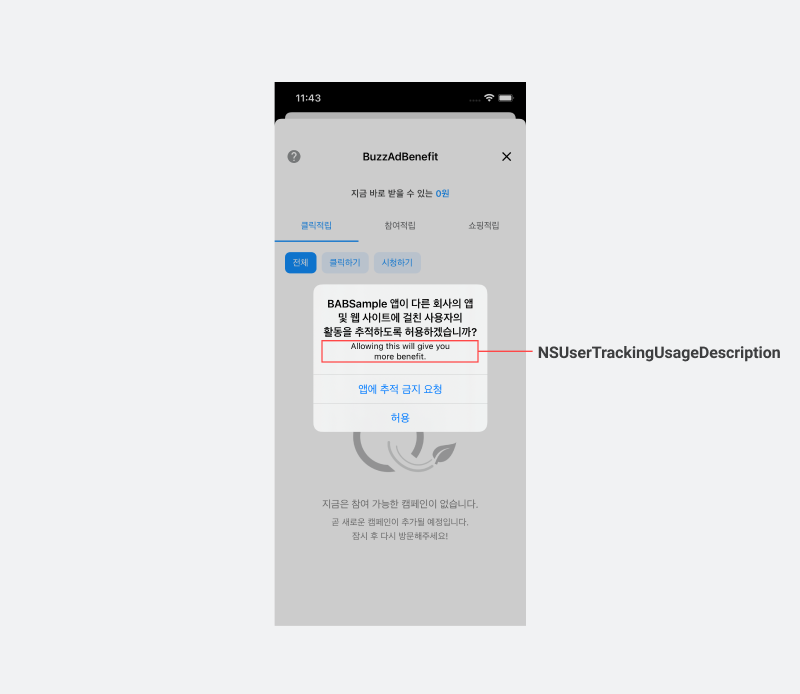
Follow these steps to display the tracking authorization prompt on iOS 14 and later.
- Add
NSUserTrackingUsageDescriptiontoInfo.plistto set the text shown in the tracking authorization prompt.
<key>NSUserTrackingUsageDescription</key>
<string>Tracking Usage Description - Buzzvil</string>
- Display the tracking authorization prompt when the user logs in.
BuzzAdBenefit.login { builder in
  ...생략...
  builder.showAppTrackingTransparencyDialog = true
} onSuccess: {
} onFailure: { error in
}
[BuzzAdBenefit loginWithBlock:^(BZVLoginRequestBuilder * _Nonnull builder) {
  ...생략...
  builder.showAppTrackingTransparencyDialog = YES;
} onSuccess:^{
} onFailure:^(BZVError * _Nonnull error) {
}];
Add user support for action-based ads
BuzzAd SDK for iOS provides ads that reward actions such as watching a video, installing an app or liking a Facebook page. If a user completes an action but does not receive points, the SDK provides a service that automates support request submission and handling (referred to here as VOC).
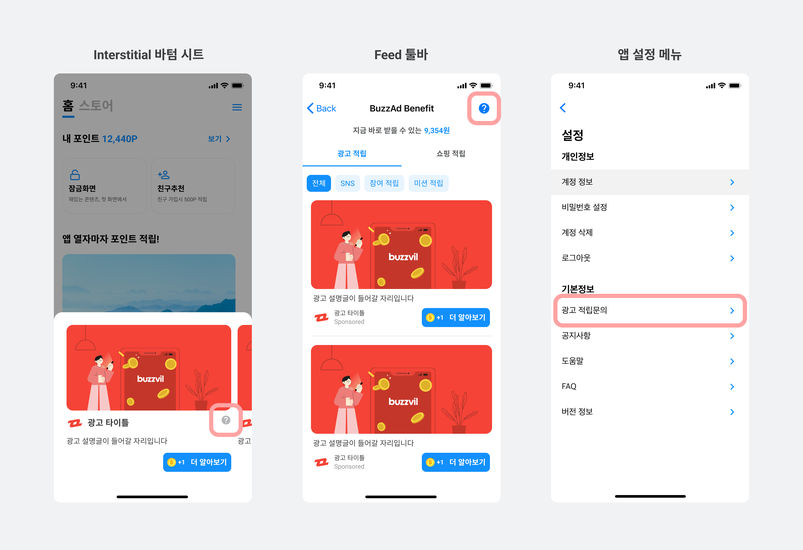
Follow these steps to add VOC support.
-
Design a UI element (an icon or tab) that opens the VOC support page.
-
Call the code below when the user clicks the UI you designed in step 1.
- The
YOUR_UNIT_IDargument is required. Use the Unit ID for the relevant placement.
- The
BuzzAdBenefit.presentInquiryPage(on: YOUR_VIEW_CONTROLLER, unitId: @"YOUR_UNIT_ID")
[BuzzAdBenefit presentInquiryPageOnViewController:YOUR_VIEW_CONTROLLER unitId:@"YOUR_UNIT_ID"]
Change video autoplay settings
By default, video ads play automatically only when the device is connected to Wi-Fi. Choose one of the following autoplay settings.
| Autoplay setting | Description |
|---|---|
BZVVideoAutoPlayOnWifi | Autoplay only on Wi-Fi., This is the default. |
BZVVideoAutoPlayEnabled | Always autoplay, regardless of connection type. |
BZVVideoAutoPlayDisabled | Never autoplay, regardless of connection type. |
The following example enables autoplay only on Wi-Fi.
let userPreferences = BZVUserPreferences { builder in
  builder.autoPlayType = .onWifi
}
BuzzAdBenefit.setUserPreferences(userPreferences)
BZVUserPreferences *userPreferences = [BZVUserPreferences userPreferencesWithBlock:^(BZVUserPreferencesBuilder * _Nonnull builder) {
  builder.autoPlayType = BZVVideoAutoPlayOnWifi;
}];
[BuzzAdBenefit setUserPreferences:userPreferences];
Offline builds
You can integrate BuzzAd SDK for iOS and build your app offline. First, obtain the frameworks provided by Buzzvil, then add the frameworks and a run script to your project.
Frameworks for offline builds
Buzzvil provides the following frameworks for offline builds. Add all the frameworks listed below to your project for a successful build.
| Category | File name | Description |
|---|---|---|
| BuzzAdBenefit Framework | BuzzAdBenefit.framework | Framework providing shared functionality for ad placements |
BuzzAdBenefitBase.framework | Internal framework providing shared functionality used by ad placements | |
BuzzAdBenefitNative.framework | Framework for integrating Native placements | |
BuzzAdBenefitInterstitial.framework | Framework for integrating Interstitial placements | |
BuzzAdBenefitFeed.framework | Framework for integrating Feed placements | |
| Dependency | AFNetworking.framework | Framework for RESTful networking APIs |
SDWebImage.framework | Asynchronous image downloader with caching through a UIImageView category | |
SDWebImageWebPCoder.framework | Framework supporting encoding and decoding of static and animated WebP images | |
ReactiveObjC.framework | Objective-C framework providing APIs for composing and transforming streams of values | |
GoogleAds-IMA-iOS-SDK | SDK that requests ads from VAST-compatible ad servers and manages video ad playback in the app |
Add frameworks for offline builds
Follow these steps to add the offline build frameworks to your project.
- In the project menu, click the General tab.
- Click + in Embedded Binaries to add Buzzvil's offline-build frameworks.
Add a run script
Add a run script to remove unnecessary architectures from binaries built as universal frameworks.
Follow these steps to add the run script.
- Select your project, then open the Build Phases tab.
- Click + in the upper left and select New Run Script Phase.
- Paste the script below.
APP_PATH="${TARGET_BUILD_DIR}/${WRAPPER_NAME}"

find "$APP_PATH" -name '*.framework' -type d | while read -r FRAMEWORK; do
FRAMEWORK_EXECUTABLE_NAME=$(defaults read "$FRAMEWORK/Info.plist" CFBundleExecutable)
FRAMEWORK_EXECUTABLE_PATH="$FRAMEWORK/$FRAMEWORK_EXECUTABLE_NAME"

EXTRACTED_ARCHS=()

for ARCH in $ARCHS; do
echo "Extracting $ARCH from $FRAMEWORK_EXECUTABLE_NAME"
lipo -extract "$ARCH" "$FRAMEWORK_EXECUTABLE_PATH" -o "$FRAMEWORK_EXECUTABLE_PATH-$ARCH"
EXTRACTED_ARCHS+=("$FRAMEWORK_EXECUTABLE_PATH-$ARCH")
done

echo "Merging extracted architectures: ${ARCHS}"
lipo -o "$FRAMEWORK_EXECUTABLE_PATH-merged" -create "${EXTRACTED_ARCHS[@]}"
rm "${EXTRACTED_ARCHS[@]}"

echo "Replacing original executable with thinned version"
rm "$FRAMEWORK_EXECUTABLE_PATH"
mv "$FRAMEWORK_EXECUTABLE_PATH-merged" "$FRAMEWORK_EXECUTABLE_PATH"

done
Run the SDK only on iOS 11 and later
BuzzAd SDK for iOS runs on devices with iOS 11 or later. If your app supports earlier versions, call the SDK only on iOS 11 and later.
The following example calls BuzzAd SDK for iOS only on iOS 11 and later.
if #available(iOS 11, *) {
  // BuzzAd iOS용 SDK 코드
}
if (@available(iOS 11, *)) {
  // BuzzAd iOS용 SDK 코드
}
Check the ad type
Use the functions provided by BZVNativeAd to identify ad types in Feed and Native.
The following ad type functions are available in BZVNativeAd.
| Function | Description | Return value |
|---|---|---|
BZVNativeAd.revenueType | Returns revenueType as a string. | cpinsta: Awards points for following an Instagram account., cpa: Awards points for completing a specific action, such as signing up or requesting an insurance quote., cpe: Awards points for installing and launching an app., cpi: Awards points for installing an app., cpl: Awards points for following a Facebook account., cps: Awards points for completing a purchase., cpyoutube: Awards points for subscribing to a YouTube channel., cpylike: Awards points for subscribing to a YouTube channel and liking a video., cptiktok: Awards points for following a TikTok account., cpnstore: Awards points for favoriting a Naver Smart Store., cpq, cpqlite, cpcquiz: Awards points for answering a quiz correctly., cpk: Awards points for adding a Kakao page., cpc: Awards points for clicking through to the advertiser's page., cpm: The advertiser pays for every 1,000 ad impressions., cpv: Awards points for watching a video to completion., -cps: Includes all ads except cps ads. |
BZVNativeAd.isActionType | Returns a boolean indicating whether this is an action-based (cpa) ad. | true: A cpa ad., false: Not a cpa ad. |
BZVNativeAd.isCps | Returns a boolean indicating whether this is a shopping (cps) ad. | true: A cps ad., false: Not a cps ad. |
The following example checks the ad type using BZVNativeAd.
let isActionType = nativeAd.isActionType()
let isCps = nativeAd.isCps()
let revenueType = nativeAd.revenueType
BOOL isActionType = [nativeAd isActionType];
BOOL isCps = [nativeAd isCps];
BZVRevenueType revenueType = nativeAd.revenueType;