Basic setup
Learn the basic steps for integrating Feed, including displaying the placement and allocating ads.
Prerequisites
- Complete Getting started.
- A Unit ID for Feed, referred to below as
YOUR_FEED_UNIT_ID.
Initialize Feed
Add BZVFeedConfig to BZVConfig.
import BuzzAdBenefit

@main
final class AppDelegateSwift: UIResponder, UIApplicationDelegate {
  func application(_ application: UIApplication, didFinishLaunchingWithOptions launchOptions: [UIApplication.LaunchOptionsKey : Any]? = nil) -> Bool {
    let config = BZVConfig { builder in
      builder.appId = "YOUR_APP_ID"
      builder.defaultFeedConfig = BZVFeedConfig { builder in
        builder.unitId = "YOUR_FEED_UNIT_ID"
        builder.title = "YOUR_TITLE"
      }
    }
    BuzzAdBenefit.initialize(with: config)
    return true
  }
}
@import BuzzAdBenefit;

@implementation AppDelegate

- (BOOL)application:(UIApplication *)application didFinishLaunchingWithOptions:(NSDictionary *)launchOptions {
  BZVConfig *config = [BZVConfig configWithBlock:^(BZVConfigBuilder * _Nonnull builder) {
    builder.appId = @"YOUR_APP_ID";
    builder.defaultFeedConfig = [BZVFeedConfig configWithBlock:^(BZVFeedConfigBuilder * _Nonnull builder) {
      builder.unitId = @"YOUR_FEED_UNIT_ID";
      builder.title = @"YOUR_TITLE";
    }];
  }];
  [BuzzAdBenefit initializeWithConfig:config];
  return YES;
}

@end
Display Feed
Feed appears as the top view controller on the navigation stack or as a modal view controller, depending on whether you use navigationController.
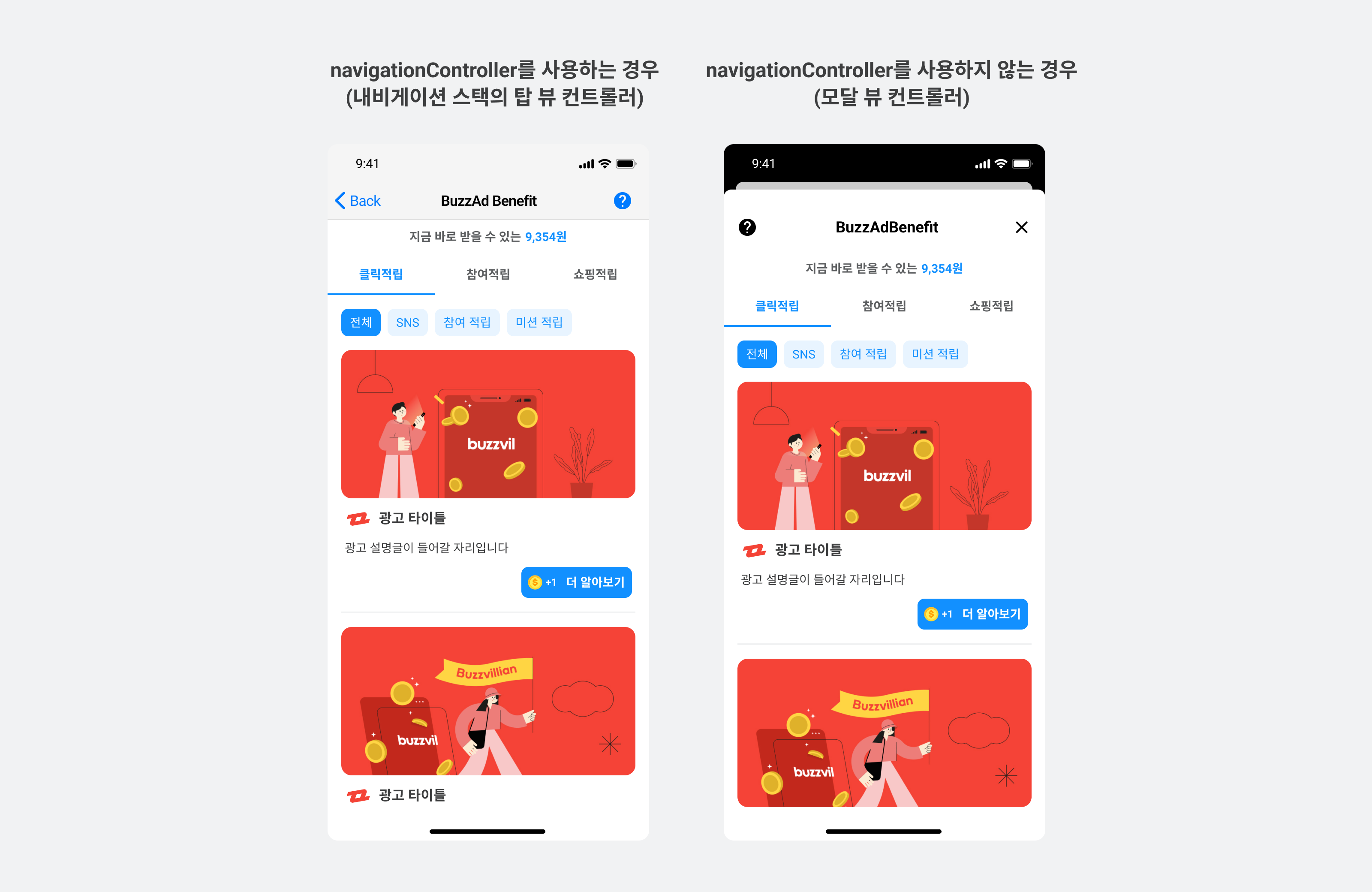
If Feed is displayed before ads have been loaded, ads are loaded automatically.
import BuzzAdBenefit

final class ViewController: UIViewController {
  let buzzAdFeed = BZVBuzzAdFeed { builder in }

  override func viewDidLoad() {
    super.viewDidLoad()
  }

  // navigationController를 사용하는 경우
  private func pushFeedViewController() {
    let feedViewController = buzzAdFeed.viewController
    self.navigationController?.pushViewController(feedViewController, animated: true)
  }

  // navigationController를 사용하지 않는 경우
  private func presentFeedViewController() {
    let feedViewController = buzzAdFeed.viewController
    self.present(feedViewController, animated: true, completion: nil)
  }
}
@import BuzzAdBenefit;

@interface ViewController ()

@property (nonatomic, strong, readonly) BZVBuzzAdFeed *buzzAdFeed;

@end

@implementation ViewController

- (void)viewDidLoad {
  [super viewDidLoad];

  _buzzAdFeed = [BZVBuzzAdFeed feedWithBlock:^(BZVBuzzAdFeedBuilder * _Nonnull builder) {}];
}

// navigationController를 사용하는 경우
- (void)pushFeedViewController {
  BZVFeedViewController *feedViewController = [_buzzAdFeed viewController];
  [self.navigationController pushViewController:feedViewController animated:YES];
}

// navigationController를 사용하지 않는 경우
- (void)presentFeedViewController {
  BZVFeedViewController *feedViewController = [_buzzAdFeed viewController];
  [self presentViewController:feedViewController animated:YES completion:nil];
}

@end
Display Feed with a different configuration
In addition to the default Feed using BZVFeedConfig configured through DefaultFeedConfig, you can display a differently configured Feed. Register a new BZVFeedConfig in BuzzAdFeed.
See the following example.
let buzzAdFeed = BZVBuzzAdFeed { builder in
  builder.config = BZVFeedConfig { builder in
    builder.unitId = "SECOND_FEED_UNIT_ID"
  }
}

let feedViewController = buzzAdFeed.viewController
self.present(feedViewController, animated: true, completion: nil)
_buzzAdFeed = [BZVBuzzAdFeed feedWithBlock:^(BZVBuzzAdFeedBuilder * _Nonnull builder) {
  builder.config = [BZVFeedConfig configWithBlock:^(BZVFeedConfigBuilder * _Nonnull builder) {
    builder.unitId = @"SECOND_FEED_UNIT_ID";
  }];
}];

BZVFeedViewController *feedViewController = [_buzzAdFeed viewController];
[self presentViewController:feedViewController animated:YES completion:nil];
Allocate and display ads
Call load on the BZVBuzzAdFeed instance to load ads. Calling load again refreshes the placement with new ads.
The following example displays Feed after allocating ads. Preloading before the user enters Feed avoids showing the “No ads available” message.
buzzAdFeed.load {
  let feedTotalReward = self.buzzAdFeed.availableRewards // 적립 가능한 총 포인트 금액

  let feedViewController = self.buzzAdFeed.viewController
  self.present(feedViewController, animated: true, completion: nil)
} onFailure: { error in
  // 광고가 없을 경우 호출됩니다. error를 통해 원인을 알 수 있습니다.
}
[_buzzAdFeed loadOnSuccess:^{
  NSInteger feedTotalReward = self.buzzAdFeed.availableRewards; // 적립 가능한 총 포인트 금액

  BZVFeedViewController *feedViewController = self.buzzAdFeed.viewController;
  [self presentViewController:feedViewController animated:YES completion:nil];
} onFailure:^(NSError * _Nonnull error) {
  // 광고가 없을 경우 호출됩니다. error를 통해 원인을 알 수 있습니다.
}];