Customization
Change the global theme
Customize the colors, icons and other theme elements of the BuzzAd Android SDK's default placement UI.
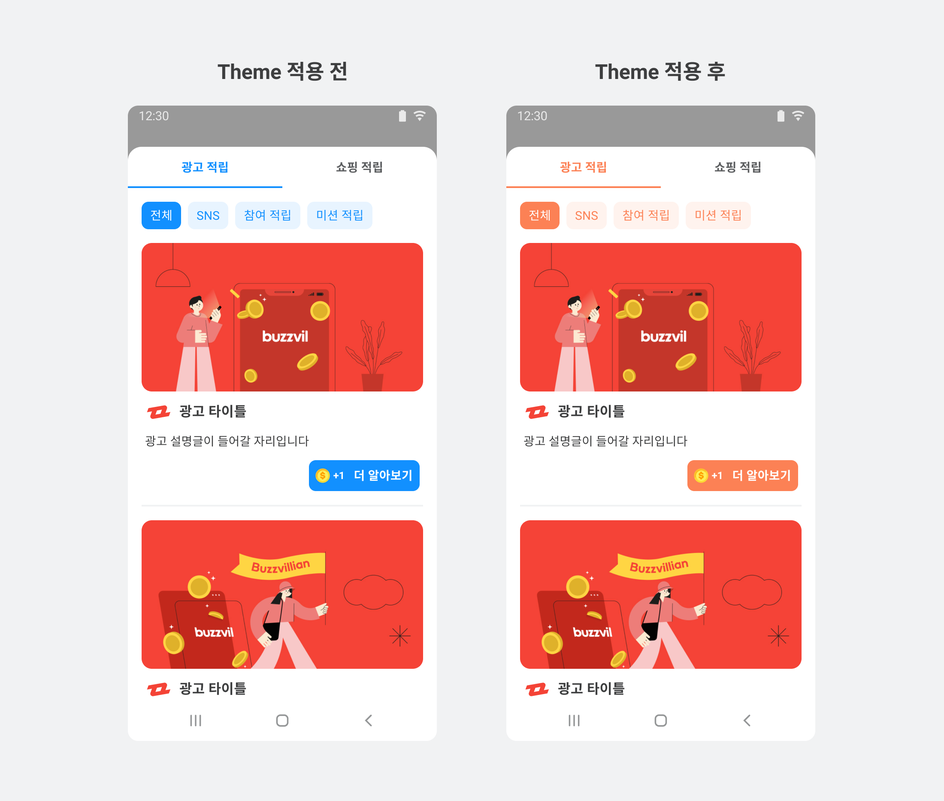
Buzzvil recommends configuring the theme in Application.onCreate. The UI elements controlled by each property are listed below.
| Property | Customizable UI |
|---|---|
rewardIcon |
|
participatedIcon |
|
ctaBackgroundSelector |
|
ctaTextColorSelector |
|
ctaTextSize |
|
colorPrimaryDarkcolorPrimarycolorPrimaryLightcolorPrimaryLightercolorPrimaryLightest |
|
Change the primary color
Use GlobalTheme to change the primary color of key SDK UI elements across all placements, including dialog buttons and bottom sheet confirmation buttons.
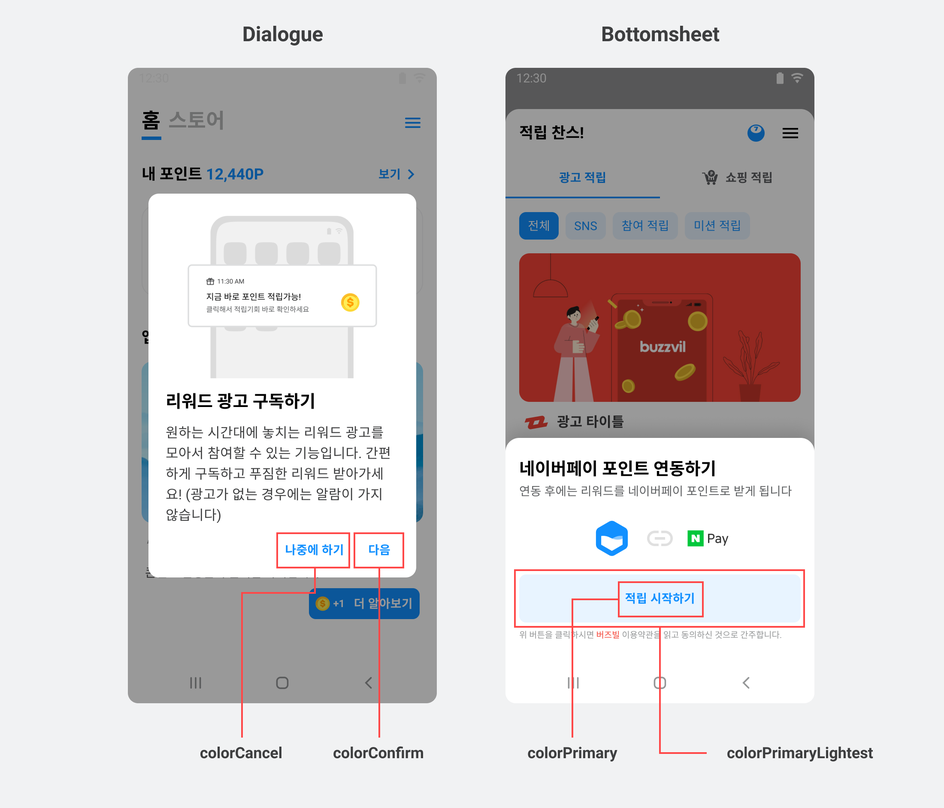
The following example changes the primary color across all placements in your app.
BuzzAdTheme buzzAdTheme = new BuzzAdTheme()
    ...생략...
    .colorPrimary(R.color.your_primary_color)
    .colorPrimaryDark(R.color.your_primary_color_dark)
    .colorPrimaryLight(R.color.your_primary_color_light)
    .colorPrimaryLighter(R.color.your_primary_color_lighter)
    .colorPrimaryLightest(R.color.your_primary_color_lightest);
BuzzAdTheme.setGlobalTheme(buzzAdTheme);

BuzzAdBenefit.init(...);
Change the reward icon
The following example adds rewardIcon to BuzzAdTheme to change the reward icon.
BuzzAdTheme buzzAdTheme = new BuzzAdTheme()
    ...생략...
    .rewardIcon(R.drawable.your_reward_icon);
BuzzAdTheme.setGlobalTheme(buzzAdTheme);

BuzzAdBenefit.init(...);
Customize CTA buttons
Customize the CTA button design provided by the BuzzAd Android SDK.

Set GlobalTheme to change CTA buttons across all placement types, or customize each placement individually.
You can also set GlobalTheme and then override the CTA design for individual placements. Buzzvil recommends setting GlobalTheme first, followed by individual overrides, to manage designs efficiently.
Change CTA buttons across all placements
Configure GlobalTheme to set the CTA button design for Feed, Native and Interstitial together.
Options whose names include selector, such as ctaBackgroundSelector and ctaTextColorSelector, require the specified resource to include <selector> according to Android's resource rules. See the Android documentation.
To change CTA buttons across all placements, configure onCreate in Application as follows.
BuzzAdTheme buzzAdTheme = new BuzzAdTheme()
    ...생략...
    .participatedIcon(R.drawable.your_participated_icon) // 광고 참여 완료 후 CTA 버튼의 아이콘
    .ctaBackgroundSelector(R.drawable.your_cta_background) // CTA 버튼의 배경 색상(state_enabled 필수 적용)
    .ctaTextColorSelector(R.color.your_cta_text_color) // CTA 버튼의 텍스트 색상
    .ctaTextSize(R.dimen.your_cta_text_size);// CTA 버튼의 텍스트 크기
BuzzAdTheme.setGlobalTheme(buzzAdTheme);

BuzzAdBenefit.init(...);
The following example sets the CTA button background color (ctaBackgroundSelector).
<?xml version="1.0" encoding="utf-8"?>
<selector xmlns:android="http://schemas.android.com/apk/res/android">
    <item android:state_pressed="true">
        <shape>
            <solid android:color="@color/colorPrimaryDark"/>
            <corners android:radius="4dp"/>
        </shape>
    </item>
    <item android:state_enabled="false">
        <shape>
            <solid android:color="@color/gray"/>
            <corners android:radius="4dp"/>
        </shape>
    </item>
    <item>
        <shape>
            <solid android:color="@color/colorPrimary"/>
            <corners android:radius="4dp"/>
        </shape>
    </item>
</selector>
Change the Feed CTA button design
The following example configures elements in BuzzAdFeedTheme to customize Feed CTA buttons.
final BuzzAdFeedTheme buzzAdFeedTheme =
      BuzzAdFeedTheme.getDefault()
          ...생략...
          .ctaBackgroundSelector(R.color.your_background_color) // CTA 버튼의 배경 색상. state_enabled 필수
          .ctaTextColorSelector(R.color.your_text_color)  // CTA 버튼의 텍스트 색상
          .rewardIcon(R.drawable.your_reward_icon) // 리워드 아이콘. 광고 참여전 CTA 버튼의 아이콘
          .participatedIcon(R.drawable.your_participated_icon); // 광고 참여 완료 후 CTA 버튼의 아이콘
final BuzzAdFeed buzzAdFeed = new BuzzAdFeed.Builder()
                                .theme(buzzAdFeedTheme)
                                .build();
Change the Interstitial CTA button design
The following example configures elements in BuzzAdInterstitialTheme to customize Interstitial CTA buttons.
final BuzzAdInterstitialTheme theme =
    BuzzAdInterstitialTheme
        .getDefault()
        .ctaBackgroundSelector(R.color.your_background_color)
        .ctaTextColorSelector(R.color.your_text_color)
        .ctaTextSize(R.dimen.your_cta_text_size)
        .rewardIcon(R.drawable.your_reward_icon);
final BuzzAdInterstitial buzzAdInterstitial =
    new BuzzAdInterstitial.Builder("YOUR_INTERSTITIAL_UNIT_ID")
        ...생략...
        .theme(theme)
        .buildDialog();
Change how ads open
The BuzzAd Android SDK passes the URL of the clicked ad or content to Launcher. launch() determines which browser opens it: an external browser, Buzzvil's in-app browser or your own custom in-app browser.
The SDK's default launcher automatically chooses between an external browser and Buzzvil's in-app browser according to the ad settings. Register a custom launcher to use your own in-app browser.
Use a custom in-app browser
Implement your browser, create a launcher to open it, then register the launcher in BuzzAdBenefit.
Implement a custom in-app browser
The following example implements a custom in-app browser. You must use BuzzAdBrowser.getInstance(this).getFragment(url); otherwise, action-based ads and time-based reward ads may not work correctly.
public class CustomBrowserActivity extends AppCompatActivity {
    public static final String KEY_URL = "com.sample.KEY_URL";
    private BuzzAdBrowserFragment fragment;

    @Override
    protected void onCreate(@Nullable Bundle savedInstanceState) {
        super.onCreate(savedInstanceState);
        setContentView(R.layout.activity_custom_browser);

        // URL을 KEY로 하여 WebView를 가지고있는 Fragment를 받아와 사용합니다.
        Intent intent = getIntent();
        fragment = BuzzAdBrowser.getInstance(this).getFragment(intent.getStringExtra(KEY_URL));
        getSupportFragmentManager().beginTransaction().replace(R.id.browserContainer, fragment).commit();
        final BuzzAdWebView webView = fragment.getWebView();

        // Browser의 이벤트를 받을 수 있습니다. DeepLink가 열렸을 경우, Browser를 닫아주어야 빈 페이지가 보여지는 현상을 방지할 수 있습니다.
        BuzzAdBrowser.getInstance(this).addBrowserEventListener(new BuzzAdBrowser.OnBrowserEventListener() {
            @Override
            public void onDeepLinkOpened() {
                finish();
            }
        });
    }

    // Optional - BackButton을 눌렀을때 뒤로가기 기능
    @Override
    public void onBackPressed() {
    final BuzzAdWebView webView = fragment.getWebView();
        if (webView != null && webView.canGoBack()) {
            webView.goBack();
        } else {
            super.onBackPressed();
        }
    }
}
The following example implements the custom browser layout.
<?xml version="1.0" encoding="utf-8"?>
<FrameLayout xmlns:android="http://schemas.android.com/apk/res/android"
    android:layout_width="match_parent"
    android:layout_height="match_parent">
    <FrameLayout
        android:id="@+id/browserContainer"
        android:layout_width="match_parent"
        android:layout_height="match_parent" />
</FrameLayout>
Implement a custom launcher
Implement a custom launcher to use your browser. You can define different behavior for ads and content, and set a deep link for the content's sourceUrl.
The following example implements a custom launcher that opens ads in your custom in-app browser.
public class MyLauncher implements Serializable, Launcher {

    @Override
    public void launch(@NonNull Context context, @NonNull LaunchInfo launchInfo) {
        launch(context, launchInfo, null);
    }

    @Override
    public void launch(@NonNull final Context context, @NonNull final LaunchInfo launchInfo, @Nullable final LauncherEventListener listener) {
        launch(context, launchInfo, listener, null);
    }

    @Override
    public void launch(@NonNull final Context context, @NonNull final LaunchInfo launchInfo, @Nullable final LauncherEventListener listener, @Nullable List<Class<? extends BuzzAdJavascriptInterface>> javascriptInterfaces) {

        // 커스텀 인앱 브라우저를 실행합니다.
        final Intent intent = new Intent(context, CustomBrowserActivity.class);
        intent.setFlags(Intent.FLAG_ACTIVITY_NEW_TASK);
        intent.putExtra(CustomBrowserActivity.KEY_URL, launchInfo.getUri().toString()); // URI는 변경 하면 안 됨
        context.startActivity(intent);
    }
}
Register the custom launcher
Register your custom launcher in BuzzAdBenefit as shown below.
BuzzAdBenefit.setLauncher(new MyLauncher());