UI configuration
Global theme
You can customize the theme of the Buzzvil SDK's default UI, including colors and icon images for ad placements and CTAs.
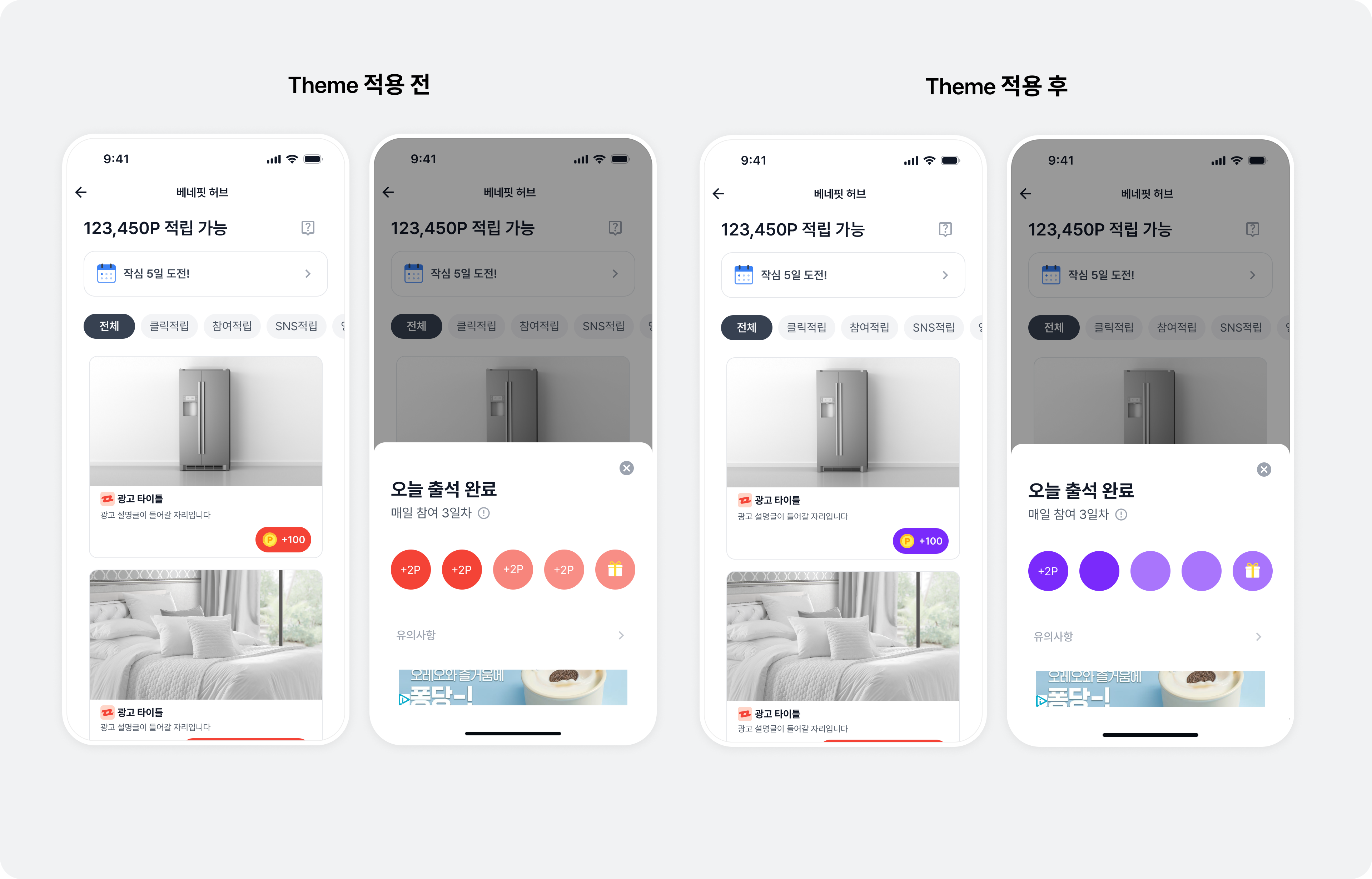
Primary color
Change the primary color of key SDK UI elements across all placements, including dialog buttons and bottom sheet confirmation buttons.
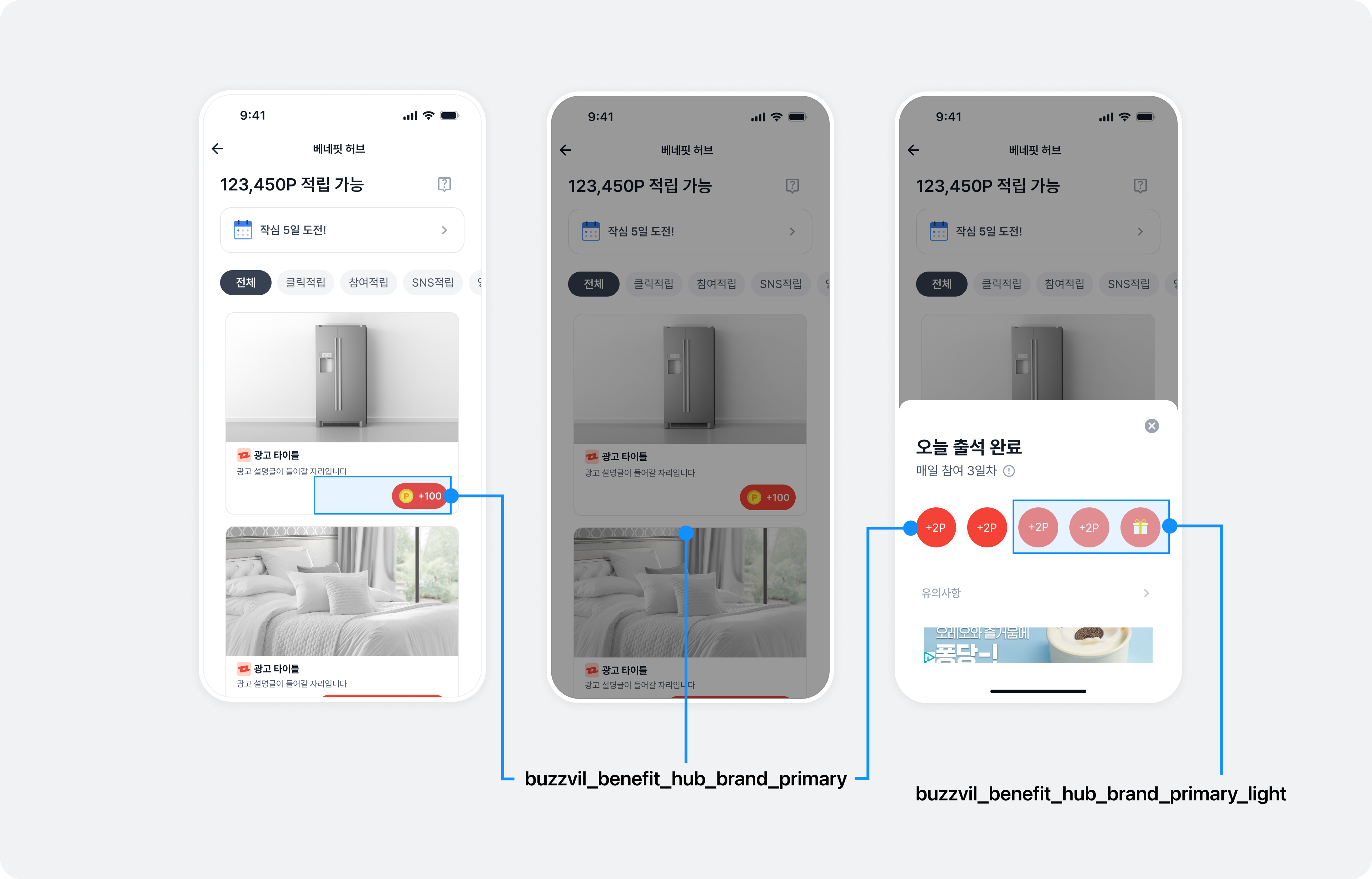
Add color resources as shown below to change the primary color.
import BuzzvilSDK

@main
class AppDelegate: UIResponder, UIApplicationDelegate {
    func application(_ application: UIApplication, didFinishLaunchingWithOptions launchOptions: [UIApplication.LaunchOptionsKey: Any]? = nil) -> Bool {
        let config = ...

        // BuzzBenefit.initialize()를 호출하기 전에  GlobalTheme을 설정합니다.
        let theme = BuzzBenefitTheme { builder in
          builder.primaryColor = YOUR_PRIMARY_COLOR
          builder.primaryLightColor = YOUR_PRIMARY_LIGHT_COLOR
        }

        BuzzBenefit.shared.setGlobalTheme(theme)

        BuzzBenefit.shared.initialize(with: config)
        return true
    }
}
@import BuzzvilSDK;

@implementation AppDelegate

- (BOOL)application:(UIApplication *)application didFinishLaunchingWithOptions:(NSDictionary *)launchOptions {
    BuzzBenefitConfig *config = ...

    // BuzzBenefit.initialize()를 호출하기 전에  GlobalTheme을 설정합니다.
    BuzzBenefitTheme *theme = [BuzzBenefitTheme themeWithBlock:^(BuzzBenefitThemeBuilder * _Nonnull builder) {
      builder.primaryColor = YOUR_PRIMARY_COLOR;
      builder.primaryLightColor = YOUR_PRIMARY_LIGHT_COLOR;
    }];
    [[BuzzBenefit sharedInstance] setGlobalTheme:theme];

    [[BuzzBenefit sharedInstance] initializeWithConfig:config];
    return YES;
}

@end
Reward icon
Customize icons in SDK UI elements such as CTA buttons.
The following example adds rewardIcon to BuzzBenefitTheme to change the reward icon. The table lists the UI controlled by each property.
| Property | Configurable UI |
|---|---|
rewardIcon | All placements: CTA reward icon., BenefitHub: profile input banner reward icon., BenefitHub: Pop opt-in button icon. |
participatedIcon | All placements: CTA view. |
import BuzzvilSDK

@main
class AppDelegate: UIResponder, UIApplicationDelegate {
    func application(_ application: UIApplication, didFinishLaunchingWithOptions launchOptions: [UIApplication.LaunchOptionsKey: Any]? = nil) -> Bool {
        let config = ...

        // BuzzBenefit.initialize()를 호출하기 전에  GlobalTheme을 설정합니다.
        let theme = BuzzBenefitTheme { builder in
          builder.rewardIcon = YOUR_REWARD_ICON
          builder.participatedIcon = YOUR_PARTICIPATED_ICON
        }
        BuzzBenefit.shared.setGlobalTheme(theme)

        BuzzBenefit.shared.initialize(with: config)
        return true
    }
}
@import BuzzvilSDK;

@implementation AppDelegate

- (BOOL)application:(UIApplication *)application didFinishLaunchingWithOptions:(NSDictionary *)launchOptions {
    BuzzBenefitConfig *config = ...

    // BuzzBenefit.initialize()를 호출하기 전에  GlobalTheme을 설정합니다.
    BuzzBenefitTheme *theme = [BuzzBenefitTheme themeWithBlock:^(BuzzBenefitThemeBuilder * _Nonnull builder) {
      builder.rewardIcon = YOUR_REWARD_ICON;
      builder.participatedIcon = YOUR_PARTICIPATED_ICON;
    }];
    [[BuzzBenefit sharedInstance] setGlobalTheme:theme];

    [[BuzzBenefit sharedInstance] initializeWithConfig:config];
    return YES;
}

@end
Implement a custom CTA button
Implement custom CTA buttons instead of the default UI. You can use them in BenefitHub and Native.
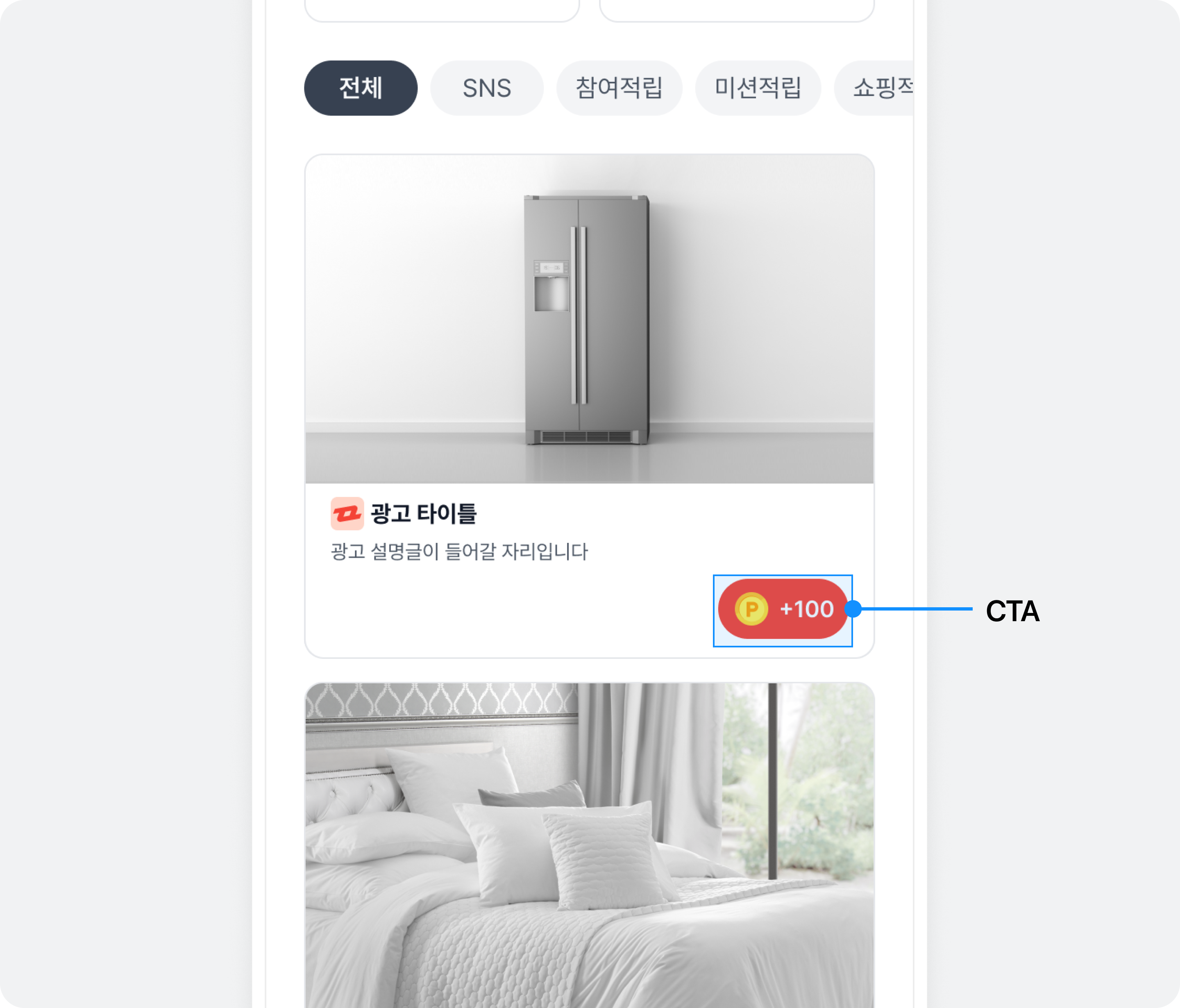
To implement your own CTA button, create a subclass of UIView that conforms to the CtaViewProtocol protocol.
The following example creates a CTA View class using UIStackView.
import UIKit
import BuzzvilSDK

final class CustomCtaView: UIStackView, BZVCtaViewProtocol {
  let rewardImageView = UIImageView(frame: .zero)
  let rewardLabel = UILabel(frame: .zero)
  let ctaLabel = UILabel(frame: .zero)

  required init(coder: NSCoder) {
    super.init(coder: coder)
    setUpView()
  }

  override init(frame: CGRect) {
    super.init(frame: frame)
    setUpView()
  }

  private func setUpView() {
    addArrangedSubview(rewardImageView)
    addArrangedSubview(rewardLabel)
    addArrangedSubview(ctaLabel)
  }

  // MARK: BZVCtaViewProtocol
  func renderRewardNotAvailableViewState(withCtaText ctaText: String) {
    // 리워드가 없는 광고에 대한 CTA 뷰 레이아웃을 정의합니다.
    rewardImageView.isHidden = true
    rewardLabel.isHidden = true
    ctaLabel.text = ctaText
  }

  func renderRewardAvailableViewState(withCtaText ctaText: String, reward: Int) {
    // 리워드가 있는 광고에 대한 CTA 뷰 레이아웃을 정의합니다.
    rewardImageView.isHidden = false
    rewardLabel.isHidden = false

    rewardImageView.image = UIImage(named: "YOUR_REWARD_IMAGE")
    rewardLabel.text = "+\(reward)"
    ctaLabel.text = ctaText
  }

  func renderParticipatingViewState(withCtaText ctaText: String) {
    // 참여 확인 중인 광고에 대한 CTA 뷰 레이아웃을 정의합니다.
    rewardImageView.isHidden = true
    rewardLabel.isHidden = true
    ctaLabel.text = "YOUR_PARTICIPATING_TEXT"
  }

  func renderParticipatedViewState(withCtaText ctaText: String) {
    // 참여 완료한 광고에 대한 CTA 뷰 레이아웃을 정의합니다.
    rewardImageView.isHidden = false
    rewardLabel.isHidden = true

    rewardImageView.image = UIImage(named: "YOUR_PARTICIPATED_IMAGE")
    ctaLabel.text = "YOUR_PARTICIPATED_TEXT"
  }
}
@import UIKit;
@import BuzzvilSDK;

@interface CustomCtaView : UIStackView <BZVCtaViewProtocol>

@end

@interface CustomCtaView ()

@property (nonatomic, strong, readonly) UIImageView *rewardImageView;
@property (nonatomic, strong, readonly) UILabel *rewardLabel;
@property (nonatomic, strong, readonly) UILabel *ctaLabel;

@end

@implementation CustomCtaView

- (instancetype)initWithCoder:(NSCoder *)coder {
  if (self = [super initWithCoder:coder]) {
    [self setupView];
  }
  return self;
}

- (instancetype)initWithFrame:(CGRect)frame {
  if (self = [super initWithFrame:frame]) {
    [self setupView];
  }
  return self;
}

- (void)setupView {
  _rewardImageView = [[UIImageView alloc] initWithFrame:CGRectZero];
  [self addArrangedSubview:_rewardImageView];

  _rewardLabel = [[UILabel alloc] initWithFrame:CGRectZero];
  [self addArrangedSubview:_rewardLabel];

  _ctaLabel = [[UILabel alloc] initWithFrame:CGRectZero];
  [self addArrangedSubview:_ctaLabel];
}

#pragma mark - BZVCtaViewProtocol
- (void)renderRewardNotAvailableViewStateWithCtaText:(NSString *)ctaText {
  // 리워드가 없는 광고에 대한 CTA 뷰 레이아웃을 정의합니다.
  [_rewardImageView setHidden:YES];
  [_rewardLabel setHidden:YES];
  [_ctaLabel setText:ctaText];
}

- (void)renderRewardAvailableViewStateWithCtaText:(NSString *)ctaText reward:(NSInteger)reward {
  // 리워드가 있는 광고에 대한 CTA 뷰 레이아웃을 정의합니다.
  [_rewardImageView setHidden:NO];
  [_rewardLabel setHidden:NO];

  [_rewardImageView setImage:[UIImage imageNamed:@"YOUR_REWARD_IMAGE"]];
  [_rewardLabel setText:[NSString stringWithFormat:@"+%ld", reward]];
  [_ctaLabel setText:ctaText];
}

- (void)renderParticipatingViewStateWithCtaText:(NSString *)ctaText {
  // 참여 확인 중인 광고에 대한 CTA 뷰 레이아웃을 정의합니다.
  [_rewardImageView setHidden:YES];
  [_rewardLabel setHidden:YES];
  [_ctaLabel setText:@"YOUR_PARTICIPATING_TEXT"];
}

- (void)renderParticipatedViewStateWithCtaText:(NSString *)ctaText {
  // 참여 완료한 광고에 대한 CTA 뷰 레이아웃을 정의합니다.
  [_rewardImageView setHidden:NO];
  [_rewardLabel setHidden:YES];

  [_rewardImageView setImage:[UIImage imageNamed:@"YOUR_PARTICIPATED_IMAGE"]];
  [_ctaLabel setText:@"YOUR_PARTICIPATED_TEXT"];
}

@end
Apply the custom CTA button to GlobalTheme
Add ctaViewClass to BuzzBenefitTheme to apply your custom CTA button.
import BuzzvilSDK

@main
class AppDelegate: UIResponder, UIApplicationDelegate {
    func application(_ application: UIApplication, didFinishLaunchingWithOptions launchOptions: [UIApplication.LaunchOptionsKey: Any]? = nil) -> Bool {
        let config = ...

        // BuzzBenefit.initialize()를 호출하기 전에  GlobalTheme을 설정합니다.
        let theme = BuzzBenefitTheme { builder in
          // ...
          builder.ctaViewClass = CustomCtaView.self
        }

        BuzzBenefit.shared.setGlobalTheme(theme)

        // ...
        return true
    }
}
@import BuzzvilSDK;

@implementation AppDelegate

- (BOOL)application:(UIApplication *)application didFinishLaunchingWithOptions:(NSDictionary *)launchOptions {
    BuzzBenefitConfig *config = ...

    // BuzzBenefit.initialize()를 호출하기 전에  GlobalTheme을 설정합니다.
    BuzzBenefitTheme *theme = [BuzzBenefitTheme themeWithBlock:^(BuzzBenefitThemeBuilder * _Nonnull builder) {
      // ...
      builder.ctaViewClass = [CustomCtaView class];
    }];
    [[BuzzBenefit sharedInstance] setGlobalTheme:theme];

    // ...
    return YES;
}

@end
Native
Native overlay UI
Configure overlay images and text in Buzzvil Dash Admin.
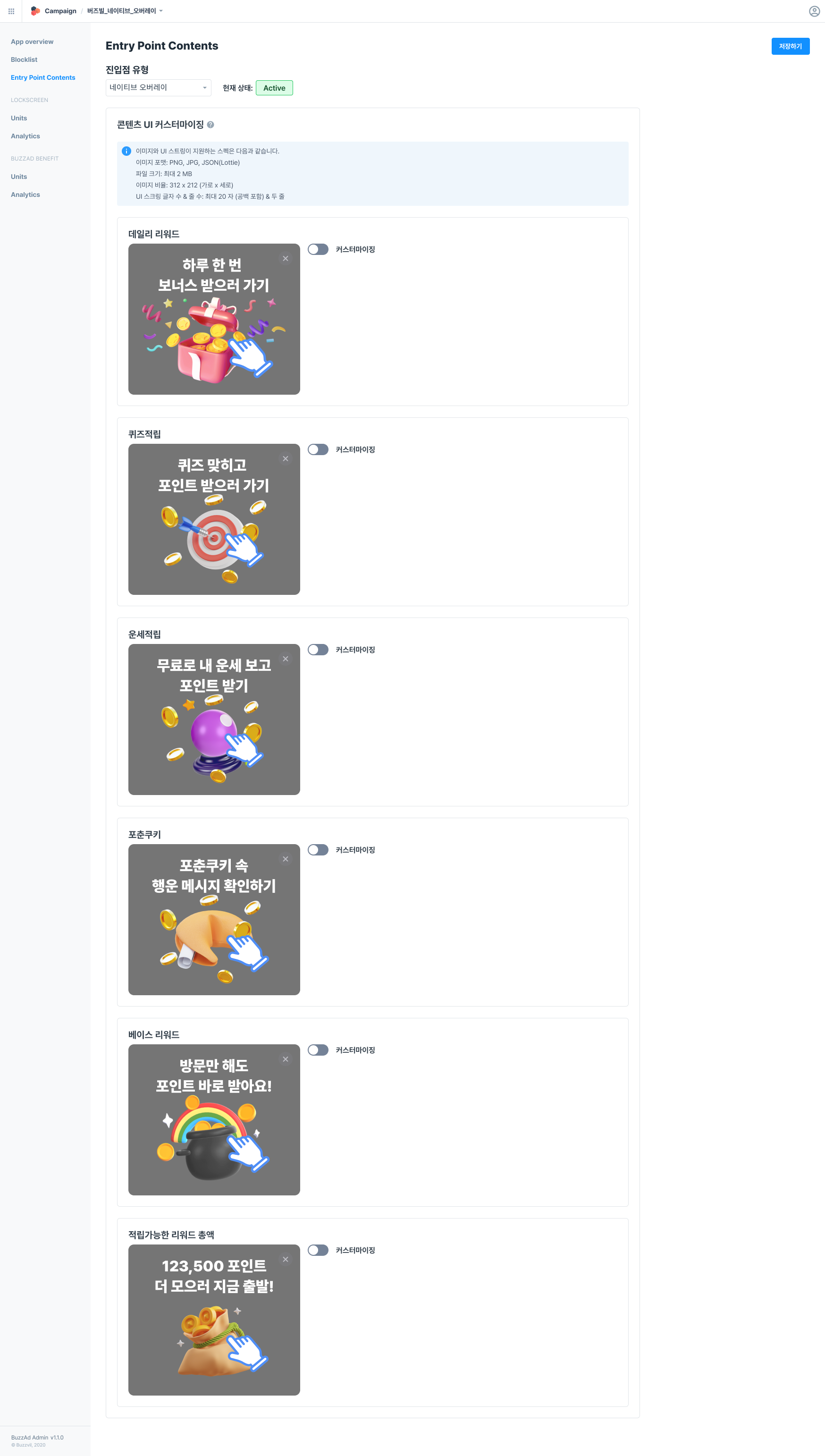
Follow these steps to configure Native Overlay UI.
- Open Buzzvil Dash Admin (https://dashboard.buzzvil.com/).
- Find and select your app in Inventory Manager, then open Entry Point Contents in the left menu.
- Select “Native Overlay” from the Entry point type dropdown.
- Enable Customization for each overlay type.
- Add your images and UI strings.
- Preview changes in real time.
- Unconfigured overlays use Buzzvil's default UI.
- Supported image and UI text specifications:
- Image formats: PNG, JPG, JSON (Lottie)
- File size: Up to 2 MB - Image ratio: 312 × 212, width × height.
- UI text: Up to 20 characters, including spaces, across two lines
- Click Save in the upper-right corner.
BenefitHub
This section explains how to change the design of the UI provided by the Buzzvil SDK.
Lucky Box
Customize Lucky Box strings and images without an SDK patch. Send the settings and content you want to change to help@buzzvil.com.
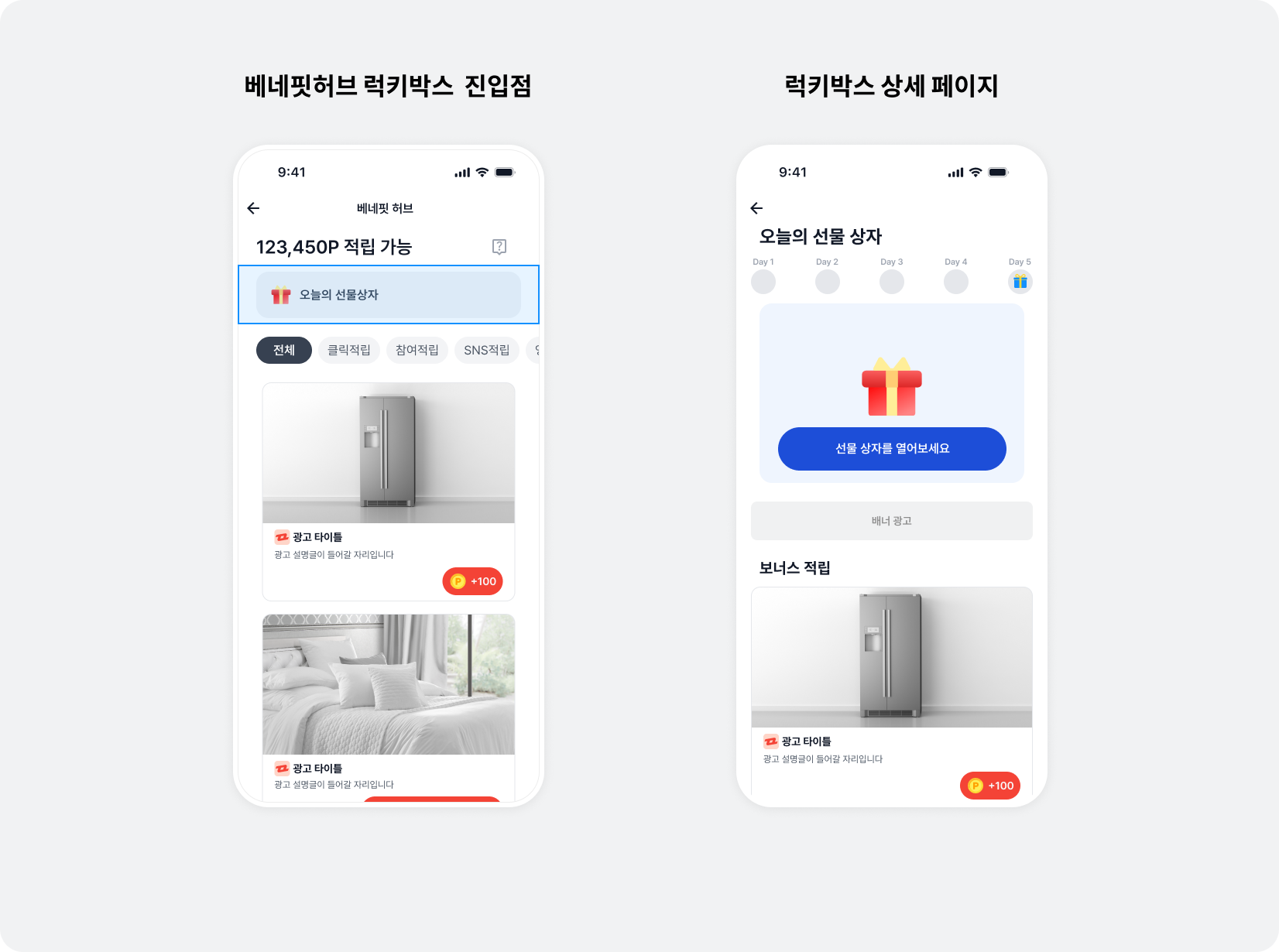
| Item | Description |
|---|---|
| Promotion name | Title at the top of Lucky Box details., Maximum 15 characters, including spaces., Default meaning: “Today's gift box.” |
| Entry point before and after participation | Icon and text shown in BenefitHub., Default meanings: “Today's gift box” before participation; “See you tomorrow!” afterward. |
| Participation progress icons | Icons for days 1–5: not started, completed, recovery and streak bonus., 24 × 24, width × height., PNG, JPG or JSON (Lottie)., Maximum 2 MB. |
| Lucky Box CTA before and after participation | The CTA users tap to participate., Default meanings: “Open your gift box” before participation; “Completed! See you tomorrow” afterward. |
| Images before and after participation | Image above the Lucky Box CTA., 100 × 100, width × height., PNG, JPG or JSON (Lottie)., Maximum 2 MB. |
| Additional reward banner | A CPC-only banner below the Lucky Box banner after participation., 24 × 24, width × height., PNG, JPG or JSON (Lottie)., Maximum 2 MB., Default text meaning: “Tap for a bonus.” |
| Daily reward amount | Lucky Box reward granted once per day., Default: 1. |
| Streak reward amount | Additional reward granted on day five after five consecutive days of participation., Default: 2. |
| Streak completion text | Text announcing the streak reward., Default meaning: “You completed the streak!” |
| Streak completion text color | Color of the streak completion text., Format: hex., Default: FFFFFF. |
| Streak completion icon | Icon announcing the streak reward., 80 × 80, width × height., PNG, JPG or JSON (Lottie)., Maximum 2 MB. |
| Streak completion effects | Effect image surrounding the streak completion icon., 375 × 375, width × height., PNG, JPG or JSON (Lottie)., Maximum 2 MB. |
| Notices | Information and disclaimers about Lucky Box operation and reward policies., You can edit the reward amount guidance. |
Mission Pack
Customize MissionPack strings and images without an SDK patch. Send the settings and content you want to change to help@buzzvil.com.
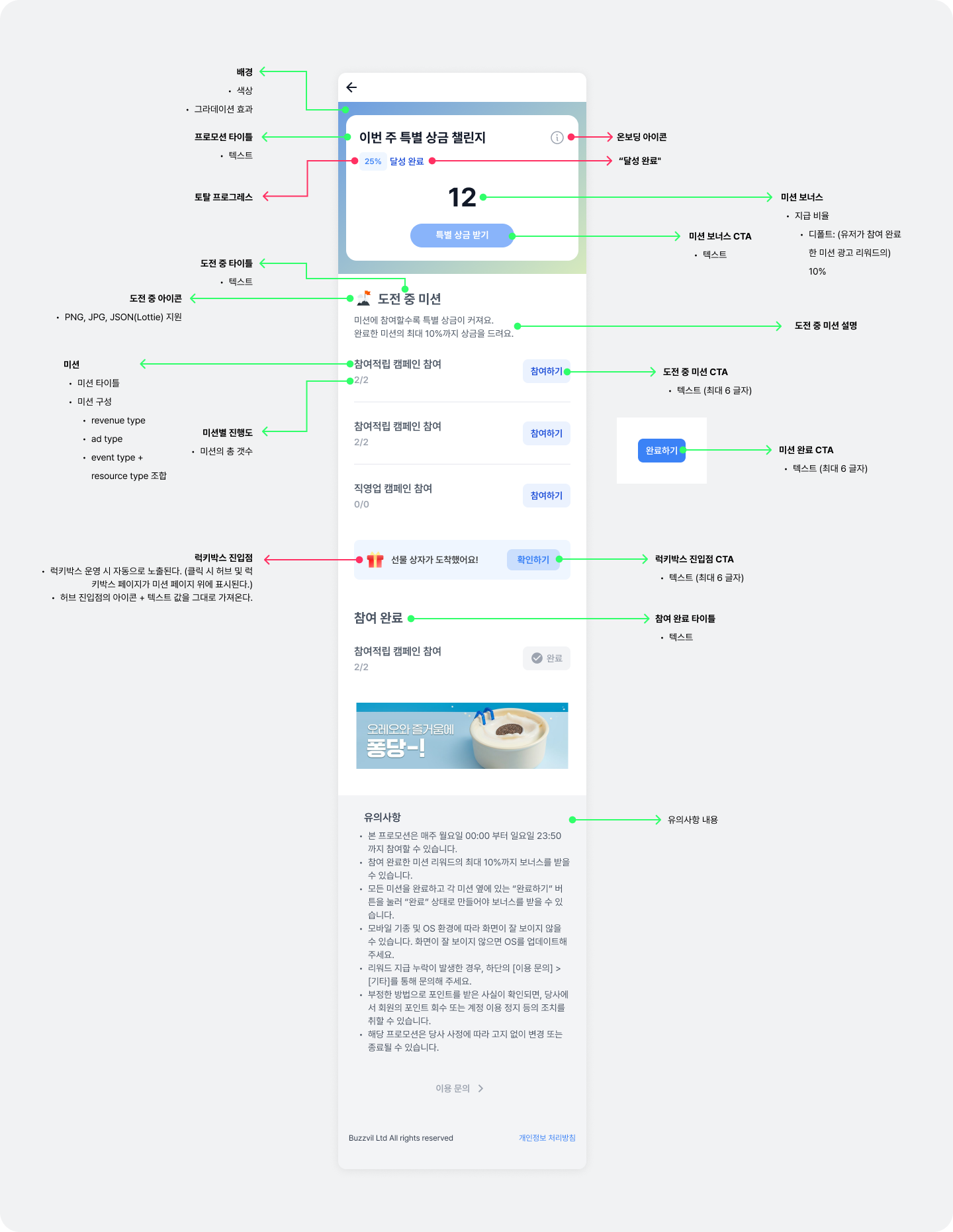
| Item | Detail | Description |
|---|---|---|
| BenefitHub entry point | Title | See the BenefitHub entry point image showing the title and icon. |
| BenefitHub entry point | Icon | See the BenefitHub entry point image showing the title and icon. |
| Background | Color | Apply element colors to BuzzBenefitTheme through primaryColor. |
| Background | Gradient | Apply backgroundGradientColors as the background color in BuzzBenefitTheme. See “Configure the MissionPack background gradient.” |
| Promotion title | Text | - |
| Mission bonus | Reward percentage | Grants n% of the rewards from completed missions as a bonus., Fractional bonus amounts are rounded to the nearest integer. |
| Mission bonus CTA | Text | - |
| Mission in progress | Title | - |
| Mission in progress | Icon | Supports PNG, JPG and JSON (Lottie). |
| Mission in progress | Description | See the “UI and mission settings” image., The bonus percentage follows the configured reward percentage. |
| Mission in progress | In-progress CTA | Maximum 6 characters. |
| Mission in progress | Completion CTA | Maximum 6 characters. |
| Completed participation | Title | - |
| Mission configuration | Mission title | - |
| Mission configuration | Criteria | revenue type: CPI, CPE, CPQ, CPQLITE, CPCQUIZ, CPYoutube, CPInsta, CPK, CPTiktok, CPL, CPYLike, CPNstore., ad type (Hub filters): click, action, social media, content, shopping and video rewards., event type + resource type: event features such as Lucky Box. |
| Mission configuration | Progress per mission | Number of ads in the mission. |
| Lucky Box entry point | CTA | Maximum 6 characters. |
| Notices | - | The default text automatically uses the configured mission bonus percentage. |
| Performance tracking unit | - |
|
| Participation credit unit | - | A unit whose ad participation counts toward MissionPack missions., ✅ Important Each MissionPack can have one or more participation credit units. |
Configure the MissionPack background gradient
import BuzzvilSDK

@main
class AppDelegate: UIResponder, UIApplicationDelegate {
    func application(_ application: UIApplication, didFinishLaunchingWithOptions launchOptions: [UIApplication.LaunchOptionsKey: Any]? = nil) -> Bool {
        let config = ...

        // BuzzBenefit.initialize()를 호출하기 전에  GlobalTheme을 설정합니다.
        let theme = BuzzBenefitTheme { builder in
          // ...
          builder.backgroundGradientColors = [YOUR_GRADIENT_UICOLOR, ...]
        }

        BuzzBenefit.shared.setGlobalTheme(theme)

        // ...
        return true
    }
}
@import BuzzvilSDK;

@implementation AppDelegate

- (BOOL)application:(UIApplication *)application didFinishLaunchingWithOptions:(NSDictionary *)launchOptions {
    BuzzBenefitConfig *config = ...

    // BuzzBenefit.initialize()를 호출하기 전에  GlobalTheme을 설정합니다.
    BuzzBenefitTheme *theme = [BuzzBenefitTheme themeWithBlock:^(BuzzBenefitThemeBuilder * _Nonnull builder) {
      // ...
      builder.backgroundGradientColors =  @[YOUR_GRADIENT_UICOLOR, ...];
    }];
    [[BuzzBenefit sharedInstance] setGlobalTheme:theme];

    // ...
    return YES;
}

@end
Navigation bar
You can change the text in BenefitHub's navigation bar or implement your own navigation bar.
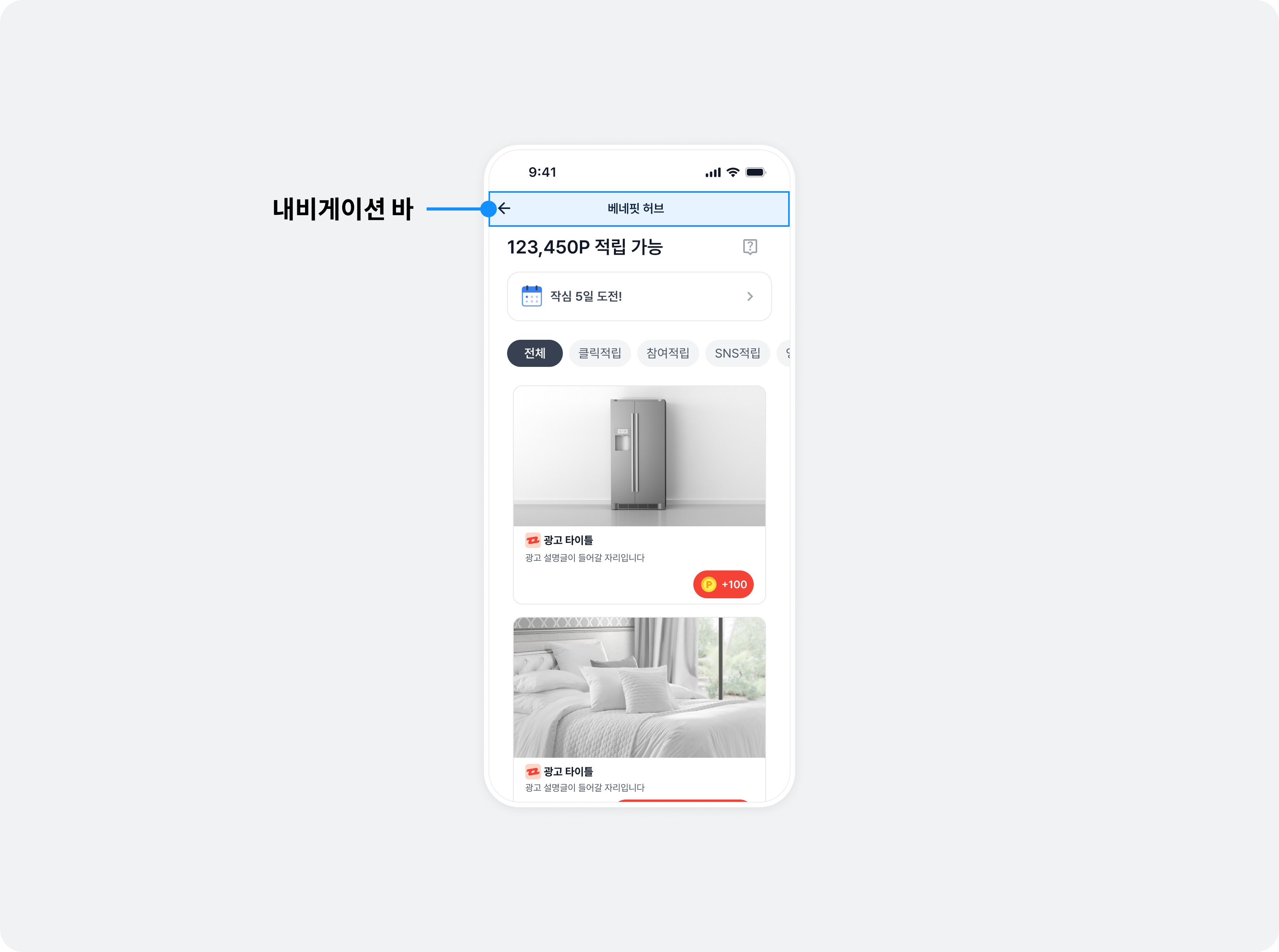
Change navigation bar text
You can change navigation bar UI strings.
let feedTheme = BZVFeedTheme { builder in
  builder.navigationBarTitle = "YOUR_TITLE"
}
BZVBuzzAdFeed.setDefaultTheme(feedTheme)
BZVFeedTheme *feedTheme = [BZVFeedTheme themeWithBlock:^(BZVFeedThemeBuilder * _Nonnull builder) {
  builder.navigationBarTitle = @"YOUR_TITLE";
}];
[BZVBuzzAdFeed setDefaultTheme:feedTheme];
Implement a custom navigation bar
See Integrate BenefitHub as a child view controller to implement your own navigation bar.
Header
Use BenefitHub's header for your own content, such as an explanation of the placement or the available reward amount.
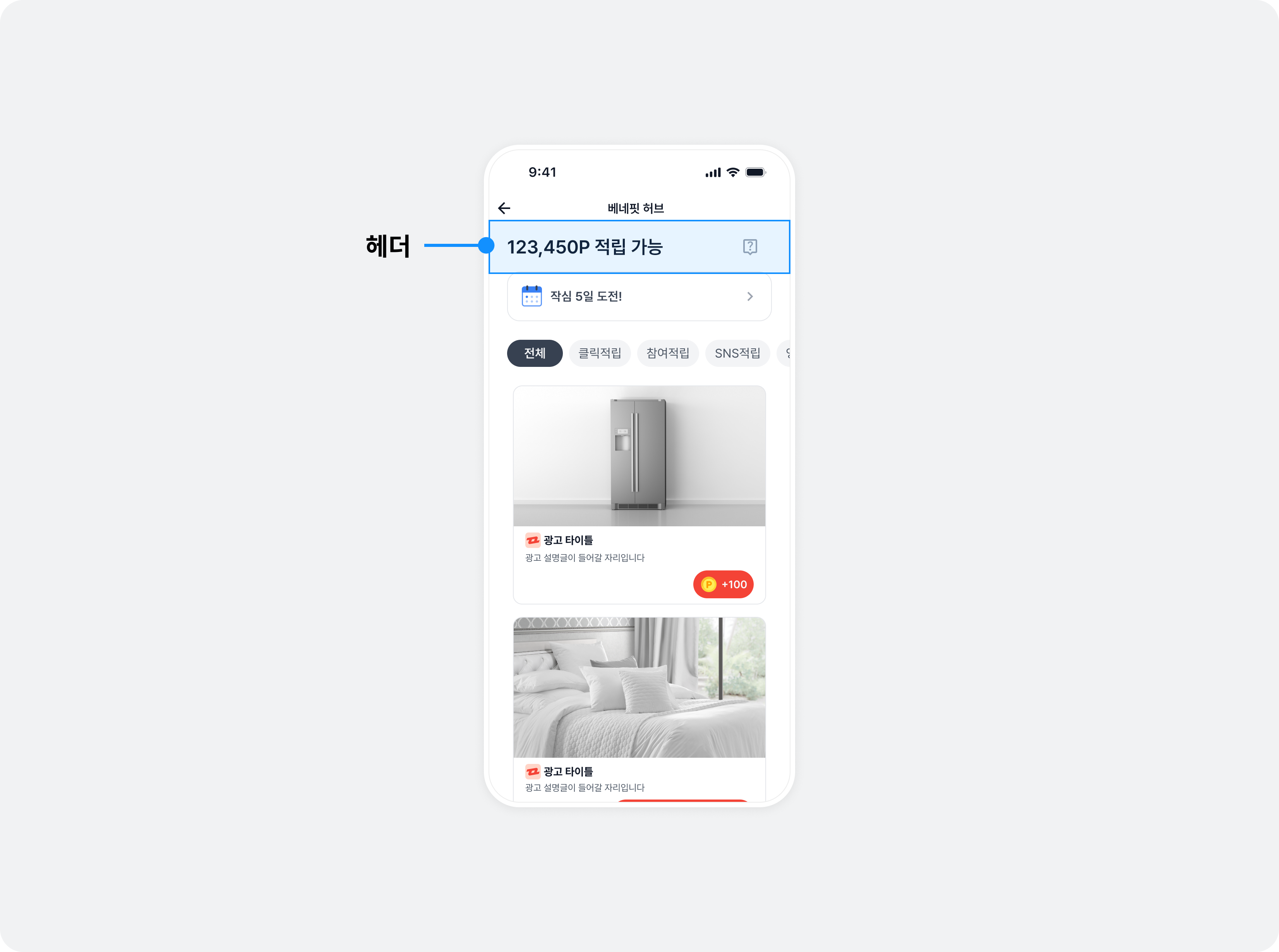
The following example changes the header.
Create a subclass of BZVFeedHeaderView and implement your custom header view. Register it in headerViewClass of BZVFeedConfig.
import UIKit
import BuzzvilSDK

final class CustomFeedHeaderView: BZVFeedHeaderView {
  let headerLabel = UILabel(frame: .zero)

  override class func desiredHeight(_ width: CGFloat) -> CGFloat {
    return 60
  }

  required init?(coder: NSCoder) {
    super.init(coder: coder)
    setupView()
  }

  override init(frame: CGRect) {
    super.init(frame: frame)
    setupView()
  }

  func setupView() {
    addSubview(headerLabel)

    // LayoutConstraint 설정
    // ...
  }

  override func availableRewardDidUpdate(_ reward: Int) {
    headerLabel.text = "리워드 \(reward)원"
  }
}
@import UIKit;
@import BuzzvilSDK;

@interface CustomFeedHeaderView : BZVFeedHeaderView

@end

@interface CustomFeedHeaderView ()

@property (nonatomic, strong, readonly) UILabel *headerLabel;

@end

@implementation CustomFeedHeaderView

+ (CGFloat)desiredHeight:(CGFloat)width {
  return 60;
}

- (instancetype)initWithCoder:(NSCoder *)coder {
  if (self = [super initWithCoder:coder]) {
    [self setupView];
  }
  return self;
}

- (instancetype)initWithFrame:(CGRect)frame {
  if (self = [super initWithFrame:frame]) {
    [self setupView];
  }
  return self;
}

- (void)setupView {
  _headerLabel = [[UILabel alloc] initWithFrame:CGRectZero];
  [self addSubview:_headerLabel];

  // LayoutConstraint 설정
  // ...
}

- (void)availableRewardDidUpdate:(NSInteger)reward {
  _headerLabel.text = [NSString stringWithFormat:@"리워드 %ld원", reward];
}

@end
let feedConfig = BZVFeedConfig { builder in
  builder.unitId = "YOUR_FEED_UNIT_ID"
  builder.headerViewClass = CustomFeedHeaderView.self
}
BZVFeedConfig *feedConfig = [BZVFeedConfig configWithBlock:^(BZVFeedConfigBuilder * _Nonnull builder) {
  builder.unitId = @"YOUR_FEED_UNIT_ID";
  builder.headerViewClass = [CustomFeedHeaderView class];
}];
Ad category filters
Ad category filters use monochrome colors by default. You can change them to follow the primary color.
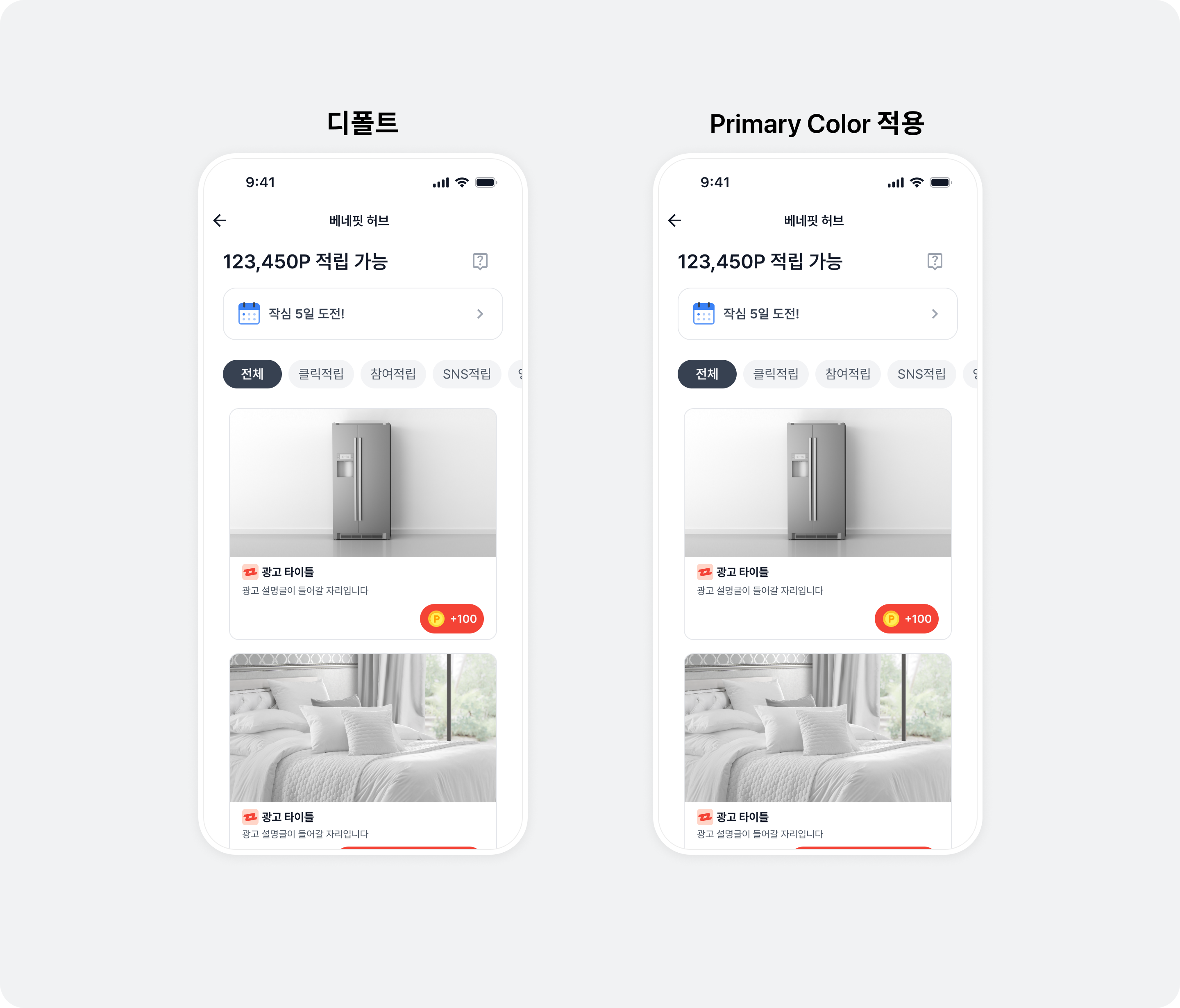
let feedTheme = BZVFeedTheme { builder in
  builder.usePrimaryColorInFilter = true
}
BZVBuzzAdFeed.setDefaultTheme(feedTheme)
BZVFeedTheme *feedTheme = [BZVFeedTheme themeWithBlock:^(BZVFeedThemeBuilder * _Nonnull builder) {
  builder.usePrimaryColorInFilter = YES;
}];
[BZVBuzzAdFeed setDefaultTheme:feedTheme];
Ad design
Buzzvil SDK provides standard ads and shopping ads.
- Standard ads: All ad types other than shopping ads.
- Shopping ads: Users receive a percentage of their purchase amount as points after buying through the ad.
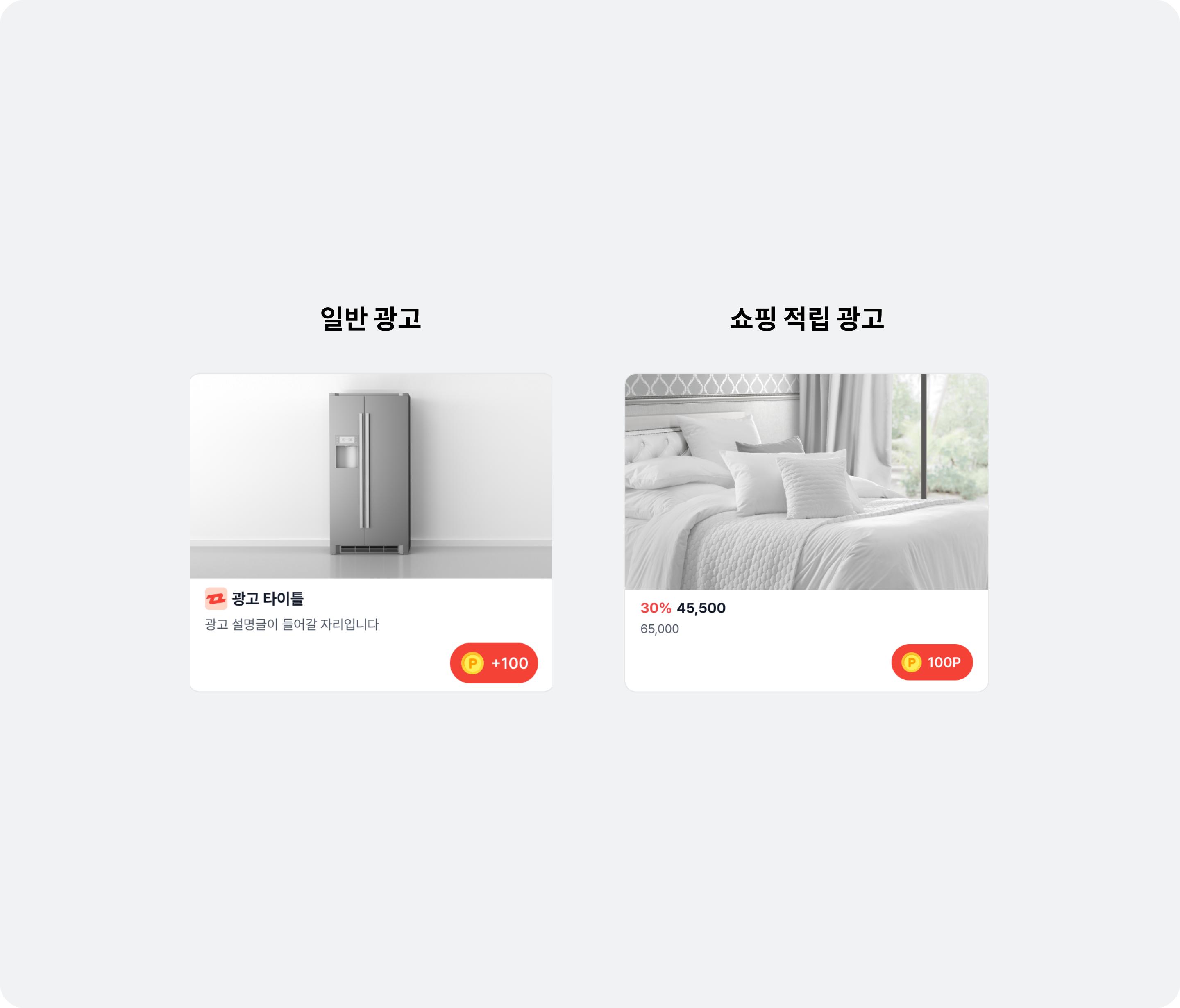
Both types contain multiple elements for displaying the ad. Their components and UI requirements are listed below.
| Ad type | Component | Description |
|---|---|---|
| Shared: standard and shopping | Ad title (required) | The ad title. A maximum of 10 characters is recommended. You may truncate part of the text with an ellipsis as needed, regardless of length. |
| Ad creative (required) |
| |
| Ad description (required) | A detailed ad description. A maximum of 40 characters is recommended. You may truncate part of the text with an ellipsis as needed, regardless of length. | |
| Advertiser icon (required) |
| |
| CTA button (required) |
✏️ Note See Implement a custom CTA button to change the design. | |
| Clickable areas (required) | Defines which areas of the ad respond to clicks. | |
| Ad disclosure (recommended) | Text identifying the content as advertising, such as 광고, ad, 스폰서 or Sponsored. | |
| Shopping rewards | OriginalPrice View (recommended) | Displays the original product price. |
| Price View (recommended) | Displays the discounted product price. | |
| DiscountRate View (recommended) | Displays the discount rate. Calculate it from the original and discounted prices. |
Implement a custom standard ad design
Follow these steps to customize standard ads.
- Implement a subclass of
BZVFeedAdViewfor standard ads.
- Add
BZVNativeAdView,BZVMediaViewandBZVDefaultCtaViewas subviews. - In
renderAd, useBZVNativeAdViewBinderto bind ad data (NativeAd) to theCustomFeedAdViewyou created.
import UIKit
import BuzzvilSDK

final class CustomFeedAdView: BZVFeedAdView {
  let nativeAdView = BZVNativeAdView(frame: .zero)
  let mediaView = BZVMediaView(frame: .zero)
  let iconImageView = UIImageView(frame: .zero)
  let titleLabel = UILabel(frame: .zero)
  let descriptionLabel = UILabel(frame: .zero)
  let ctaView = BZVDefaultCtaView(frame: .zero)

  lazy var viewBinder = BZVNativeAdViewBinder { builder in
    builder.nativeAdView = self.nativeAdView
    builder.mediaView = self.mediaView
    builder.iconImageView = self.iconImageView
    builder.titleLabel = self.titleLabel
    builder.descriptionLabel = self.descriptionLabel
    builder.ctaView = self.ctaView
    builder.clickableViews = [
      self.mediaView,
      self.ctaView
    ]
  }

  required init?(coder: NSCoder) {
    super.init(coder: coder)
    setupView()
  }

  override init(frame: CGRect) {
    super.init(frame: frame)
    setupView()
  }

  override class func desiredHeight(_ width: CGFloat) -> CGFloat {
    return width * 0.8
  }

  func setupView() {
    addSubview(nativeAdView)
    nativeAdView.addSubview(mediaView)
    nativeAdView.addSubview(iconImageView)
    nativeAdView.addSubview(titleLabel)
    nativeAdView.addSubview(descriptionLabel)
    nativeAdView.addSubview(ctaView)

    // LayoutConstraint 설정
    // ...
  }

  override func renderAd(_ ad: BZVNativeAd) {
    viewBinder.bind(with: ad)
  }
}
@import UIKit;
@import BuzzvilSDK;

@interface CustomFeedAdView : BZVFeedAdView

@end

@interface CustomFeedAdView ()

@property (nonatomic, strong, readonly) BZVNativeAdView *nativeAdView;
@property (nonatomic, strong, readonly) BZVMediaView *mediaView;
@property (nonatomic, strong, readonly) UIImageView *iconImageView;
@property (nonatomic, strong, readonly) UILabel *titleLabel;
@property (nonatomic, strong, readonly) UILabel *descriptionLabel;
@property (nonatomic, strong, readonly) BZVDefaultCtaView *ctaView;
@property (nonatomic, strong, readonly) BZVNativeAdViewBinder *viewBinder;

@end

@implementation CustomFeedAdView

+ (CGFloat)desiredHeight:(CGFloat)width {
  return width * 0.8;
}

- (instancetype)initWithCoder:(NSCoder *)coder {
  if (self = [super initWithCoder:coder]) {
    [self setupView];
  }
  return self;
}

- (instancetype)initWithFrame:(CGRect)frame {
  if (self = [super initWithFrame:frame]) {
    [self setupView];
  }
  return self;
}

- (void)setupView {
  _nativeAdView = [[BZVNativeAdView alloc] initWithFrame:CGRectZero];
  [self addSubview:_nativeAdView];

  _mediaView = [[BZVMediaView alloc] initWithFrame:CGRectZero];
  [_nativeAdView addSubview:_mediaView];

  _iconImageView = [[UIImageView alloc] initWithFrame:CGRectZero];
  [_nativeAdView addSubview:_iconImageView];

  _titleLabel = [[UILabel alloc] initWithFrame:CGRectZero];
  [_nativeAdView addSubview:_titleLabel];

  _descriptionLabel = [[UILabel alloc] initWithFrame:CGRectZero];
  [_nativeAdView addSubview:_descriptionLabel];

  _ctaView = [[BZVDefaultCtaView alloc] initWithFrame:CGRectZero];
  [_nativeAdView addSubview:_ctaView];

  _viewBinder = [BZVNativeAdViewBinder viewBinderWithBlock:^(BZVNativeAdViewBinderBuilder * _Nonnull builder) {
    builder.nativeAdView = self.nativeAdView;
    builder.mediaView = self.mediaView;
    builder.iconImageView = self.iconImageView;
    builder.titleLabel = self.titleLabel;
    builder.descriptionLabel = self.descriptionLabel;
    builder.ctaView = self.ctaView;
    builder.clickableViews = @[
      self.mediaView,
      self.ctaView
    ];
  }];

  // LayoutConstraint 설정
  // ...
}

- (void)renderAd:(BZVNativeAd *)ad {
  [_viewBinder bindWithNativeAd:ad];
}

@end
Optionally receive ad callbacks through BZVNativeAdEventDelegate.
import UIKit
import BuzzvilSDK

final class CustomFeedAdView: BZVFeedAdView, BZVNativeAdEventDelegate {

  override func renderAd(_ ad: BZVNativeAd) {
    viewBinder.bind(with: ad)
    ad.delegate = self
  }

  // MARK: BZVNativeAdEventDelegate
  func didImpress(_ nativeAd: BZVNativeAd) {
  }

  func didClick(_ nativeAd: BZVNativeAd) {
  }

  func didRequestReward(for nativeAd: BZVNativeAd) {
  }

  func didReward(for nativeAd: BZVNativeAd, with result: BZVRewardResult) {
  }

  func didParticipateAd(_ nativeAd: BZVNativeAd) {
  }
}
@import UIKit;
@import BuzzvilSDK;

// 부가 기능: 광고 콜백 이벤트 수신 기능을 추가합니다.
@interface CustomFeedAdView () <BZVNativeAdEventDelegate>

@end

@implementation CustomFeedAdView

- (void)renderAd:(BZVNativeAd *)ad {
  [_viewBinder bindWithNativeAd:ad];
  ad.delegate = self;
}

#pragma mark - BZVNativeAdEventDelegate
- (void)didImpressAd:(BZVNativeAd *)nativeAd {
}

- (void)didClickAd:(BZVNativeAd *)nativeAd {
}

- (void)didRequestRewardForAd:(BZVNativeAd *)nativeAd {
}

- (void)didRewardForAd:(BZVNativeAd *)nativeAd withResult:(BZVRewardResult)result {
}

- (void)didParticipateAd:(BZVNativeAd *)nativeAd {
}

@end
- Set your
CustomFeedAdViewas the ad ViewHolder inBZVFeedConfig.
let feedConfig = BZVFeedConfig { builder in
  builder.unitId = "YOUR_FEED_UNIT_ID"
  builder.adViewClass = CustomFeedAdView.self
}
BZVFeedConfig *config = [BZVFeedConfig configWithBlock:^(BZVFeedConfigBuilder * _Nonnull builder) {
  builder.unitId = @"YOUR_FEED_UNIT_ID";
  builder.adViewClass = [CustomFeedAdView class];
}];
Implement a custom shopping ad design
Follow these steps to customize shopping ads.
- Implement a subclass of
BZVFeedAdViewfollowing Implement a custom standard ad design.
- Add
priceLabel,originalPriceLabelanddiscountPercentageLabelto the standard ad layout.
import UIKit
import BuzzvilSDK

final class CustomFeedCpsAdView: BZVFeedAdView {
  let nativeAdView = BZVNativeAdView(frame: .zero)
  let mediaView = BZVMediaView(frame: .zero)
  let iconImageView = UIImageView(frame: .zero)
  let titleLabel = UILabel(frame: .zero)
  let descriptionLabel = UILabel(frame: .zero)
  let ctaView = BZVDefaultCtaView(frame: .zero)
  let priceLabel = UILabel(frame: .zero)
  let originalPriceLabel = UILabel(frame: .zero)
  let discountRateLabel = UILabel(frame: .zero)

  lazy var viewBinder = BZVNativeAdViewBinder { builder in
    builder.nativeAdView = self.nativeAdView
    builder.mediaView = self.mediaView
    builder.iconImageView = self.iconImageView
    builder.titleLabel = self.titleLabel
    builder.descriptionLabel = self.descriptionLabel
    builder.ctaView = self.ctaView
    builder.clickableViews = [
      self.mediaView,
      self.ctaView,
      self.priceLabel,
      self.originalPriceLabel,
      self.discountRateLabel,
    ]
  }

  override class func desiredHeight(_ width: CGFloat) -> CGFloat {
    return 350
  }

  required init?(coder: NSCoder) {
    super.init(coder: coder)
    setUpView()
  }

  override init(frame: CGRect) {
    super.init(frame: frame)
    setUpView()
  }

  private func setUpView() {
    // 광고 레이아웃 컴포넌트를 생성합니다.
    // ...생략...
    nativeAdView.addSubview(priceLabel)
    nativeAdView.addSubview(originalPriceLabel)
    nativeAdView.addSubview(discountRateLabel)

    // LayoutConstraint 설정
    // ...생략...
  }

  override func renderAd(_ ad: BZVNativeAd) {
    viewBinder.bind(with: ad)

    let product = ad.product
    if product.discountedPrice != 0 {
      // 할인이 있는 쇼핑 광고
      priceLabel.text = NSNumber(value: product.discountedPrice).formattedString()
      originalPriceLabel.text = NSNumber(value: product.price).formattedString()
      let discountRate = (1 - product.discountedPrice / product.price) * 100
      discountRateLabel.text = String(format: "%d%%", Int(discountRate))
    } else {
      // 할인이 없는 쇼핑 광고
      priceLabel.text = NSNumber(value: product.discountedPrice).formattedString()
      originalPriceLabel.text = NSNumber(value: product.price).formattedString()
      discountRateLabel.text = "0%%"
    }
  }
}

extension NSNumber {
  func formattedString() -> String? {
    let numberFormatter = NumberFormatter()
    numberFormatter.numberStyle = .decimal
    return numberFormatter.string(from: self)
  }
}
@import UIKit;
@import BuzzvilSDK;

@interface CustomFeedCpsAdView : BZVFeedAdView

@end

@interface CustomFeedCpsAdView ()

@property (nonatomic, strong, readonly) BZVNativeAdView *nativeAdView;
@property (nonatomic, strong, readonly) BZVMediaView *mediaView;
@property (nonatomic, strong, readonly) UIImageView *iconImageView;
@property (nonatomic, strong, readonly) UILabel *titleLabel;
@property (nonatomic, strong, readonly) UILabel *descriptionLabel;
@property (nonatomic, strong, readonly) BZVDefaultCtaView *ctaView;
@property (nonatomic, strong, readonly) UILabel *priceLabel;
@property (nonatomic, strong, readonly) UILabel *originalPriceLabel;
@property (nonatomic, strong, readonly) UILabel *discountRateLabel;
@property (nonatomic, strong, readonly) BZVNativeAdViewBinder *viewBinder;

@end

@implementation CustomFeedCpsAdView

+ (CGFloat)desiredHeight:(CGFloat)width {
  return 350;
}

- (instancetype)initWithCoder:(NSCoder *)coder {
  if (self = [super initWithCoder:coder]) {
    [self setupView];
  }
  return self;
}

- (instancetype)initWithFrame:(CGRect)frame {
  if (self = [super initWithFrame:frame]) {
    [self setupView];
  }
  return self;
}

- (void)setupView {
  // 광고 레이아웃 컴포넌트를 생성합니다.
  // ...생략...
  _priceLabel = [[UILabel alloc] initWithFrame:CGRectZero];
  [_nativeAdView addSubview:_priceLabel];

  _originalPriceLabel = [[UILabel alloc] initWithFrame:CGRectZero];
  [_nativeAdView addSubview:_originalPriceLabel];

  _discountRateLabel = [[UILabel alloc] initWithFrame:CGRectZero];
  [_nativeAdView addSubview:_discountRateLabel];

  _viewBinder = [BZVNativeAdViewBinder viewBinderWithBlock:^(BZVNativeAdViewBinderBuilder * _Nonnull builder) {
    builder.nativeAdView = self.nativeAdView;
    builder.mediaView = self.mediaView;
    builder.titleLabel = self.titleLabel;
    builder.ctaView = self.ctaView;
    builder.clickableViews = @[
      self.mediaView,
      self.priceLabel,
      self.originalPriceLabel,
      self.discountRateLabel,
      self.ctaView,
    ];
  }];

  // LayoutConstraint 설정
  // ...생략...
}

- (void)renderAd:(BZVNativeAd *)ad {
  [_viewBinder bindWithNativeAd:ad];

  BZVNativeAdProduct *product = ad.product;
  if (product.discountedPrice != 0) {
    // 할인이 있는 쇼핑 광고
    _priceLabel.text = [self formattedStringFromNumber:@(product.discountedPrice)];
    _originalPriceLabel.text = [self formattedStringFromNumber:@(product.price)];
    CGFloat discountRate = (1 - product.discountedPrice / product.price) * 100;
    _discountRateLabel.text = [NSString stringWithFormat:@"%.f%%", discountRate];
  } else {
    // 할인이 없는 쇼핑 광고
    _priceLabel.text = [self formattedStringFromNumber:@(product.price)];
    _originalPriceLabel.text = [self formattedStringFromNumber:@(product.price)];
    _discountRateLabel.hidden = YES;
  }
}

- (NSString *)formattedStringFromNumber:(NSNumber *)number {
  NSNumberFormatter *formatter = [[NSNumberFormatter alloc] init];
  formatter.numberStyle = NSNumberFormatterDecimalStyle;
  return [formatter stringFromNumber:number];
}

@end
- Set the
CustomFeedAdViewfrom the previous step as the shopping ad ViewHolder inBZVFeedConfig.
let config = BZVFeedConfig { builder in
  builder.unitId = "YOUR_FEED_UNIT_ID"
  builder.cpsAdViewClass = CustomFeedCpsAdView.self
}
BZVFeedConfig *config = [BZVFeedConfig configWithBlock:^(BZVFeedConfigBuilder * _Nonnull builder) {
  builder.unitId = @"YOUR_FEED_UNIT_ID";
  builder.cpsAdViewClass = [CustomFeedCpsAdView class];
}];
No-ads UI
Users can retry up to three times when no ads are available. Customize the UI strings and images for each attempt.
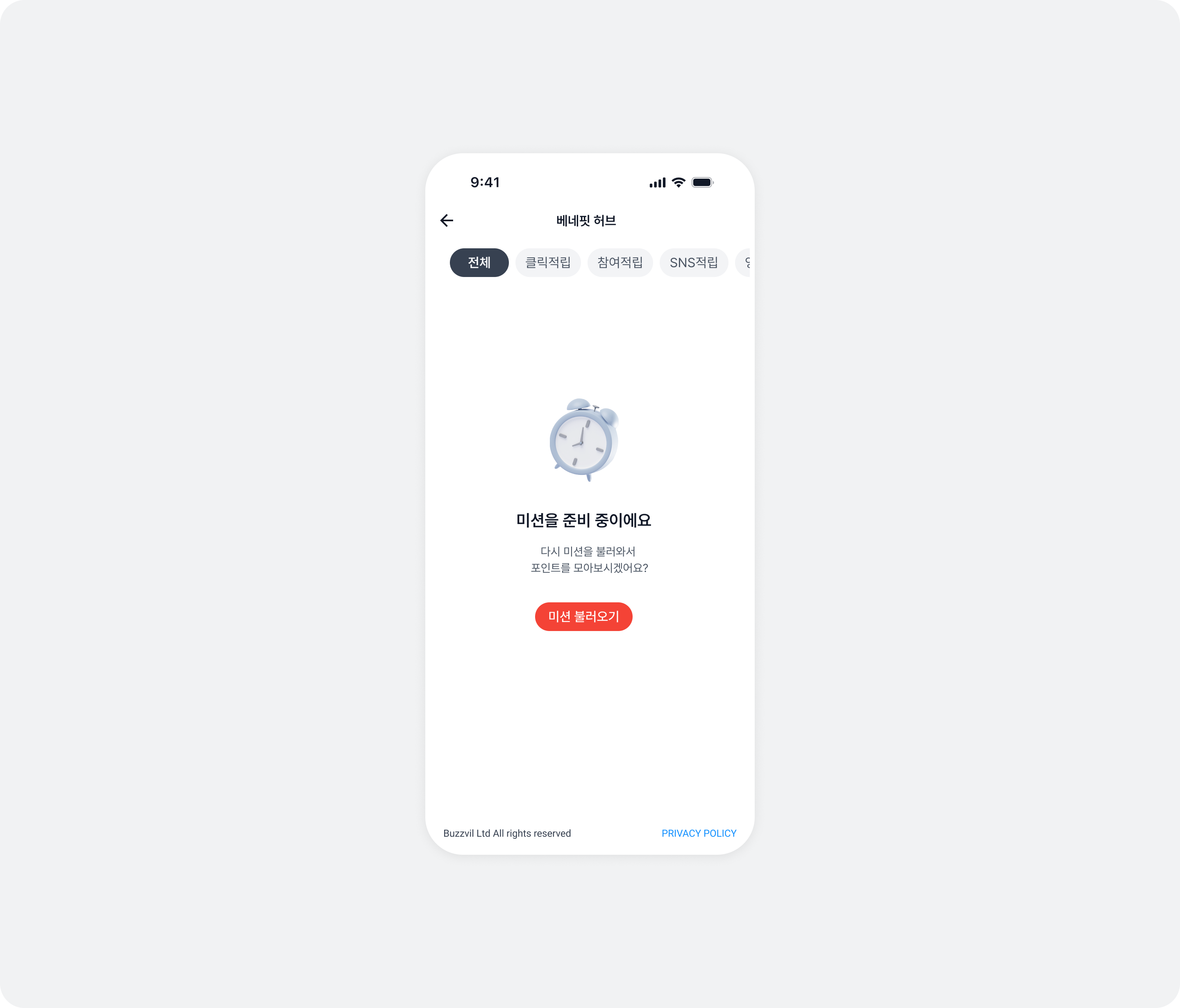
| Retry attempt | Title | Content | Button |
|---|---|---|---|
| Initial attempt | 미션을 준비 중이에요 | 다시 미션을 불러와서 포인트를 모아보시겠어요? | 미션 불러오기 |
| First retry | 미션을 준비 중이에요 | 미션을 로딩 중이에요. 잠시 후 다시 시도해주세요. | 다시 불러오기 |
| Second retry | 미션을 준비 중이에요 | 미션 준비에 시간이 걸리고 있습니다. 잠시 후 다시 시도해주세요. | 한번 더 불러오기 |
| Third retry (last) | 미션을 준비 중이에요 | All filter: 지금은 참여 가능한 미션이 없습니다. 잠시 후 다시 방문해주세요.Other filters: 지금은 참여 가능한 미션이 없습니다. 다른 미션에 참여해서 포인트를 모아보세요! | All filter: 나중에 다시 올게요Other filters: 다른 미션 참여하기 |
let feedTheme = BZVFeedTheme { builder in
  builder.noFillErrorImage = ...
  builder.noFillErrorTitle = ...
  builder.noFillErrorDescription1st = ...
  builder.noFillErrorDescription2nd = ...
  builder.noFillErrorDescription3rd = ...
  builder.noFillErrorDescriptionFinalAllFilter = ...
  builder.noFillErrorDescriptionFinalOtherFilters = ...
  builder.noFillErrorButton1st = ...
  builder.noFillErrorButton2nd = ...
  builder.noFillErrorButton3rd = ...
  builder.noFillErrorButtonFinalAllFilter = ...
  builder.noFillErrorButtonFinalOtherFilters = ...
}
BZVBuzzAdFeed.setDefaultTheme(feedTheme)
BZVFeedTheme *feedTheme = [BZVFeedTheme themeWithBlock:^(BZVFeedThemeBuilder * _Nonnull builder) {
  builder.noFillErrorImage = ...;
  builder.noFillErrorTitle = ...;
  builder.noFillErrorDescription1st = ...;
  builder.noFillErrorDescription2nd = ...;
  builder.noFillErrorDescription3rd = ...;
  builder.noFillErrorDescriptionFinalAllFilter = ...;
  builder.noFillErrorDescriptionFinalOtherFilters = ...;
  builder.noFillErrorButton1st = ...;
  builder.noFillErrorButton2nd = ...;
  builder.noFillErrorButton3rd = ...;
  builder.noFillErrorButtonFinalAllFilter = ...;
  builder.noFillErrorButtonFinalOtherFilters = ...;
}];
[BZVBuzzAdFeed setDefaultTheme:feedTheme];
User profile error UI
Customize the strings and images shown when no user profile is set.
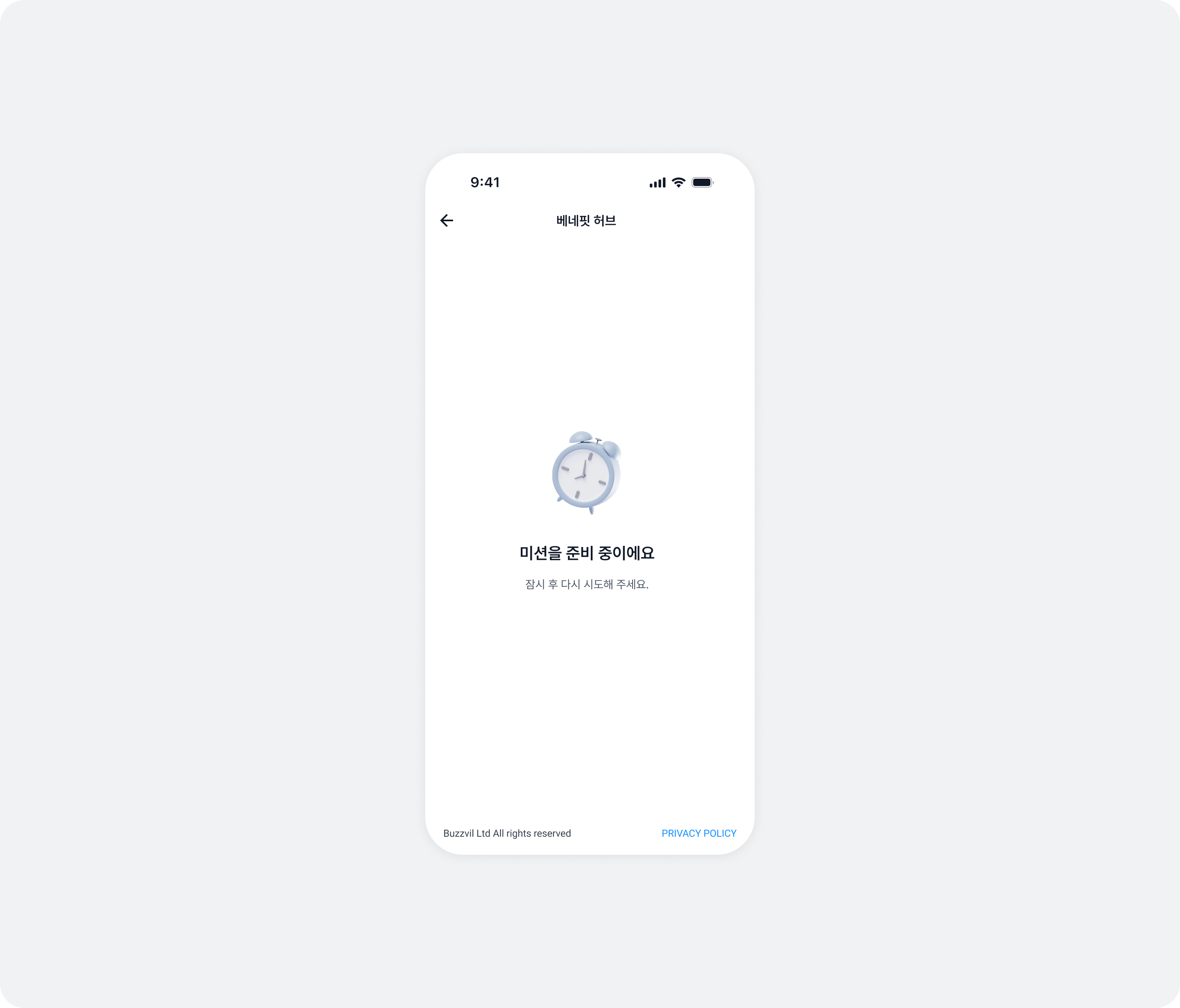
let feedTheme = BZVFeedTheme { builder in
  builder.userProfileErrorImage = ...
  builder.userProfileErrorTitle = ...
  builder.userProfileErrorDescription = ...
}
BZVBuzzAdFeed.setDefaultTheme(feedTheme)
BZVFeedTheme *feedTheme = [BZVFeedTheme themeWithBlock:^(BZVFeedThemeBuilder * _Nonnull builder) {
  builder.userProfileErrorImage = ...;
  builder.userProfileErrorTitle = ...;
  builder.userProfileErrorDescription = ...;
}];
[BZVBuzzAdFeed setDefaultTheme:feedTheme];
Other error screens
Customize the image for each error screen.
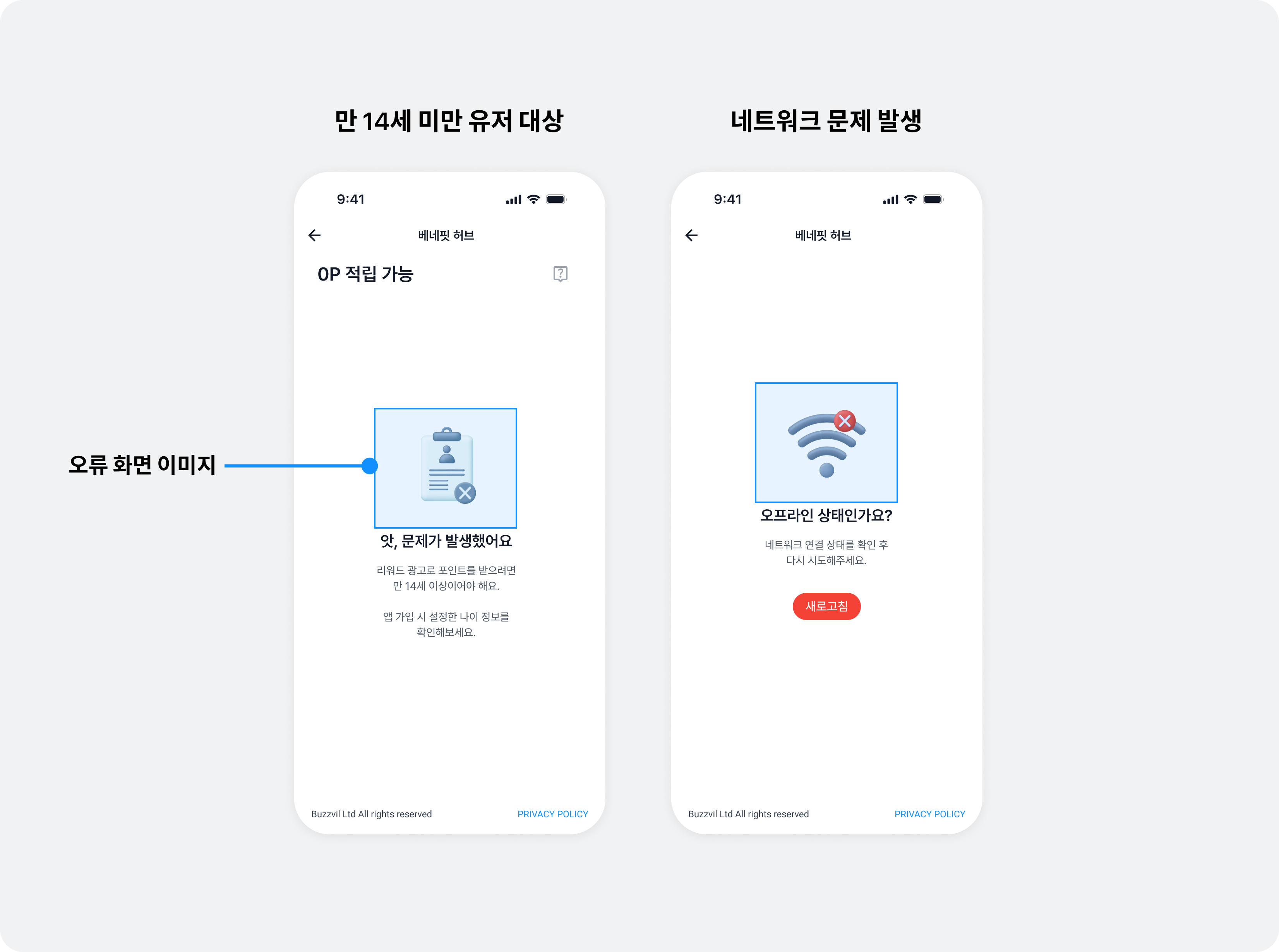
| Property | Description |
|---|---|
privacyPolicyErrorIcon | Changes the image shown when third-party sharing consent is required. |
agePolicyErrorIcon | Changes the image shown for a network error. |
networkErrorIcon | Changes the image shown for a network error. |
unknownErrorIcon | Changes the image shown for an unknown error. |
let feedTheme = BZVFeedTheme { builder in
  builder.privacyPolicyErrorImage = ...
  builder.agePolicyErrorImage = ...
  builder.networkErrorImage = ...
  builder.unknownErrorImage = ...
}
BZVBuzzAdFeed.setDefaultTheme(feedTheme)
BZVFeedTheme *feedTheme = [BZVFeedTheme themeWithBlock:^(BZVFeedThemeBuilder * _Nonnull builder) {
  builder.privacyPolicyErrorImage = ...;
  builder.agePolicyErrorImage = ...;
  builder.networkErrorImage = ...;
  builder.unknownErrorImage = ...;
}];
[BZVBuzzAdFeed setDefaultTheme:feedTheme];
Implement a custom UI for consent to share personal information with third parties
If you implement your own privacy policy UI, you must pass the user's consent status to the SDK. Refer to the table below and call the appropriate function.
| Class | API | Description |
|---|---|---|
BuzzAdBenefit | privacyPolicyManager (static variable) | Returns a BZVPrivacyPolicyManager instance. |
BZVPrivacyPolicyManager | grantConsent() | Consent to personal information collection. |
revokeConsent() | Revokes consent to collect personal information. | |
isConsentGranted() | Check whether the user has consented to personal information collection. |
Usage example
let privacyPolicyManager = BuzzAdBenefit.privacyPolicyManager

// 직접 구현한 개인정보 제3자 제공 동의 UI에서 동의를 받았을 경우 아래 코드를 실행하면, 피드 화면에서 개인정보 제3자 제공 동의 UI가 노출되지 않으면서 광고 할당이 정상적으로 진행 됩니다.
// 아래의 코드를 실행하지 않을 경우 피드 진입 시 개인정보 제3자 제공 동의 UI가 노출되기 때문에 필수적으로 실행이 필요합니다.
privacyPolicyManager.grantConsent()

// 아래 코드를 통해서 수집 동의를 철회할 수 있습니다. 이 코드가 실행되면 피드에서 광고 할당이 이루어지지 않습니다.
privacyPolicyManager.revokeConsent()
BZVPrivacyPolicyManager *privacyPolicyManager = [BuzzAdBenefit privacyPolicyManager];

// 직접 구현한 개인정보 제3자 제공 동의 UI 에서 동의를 받았을 경우 아래 코드를 실행하면, 피드 화면에서 개인정보 제3자 제공 동의 UI가 노출되지 않으면서 광고 할당이 정상적으로 진행 됩니다.
// 아래의 코드를 실행하지 않을 경우 피드 진입 시 개인정보 제3자 제공 동의 UI가 노출되기 때문에 필수적으로 실행이 필요합니다.
[privacyPolicyManager grantConsent];

// 아래 코드를 통해서 수집 동의를 철회할 수 있습니다. 이 코드가 실행되면 피드에서 광고 할당이 이루어지지 않습니다.
[privacyPolicyManager revokeConsent];
ATT permission prompt modal
Customize the modal image shown to users on iOS 14 or later who have not allowed app tracking.
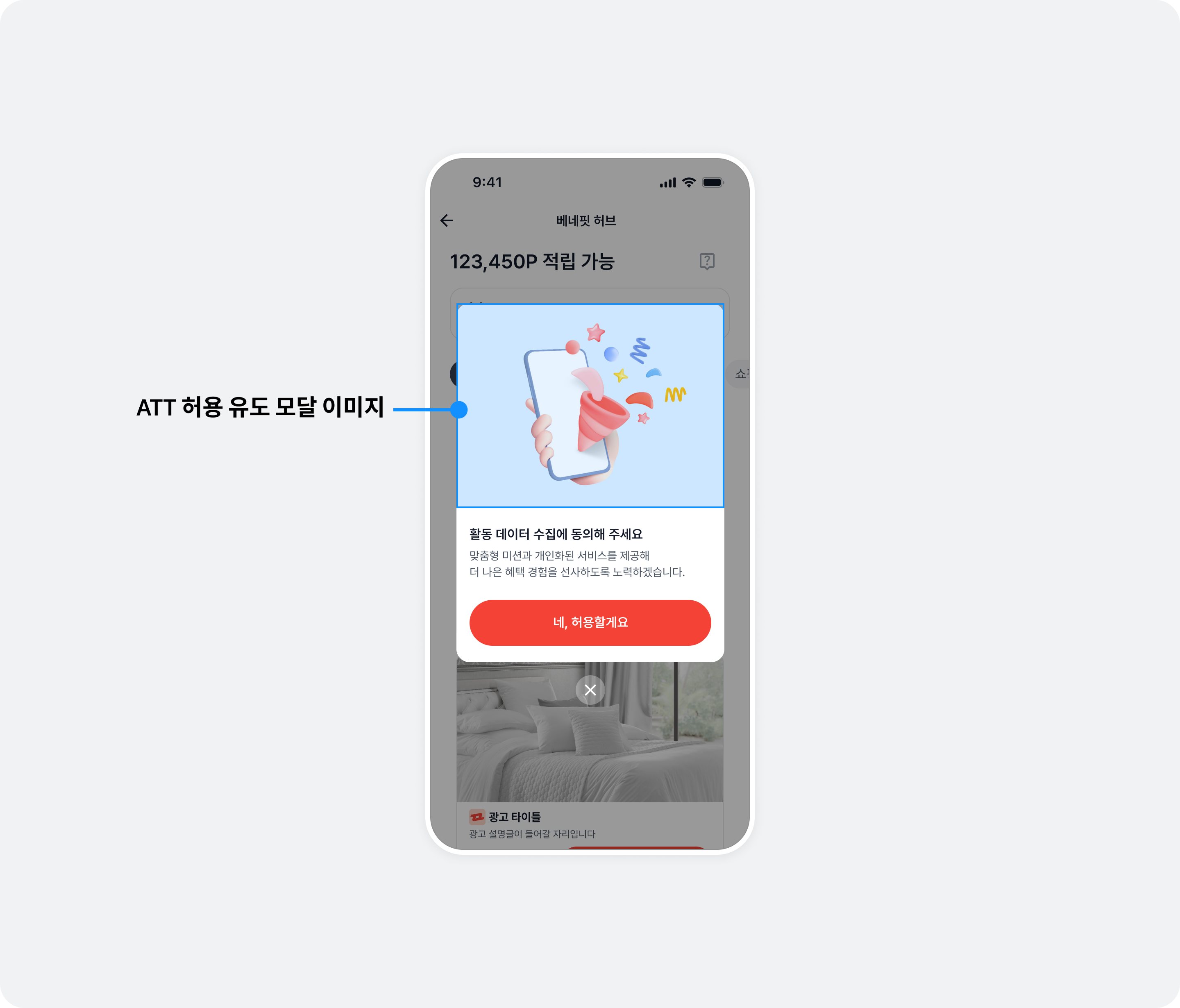
let feedTheme = BZVFeedTheme { builder in
  builder.appTrackingTransparencyGuideModalImage = ...
}
BZVBuzzAdFeed.setDefaultTheme(feedTheme)
BZVFeedTheme *feedTheme = [BZVFeedTheme themeWithBlock:^(BZVFeedThemeBuilder * _Nonnull builder) {
  builder.appTrackingTransparencyGuideModalImage = ...;
}];
[BZVBuzzAdFeed setDefaultTheme:feedTheme];
Interstitial
Use GlobalTheme to change the primary color, updating the BenefitHub entry prompt, CTA background and reward icon together. See Global theme.