MissionPack
Learn how to add, configure and implement MissionPack using SDK interfaces.
Key features
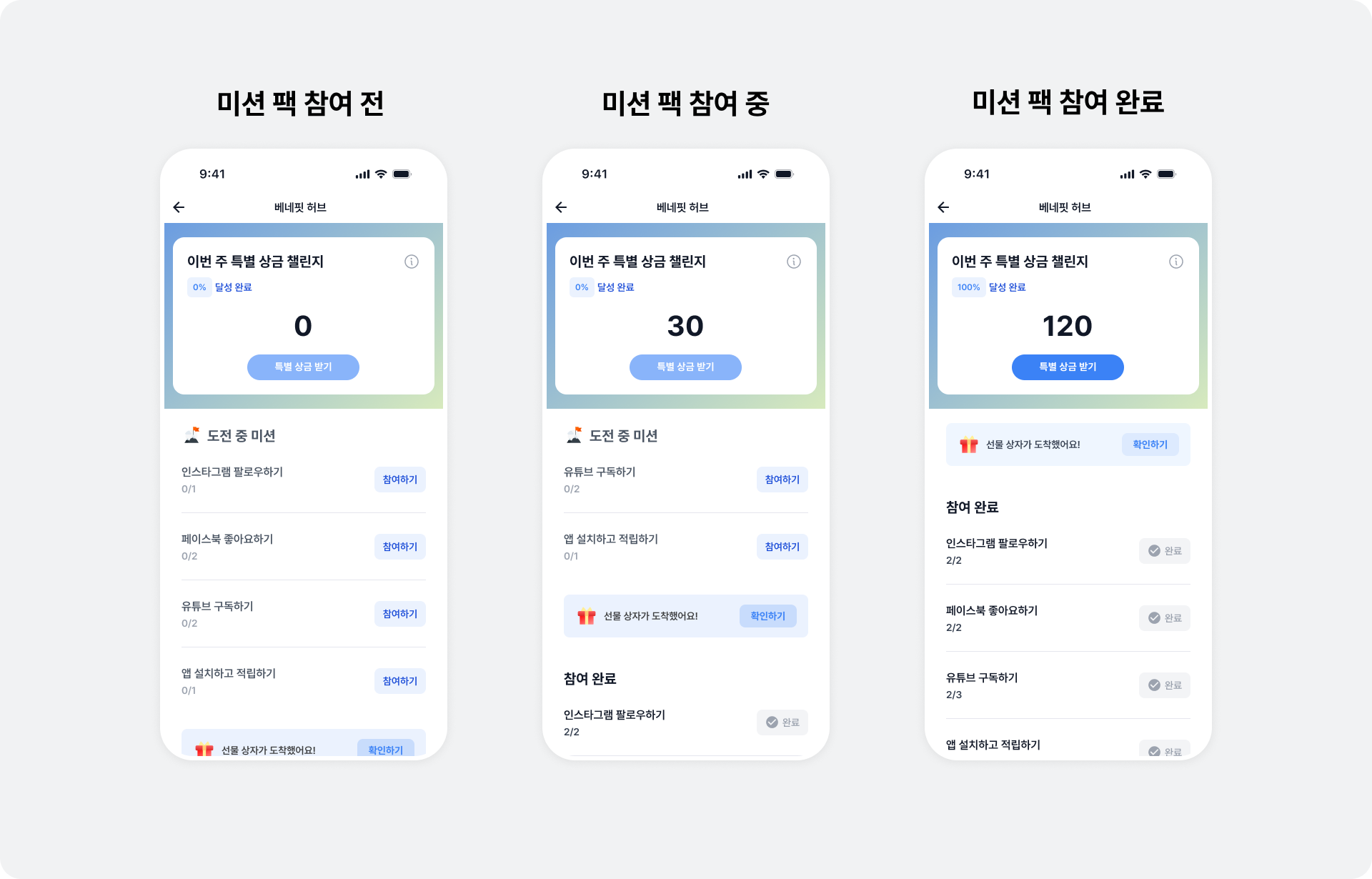
Mission Pack awards a percentage of the rewards users earn from ads as a special bonus when they complete all missions. These weekly missions start automatically on Monday and end at midnight on Sunday. Gamification introduces users to ads with strong revenue potential and can improve revenue. When a user clicks the Participate button on the Mission Pack screen, a screen opens where they can immediately engage with an ad that matches the mission.
- Choose the number of ads and missions to display.
- A clean, polished, user-centered UI and UX
- Customize a wide range of UI settings without changing code.
- Adjust bonus reward rates based on revenue and user engagement.
- Support for opening the Mission Pack screen first when displaying BenefitHub
Integration
Follow these steps to integrate the MissionPack placement.
Step 1. Prepare
- Complete Getting started.
- A Unit ID for MissionPack, referred to below as
YOUR_MISSION_PACK_UNIT_ID.
Step 2. Display MissionPack
Follow these steps to display MissionPack.
-
Declare a MissionPack object.
-
Call
canOpento check whether MissionPack can open. -
Call
showto display MissionPack.
import UIKit
import BuzzvilSDK

class MissionPackViewController: UIViewController {
  let missionPack = BuzzAdBenefitMissionPack(unitId: "YOUR_MISSION_PACK_UNIT_ID")

  override func viewDidLoad() {
    super.viewDidLoad()

    showMissionPack()
  }

  // missionPack 사용가능한지 체크하기
  func checkCanOpenMissionPack() {
    missionPack.canOpen {
      print ("MissionPack Can open !")
    } onFailure: { error in
      print ("MissionPack Can't open error: \(error.localizedDescription)")
    }
  }

  // missionPack 화면에 표시하기
  func showMissionPack() {
    missionPack.show(on: self, onFailure: { error in
      print ("MissionPack Can't open error: \(error.localizedDescription)")
    })
  }
}
@import BuzzvilSDK;
#import "MissionPackViewController.h"

@interface MissionPackViewController()

@property (nonatomic, strong, readonly) BuzzAdBenefitMissionPack * missionPack;

@end

@implementation MissionPackViewController

- (void)viewDidLoad {
  [super viewDidLoad];

  _missionPack = [[BuzzAdBenefitMissionPack alloc] initWithUnitId:@"YOUR_MISSION_PACK_UNIT_ID"];
}

- (void)checkCanOpenMissionPack {
  [_missionPack canOpenOnSuccess:^{
    // missionPack 이 열릴 수 있을 때 호출 됩니다.
  } onFailure:^(NSError * _Nonnull error) {
    // missionPack 이 열릴 수 없을 때 호출 됩니다.
  }];
}

- (void)showMissionPack {
  [_missionPack showOn:self onFailure:^(NSError * _Nonnull error) {
    // missionPack 이 열릴 수 없을 때 호출 됩니다.
  }];
}

@end