Basic setup
Learn the basic steps for integrating Feed, including displaying the placement and allocating ads.
Prerequisites
- Complete Getting started.
- A Unit ID for Feed, referred to below as
YOUR_FEED_UNIT_ID.
Initialize Feed
Add FeedConfig to BuzzAdBenefitConfig.
public class App extends Application {
    @Override
    public void onCreate() {
        super.onCreate();

        final FeedConfig feedConfig = new FeedConfig.Builder("YOUR_FEED_UNIT_ID")
            .build();

        final BuzzAdBenefitConfig buzzAdBenefitConfig = new BuzzAdBenefitConfig.Builder(getApplicationContext())
            .setDefaultFeedConfig(feedConfig)
            .build();

        BuzzAdBenefit.init(getApplicationContext(), buzzAdBenefitConfig);

        ...
    }
}
Display Feed
Feed appears as a bottom sheet.
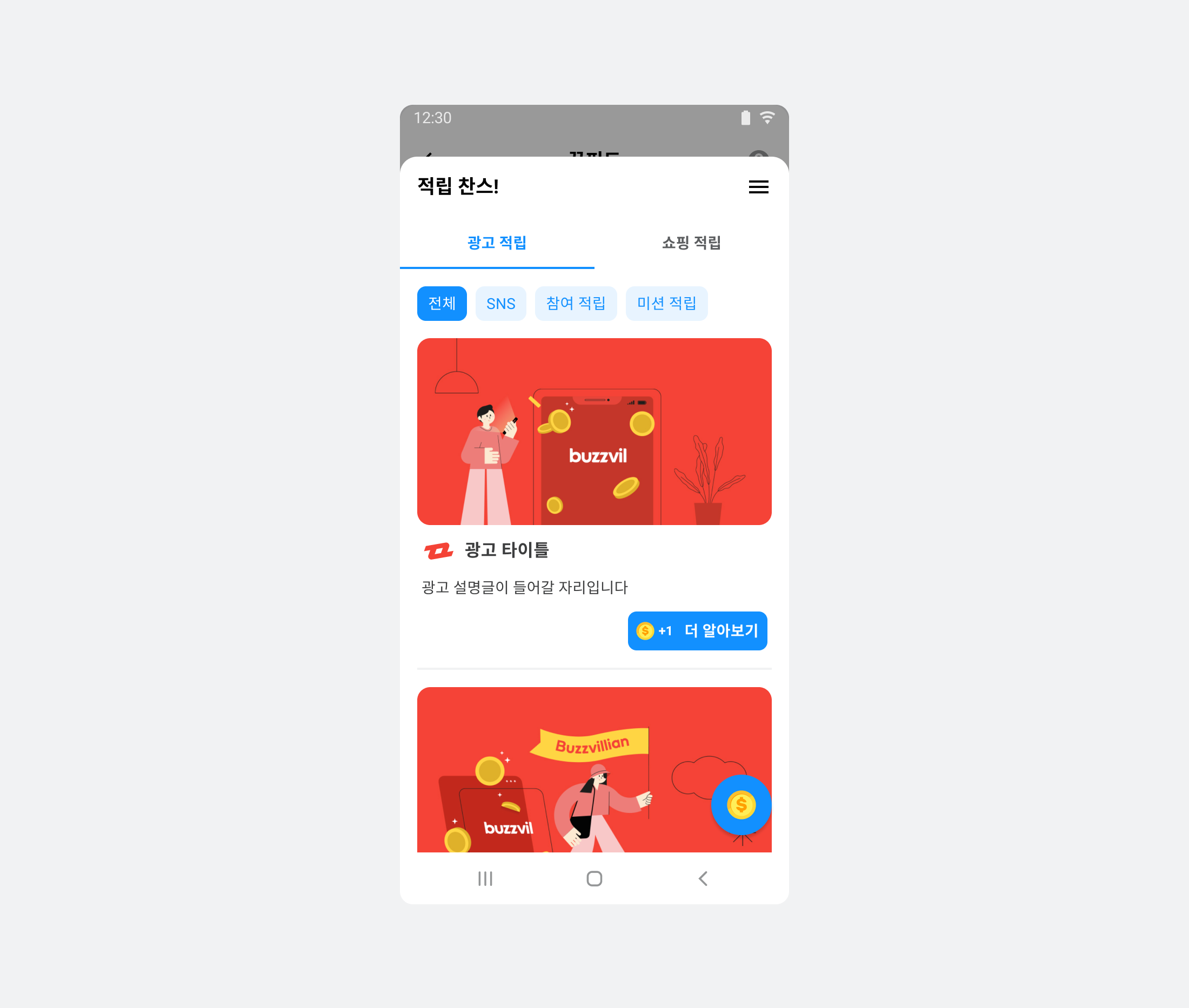
If Feed opens before ads have been allocated, it requests them automatically. While the request is in progress, it displays “No ads available.”
new BuzzAdFeed.Builder().build().show(context);
Display Feed with a different configuration
In addition to the default Feed using FeedConfig configured through DefaultFeedConfig, you can display a differently configured Feed. Register a new FeedConfig in BuzzAdFeed.
See the following example.
final FeedConfig feedConfig = new FeedConfig.Builder("SECOND_FEED_UNIT_ID").build();
BuzzAdFeed buzzAdFeed = new BuzzAdFeed.Builder()
  .feedConfig(feedConfig)
  .build();
buzzAdFeed.show(context);
Allocate and display ads
After the user consents to the privacy policy, call load to allocate ads. Subsequent calls to load refresh the ads.
The following example displays Feed after allocating ads. Preloading before the user enters Feed avoids showing the “No ads available” message.
BuzzAdFeed buzzAdFeed = new BuzzAdFeed.Builder().build();
buzzAdFeed.load(new BuzzAdFeed.FeedLoadListener() {
    @Override
    public void onSuccess() {
        int feedTotalReward = buzzAdFeed.getAvailableRewards(); // 적립 가능한 총 포인트 금액

        buzzAdFeed.show(context);
    }

    @Override
    public void onError(AdError error) {
        // 광고가 없을 경우 호출됩니다. error를 통해 원인을 알 수 있습니다.
    }
});