Advanced settings
Learn which features you can implement in Feed and how to configure them.
Use the SDK's default UI or implement your own classes to customize placement features. Custom classes must meet these requirements.
- The implementation must not be an inner class.
- If an inner class is unavoidable, declare it as
public static.
The main Feed features are shown below.
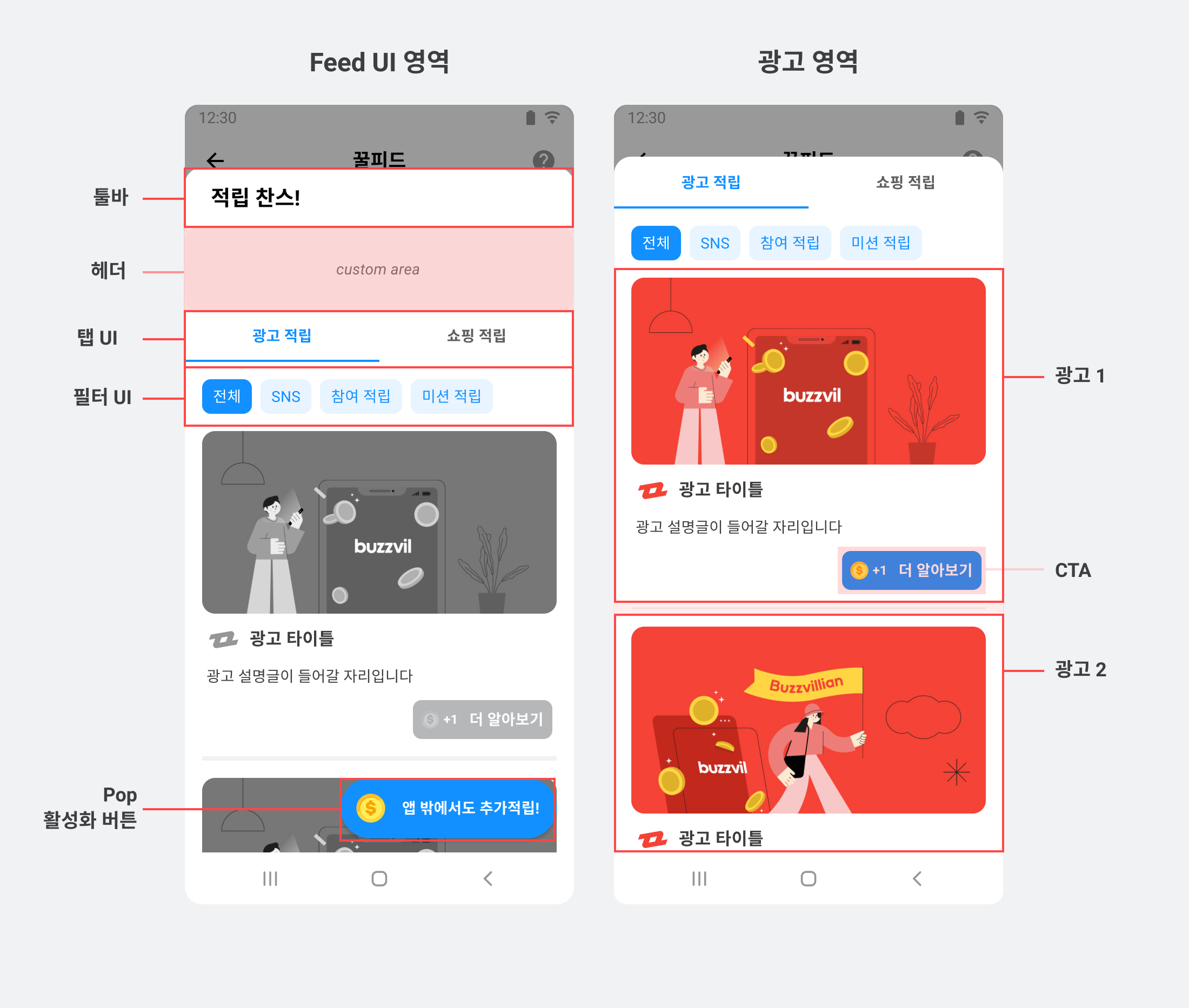
Ad categories
Feed uses tabs and filters to group ads by type. Users can focus on the types they want to participate in, improving the experience and ad efficiency.
Category settings can be changed without editing code or redeploying your app. Contact your Buzzvil representative to change them.
Ad category tabs and filters
Configure the number of tabs, their names and their ad types. Up to three tabs are supported. The defaults are Ad rewards, which includes all non-shopping ad types, and Shopping rewards, which includes shopping ads.
Tabs can contain impression-based, action-based, video, social media or shopping ads. Each tab can include multiple types, except shopping ads, which cannot share a tab with other types.
Tabs with multiple ad types show filters such as “Click” and “Participate” to narrow the results.
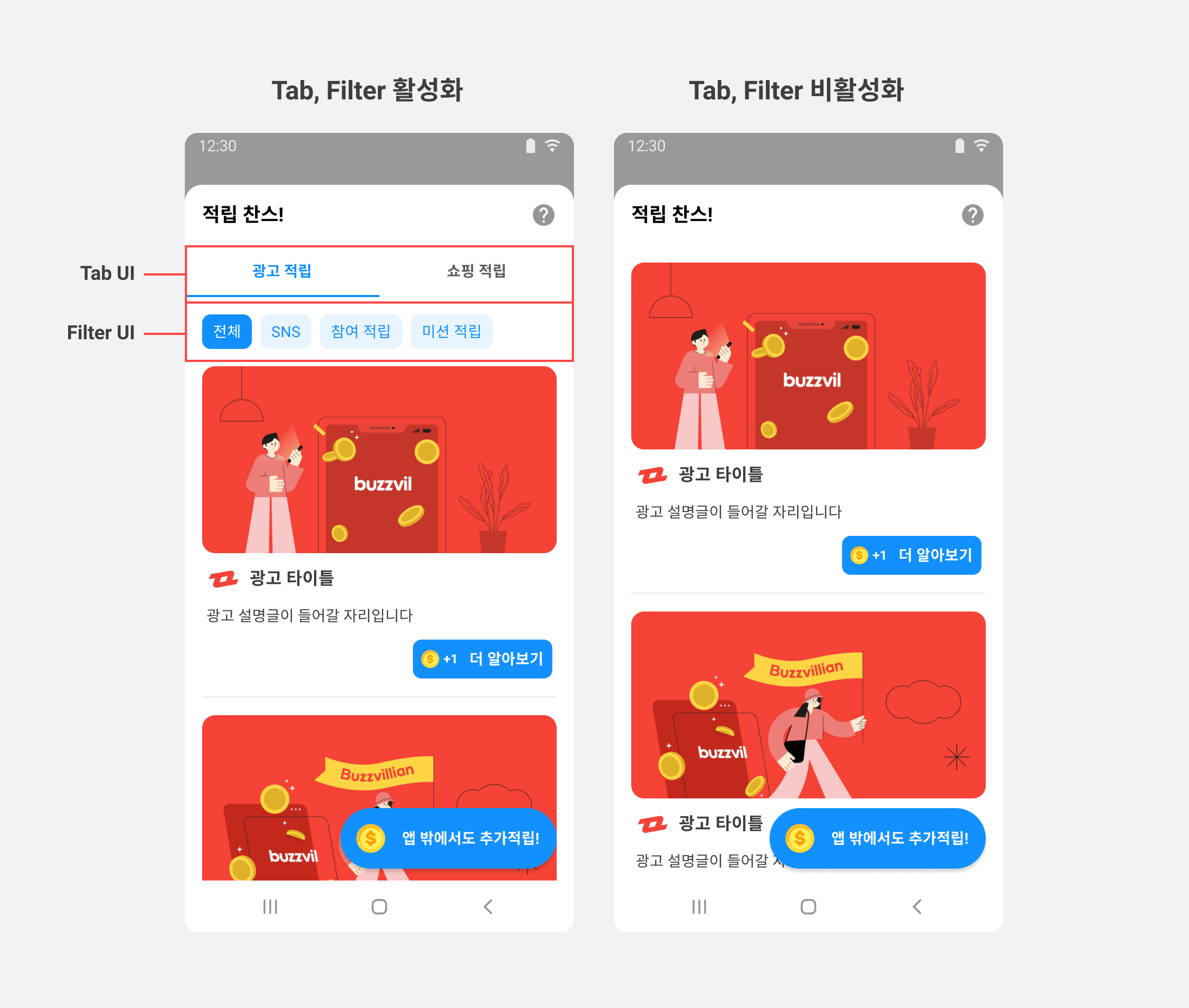
Infinite scrolling
When users reach the end of the allocated ad list, Feed automatically loads more ads. This is enabled by default and can be toggled without editing code or redeploying your app. Contact your Buzzvil representative to change the setting.
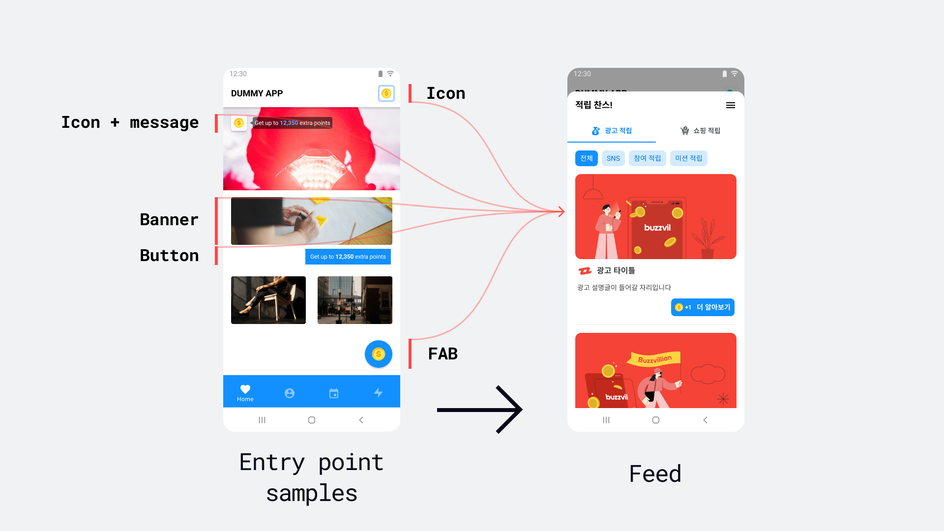
Add entry points to your app UI
Implement your own views in icons, buttons, banners or other UI elements to create entry points into Feed.
See the diagram below for example UI components. The sample app includes code for several custom entry points.
Prerequisites
- Complete Feed basic setup.
Add an entry point
Add Feed entry points inside activities, fragments or views. Implement your layout, then add a FeedEntryView ViewGroup.
Implement an entry point in XML
The following XML example opens Feed when your_image is tapped.
<?xml version="1.0" encoding="utf-8"?>

<com.buzzvil.buzzad.benefit.presentation.feed.entrypoint.FeedEntryView
    android:layout_width="wrap_content"
    android:layout_height="wrap_content"
    app:buzzvilFeedEntryViewName="your_custom_entry_point_1"> // 뷰에 대한 사용자 반응 추적


   <ImageView
      android:layout_width="wrap_content"
      android:layout_height="wrap_content"
      android:src="@drawable/your_image"
      />

</com.buzzvil.buzzad.benefit.presentation.feed.entrypoint.FeedEntryView>
Add an entry point dynamically to an activity
Layout
The following example dynamically adds an entry point in the layout file (feed_entry_point.xml) under res/layout.
<?xml version="1.0" encoding="utf-8"?>

<com.buzzvil.buzzad.benefit.presentation.feed.entrypoint.FeedEntryView xmlns:android="http://schemas.android.com/apk/res/android"
    xmlns:app="http://schemas.android.com/apk/res-auto"
    android:layout_width="wrap_content"
    android:layout_height="wrap_content"
    app:buzzvilFeedEntryViewName="your_custom_entry_point_1"> // 뷰에 대한 사용자 반응 추적


    <ImageView
        android:layout_width="wrap_content"
        android:layout_height="wrap_content"
        android:src="@drawable/your_image"
        />

</com.buzzvil.buzzad.benefit.presentation.feed.entrypoint.FeedEntryView>
Activity layout
The following example dynamically adds an entry point in the activity layout file under res/layout.
<FrameLayout
    android:id="@+id/entryPointPlaceholder"/>
Activity code
The following example dynamically adds an entry point in the activity source file.
final ViewGroup parent = findViewById(R.id.entryPointPlaceholder);
final FeedEntryView entryView = (FeedEntryView) getLayoutInflater().inflate(R.layout.feed_entry_point, null);
entryView.setFeedEntryViewName("your_custom_entry_point_1"); // 뷰에 대한 사용자 반응 추적
parent.addView(entryView);
Display available points
Preview the available points, as shown below, to encourage users who have not yet entered Feed to participate.

Follow these steps to show available points in advance.
- Call
buzzAdFeed.load()to allocate Feed ads. - On success, the
onSuccess()callback is invoked. - In the
onSuccess()callback, callbuzzAdFeed.getAvailableRewards()to retrieve the total available reward amount. - Update your view with that amount.
The following example refreshes Feed and updates the view whenever onResume() runs.
private BuzzAdFeed buzzAdFeed;

@Override
protected void onCreate(@Nullable Bundle savedInstanceState) {
    super.onCreate(savedInstanceState);
    setContentView(R.layout.activity);
    buzzAdFeed = new BuzzAdFeed.Builder().build();
}

@Override
protected void onResume() {
    super.onResume();

    buzzAdFeed.load(new BuzzAdFeed.FeedLoadListener() {
        @Override
        public void onSuccess() {
            // 할당된 광고가 있으면 호출됩니다.
            int feedTotalReward = buzzAdFeed.getAvailableRewards(); // 적립 가능한 총 포인트 금액
            // TODO: 뷰 업데이트하는 함수를 호출합니다.
            updateMessages(feedTotalReward);
        }

        @Override
        public void onError(AdError error) {
            // 할당된 광고가 없으면 호출됩니다.
            // TODO: 적립 가능 포인트를 0으로 표시합니다.
            updateMessages(0);
            Log.e(TAG, "Failed to load a native ad.", error);
        }
    });
}
// TODO: 적립 가능한 총 포인트 금액 값으로 뷰를 업데이트하도록 구현합니다.
private void updateMessages(final int points) {

}
Implement a custom toolbar
Customize the Feed toolbar using either the SDK's default UI or your own custom view.
You cannot implement a custom toolbar when integrating Feed as a Fragment (FeedFragment).
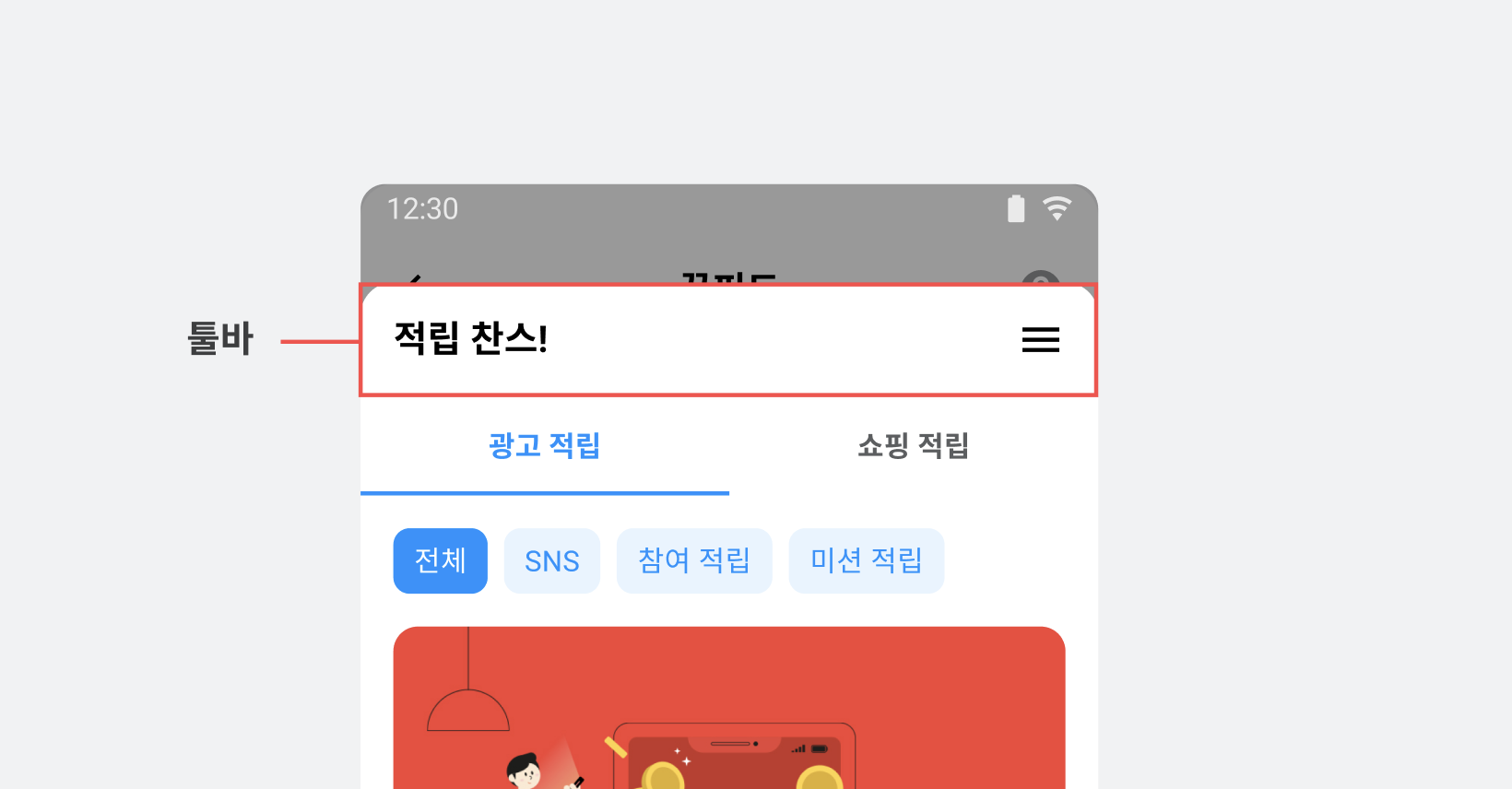
Use the SDK's default UI
Modify the SDK's default UI to change the toolbar title or background color.
The following example extends DefaultFeedToolbarHolder, uses the default FeedToolbar UI to change the title or background color, then registers the class in FeedConfig.
public class YourFeedToolbarHolder extends DefaultFeedToolbarHolder {

    @Override
    public View getView(Activity activity, @NonNull final String unitId) {
        super.toolbar = new FeedToolbar(activity); // FeedToolbar 에서 제공하는 기본 템플릿을 사용합니다.
        toolbar.setTitle("YourFeedToolbarHolder");
        toolbar.setIconResource(R.drawable.your_icon); // 이미지 사이즈 규격은 24dp 입니다.
        toolbar.setBackgroundColor(Color.parseColor("#123456"));

        super.addInquiryMenuItemView(activity); // 문의하기 버튼은 이 함수를 통해 추가할 수 있습니다.
        super.addSettingsMenuItemView(activity); // 세팅 버튼은 이 함수를 통해 추가할 수 있습니다.
        addRightMenuItemView1(activity); // 커스터마이징한 버튼 추가할 수 있습니다.
        return toolbar;
    }

    // 커스터마이징한 버튼을 추가하려면 DefaultMenuLayout 를 사용하여 View 를 생성하고
    // toolbar.addRightMenuButton 를 사용하여 toolbar 에 추가합니다.
    private void addRightMenuItemView1(@NonNull final Activity activity) {
        MenuLayout menuLayout = new DefaultMenuLayout(activity, R.mipmap.ic_launcher);
        menuLayout.setOnClickListener(new View.OnClickListener() {
            @Override
            public void onClick(View v) {
                showInquiry(); // showInquiry 를 호출하여 문의하기 페이지로 연결합니다.
            }
        });
        toolbar.addRightMenuButton(menuLayout);
    }
}
final FeedConfig feedConfig = new FeedConfig.Builder("YOUR_FEED_UNIT_ID")
        .feedToolbarHolderClass(YourFeedToolbarHolder.class)
        .build();
Use your own custom view
Implement a custom toolbar view instead of using the SDK's UI.
Follow these steps to replace the toolbar with your own view.
-
Create a subclass of
DefaultFeedToolbarHolder. -
Implement the custom toolbar view in
your_toolbar_holder_layout.xml.
public class YourFeedToolbarHolder extends DefaultFeedToolbarHolder {

    @Override
    public View getView(final Activity activity, @NonNull final String unitId) {
        final LayoutInflater inflater = (LayoutInflater) activity.getSystemService(Context.LAYOUT_INFLATER_SERVICE);
        return inflater.inflate(R.layout.your_toolbar_holder_layout, null);
    }

    @Override
    public void onTotalRewardUpdated(int totalReward) {
        // 적립 가능한 리워드를 UI에 적용할 수 있습니다.
    }
}
- Create a
FeedConfigobject, then add yourDefaultFeedToolbarHoldersubclass tofeedToolbarHolderClass().
final FeedConfig feedConfig = new FeedConfig.Builder("YOUR_FEED_UNIT_ID")
        .feedToolbarHolderClass(YourFeedToolbarHolder.class)
        .build();
Adjust the custom toolbar height
If your view differs from the Android activity's default action bar height, it may not display correctly. Set the toolbar height through toolbarHeight() on the BuzzAdFeedTheme object.
final BuzzAdFeedTheme buzzAdFeedTheme =
        BuzzAdFeedTheme.getDefault()
            .toolbarHeight(R.dimen.YOUR_TOOL_BAR_HEIGHT);
BuzzAdFeed.setDefaultTheme(buzzAdFeedTheme);
Implement a custom header
Use the Feed header for your own content, such as an explanation of Feed or the available reward amount.
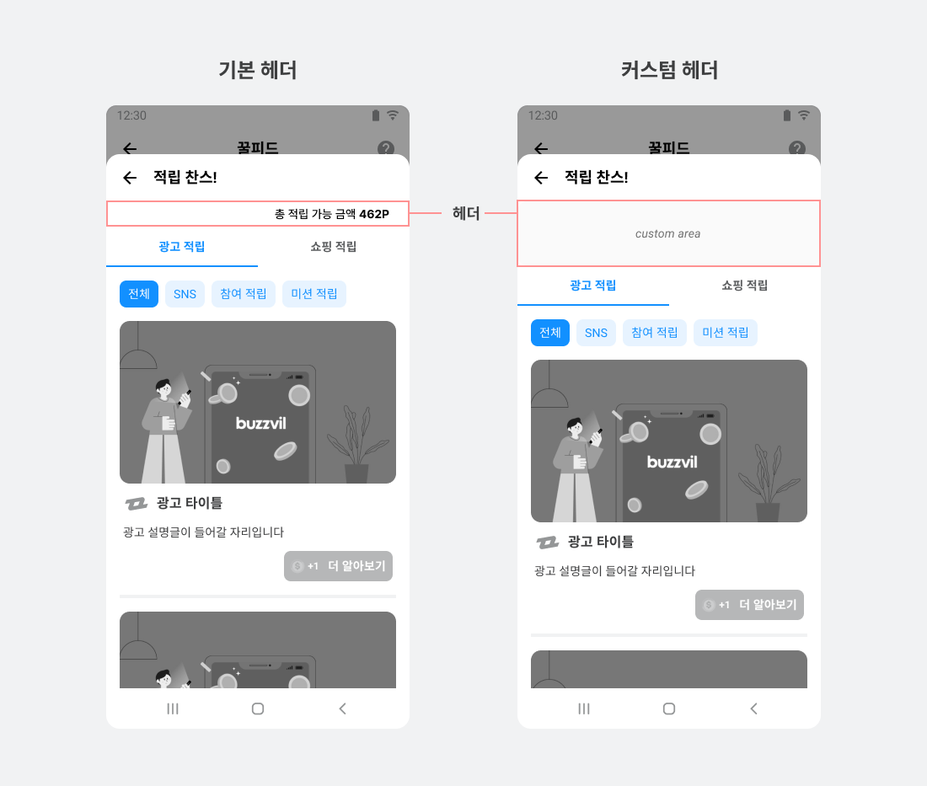
The following example changes the header.
Create a class implementing FeedHeaderViewAdapter and add your custom view (your_feed_header_layout) to the header. Register the class in the feedHeaderViewAdapterClass() property of FeedConfig.
public class CustomFeedHeaderViewAdapter implements FeedHeaderViewAdapter {

    @Override
    public View onCreateView(final Context context, final ViewGroup parent) {
        final LayoutInflater inflater = (LayoutInflater) context.getSystemService(Context.LAYOUT_INFLATER_SERVICE);
        return inflater.inflate(R.layout.your_feed_header_layout, parent, false);
    }

    @Override
    public void onBindView(final View view, final int reward) {
        // Display total reward on the header if needed.
        final TextView textView = view.findViewById(R.id.your_textview);
        textView.setText(String.format("리워드 %d원", reward));
    }

    @Override
    public void onDestroyView() {
        // Use this this callback for clearing memory
    }
}
final FeedConfig feedConfig = new FeedConfig.Builder("YOUR_FEED_UNIT_ID")
        .feedHeaderViewAdapterClass(CustomFeedHeaderViewAdapter.class)
        .build();
Implement a custom base reward notification
Users receive points periodically when entering Feed, even without participating in an ad. Customize the base reward notification to improve the experience.
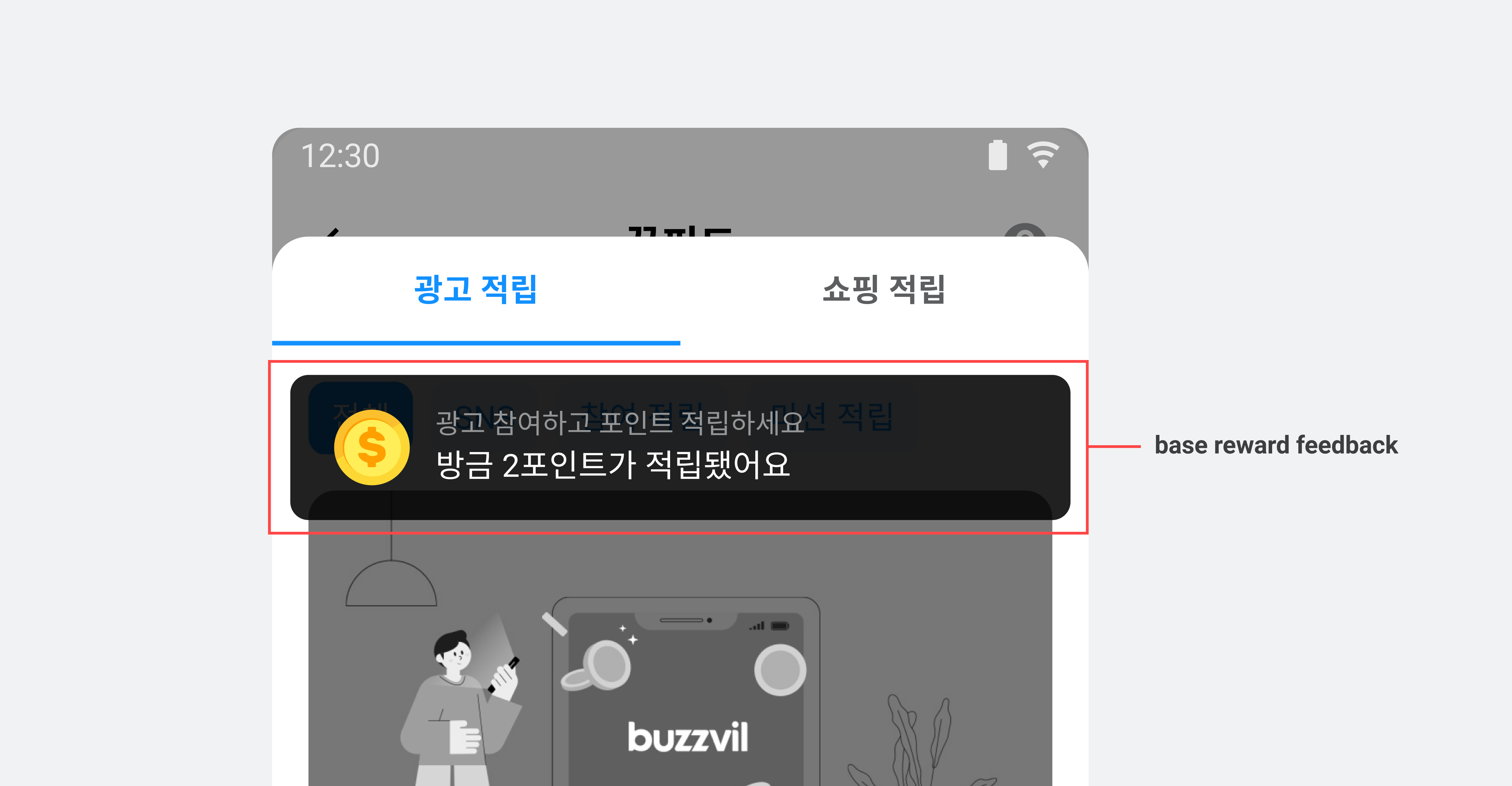
The following example implements a custom base reward notification.
-
Create a class implementing
BaseRewardNotificationAdapter.public class CustomBaseRewardNotificationAdapter implements BaseRewardNotificationAdapter { @NonNull @Override public View onCreateView(@NonNull Context context, @NonNull ViewGroup viewGroup) { return LayoutInflater.from(context).inflate(R.layout.YOUR_LAYOUT, viewGroup, false); } @Override public void onBindView(@NonNull View view, int reward) { TextView textView = view.findViewById(R.id.YOUR_TEXT_ID); textView.setText(reward + " 포인트가 적립되었습니다."); } } -
Set the
CustomBaseRewardNotificationAdaptercreated in the previous step onFeedConfig.final FeedConfig feedConfig = new FeedConfig.Builder("YOUR_FEED_UNIT_ID") .baseRewardNotificationAdapterClass(CustomBaseRewardNotificationAdapter.class) .build();
Implement a custom ad design
The BuzzAd Android SDK provides standard ads and shopping ads.
- Standard ads: All ad types other than shopping ads.
- Shopping ads: Users receive a percentage of their purchase amount as points after buying through the ad.
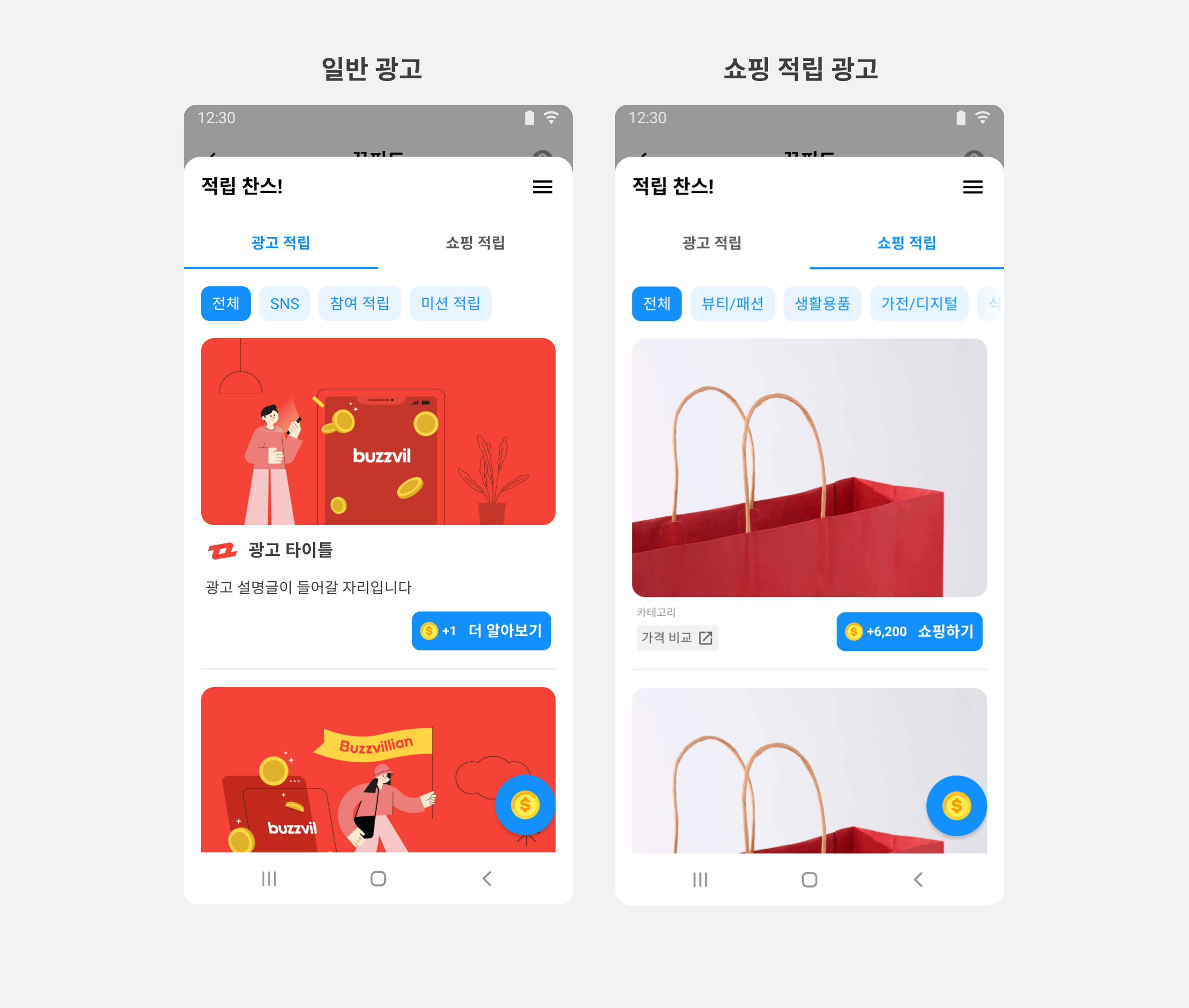
Both types contain multiple elements for displaying the ad. Their components and UI requirements are listed below.
| Ad type | Component | Description |
|---|---|---|
| Shared: standard and shopping | Ad title (required) | The ad title. A maximum of 10 characters is recommended. You may truncate part of the text with an ellipsis as needed, regardless of length. |
| Ad creative (required) |
| |
| Ad description (required) | A detailed ad description. A maximum of 40 characters is recommended. You may truncate part of the text with an ellipsis as needed, regardless of length. | |
| Advertiser icon (required) |
| |
| CTA button (required) |
✏️ Note See Customize CTA buttons to change the design. | |
| Ad disclosure (recommended) | Text identifying the content as advertising, such as 광고, ad, 스폰서 or Sponsored. | |
| Shopping rewards | OriginalPrice View (recommended) | Displays the original product price. |
| Price View (recommended) | Displays the discounted product price. | |
| DiscountRate View (recommended) | Displays the discount rate. Calculate it from the original and discounted prices. |
Implement a custom standard ad design
Follow these steps to customize standard ads.
-
Implement a layout (
your_feed_ad.xml) that meets the requirements of the standard adNativeAdView.<com.buzzvil.buzzad.benefit.presentation.nativead.NativeAdView android:id="@+id/native_ad_view" ...> <LinearLayout ... > <com.buzzvil.buzzad.benefit.presentation.media.MediaView android:id="@+id/mediaView" ... /> <TextView android:id="@+id/textTitle" ... /> <TextView android:id="@+id/textDescription" ... /> <ImageView android:id="@+id/imageIcon" ... /> <com.buzzvil.buzzad.benefit.presentation.media.DefaultCtaView android:id="@+id/ctaView" ... /> </LinearLayout> </com.buzzvil.buzzad.benefit.presentation.nativead.NativeAdView> -
Implement a subclass of
AdsAdapter.
-
In
onCreateViewHolder, useyour_feed_ad.xmlto createNativeAdView. -
In
onBindViewHolder, useNativeAdViewBinderto bind ad data (NativeAd) to theNativeAdViewyou created.public class CustomAdsAdapter extends AdsAdapter<AdsAdapter.NativeAdViewHolder> { @NonNull @Override public NativeAdViewHolder onCreateViewHolder(ViewGroup parent, int viewType) { final LayoutInflater inflater = LayoutInflater.from(parent.getContext()); final NativeAdView feedNativeAdView = (NativeAdView) inflater.inflate(R.layout.your_feed_ad, parent, false); return new NativeAdViewHolder(feedNativeAdView); } @Override public void onBindViewHolder(NativeAdViewHolder holder, NativeAd nativeAd) { super.onBindViewHolder(holder, nativeAd); final NativeAdView view = (NativeAdView) holder.itemView; // 광고 레이아웃 컴포넌트를 생성합니다. final MediaView mediaView = view.findViewById(R.id.mediaView); final TextView titleView = view.findViewById(R.id.textTitle); final ImageView iconView = view.findViewById(R.id.imageIcon); final TextView descriptionView = view.findViewById(R.id.textDescription); final DefaultCtaView ctaView = view.findViewById(R.id.ctaView); // 광고 데이터(NativeAd)를 바인딩합니다. final NativeAdViewBinder viewBinder = new NativeAdViewBinder.Builder(view, mediaView) .titleTextView(titleView) .descriptionTextView(descriptionView) .iconImageView(iconView) .ctaView(ctaView) .build(); viewBinder.bind(nativeAd); } } -
Optionally receive ad callbacks through
NativeAdEventListener.
```java
public class CustomAdsAdapter extends AdsAdapter<AdsAdapter.NativeAdViewHolder> {
    private NativeAdEventListener listener;

    // 부가 기능: 광고 콜백 이벤트 수신 기능을 추가합니다.

    @Override
    public void onBindViewHolder(NativeAdViewHolder holder, NativeAd nativeAd) {
        ...생략...

        viewBinder.bind(nativeAd);

        if (listener != null) {
            nativeAd.removeNativeAdEventListener(listener);
        }
        listener = buildNativeAdEventListener(holder.itemView);
        nativeAd.addNativeAdEventListener(listener);
    }


    private NativeAdEventListener buildNativeAdEventListener(@NonNull View view) {
        return new NativeAdEventListener() {
            @Override
            public void onImpressed(final @NonNull NativeAd nativeAd) {

            }

            @Override
            public void onClicked(@NonNull NativeAd nativeAd) {

            }

            @Override
            public void onRewardRequested(@NonNull NativeAd nativeAd) {

            }

            @Override
            public void onRewarded(@NonNull NativeAd nativeAd, @Nullable RewardResult nativeAdRewardResult) {
                Toast.makeText(view.getContext(), "onRewarded: " + nativeAdRewardResult, Toast.LENGTH_SHORT).show();
            }

            @Override
            public void onParticipated(final @NonNull NativeAd nativeAd) {

            }
        };
    }
}
```
3. Set your CustomAdsAdapter as the ad adapter class in FeedConfig.
```java
final FeedConfig feedConfig = new FeedConfig.Builder(context, "YOUR_FEED_UNIT_ID")
        .adsAdapterClass(CustomAdsAdapter.class)
        .build();
```
Implement a custom shopping ad design
Follow these steps to customize shopping ads.
-
Add
discountedPriceText,originalPriceTextanddiscountPercentageTextto the standard ad layout to create a layout (your_feed_ad_cps.xml) that meets the requirements of the shopping adNativeAdView.<?xml version="1.0" encoding="utf-8"?> <com.buzzvil.buzzad.benefit.presentation.nativead.NativeAdView android:id="@+id/native_ad_view" ...> <LinearLayout ... > <com.buzzvil.buzzad.benefit.presentation.media.MediaView android:id="@+id/mediaView" ... /> <TextView android:id="@+id/textTitle" ... /> <TextView android:id="@+id/textDescription" ... /> <ImageView android:id="@+id/imageIcon" ... /> <com.buzzvil.buzzad.benefit.presentation.media.DefaultCtaView android:id="@+id/ctaView" ... /> <TextView android:id="@+id/discountedPriceText" ...생략... /> <TextView android:id="@+id/originalPriceText" ...생략... /> <TextView android:id="@+id/discountPercentageText" ...생략... /> </LinearLayout> </com.buzzvil.buzzad.benefit.presentation.nativead.NativeAdView> -
Implement a subclass of
AdsAdapterfollowing Implement a custom standard ad design. See the following code example.public class CustomCPSAdsAdapter extends AdsAdapter<AdsAdapter.NativeAdViewHolder> { @NonNull @Override public NativeAdViewHolder onCreateViewHolder(ViewGroup parent, int viewType) { final LayoutInflater inflater = LayoutInflater.from(parent.getContext()); final NativeAdView feedNativeAdView = (NativeAdView) inflater.inflate(R.layout.your_feed_ad_cps, parent, false); return new NativeAdViewHolder(feedNativeAdView); } @Override public void onBindViewHolder(NativeAdViewHolder holder, NativeAd nativeAd) { super.onBindViewHolder(holder, nativeAd); final NativeAdView view = (NativeAdView) holder.itemView; // 광고 레이아웃 컴포넌트를 생성합니다. final MediaView mediaView = view.findViewById(R.id.mediaView); final TextView titleView = view.findViewById(R.id.textTitle); final ImageView iconView = view.findViewById(R.id.imageIcon); final TextView descriptionView = view.findViewById(R.id.textDescription); final DefaultCtaView ctaView = view.findViewById(R.id.ctaView); final TextView discountedPriceText = view.findViewById(R.id.discountedPriceText); final TextView originalPriceText = view.findViewById(R.id.originalPriceText); final TextView discountPercentageText = view.findViewById(R.id.discountPercentageText); final Product product = nativeAd.getShoppingProduct(); if (product != null) { if (product.getDiscountedPrice() != null) { // 할인이 있는 쇼핑 광고 originalPriceText.setPaintFlags(originalPriceText.getPaintFlags() | Paint.STRIKE_THRU_TEXT_FLAG); int percentage = 0; if (product.getPrice() > product.getDiscountedPrice()) { percentage = Math.round(((product.getPrice() - product.getDiscountedPrice()) / product.getPrice() * 100)); } if (percentage > 0) { priceText.setText(getCommaSeparatedPrice(product.getDiscountedPrice().longValue())); originalPriceText.setText(getCommaSeparatedPrice((long) product.getPrice())); discountPercentageText.setText(String.format(Locale.ROOT, "%d%%", percentage)); discountPercentageText.setVisibility(View.VISIBLE); } else { priceText.setText(getCommaSeparatedPrice((long) product.getPrice())); originalPriceText.setText(""); discountPercentageText.setVisibility(View.GONE); } } else { // 할인이 없는 쇼핑 광고 priceText.setText(getCommaSeparatedPrice((long) product.getPrice())); originalPriceText.setText(""); discountPercentageText.setVisibility(View.GONE); } } // 광고 데이터(NativeAd)를 바인딩합니다. final NativeAdViewBinder viewBinder = new NativeAdViewBinder.Builder(view, mediaView) .titleTextView(titleView) .descriptionTextView(descriptionView) .iconImageView(iconView) .ctaView(ctaView) // 부가 기능: 텍스트를 클릭할 수 있도록 설정합니다. .addClickableView(discountPercentageText) .addClickableView(discountedPriceText) .addClickableView(originalPriceText) .build(); viewBinder.bind(nativeAd); } private String getCommaSeparatedPrice (long price){ return String.format(Locale.getDefault(), "₩%,d", price); } } -
Set your
CustomCPSAdsAdapteras the shopping ad adapter class inFeedConfig.final FeedConfig feedConfig = new FeedConfig.Builder("YOUR_FEED_UNIT_ID") .cpsAdsAdapterClass(YourCPSAdsAdapter.class) .build();
Implement a custom CTA button
Implement your own CTA button instead of using the SDK's default UI.
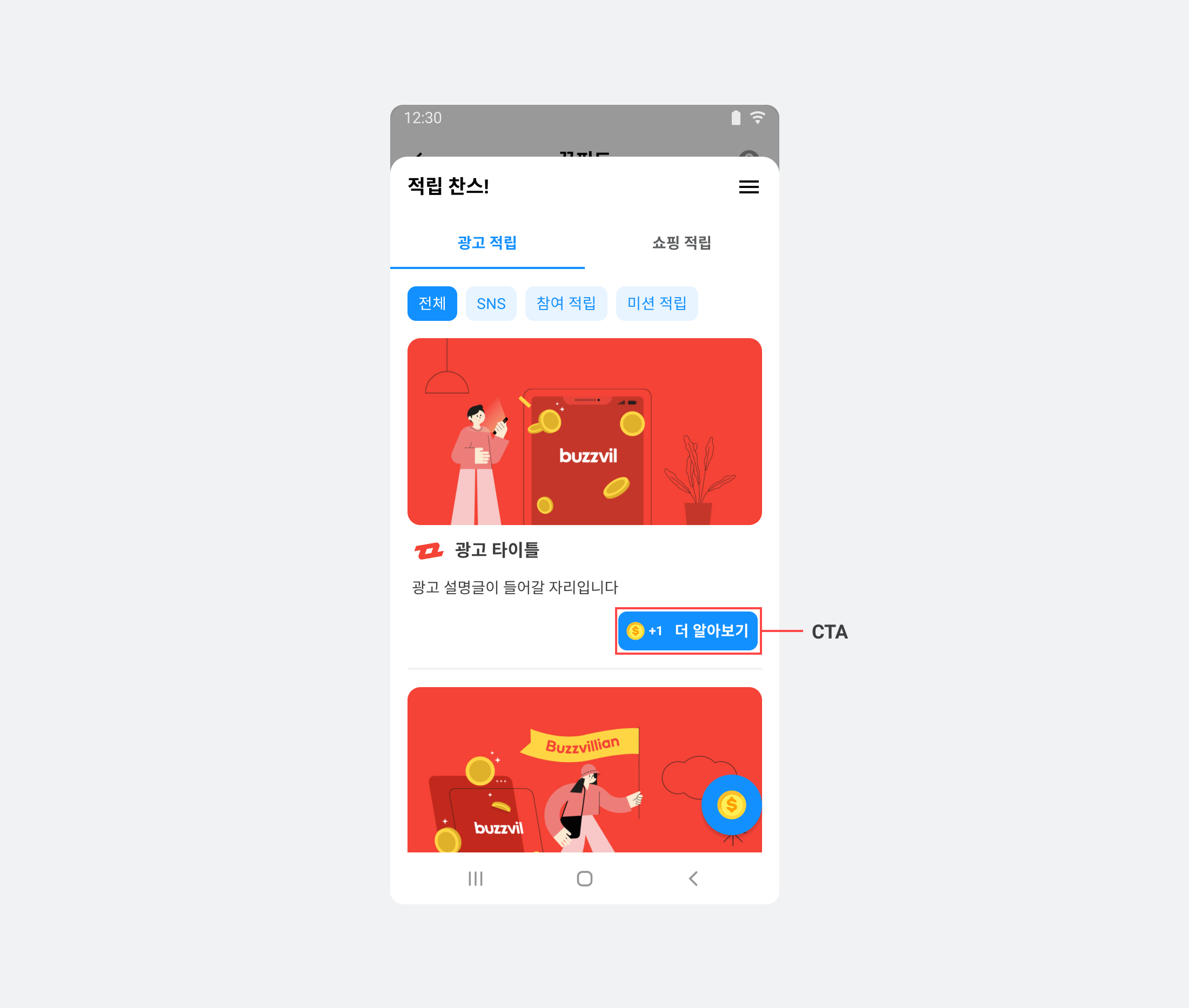
Follow these steps to implement your own CTA button.
-
Implement the view layout (
view_customized_cta.xml). The following example implements a view layout as a layout resource.<LinearLayout android:layout_width="wrap_content" android:layout_height="wrap_content" android:background="@color/colorPrimaryDark"> <TextView android:id="@+id/textCta"/> <ImageView android:id="@+id/imageReward" android:layout_width="24dp" android:layout_height="24dp" android:src="아이콘 이미지 리소스"/> <TextView android:id="@+id/textReward"/> </LinearLayout> -
Create
CustomCtaView, a subclass ofCtaView. -
In your subclass of
CtaView, useinflateto load the CTA view layout. -
Implement the CTA icon, text and reward value in the following overrides, called according to the user's participation state.
-
renderViewParticipatingState: Participation is in progress, such as when the user has opened an action-based ad landing page. -
renderViewParticipatedState: The user has completed participation. -
renderViewRewardAvailableState: The user has not participated yet. -
renderViewRewardNotAvailableState: The ad offers no reward.public class CustomCtaView extends CtaView { private final ImageView rewardImageView; private final TextView rewardTextView; private final TextView ctaTextView; public CustomCtaView(@NonNull Context context) { this(context, null); } public CustomCtaView(@NonNull Context context, @Nullable AttributeSet attrs) { this(context, attrs, 0); } public CustomCtaView(@NonNull Context context, @Nullable AttributeSet attrs, int defStyleAttr) { super(context, attrs, defStyleAttr); // TODO: 기존에 사용하던 CTA View 레이아웃을 inflate 하도록 구현하세요. inflate(getContext(), R.layout.view_customized_cta, this); this.rewardImageView = findViewById(R.id.imageReward); this.rewardTextView = findViewById(R.id.textReward); this.ctaTextView = findViewById(R.id.textCta); } // CTA 텍스트 설정 public void setCtaText(String ctaText) { ctaTextView.setText(ctaText); } // CTA 리워드 값 설정 public void setRewardText(String rewardText) { rewardTextView.setText(rewardText); } // CTA 아이콘 설정 public void setRewardIcon(@DrawableRes int iconResId) { rewardImageView.setImageResource(iconResId); rewardImageView.setVisibility(View.VISIBLE); } // CTA 아이콘 숨기기 처리 public void hideRewardIcon() { rewardImageView.setVisibility(View.GONE); } // 사용자가 광고에 참여 중인 상태 @Override public void renderViewParticipatingState(@NonNull String callToAction) { setCtaText("참여 확인 중"); hideRewardIcon(); setRewardText(""); } // 사용자가 광고 참여를 완료한 상태 @Override public void renderViewParticipatedState(@NonNull String callToAction) { setRewardIcon(R.drawable.my_participated_icon); setRewardText(""); setCtaText("참여 완료"); } // 사용자가 아직 광고에 참여하지 않은 상태 @Override public void renderViewRewardAvailableState(@NonNull String callToAction, int reward) { setRewardIcon(R.drawable.my_reward_icon); setRewardText(String.format(Locale.US, "+%,d", reward)); setCtaText(callToAction); } // 사용자가 획득할 리워드가 없는 광고 @Override public void renderViewRewardNotAvailableState(@NonNull String callToAction) { hideRewardIcon(); setRewardText(""); setCtaText(callToAction); } }
-
Set the path to your new
CustomCtaViewclass in the Feed ad layout. The following example shows a Feed ad layout.<com.buzzvil.buzzad.benefit.presentation.nativead.NativeAdView xmlns:android="http://schemas.android.com/apk/res/android" android:id="@+id/native_ad_view"> <com.buzzvil.buzzad.benefit.presentation.media.MediaView android:id="@+id/mediaView"/> <TextView android:id="@+id/textTitle"/> <TextView android:id="@+id/textDescription"/> <ImageView android:id="@+id/imageIcon"/> <com.your.packagename.CustomCtaView android:id="@+id/customCtaView"/> </com.buzzvil.buzzad.benefit.presentation.nativead.NativeAdView> -
Apply the custom CTA to Feed ads in this order.
i. Implement
CustomAdsAdapterfollowing Implement a custom ad design.ii. Instantiate
CustomCtaViewinCustomAdsAdapter.onBindViewHolder.iii. Bind your new
CustomCtaViewtoNativeAdViewBinder.Builder.class CustomAdAdapter extends AdsAdapter<AdsAdapter.NativeAdViewHolder> { // 생략... @Override public void onBindViewHolder(NativeAdViewHolder holder, NativeAd nativeAd) { super.onBindViewHolder(holder, nativeAd); // 생략... final CustomCtaView ctaView = view.findViewById(R.id.ctaView); final NativeAdViewBinder viewBinder = new NativeAdViewBinder.Builder(view, mediaView) // 생략... .ctaView(customCtaView) .build(); viewBinder.bind(nativeAd); } }
Implement a custom CTA button for v3.0.0, v3.0.1, v3.1.0 and v3.1.1
If you use v3.0.0, v3.0.1, v3.1.0 or v3.1.1 without the latest patch, follow these steps.
-
Implement the view layout (
view_customized_cta.xml). The following example uses a layout resource.<LinearLayout android:layout_width="wrap_content" android:layout_height="wrap_content" android:background="@color/colorPrimaryDark" ...(생략)...> <TextView android:id="@+id/textCta" ...(생략)... tools:text="CTA 텍스트"/> <ImageView android:id="@+id/imageReward" android:layout_width="24dp" android:layout_height="24dp" android:src=[아이콘 이미지 리소스] /> <TextView android:id="@+id/textReward" ...(생략)... tools:text="+1"/> </LinearLayout> -
Create a subclass of
CtaView. The following example creates a CTA View class.public class CustomCtaView extends CtaView { private final ImageView rewardImageView; private final TextView rewardTextView; private final TextView ctaTextView; public CustomCtaView(@NonNull Context context) { this(context, null); } public CustomCtaView(@NonNull Context context, @Nullable AttributeSet attrs) { this(context, attrs, 0); } public CustomCtaView(@NonNull Context context, @Nullable AttributeSet attrs, int defStyleAttr) { super(context, attrs, defStyleAttr); inflate(getContext(), R.layout.bz_view_customized_cta, this); this.rewardImageView = findViewById(R.id.imageReward); this.rewardTextView = findViewById(R.id.textReward); this.ctaTextView = findViewById(R.id.textCta); } @NonNull @Override public TextView rewardTextView() { return rewardTextView; } @NonNull @Override public TextView ctaTextView() { return ctaTextView; } @NonNull @Override public ImageView rewardImageView() { return rewardImageView; } } -
Use the custom CTA view in the Feed ad layout, as shown below.
<com.buzzvil.buzzad.benefit.presentation.nativead.NativeAdView android:id="@+id/native_ad_view"> <com.buzzvil.buzzad.benefit.presentation.media.MediaView android:id="@+id/mediaView"/> <TextView android:id="@+id/textTitle"/> <TextView android:id="@+id/textDescription"/> <ImageView android:id="@+id/imageIcon"/> <com.your.packagename.CustomCtaView android:id="@+id/customCtaView"/> </com.buzzvil.buzzad.benefit.presentation.nativead.NativeAdView> -
Retrieve the CTA View in the
CustomCtaViewobject and bind ad data inNativeAdViewBinder.final NativeAdView nativeAdView = findViewById(R.id.your_native_ad_view); // TODO: CustomCtaView로 위의 CTA View를 가져옵니다. final CustomCtaView customCtaView = nativeAdView.findViewById(R.id.customCtaView) .ctaView(customCtaView) ; // TODO: customCtaView로 설정합니다. // TODO: 광고 데이터를 바인딩합니다. final NativeAdViewBinder viewBinder = new NativeAdViewBinder.Builder(nativeAdView, mediaView) .ctaView(customCtaView) // customCtaView로 설정합니다. .build();
Implement a custom no-ads screen
If no ads are available when Feed opens, a no-ads UI appears. You can replace it with your own design.
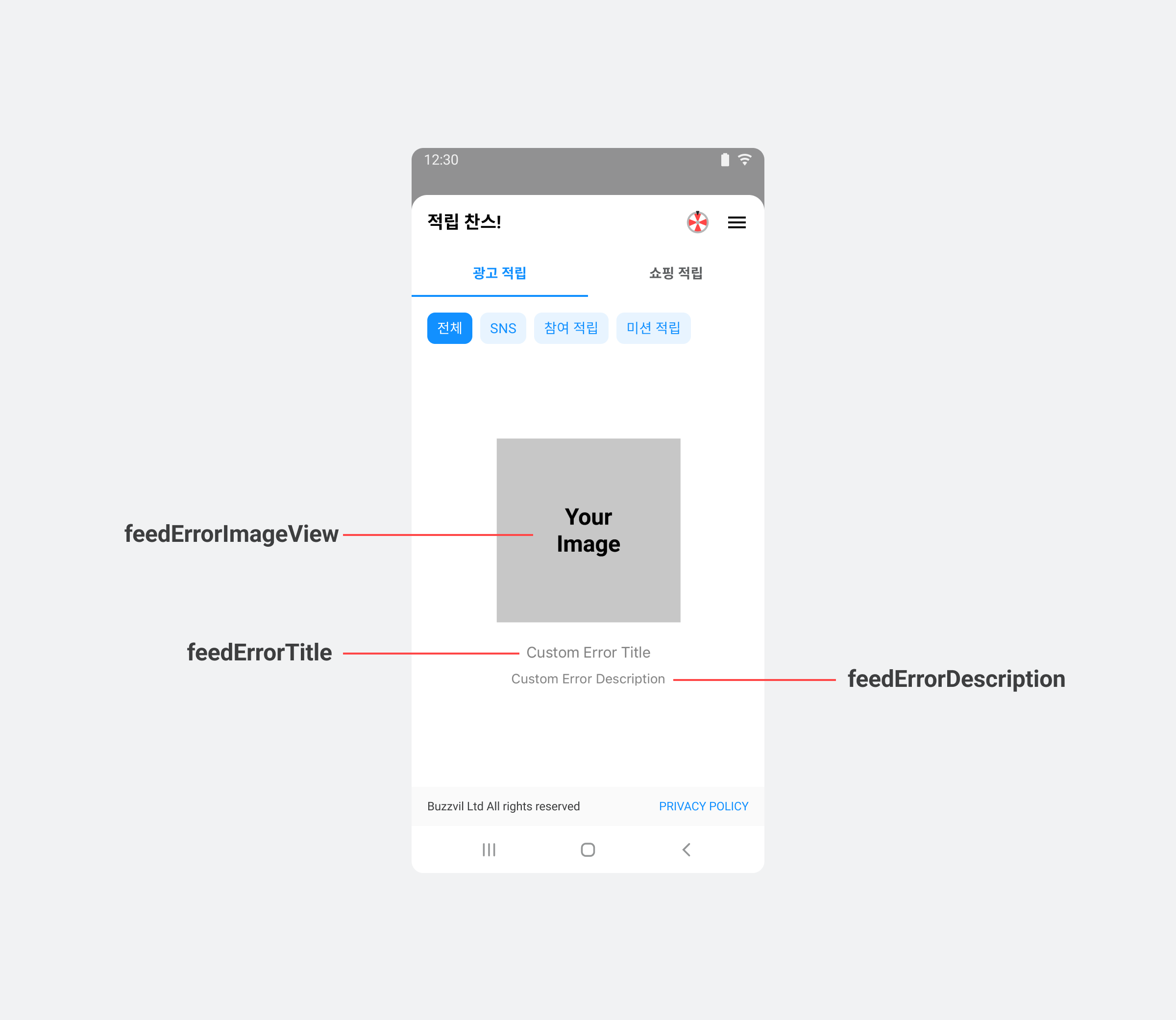
Follow these steps to implement a custom no-ads screen.
-
Create a layout containing an error image (
feedErrorImageView), title (feedErrorTitle) and description (feedErrorDescription).<LinearLayout xmlns:android="http://schemas.android.com/apk/res/android" android:layout_width="match_parent" android:layout_height="wrap_content" android:gravity="center_vertical" android:orientation="vertical" android:padding="40dp"> <ImageView android:id="@+id/feedErrorImageView" android:layout_width="match_parent" android:layout_height="wrap_content"/> <TextView android:id="@+id/feedErrorTitle" android:layout_width="wrap_content" android:layout_height="wrap_content" android:layout_gravity="center_horizontal" android:layout_marginTop="32dp" android:textColor="@color/bz_text_emphasis" android:textSize="16sp" /> <TextView android:id="@+id/feedErrorDescription" android:layout_width="wrap_content" android:layout_height="wrap_content" android:layout_gravity="center_horizontal" android:layout_marginTop="8dp" android:textAlignment="center" android:textColor="@color/bz_text_description" android:textSize="14sp" /> </LinearLayout> -
Create a custom class
CustomErrorViewimplementingFeedErrorViewHolder, then implement its generatedgetView()andupdateErrorView()methods as follows.public class CustomErrorView extends FeedErrorViewHolder { View errorView = activity.getLayoutInflater().inflate(R.layout.custom_feed_error_view, null, false); final ImageView errorImageView = errorView.findViewById(R.id.feedErrorImageView); final TextView errorTitle = errorView.findViewById(R.id.feedErrorTitle); final TextView errorDescription = errorView.findViewById(R.id.feedErrorDescription); @NonNull @Override public View getErrorView(@NonNull Activity activity) { // TODO: 1번에서 생성한 custom_feed_error_view 레이아웃을 inflate errorImageView.setImageResource(R.drawable.bz_ic_feed_profile_coin); // 에러 이미지 설정 errorTitle.setText("타이틀: 광고가 없습니다. "); // 에러 타이틀 텍스트 설정 errorDescription.setText("디스크립션: 할당된 광고가 없습니다!"); // 에러 상세 텍스트 설정 return errorView; } @Override public updateErrorView(AdErrorType adErrorType) { // TODO: 위에서 선언한 View를 업데이트 할 수 있는 코드를 작성하세요. ... } } -
Add the
CustomErrorViewclass to thefeedErrorViewHolderClassproperty ofFeedConfig.// Feed 지면 초기화 // TODO: feedErrorViewHolderClass 속성에 2번에서 생성한 CustomErrorView 클래스를 설정합니다. final FeedConfig feedConfig = new FeedConfig.Builder(YOUR_FEED_UNIT_ID) .feedErrorViewHolderClass(CustomErrorView.class) .build();
Check the ad type
The BuzzAd Android SDK provides APIs to identify ad types so you can offer different rewards or experiences for impression-based, action-based and other ads. See Check the ad type in Frequently asked questions.
UI for consent to share personal information with third parties
The previous function is deprecated. From BuzzAd Android v3.27.x, we recommend removing the code below. The UI can be controlled remotely without it.
BuzzAdBenefit.getPrivacyPolicyManager()PrivacyPolicyManager.showConsentUI()PrivacyPolicyManager.grantConsent()PrivacyPolicyManager.revokeConsent()PrivacyPolicyManager.isConsentGranted()
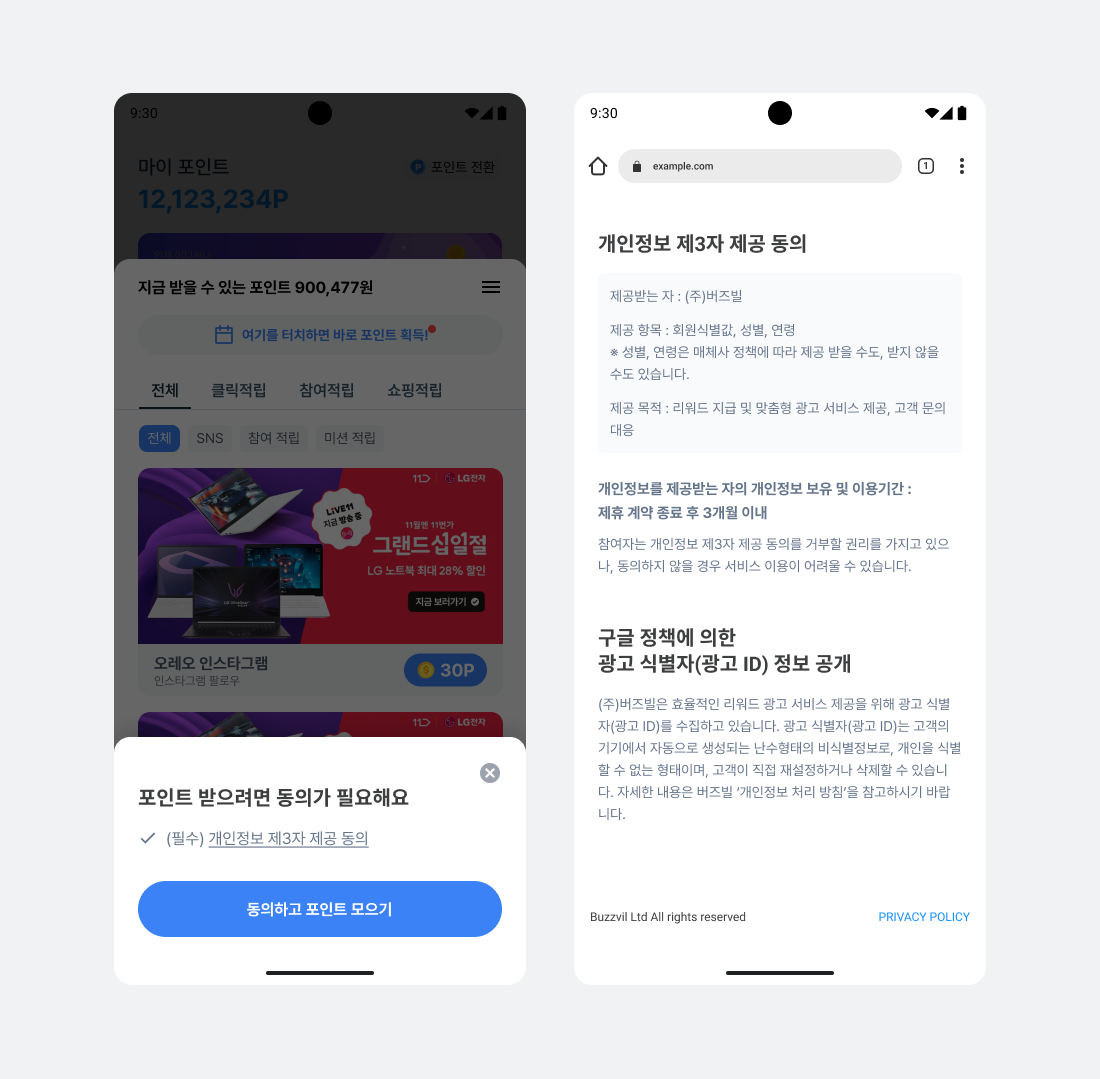
Personal information protection law and Google policy require user consent to collect and use personal information. The SDK provides consent UI and does not allocate Feed ads if the user declines. First-time Feed visitors see the following UI.
Configure the profile input banner
If the user has not provided a birth year or gender, the header shows a profile input banner by default.
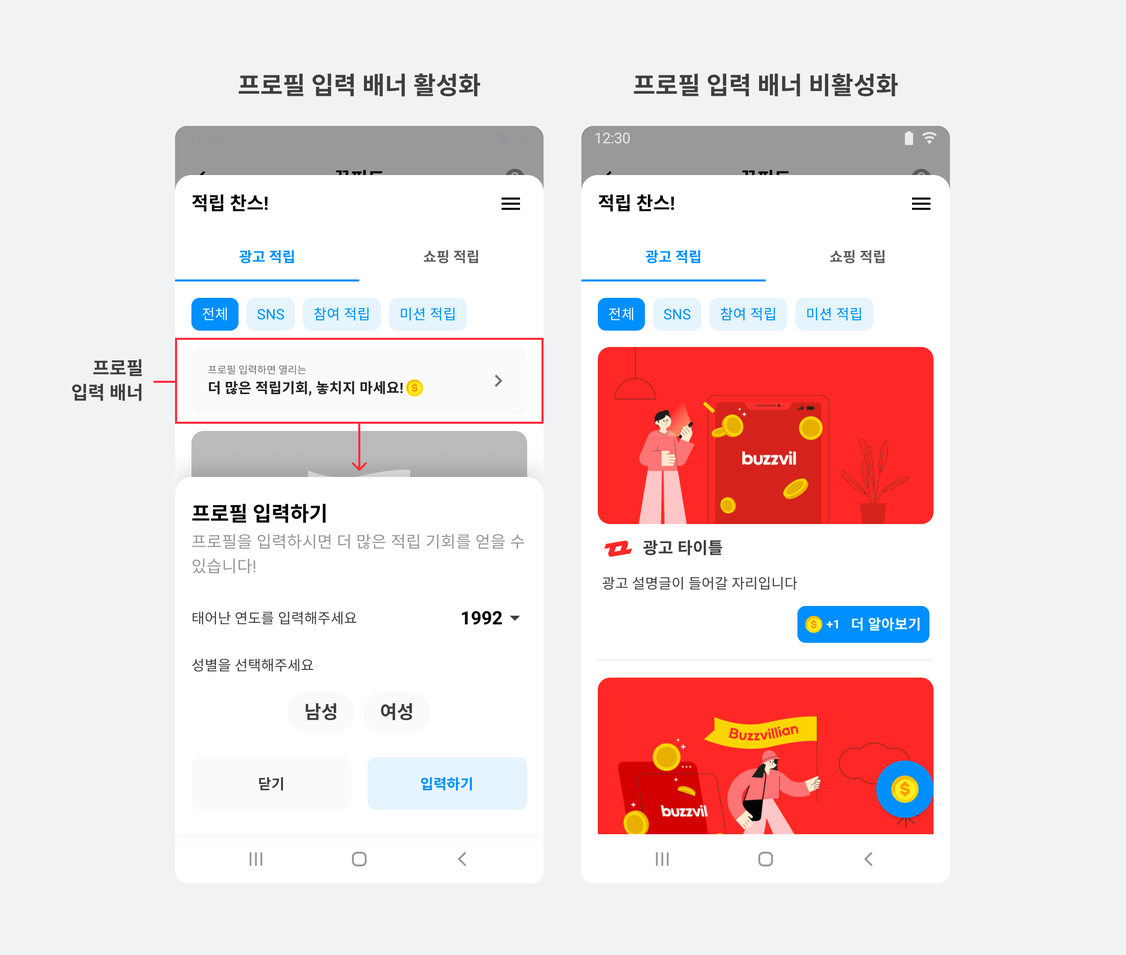
Modify FeedConfig to control whether the banner appears.
The following example hides the profile input banner.
final FeedConfig feedConfig = new FeedConfig.Builder("YOUR_FEED_UNIT_ID")
        .profileBannerEnabled(false) // 프로필 배너 미노출
        .build();
Integrate Feed as a Fragment
In addition to the default activity-based integration, the BuzzAd Android SDK supports Feed as a Fragment for greater flexibility.
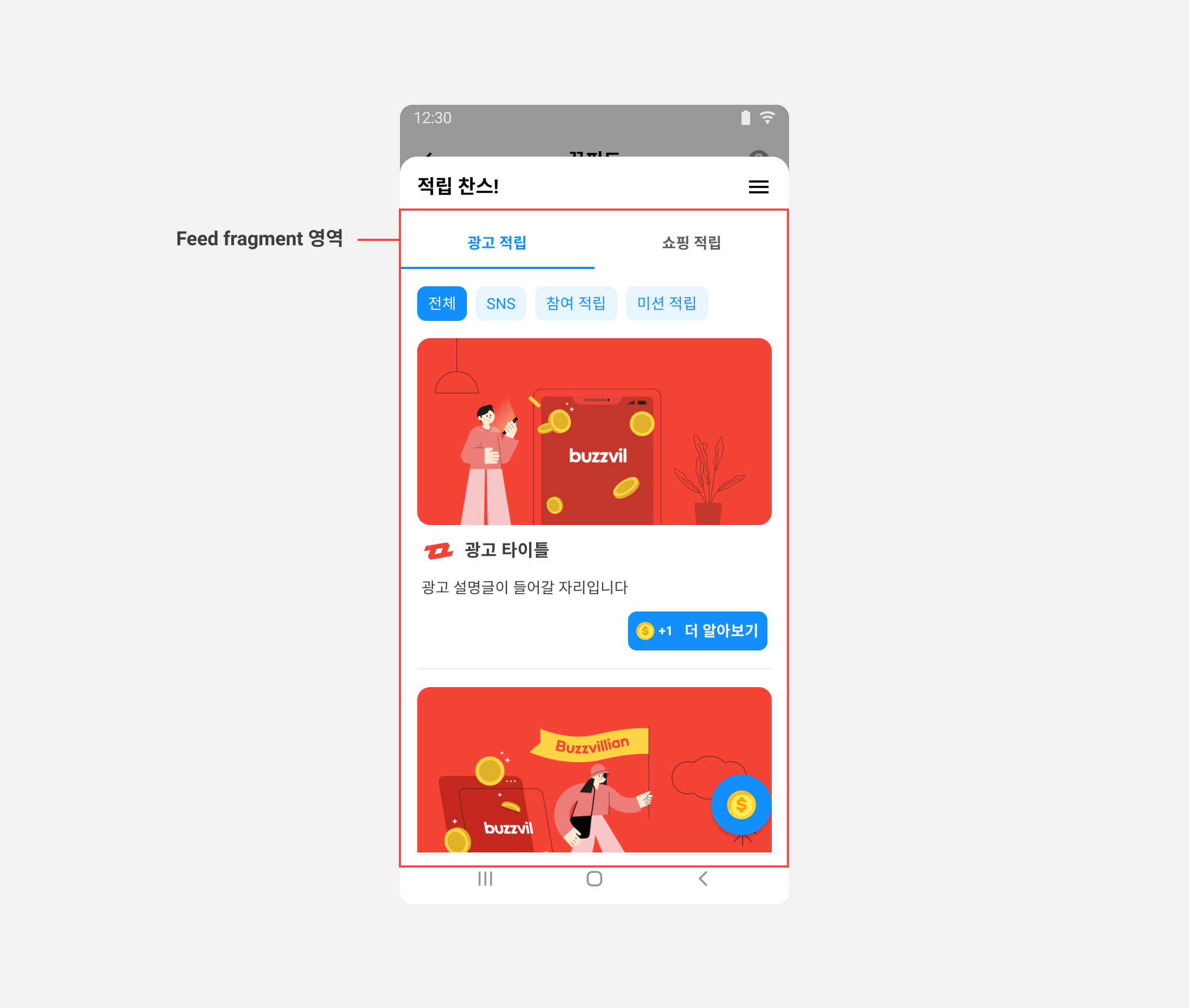
Add the Fragment to an activity and initialize it in that activity's onCreate().
The following example integrates FeedFragment.
class YourActivity extends Activity {

    @Override
    protected void onCreate(Bundle savedInstanceState) {
        super.onCreate(savedInstanceState);
        setContentView(R.layout.activity_your);

        // 광고를 새로 할당 받기 위해 필요한 부분입니다.
        final BuzzAdFeed buzzAdFeed = new BuzzAdFeed.Builder().build();

        final FeedFragment feedFragment = buzzAdFeed.getFragment();
        getSupportFragmentManager()
                .beginTransaction()
                .replace(R.id.content, feedFragment)
                .commitAllowingStateLoss();

    }
}
<?xml version="1.0" encoding="utf-8"?>

<androidx.constraintlayout.widget.ConstraintLayout xmlns:android="http://schemas.android.com/apk/res/android"
    xmlns:app="http://schemas.android.com/apk/res-auto"
    xmlns:tools="http://schemas.android.com/tools"
    android:layout_width="match_parent"
    android:layout_height="match_parent"
    tools:context=".feed.FeedFragmentActivity">

    <FrameLayout
        android:id="@+id/content"
        android:layout_width="match_parent"
        android:layout_height="0dp"
        app:layout_constraintBottom_toBottomOf="parent"
        app:layout_constraintEnd_toEndOf="parent"
        app:layout_constraintStart_toStartOf="parent"
        app:layout_constraintTop_toTopOf="parent" />

</androidx.constraintlayout.widget.ConstraintLayout>