Advanced settings
Learn which features you can implement in the BuzzAd Android SDK's Native placement.
Implement a custom CTA button
Implement your own CTA button instead of using the SDK's default UI.
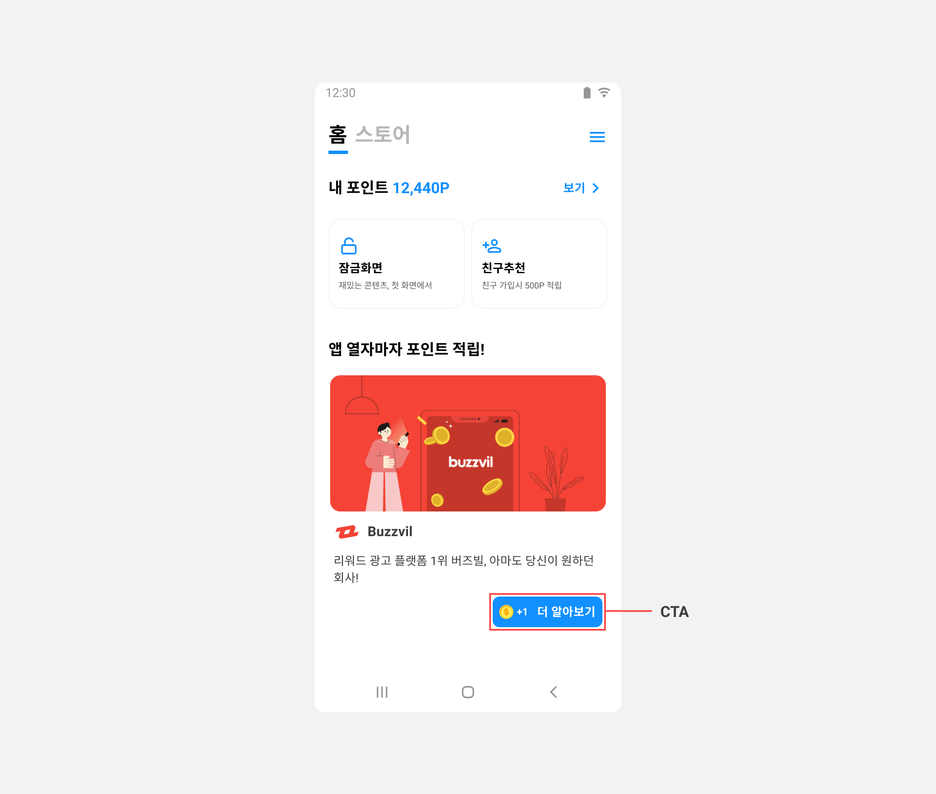
Follow these steps to implement your own CTA button.
-
Implement the view layout (
view_customized_cta.xml). The following example implements a view layout as a layout resource.<LinearLayout android:layout_width="wrap_content" android:layout_height="wrap_content" android:background="@color/colorPrimaryDark"> <TextView android:id="@+id/textCta"/> <ImageView android:id="@+id/imageReward" android:layout_width="24dp" android:layout_height="24dp" android:src="아이콘 이미지 리소스"/> <TextView android:id="@+id/textReward"/> </LinearLayout> -
Create
CustomCtaView, a subclass ofCtaView. -
In your subclass of
CtaView, useinflateto load the CTA view layout. -
Implement the CTA icon, text and reward value in the following overrides, called according to the user's participation state.
-
renderViewParticipatingState: Participation is in progress, such as when the user has opened an action-based ad landing page. -
renderViewParticipatedState: The user has completed participation. -
renderViewRewardAvailableState: The user has not participated yet. -
renderViewRewardNotAvailableState: The ad offers no reward.public class CustomCtaView extends CtaView { private final ImageView rewardImageView; private final TextView rewardTextView; private final TextView ctaTextView; public CustomCtaView(@NonNull Context context) { this(context, null); } public CustomCtaView(@NonNull Context context, @Nullable AttributeSet attrs) { this(context, attrs, 0); } public CustomCtaView(@NonNull Context context, @Nullable AttributeSet attrs, int defStyleAttr) { super(context, attrs, defStyleAttr); // TODO: 기존에 사용하던 CTA View 레이아웃을 inflate 하도록 구현하세요. inflate(getContext(), R.layout.view_customized_cta, this); this.rewardImageView = findViewById(R.id.imageReward); this.rewardTextView = findViewById(R.id.textReward); this.ctaTextView = findViewById(R.id.textCta); } // CTA 텍스트 설정 public void setCtaText(String ctaText) { ctaTextView.setText(ctaText); } // CTA 리워드 값 설정 public void setRewardText(String rewardText) { rewardTextView.setText(rewardText); } // CTA 아이콘 설정 public void setRewardIcon(@DrawableRes int iconResId) { rewardImageView.setImageResource(iconResId); rewardImageView.setVisibility(View.VISIBLE); } // CTA 아이콘 숨기기 처리 public void hideRewardIcon() { rewardImageView.setVisibility(View.GONE); } // 사용자가 광고에 참여 중인 상태 @Override public void renderViewParticipatingState(@NonNull String callToAction) { setCtaText("참여 확인 중"); hideRewardIcon(); setRewardText(""); } // 사용자가 광고 참여를 완료한 상태 @Override public void renderViewParticipatedState(@NonNull String callToAction) { setRewardIcon(R.drawable.my_participated_icon); setRewardText(""); setCtaText("참여 완료"); } // 사용자가 아직 광고에 참여하지 않은 상태 @Override public void renderViewRewardAvailableState(@NonNull String callToAction, int reward) { setRewardIcon(R.drawable.my_reward_icon); setRewardText(String.format(Locale.US, "+%,d", reward)); setCtaText(callToAction); } // 사용자가 획득할 리워드가 없는 광고 @Override public void renderViewRewardNotAvailableState(@NonNull String callToAction) { hideRewardIcon(); setRewardText(""); setCtaText(callToAction); } }
-
Set the path to your new
CustomCtaViewclass in the Native ad layout. The following example shows a Native ad layout.<com.buzzvil.buzzad.benefit.presentation.nativead.NativeAdView android:id="@+id/native_ad_view"> <com.buzzvil.buzzad.benefit.presentation.media.MediaView android:id="@+id/mediaView"/> <TextView android:id="@+id/textTitle"/> <TextView android:id="@+id/textDescription"/> <ImageView android:id="@+id/imageIcon"/> <com.your.packagename.CustomCtaView android:id="@+id/customCtaView"/> </com.buzzvil.buzzad.benefit.presentation.nativead.NativeAdView> -
Apply the custom CTA to Native ads in this order.
i. Retrieve
NativeAdViewand the custom CTA buttonCustomCtaViewfrom the Native ad layout.ii. After calling
loadAd(), when allocation succeeds and theonAdLoadedcallback runs, setctaViewofNativeAdViewBindertocustomCtaView.iii. Call
bind()to bind ad data to the layout.final NativeAdView nativeAdView = findViewById(R.id.native_ad_view); final MediaView mediaView = nativeAdView.findViewById(R.id.mediaView); final TextView titleTextView = nativeAdView.findViewById(R.id.textTitle); final ImageView iconImageView = nativeAdView.findViewById(R.id.imageIcon); final TextView descriptionTextView = nativeAdView.findViewById(R.id.textDescription); // Native 광고 레이아웃에서 CustomCtaView 를 가져옵니다. final CustomCtaView customCtaView = nativeAdView.findViewById(R.id.customCtaView); final NativeAdRequest nativeAdRequest = new NativeAdRequest.Builder().build(); final BuzzAdNative buzzAdNative = new BuzzAdNative("YOUR_NATIVE_UNIT_ID"); buzzAdNative.loadAd(nativeAdRequest, new BuzzAdNative.AdLoadListener() { @Override public void onAdLoaded(@NotNull NativeAd nativeAd) { // 할당된 광고가 있으면 호출됩니다. // 광고 데이터를 바인딩합니다. final NativeAdViewBinder viewBinder = new NativeAdViewBinder.Builder(nativeAdView, mediaView) .titleTextView(titleTextView) .descriptionTextView(descriptionTextView) .iconImageView(iconImageView) .ctaView(customCtaView) .build(); viewBinder.bind(nativeAd); } @Override public void onLoadFailed(@NotNull AdError adError) { // 할당된 광고가 없으면 호출됩니다. Log.e(TAG, "Failed to load a native ad.", adError); } });
Add Native Overlay
When users return after participating in a native ad, overlay text and an icon on the completed ad to encourage Feed entry. The overlay appears at least one minute apart: after it appears, it will not appear again following participation for one minute.
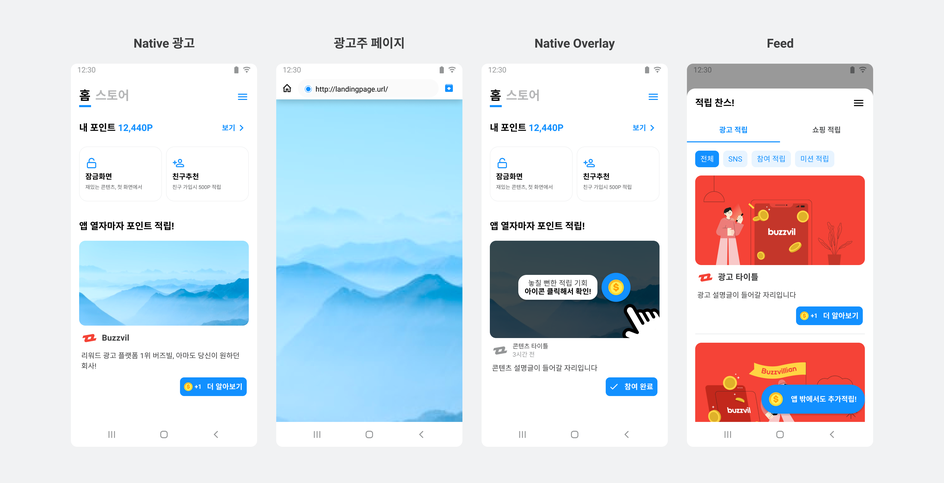
Add enableNativeToFeedOverlay() during Native basic setup to enable Native Overlay.
viewBinder.bind(nativeAd);

nativeAdView.enableNativeToFeedOverlay(); // Native Overlay 기능 활성화
Requesting Native ads in onResume reallocates them when the user returns, preventing Native Overlay from appearing. See Step 3. Allocate and display ads.
Load multiple ads at once
Allocate up to 10 ads in a single request. Contact your Buzzvil representative if you need more.
The following example specifies NATIVE_ADS_COUNT to allocate multiple ads.
final NativeAdsRequest nativeAdsRequest = new NativeAdsRequest.Builder()
    .adCount(NATIVE_ADS_COUNT) // 한 번에 로드할 광고 개수를 설정합니다.
    .build();
final BuzzAdNative buzzAdNative = new BuzzAdNative("YOUR_NATIVE_AD_UNIT_ID");

buzzAdNative.loadAds(nativeAdsRequest, new BuzzAdNative.AdsLoadListener() {
    @Override
    public void onAdsLoaded(@NonNull List<NativeAd> ads) {
        // 광고 할당이 성공하면 호출됩니다.
        // TODO: 광고 표시 단락을 참고하여 구현합니다.
    }

    @Override
    public void onLoadFailed(@NonNull AdError error) {
        // 할당된 광고가 없으면 호출됩니다.
        Log.e(TAG, "Failed to load a native ad.", error);
    }
});
Reuse ad objects
From BuzzAd Android SDK v3.5.x, an interface lets you detach ads from views for reuse. When reusing ad objects in a custom feed or grid, detach the ad and view when the view is no longer needed. You can then attach the ad to a new view, or the view to a new ad.
Use NativeAdViewBinder.unbind() to detach an ad from its view, as shown below.
-
Implement your RecyclerView adapter as shown in the example.
class MyAdapter extends .... { .... @Override public void onViewRecycled(final ViewHolder holder) { super.onViewRecycled(holder); // unbind를 반드시 호출하여 재사용할 때 문제가 발생하지 않게 합니다. holder.unbind(); } } -
The RecyclerView's
ViewHolderretains theNativeAdViewBinderobject used to bind the NativeAd and View. Detach the ad and view inunbind.class MyAdapter extends .... { protected static class ViewHolder extends RecyclerView.ViewHolder { private final NativeAdViewBinder nativeAdViewBinder; public ViewHolder(final ViewItemBinding binding) { super(binding.getRoot()); nativeAdViewBinder = new NativeAdViewBinder.Builder( binding.getRoot(), binding.mediaView ) .... .build(); } void bind(final NativeAd nativeAd) { nativeAdViewBinder.bind(nativeAd); } } public void bind(NativeAd nativeAd) { final MediaView mediaView = nativeAdView.findViewById(R.id.mediaView); final TextView titleTextView = nativeAdView.findViewById(R.id.textTitle); final ImageView iconImageView = nativeAdView.findViewById(R.id.imageIcon); final TextView descriptionTextView = nativeAdView.findViewById(R.id.textDescription); final DefaultCtaView ctaView = nativeAdView.findViewById(R.id.ctaView);protected static class ViewHolder extends RecyclerView.ViewHolder { .... void unbind() { this.nativeAdViewBinder.unbind(); } }
Register an ad event listener
Receive ad callbacks through NativeAdEventListener. Register the listener after calling NativeAdViewBinder.bind().
The following example registers an ad event listener on NativeAd.
// Native 지면의 UNIT ID로 BuzzAdNative 객체를 생성합니다.
final BuzzAdNative buzzAdNative = new BuzzAdNative("YOUR_NATIVE_UNIT_ID");

buzzAdNative.loadAd(nativeAdRequest, new BuzzAdNative.AdLoadListener() {
    @Override
    public void onAdLoaded(@NonNull NativeAd nativeAd) {
        // 할당된 광고가 있으면 호출됩니다.
        // NativeAdViewBinder에 Native 광고 컴포넌트를 등록합니다.
        final NativeAdViewBinder viewBinder = new NativeAdViewBinder.Builder(nativeAdView, mediaView)
            .titleTextView(titleTextView)
            .descriptionTextView(descriptionTextView)
            .iconImageView(iconImageView)
            .ctaView(ctaView)
            .build();
        viewBinder.bind(nativeAd); // 광고 데이터를 바인딩합니다.

        // Optional: Native 광고의 리스너 등록하고 각 이벤트에 따라 필요한 기능을 구현합니다.
        // 자세한 내용은 아래 광고 이벤트 등록 단락을 참고하세요.
        // 주의: 반드시 NativeAdViewBinder.bind() 함수를 호출한 이후에 리스너 등록을 해야합니다.
        handleNativeCallbackListener(nativeAd);
    }
    // ...생략
});
public void handleNativeCallbackListener(final NativeAd nativeAd){
    // 광고 콜백 이벤트를 수신할 수 있습니다.
    // 중복하여 호출하면 2개 이상의 리스너가 등록됩니다.
    nativeAd.addNativeAdEventListener(new NativeAdEventListener() {
        @Override
        public void onImpressed(@NonNull NativeAd nativeAd) {
            // Native 광고가 유저에게 노출되었을 때
        }

        @Override
        public void onClicked(@NonNull NativeAd nativeAd) {
            // 유저가 Native 광고를 클릭했을 때
            // TODO: 기획에 따른 추가적인 UI 처리
        }

        @Override
        public void onRewardRequested(@NonNull NativeAd nativeAd) {
            // TODO: 기획에 따라 리워드 로딩 이미지를 보여주는 등의 처리
        }

        @Override
        public void onRewarded(@NonNull NativeAd nativeAd, @Nullable RewardResult rewardResult) {
            // 리워드 적립 결과(RewardResult) 종류는 '리워드 적립 결과(RewardResult) 종류' 항목을 참고하세요.
            // 리워드 적립 결과 (RewardResult): SUCCESS, ALREADY_PARTICIPATED, MISSING_REWARD
            // TODO: 리워드 적립 결과에 따라 적절한 유저 커뮤니케이션 처리
        }

        @Override
        public void onParticipated(@NonNull NativeAd nativeAd) {
            // TODO: 기획에 따른 추가적인 UI 처리
        }
    });
}
Register a video ad listener
Receive callbacks for video ad events.
The following example registers a video ad event listener on MediaView.
mediaView.setVideoEventListener(new com.buzzvil.buzzad.benefit.presentation.video.VideoEventListener() {
  @Override
  public void onVideoStarted() {
  }

  @Override
  public void onError(@NonNull VideoErrorStatus videoErrorStatus, @Nullable String errorMessage) {
    if (errorMessage != null) {
        Toast.makeText(mediaView.getContext(), errorMessage, Toast.LENGTH_SHORT).show();
    }
  }

  @Override
  public void onResume() {
  }

  @Override
  public void onPause() {
  }

  @Override
  public void onReplay() {
  }

  @Override
  public void onVideoEnded() {
    // 동영상 재생 완료 시 필요한 처리
  }

  @Override
  public void onLanding() {
    // 동영상 광고 랜딩 시 필요한 처리
  }
});
Check the ad type
The BuzzAd Android SDK provides APIs to identify ad types so you can offer different rewards or experiences for impression-based, action-based and other ads. See Check the ad type in Frequently asked questions.