Implement a carousel
Introduced in BuzzAd Android SDK v3.5.x, Carousel displays multiple ads through horizontal scrolling. Create a Native carousel and implement its required features with the SDK, then add optional features to refine the user experience.
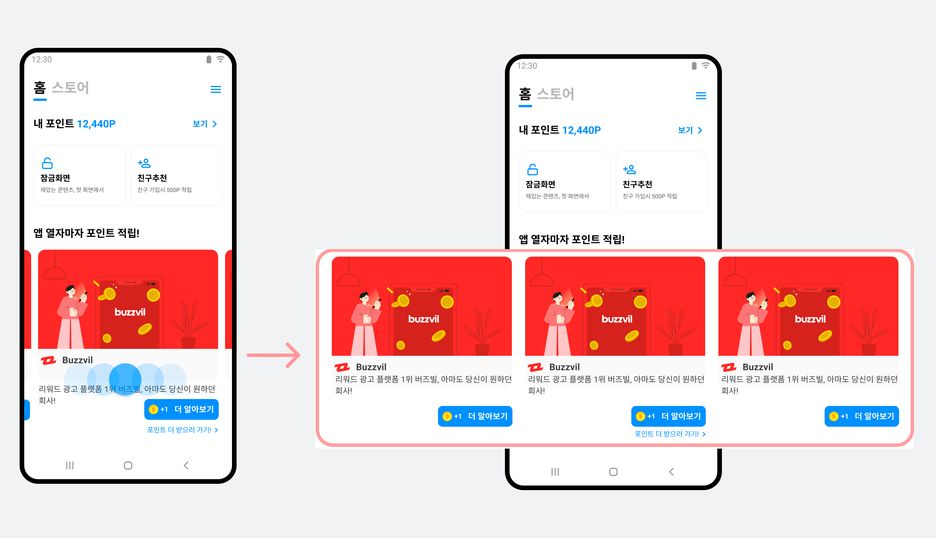
Implement a carousel
Use RecyclerView to arrange item views horizontally and an adapter to manage them in a Native carousel.
Create a RecyclerView
Follow these steps to create RecyclerView.
-
Create an activity layout file (
activity_native_carousel.xml) withRecyclerViewin the area where the carousel should appear..... <androidx.recyclerview.widget.RecyclerView android:id="@+id/carousel" android:layout_width="match_parent" android:layout_height="wrap_content" /> .... -
Define a layout for each item of
RecyclerViewin the view layout file (view_item_carousel.xml).<?xml version="1.0" encoding="utf-8"?> <com.buzzvil.buzzad.benefit.presentation.nativead.NativeAdView xmlns:android="http://schemas.android.com/apk/res/android" xmlns:app="http://schemas.android.com/apk/res-auto" android:layout_width="match_parent" android:layout_height="wrap_content"> .... </com.buzzvil.buzzad.benefit.presentation.nativead.NativeAdView> -
Declare a
CarouselItemclass for each item inRecyclerView.The following example declares
CarouselItemas a base class and extends it withNativeAdItemto hold an ad object.class CarouselItem { // NativeAd를 가지고 있는 아이템 static class NativeAdItem extends CarouselItem { public final NativeAd nativeAd; NativeAdItem(final NativeAd nativeAd) { this.nativeAd = nativeAd; } } } -
Check that items for
RecyclerVieware created as follows.val newItem = new CarouselItem.NativeAdItem(nativeAd);
Implement the RecyclerView adapter
Implement the carousel adapter and its CarouselDiff and ViewHolder classes as follows.
-
Implement the carousel adapter (
CarouselAdapter) by extendingListAdapterorRecyclerView.Adapter.The following example extends
ListAdapter.class CarouselAdapter extends ListAdapter<CarouselItem, CarouselAdapter.ViewHolder> { public CarouselAdapter() { super(new CarouselDiff()); } @Override public CarouselAdapter.ViewHolder onCreateViewHolder( ViewGroup parent, int viewType ) { return new ViewHolder(ViewItemCarouselBinding.inflate(LayoutInflater.from(parent.getContext()))); } @Override public void onBindViewHolder(final CarouselAdapter.ViewHolder holder, final int position) { final CarouselItem item = getItem(position); if (item instanceof CarouselItem.NativeAdItem) { holder.bind(((CarouselItem.NativeAdItem) item).nativeAd); } } @Override public void onViewRecycled(final ViewHolder holder) { super.onViewRecycled(holder); // unbind를 반드시 호출하여 NativeAd나 FeedPromotion을 재사용할 때 문제가 발생하지 않게 합니다. holder.unbind(); } private static class CarouselDiff extends DiffUtil.ItemCallback<CarouselItem> { // TODO } protected static class ViewHolder extends RecyclerView.ViewHolder { // TODO } } -
Implement the
CarouselDiffsubclass that provides adapter update callbacks.private static class CarouselDiff extends DiffUtil.ItemCallback<CarouselItem> { @Override public boolean areItemsTheSame(final CarouselItem oldItem, final CarouselItem newItem) { if (oldItem instanceof CarouselItem.NativeAdItem && newItem instanceof CarouselItem.NativeAdItem && ((CarouselItem.NativeAdItem) oldItem).nativeAd == ((CarouselItem.NativeAdItem) newItem).nativeAd) { return true; } else if (oldItem instanceof CarouselItem.CarouselToFeedSlideItem && newItem instanceof CarouselItem.CarouselToFeedSlideItem) { return true; } return false; } @Override public boolean areContentsTheSame(final CarouselItem oldItem, final CarouselItem newItem) { if (oldItem instanceof CarouselItem.NativeAdItem && newItem instanceof CarouselItem.NativeAdItem && ((CarouselItem.NativeAdItem) oldItem).nativeAd.getId() == ((CarouselItem.NativeAdItem) newItem).nativeAd.getId()) { return true; } else if (oldItem instanceof CarouselItem.CarouselToFeedSlideItem && newItem instanceof CarouselItem.CarouselToFeedSlideItem) { return true; } return false; } } -
Implement the
ViewHoldersubclass to mapNativeAdelements to the views defined in your layout.
-
ViewHolderusesNativeAdViewBinder.protected static class ViewHolder extends RecyclerView.ViewHolder { // 레이아웃과 NativeAd를 연결해주는 ViewBinder private final NativeAdViewBinder nativeAdViewBinder; public ViewHolder(final ViewItemCarouselBinding binding) { super(binding.getRoot()); nativeAdViewBinder = new NativeAdViewBinder.Builder( binding.getRoot(), binding.adMediaView ) .titleTextView(binding.adTitleText) .descriptionTextView(binding.adDescriptionText) .iconImageView(binding.adIconImage) .ctaView(binding.adCtaView) .build(); } /** * 레이아웃과 NativeAd를 연결합니다. * * @param nativeAd: 레이아웃에 연결할 NativeAd 객체 */ void bind(final NativeAd nativeAd) { nativeAdViewBinder.bind(nativeAd); } /** * 레이아웃과 NativeAd 간의 연결을 해제합니다. */ void unbind() { this.nativeAdViewBinder.unbind(); } }
Bind to an activity or Fragment
Bind the completed RecyclerView and adapter to an activity or Fragment.
The following example binds them to an activity (NativeCarouselActivity).
/**
 * BuzzAd SDK를 사용하여 Carousel UI를 구현하는 방법에 대한 예제 코드
 */
public class NativeCarouselActivity extends AppCompatActivity {
    private ActivityNativeCarouselBinding binding;
    private CarouselAdapter adapter;

    @Override
    public void onCreate(final Bundle savedInstanceState) {
        super.onCreate(savedInstanceState);
        binding = ActivityNativeCarouselBinding.inflate(getLayoutInflater());
        setContentView(binding.getRoot());
        adapter = new CarouselAdapter();
    }
}
Follow these steps to connect the RecyclerView and adapter to an activity.
- Call the carousel initialization function, then assign CarouselAdapter to the RecyclerView.
-
PagerSnapHelper: Makes scrolling snap to a complete ad item rather than stopping between items. See the Android documentation for details aboutPagerSnapHelper.public class NativeCarouselActivity extends AppCompatActivity { .... @Override public void onCreate(final Bundle savedInstanceState) { .... initCarousel(); } private void initCarousel() { binding.carousel.setAdapter(adapter); // ViewPager와 비슷하게, 스크롤이 중간에서 멈추면 한쪽 아이템을 선택하여 다 보일 때까지 스크롤 new PagerSnapHelper().attachToRecyclerView(binding.carousel); } }
-
Assign a LayoutManager (
LinearLayoutManager) to the RecyclerView and set its orientation toHORIZONTAL. Then configurecheckLayoutParamsso each item occupies the full screen width.public class NativeCarouselActivity extends AppCompatActivity { .... // LinearLayoutManager를 사용하고 HORIZONTAL로 설정하여 수평으로 일렬로 정렬된 레이아웃을 사용합니다. private final LinearLayoutManager layoutManager = new LinearLayoutManager( this, HORIZONTAL, false ) { // Carousel 아이템의 폭이 화면을 채우도록 변경합니다. @Override public boolean checkLayoutParams(final RecyclerView.LayoutParams lp) { lp.width = getWidth(); return true; } }; .... private void initCarousel() { .... binding.carousel.setLayoutManager(layoutManager); .... } } -
Call the ad request code.
-
onError(): Called when an ad loading error occurs. -
onEmpty(): Called when no ads are available to display. -
onAdsLoaded(): Called when ads are available to request.public class NativeCarouselActivity extends AppCompatActivity { .... // Carousel 지면에서 사용할 Unit ID private final String unitId = App.UNIT_ID_NATIVE_AD; .... private final NativeAdLoader.OnAdsLoadedListener adsLoadedListener = new NativeAdLoader.OnAdsLoadedListener() { @Override public void onLoadError(final AdError error) { onError(); } @Override public void onAdsLoaded(final Collection<NativeAd> nativeAds) { if (nativeAds.isEmpty()) { onEmpty(); } else { NativeCarouselActivity.this.onAdsLoaded(nativeAds); } } }; ... @Override public void onCreate(final Bundle savedInstanceState) { .... loadAds(); } .... private void loadAds() { new NativeAdLoader(unitId).loadAds( adsLoadedListener, new NativeAdLoaderParams.Builder() .count(5) .build() ); } }
-
Implement behavior for each ad request result.
public class NativeCarouselActivity extends AppCompatActivity { .... private void onError() { // 오류가 발생하면 지면을 표시하지 않습니다. binding.placement.setVisibility(View.GONE); Log.d(TAG, "An error occurred while loading ads"); } private void onEmpty() { // 보여줄 광고가 없으면 지면을 표시하지 않습니다. binding.placement.setVisibility(View.GONE); Log.d(TAG, "The ad list is empty"); } private void onAdsLoaded(final Collection<NativeAd> nativeAds) { binding.placement.setVisibility(View.VISIBLE); final List<CarouselItem> items = buildCarouselItems(nativeAds); adapter.submitList(items); Log.d(TAG, "" + nativeAds.size() + " Ads are loaded"); } } -
Add code to convert
NativeAdobjects toCarouselItem.public class NativeCarouselActivity extends AppCompatActivity { .... /** * NativeAd 배열을 Carousel에 채워넣을 CarouselItem으로 변환하는 함수 * * @param nativeAds: Carousel에 표시할 광고 객체 배열 */ private List<CarouselItem> buildCarouselItems(final Collection<NativeAd> nativeAds) { List<CarouselItem> items = new ArrayList<>(); for (final NativeAd nativeAd : nativeAds) { items.add(new CarouselItem.NativeAdItem(nativeAd)); } return items; } }
Implement required carousel features
The SDK provides slides and entry points to Feed, where users can browse more ads and filter them by preference.
Feed entry slide
Add a Carousel To Feed Slide anywhere in the carousel, with no limit on the number of slides. These provide entry points between ads to Feed, a placement optimized for monetization. The SDK provides the following classes.
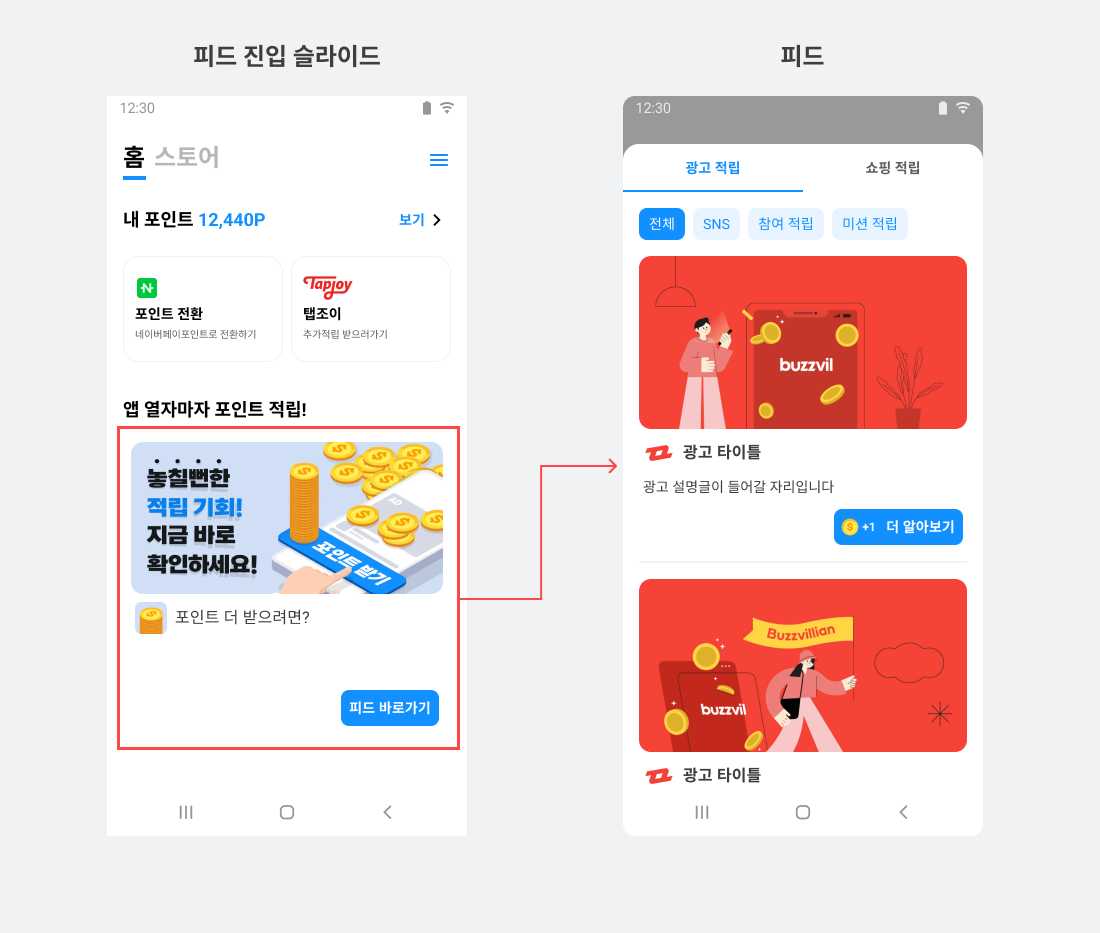
| Code | Description |
|---|---|
FeedPromotion | Holds the image and text resources displayed on a Feed entry slide. |
FeedPromotionFactory | Creates FeedPromotion objects.
|
FeedPromotionViewBinder | Connects FeedPromotion to NativeAdView for display.
|
Follow these steps to implement a Feed entry slide.
-
Add a class declaration in
CarouselItemfor the Feed entry slide.The following example adds
CarouselToFeedSlideItemto the existingCarouselItemimplementation.class CarouselItem { // NativeAd를 가지고 있는 아이템 static class NativeAdItem extends CarouselItem { public final NativeAd nativeAd; NativeAdItem(final NativeAd nativeAd) { this.nativeAd = nativeAd; } } // Carousel To Feed Slide를 가지고 있는 아이템 static class CarouselToFeedSlideItem extends CarouselItem { public final FeedPromotion feedPromotion; CarouselToFeedSlideItem(final FeedPromotion feedPromotion) { this.feedPromotion = feedPromotion; } } } -
Implement the adapter (
CarouselAdapter) to handleCarouselToFeedSlideItem.i. In
onBindeViewHolder, connect the bind function to call forCarouselToFeedSlideItem.class CarouselAdapter extends ListAdapter<CarouselItem, CarouselAdapter.ViewHolder> { .... @Override public void onBindViewHolder(final CarouselAdapter.ViewHolder holder, final int position) { final CarouselItem item = getItem(position); if (item instanceof CarouselItem.NativeAdItem) { holder.bind(((CarouselItem.NativeAdItem) item).nativeAd); } else if (item instanceof CarouselItem.CarouselToFeedSlideItem) { holder.bind(((CarouselItem.CarouselToFeedSlideItem) item).feedPromotion); } } .... }ii. Implement a ViewHolder that receives
FeedPromotionand usesFeedPromotionViewBinderto map its elements toNativeAdView.
Create the object similarly toNativeAdViewBinderin your existing code, add a bind function and callunbind().class CarouselAdapter extends ListAdapter<CarouselItem, CarouselAdapter.ViewHolder> { .... protected static class ViewHolder extends RecyclerView.ViewHolder { // 레이아웃과 NativeAd를 연결해주는 ViewBinder private final NativeAdViewBinder nativeAdViewBinder; // 레이아웃과 FeedPromotion을 연결해주는 ViewBinder private final FeedPromotionViewBinder carouselToFeedSlideViewBinder; public ViewHolder(final ViewItemCarouselBinding binding) { super(binding.getRoot()); nativeAdViewBinder = new NativeAdViewBinder.Builder( binding.getRoot(), binding.adMediaView ) .titleTextView(binding.adTitleText) .descriptionTextView(binding.adDescriptionText) .iconImageView(binding.adIconImage) .ctaView(binding.adCtaView) .build(); carouselToFeedSlideViewBinder = new FeedPromotionViewBinder.Builder( binding.getRoot(), binding.adMediaView ) .titleTextView(binding.adTitleText) .descriptionTextView(binding.adDescriptionText) .iconImageView(binding.adIconImage) .ctaView(binding.adCtaView) .build(); } .... /** * 레이아웃과 FeedPromotion을 연결하여 Carousel To Feed Slide를 만듭니다. * * @param feedPromotion: 레이아웃에 연결할 FeedPromotion 객체 */ void bind(final FeedPromotion feedPromotion) { carouselToFeedSlideViewBinder.bind(feedPromotion); } /** * 레이아웃과 NativeAd / FeedPromotion 간의 연결을 해제 */ fun unbind() { this.nativeAdViewBinder.unbind(); this.carouselToFeedSlideViewBinder.unbind(); } } }iii. Verify that
FeedPromotionitems in the data display correctly. -
Implement the activity (
NativeCarouselActivity).When assigning ad data to the adapter, append
FeedPromotionat the end if ads are available. See theifblock below.public class NativeCarouselActivity extends AppCompatActivity { .... /** * NativeAd 배열을 Carousel에 채워넣을 CarouselItem으로 변환하는 함수 * * @param nativeAds: Carousel에 표시할 광고 객체 배열 * * Carousel To Feed Slide를 원하는 위치에 추가하세요. 광고가 비어있지 않으면 마지막 페이지에 Carousel To Feed Slide를 추가해야 합니다. */ private List<CarouselItem> buildCarouselItems(final Collection<NativeAd> nativeAds) { List<CarouselItem> items = new ArrayList<>(); for (final NativeAd nativeAd : nativeAds) { items.add(new CarouselItem.NativeAdItem(nativeAd)); } if (!items.isEmpty()) { items.add(new CarouselItem.CarouselToFeedSlideItem( new FeedPromotionFactory(unitId).buildForCarousel() )); } return items; } }
Feed entry point
Add a Carousel To Feed Link below the carousel so users can open Feed.
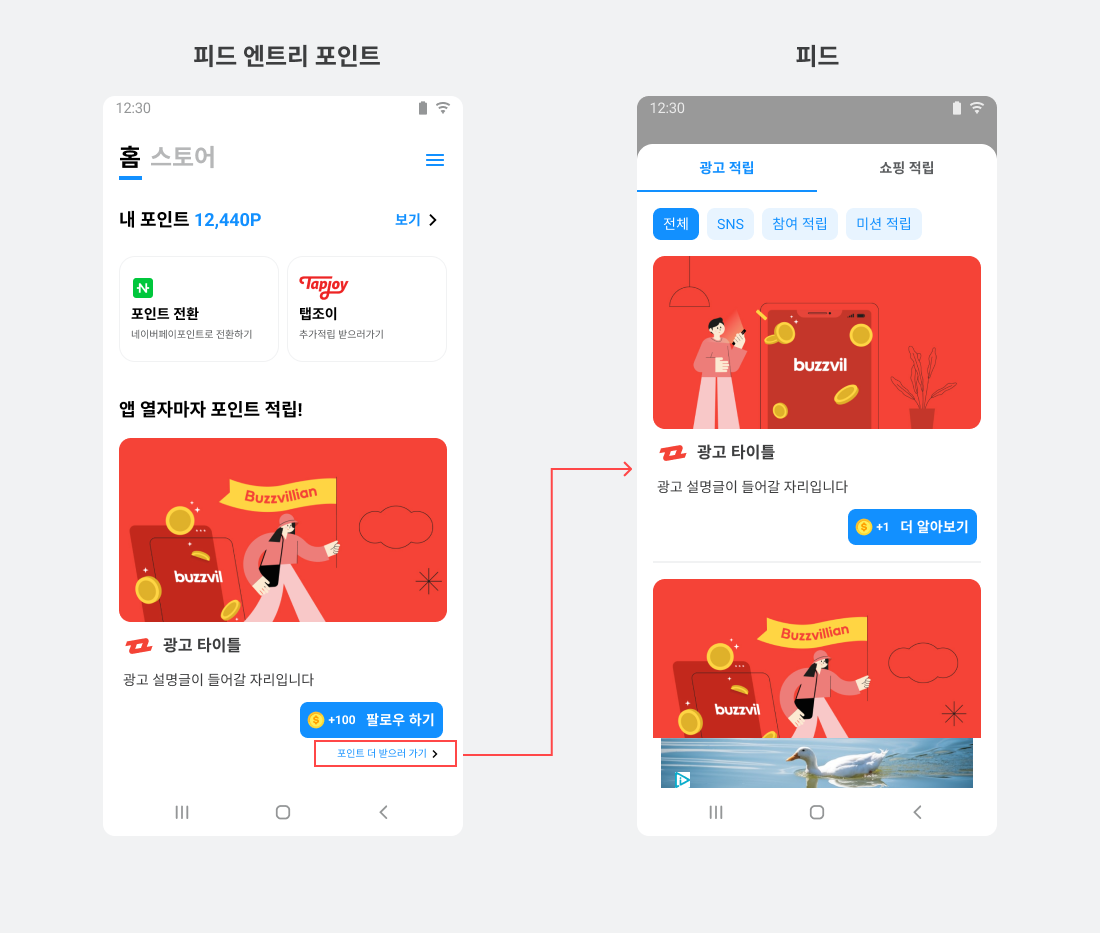
Follow these steps to implement the Feed entry point.
-
Add
FeedEntryViewbelow the RecyclerView used for the carousel..... <androidx.recyclerview.widget.RecyclerView android:id="@+id/carousel" .... /> <com.buzzvil.buzzad.benefit.presentation.feed.entrypoint.FeedEntryView android:id="@+id/toFeedLink" app:buzzvilFeedEntryViewName="carousel_to_feed_link" ....> </com.buzzvil.buzzad.benefit.presentation.feed.entrypoint.FeedEntryView> -
Implement
FeedEntryView. The following example adds simple text and an icon.<com.buzzvil.buzzad.benefit.presentation.feed.entrypoint.FeedEntryView app:buzzvilFeedEntryViewName="carousel_to_feed_link" ....> <LinearLayout android:layout_width="wrap_content" android:layout_height="wrap_content" android:orientation="horizontal"> <TextView style="@style/NativeCarouselToFeedLink" android:layout_width="wrap_content" android:layout_height="wrap_content" android:text="포인트 더 받으러 가기" /> <ImageView android:layout_width="16dp" android:layout_height="16dp" android:scaleType="centerInside" android:src="@drawable/ic_chevron_right" /> </LinearLayout> </com.buzzvil.buzzad.benefit.presentation.feed.entrypoint.FeedEntryView> -
Control the entry point's visibility according to the ad loading result.
-
Hide the carousel and entry point while ads are not yet loaded, when an error occurs or when no ads are available.
-
Show the carousel and entry point when ads are available to display.
public class NativeCarouselActivity extends AppCompatActivity { .... private void onError() { // 오류가 발생하면 지면을 표시하지 않습니다 binding.placement.setVisibility(View.GONE); .... } private void onEmpty() { // 보여줄 광고가 없으면 지면을 표시하지 않습니다 binding.placement.setVisibility(View.GONE); .... } private void onAdsLoaded(final Collection<NativeAd> nativeAds) { binding.placement.setVisibility(View.VISIBLE); .... } }.... <androidx.constraintlayout.widget.Group android:id="@+id/placement" android:layout_width="wrap_content" android:layout_height="wrap_content" android:visibility="gone" app:constraint_referenced_ids="carousel,toFeedLink" /> ....
Keep the entry point fixed despite varying ad heights
Different lengths of ad description text (ad_description_text) can change the number of lines and move the entry point between slides. Fix the description view's lines value to keep its position consistent.
The following example sets the description view's lines value to 2.
....
<TextView
    android:id="@+id/ad_description_text"
    android:ellipsize="end"
    android:lines="2"
    ....
    />
Implement optional carousel features
Implement infinite looping
Let users scroll continuously through a finite set of items. This guide uses a simple approach: make the adapter's getItemCount() return a very large value.
Follow these steps to implement an infinite loop.
-
Modify the adapter (
CarouselAdapter) to accept parameters.class CarouselAdapter extends ListAdapter<CarouselItem, CarouselAdapter.ViewHolder> { private final boolean isInfiniteLoopEnabled; .... public CarouselAdapter(final boolean isInfiniteLoopEnabled) { super(new CarouselDiff()); this.isInfiniteLoopEnabled = isInfiniteLoopEnabled; } .... } -
Update the implementations of
getItemCount()andgetItem().
-
getItemCount(): To make the RecyclerView appear to have infinite data, returnInteger.MAX_VALUEwhenisInfiniteLoopEnabledistrueand there are items to display. -
getItem(): Calculate the real index as the remainder of the loopingpositiondivided by the actual data count obtained throughsuper.getItemCount().class CarouselAdapter extends ListAdapter<CarouselItem, CarouselAdapter.ViewHolder> { .... @Override public int getItemCount() { final int actualItemCount = super.getItemCount(); if (isInfiniteLoopEnabled && actualItemCount > 0) { // 무한 루프를 쉽게 구현하는 방법으로 매우 큰 수를 여기서 반환합니다. return Integer.MAX_VALUE; } return actualItemCount; } @Override public CarouselItem getItem(final int position) { int newPosition; if (isInfiniteLoopEnabled) { // 무한 루프인 경우의 position은 매우 큰 수이므로 실제 아이템 수로 나눈 나머지를 사용합니다 newPosition = position % super.getItemCount(); } else { newPosition = position; } return super.getItem(newPosition); } .... }
-
Add
CarouselAdapter(isInfiniteLoopEnabled)to the activity (NativeCarouselActivity).public class NativeCarouselActivity extends AppCompatActivity { .... // 무한 루프를 사용할지 설정 private boolean isInfiniteLoopEnabled = true; .... @Override public void onCreate(final Bundle savedInstanceState) { .... adapter = new CarouselAdapter(isInfiniteLoopEnabled); .... } .... }
Preview the last ad before the first ad
With infinite looping, partially show the last ad to the left of the first to indicate that users can scroll in either direction.
Use 배열 크기 * 적당히 큰 수 to start near the middle of the item list, as shown below.
public class NativeCarouselActivity extends AppCompatActivity {
    ....
    private void onAdsLoaded(final Collection<NativeAd> nativeAds) {
        ....
        final List<CarouselItem> items = buildCarouselItems(nativeAds);
        adapter.submitList(items);
        if (infiniteLoop) {
            final RecyclerView.LayoutManager layoutManager = binding.carousel.getLayoutManager();
            if (layoutManager != null) {
                // item.size(): 첫번째 광고가 보이고, 그 앞에 마지막 아이템이 살짝 보이기 위해 이 값을 기준으로 합니다.
                // 10000: 사용자가 앞으로 계속 스크롤을 하여도 무한루프인 것처럼 느낄 수 있도록 적당히 큰 수를 곱합니다.
                layoutManager.scrollToPosition(items.size() * 10000);
            }
        }
        ....
    }
    ....
}
Register an ad event listener
Add actions for carousel ad events such as impressions and clicks.
Follow these steps to register an ad event listener.
- Add
NativeAdEventListenerto theNativeAdobject.
```java
public class NativeCarouselActivity extends AppCompatActivity {
    ....
    private NativeAdEventListener nativeAdEventListener = new NativeAdEventListener() {
        @Override
        public void onImpressed(final NativeAd nativeAd) {
        }

        @Override
        public void onClicked(final NativeAd nativeAd) {
        }

        @Override
        public void onRewardRequested(final NativeAd nativeAd) {
        }

        @Override
        public void onRewarded(
                final NativeAd nativeAd,
                final RewardResult nativeAdRewardResult
        ) {
        }

        @Override
        public void onParticipated(final NativeAd nativeAd) {
        }
    };
    ....
}
```
2. Register the listener (NativeAdEventListener) from the previous step on NativeAd.
> ✏️ **Note**<br />Register the listener immediately after receiving the ad.
```java
public class NativeCarouselActivity extends AppCompatActivity {
....
private void onAdsLoaded(final Collection<NativeAd> nativeAds) {
....
for (final NativeAd nativeAd : nativeAds) {
nativeAd.addNativeAdEventListener(nativeAdEventListener);
}
....
}
}
```
Reduce ad item width
Adjust checkLayoutParams of LinearLayoutManager to narrow the slides and partially reveal neighboring ads, encouraging users to scroll.
The following example sets each item to 80% of the carousel (RecyclerView) width.
public class NativeCarouselActivity extends AppCompatActivity {
    ....
    // 화면 폭에 대한 Carousel 아이템의 폭 비율
    private final float itemWidthPercentOfScreen = 0.8f;

    // LinearLayoutManager를 사용하고 HORIZONTAL로 설정하여 수평으로 일렬로 정렬된 레이아웃을 사용합니다
    private LinearLayoutManager layoutManager = new LinearLayoutManager(
            this,
            HORIZONTAL,
            false
    ) {
        // Carousel 아이템의 폭을 설정한 비율에 맞게 변경합니다.
        @Override
        public boolean checkLayoutParams(final RecyclerView.LayoutParams lp) {
            lp.width = Math.round(getWidth() * itemWidthPercentOfScreen);
            return true;
        }
    };
    ....
}
Use the following example to reduce item width independently of the carousel width.
public class NativeCarouselActivity extends AppCompatActivity {
    ....
    // 화면 폭에 대한 Carousel 아이템의 폭 차이
    private final int itemWidthDifferenceFromScreenDp = 76;

    // LinearLayoutManager를 사용하고 HORIZONTAL로 설정하여 수평으로 일렬로 정렬된 레이아웃을 사용합니다
    private final LinearLayoutManager layoutManager = new LinearLayoutManager(
            this,
            HORIZONTAL,
            false
    ) {
        // Carousel 아이템의 폭을 설정한 비율에 맞게 변경합니다
        @Override
        public boolean checkLayoutParams(final RecyclerView.LayoutParams lp) {
            lp.width = getWidth() - dpToPx(itemWidthDifferenceFromScreenDp);
            return true;
        }
    }
    ....
}
Add spacing between ads
There are several ways to set spacing between ad items in a RecyclerView. This guide uses ItemDecoration. Follow these steps.
-
Declare
ItemDecorationfor the RecyclerView as shown below./** * 아이템 사이의 간격을 넣기 위한 ItemDecoration */ class PaddingDividerDecoration extends RecyclerView.ItemDecoration { private final int paddingDp; /** * @param paddingDp: 아이템 간의 간격, 단위는 dp */ public PaddingDividerDecoration(final int paddingDp) { this.paddingDp = paddingDp; } @Override public void getItemOffsets( final Rect outRect, final View view, final RecyclerView parent, final RecyclerView.State state ) { // 여백을 한 쪽만 설정하면 PagerSnapHelper가 약간 어긋나게 동작하므로, 양쪽에 동일하게 여백을 넣습니다. outRect.left = dpToPx(paddingDp / 2); outRect.right = dpToPx(paddingDp / 2); } private int dpToPx(final int dp) { return (int) (dp * Resources.getSystem().getDisplayMetrics().density); } } -
Add the
ItemDecorationdeclared above when initializing the carousel.class NativeCarouselActivity : AppCompatActivity() { // Carousel 아이템 간의 사이 간격 private val itemPaddingDp = 16 .... private fun initCarousel() { .... // 아이템 간에 여백을 넣는 Decoration 추가 binding.carousel.addItemDecoration(PaddingDividerDecoration(itemPaddingDp)) } .... }
Partially show neighboring ads
Changing item width or spacing can hide the neighboring ad previews that indicate horizontal scrolling. Configure partial visibility to restore this cue.
Set the RecyclerView's android:clipToPadding to false, then add paddingHorizontal to partially show neighboring ads.
    ....
    <androidx.recyclerview.widget.RecyclerView
        android:id="@+id/carousel"
        android:layout_width="match_parent"
        android:layout_height="wrap_content"
        android:clipToPadding="false"
        android:paddingHorizontal="32dp" />
    ....