Basic setup
Learn the basic settings for integrating Native 2.0.
Step 1. Prepare
-
Complete Getting started.
-
A Unit ID for Native 2.0, referred to below as
YOUR_NATIVE_UNIT_ID.
Step 2. Build the ad layout
The Native 2.0 layout components and UI requirements are listed below.
| Component | Description |
|---|---|
| Ad title (required) | The ad's title. We recommend no more than 10 characters. You can replace part of the text with an ellipsis as needed, regardless of character count. |
| Ad creative (required) |
|
| Ad description (required) | A detailed description of the ad. We recommend no more than 40 characters. You can replace part of the text with an ellipsis as needed, regardless of character count. |
| Advertiser icon (required) |
|
| CTA button (required) |
|
| Ad disclosure (recommended) | Text identifying the content as an ad (for example, 광고, ad, 스폰서, or Sponsored). |
Build the Native 2.0 layout within an activity or Fragment using the structure below. Implement a layout (your_native_ad.xml) that meets the requirements of NativeAd2View.
The following is an example layout for NativeAd2View.
<com.buzzvil.buzzad.benefit.nativead2.api.NativeAd2View
    android:id="@+id/nativeAd2View">


    <com.buzzvil.buzzad.benefit.presentation.media.MediaView
        android:id="@+id/mediaView"
        ...생략... />
    <TextView
        android:id="@+id/textTitle"
        ...생략... />
    <TextView
        android:id="@+id/textDescription"
        ...생략... />
    <ImageView
        android:id="@+id/imageIcon"
        ...생략... />
    <com.buzzvil.buzzad.benefit.presentation.media.DefaultCtaView
        android:id="@+id/ctaView"
        ...생략... />
</com.buzzvil.buzzad.benefit.nativead2.api.NativeAd2View>
Step 3. Display ads
Follow these steps and the sample code to display ads in the ad layout.
- Use
NativeAd2ViewBinder.Builderto set all required views, includingnativeAd2ViewandMediaView, then callbuild()to create aNativeAd2ViewBinderobject. - Optionally register NativeAd2StateChangedListener to implement UI for each ad request state.
- Call
bind()on the newNativeAd2ViewBinderobject to allocate and display an ad automatically.- If allocation fails, no ad is displayed. Use NativeAd2StateChangedListener to define failure behavior.
- After users complete participation, with the CTA View showing “Completed,” returning to Native 2.0 automatically refreshes to the next ad.
final NativeAd2View nativeAd2View = findViewById(R.id.nativeAd2View);
final MediaView mediaView = findViewById(R.id.mediaView);
final TextView titleTextView = findViewById(R.id.textTitle);
final TextView descriptionTextView = findViewById(R.id.textDescription);
final ImageView iconImageView = findViewById(R.id.imageIcon);
final DefaultCtaView ctaView = findViewById(R.id.ctaView);

// 광고 레이아웃을 설정합니다.
NativeAd2ViewBinder binder = new NativeAd2ViewBinder.Builder()
        .nativeAd2View(nativeAd2View)
        .mediaView(mediaView)
        .titleTextView(titleTextView)
        .descriptionTextView(descriptionTextView)
        .iconImageView(iconImageView)
        .ctaView(ctaView)
        .build("YOUR_NATIVE_UNIT_ID");

// (Optional) 광고 요청 상태에 따른 UI를 구현합니다.
binder.addNativeAd2StateChangedListener(new NativeAd2StateChangedListener() {
    @Override
    public void onRequested() {
        // 광고 할당을 요청한 상태입니다.
        // 이후에는 onNext(), onComplete(), onError() 중 하나가 호출됩니다.
        // 광고 자동 갱신을 시도할 때마다 반복적으로 호출됩니다.
        // 로딩 화면 등을 구현할 수 있습니다.
    }

    @Override
    public void onNext(NativeAd2 nativeAd2) {
        // 광고 할당에 성공하면 호출됩니다.
        // 이후에 광고 갱신 시 onRequested()가 다시 호출됩니다.
        // 광고 자동 갱신을 성공할 때마다 반복적으로 호출됩니다.
        // 로딩 화면 등을 구현한 경우, 여기에서 로딩을 종료합니다.
    }

    @Override
    public void onComplete() {
        // 더 이상 갱신할 수 있는 광고가 없을 때 호출됩니다.
        // 로딩 화면 등을 구현한 경우, 여기에서 로딩을 종료합니다.
    }

    @Override
    public void onError(@NonNull AdError adError) {
        // 최초 광고 할당에 실패하면 호출됩니다.
        // 로딩 화면 등을 구현한 경우, 여기에서 로딩을 종료합니다.
    }
});

// 광고 할당 및 표시를 자동으로 수행합니다.
binder.bind();
Step 4. Add a Feed entry layout to Native
Add a UI (NativeToFeedLayout) to the NativeAdView layout that opens Feed when tapped.
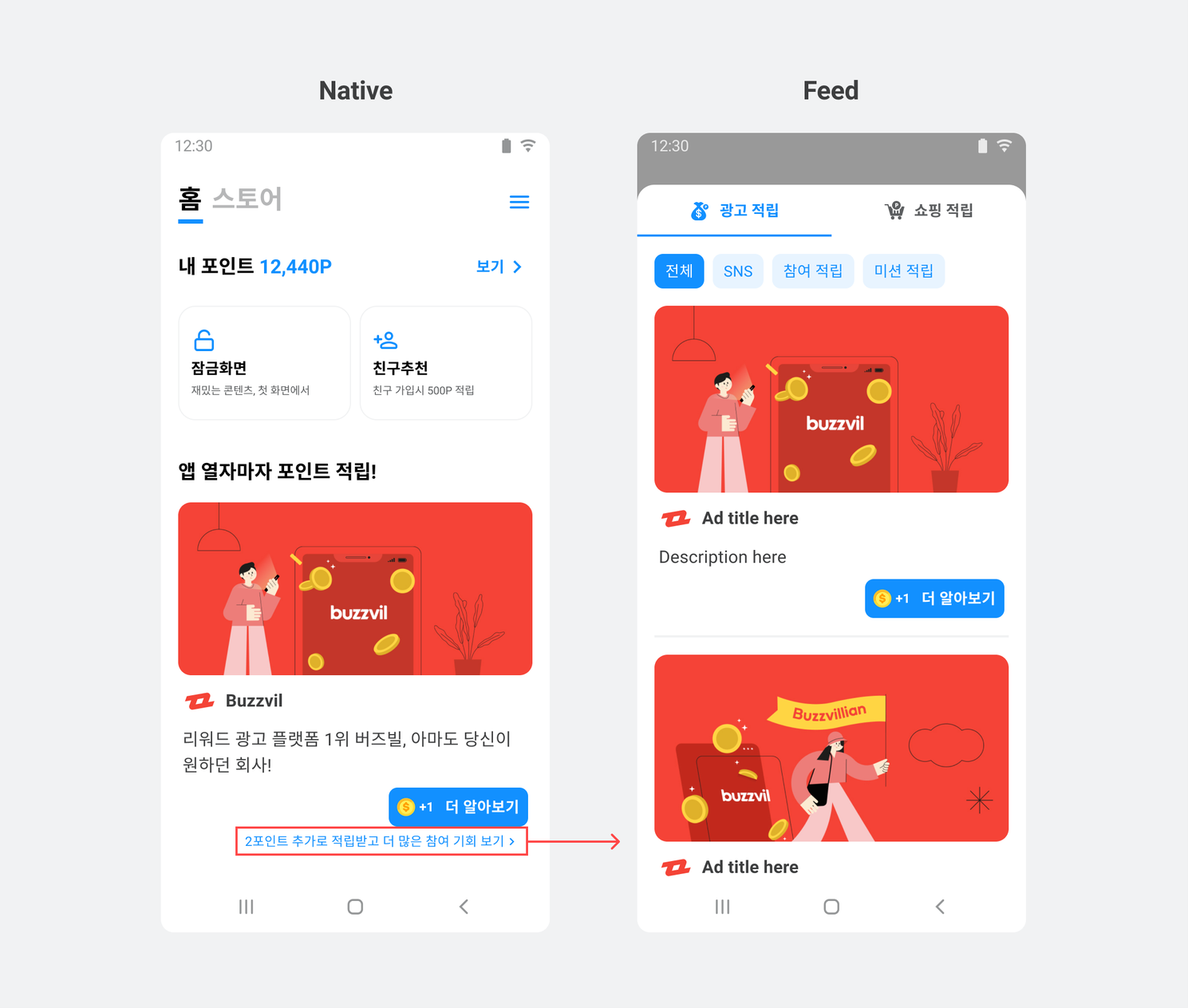
Follow these steps to add a Feed entry layout to Native.
-
Add
NativeToFeedLayoutto theNativeAdViewlayout.<com.buzzvil.buzzad.benefit.presentation.nativead.NativeAdView> <com.buzzvil.buzzad.benefit.presentation.feed.navigation.NativeToFeedLayout android:id="@+id/your_native_to_feed_layout"> <TextView /> <ImageView /> </com.buzzvil.buzzad.benefit.presentation.feed.navigation.NativeToFeedLayout> </com.buzzvil.buzzad.benefit.presentation.nativead.NativeAdView> -
Set the Native Unit ID on
NativeToFeedLayout.// Activity @Override protected void onCreate(Bundle savedInstanceState) { NativeToFeedLayout nativeToFeedLayout = findViewById(R.id.your_native_to_feed_layout); nativeToFeedLayout.setNativeUnitId(YOUR_NATIVE_UNIT_ID); }
Display base reward points
Display the points earned simply by entering Feed (BaseReward) in NativeToFeedLayout to encourage clicks.
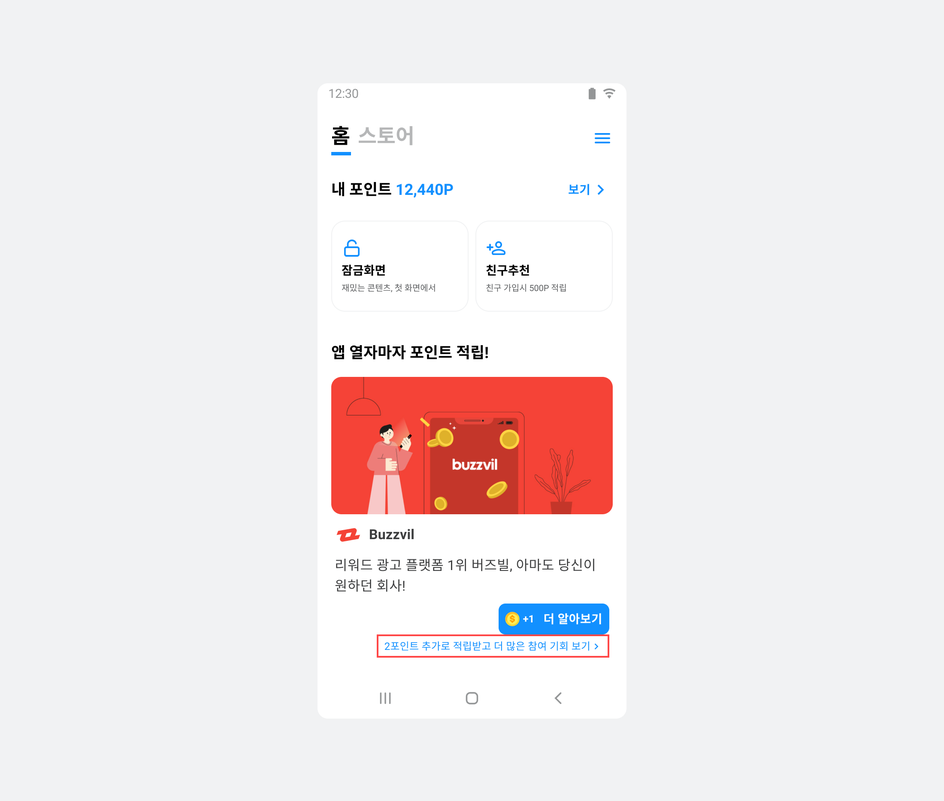
The following example displays base reward points in NativeToFeedLayout.
BaseRewardManager baseRewardManager = BuzzAdBenefit.getBaseRewardManager();

@Override
public void onResume() {
    super.onResume();
    updateNavigationTextView();
}

private void updateNavigationTextView() {
    baseRewardManager.getAvailableFeedBaseReward(
        YOUR_FEED_UNIT_ID,
        reward -> {
            if (reward < 1) {
                navigationTextView.setText("더 많은 참여 기회 보기");
            } else {
                navigationTextView.setText(String.format(Locale.ROOT, "%d 포인트 추가로 적립하고 더 많은 참여 기회 보기", reward));
            }
        }
    );
}
Step 5. Test basic integration
Verify that ads are allocated and displayed correctly, then check that tapping NativeToFeedLayout, the Native-to-Feed layout, opens Feed.