Getting started
Complete the setup below before using the Buzzvil iOS SDK (referred to below as the Buzzvil SDK).
Requirements
- deployment target
- Minimum supported: iOS 13 or later
- Recommended: iOS 14 or later
- Xcode 16.0 or later
📢 Notice
Technical support for iOS 13 in the Buzzvil SDK ended on January 1, 2026. The SDK can still build and run on iOS 13, but bug fixes and technical support are not provided. We recommend an iOS 14 or later deployment target for reliable service and access to the latest features. See End of iOS 13 support for details.
- Existing SDKs continue to work on iOS 13 and earlier, but will no longer receive feature updates or bug fixes.
- We recommend updating to iOS 14 or later to use the latest features reliably.
Obtain integration IDs
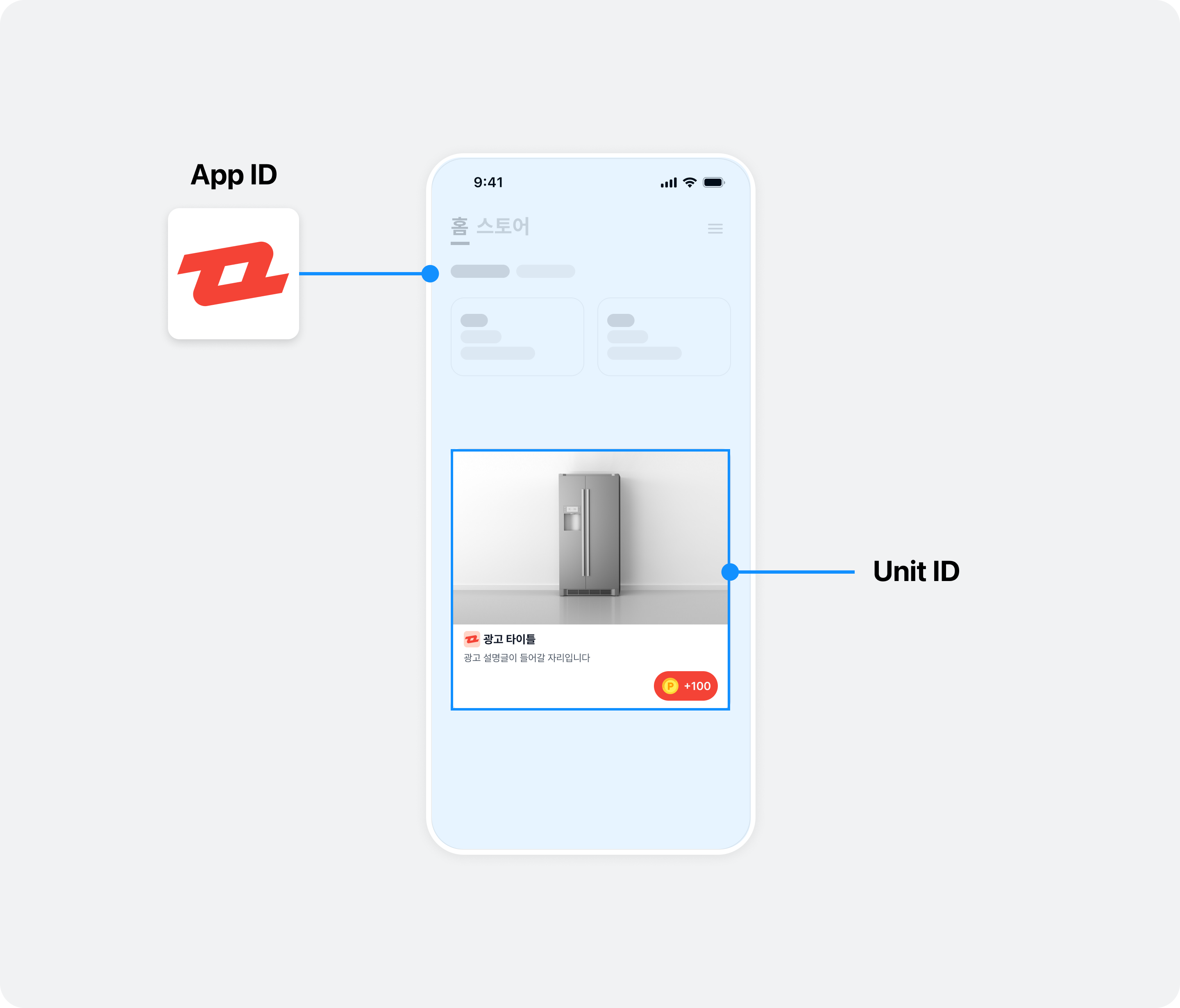
To integrate the Buzzvil SDK, you need a unique identifier for your app (App ID) and for each ad placement (Unit ID). Contact your Buzzvil representative at help@buzzvil.com to obtain them.
| ID type | Description |
|---|---|
| App ID | A unique identifier assigned to each app that integrates the Buzzvil SDK. |
| Unit ID | A unique identifier assigned to each placement created through the Buzzvil SDK. |
Integrate a reward server
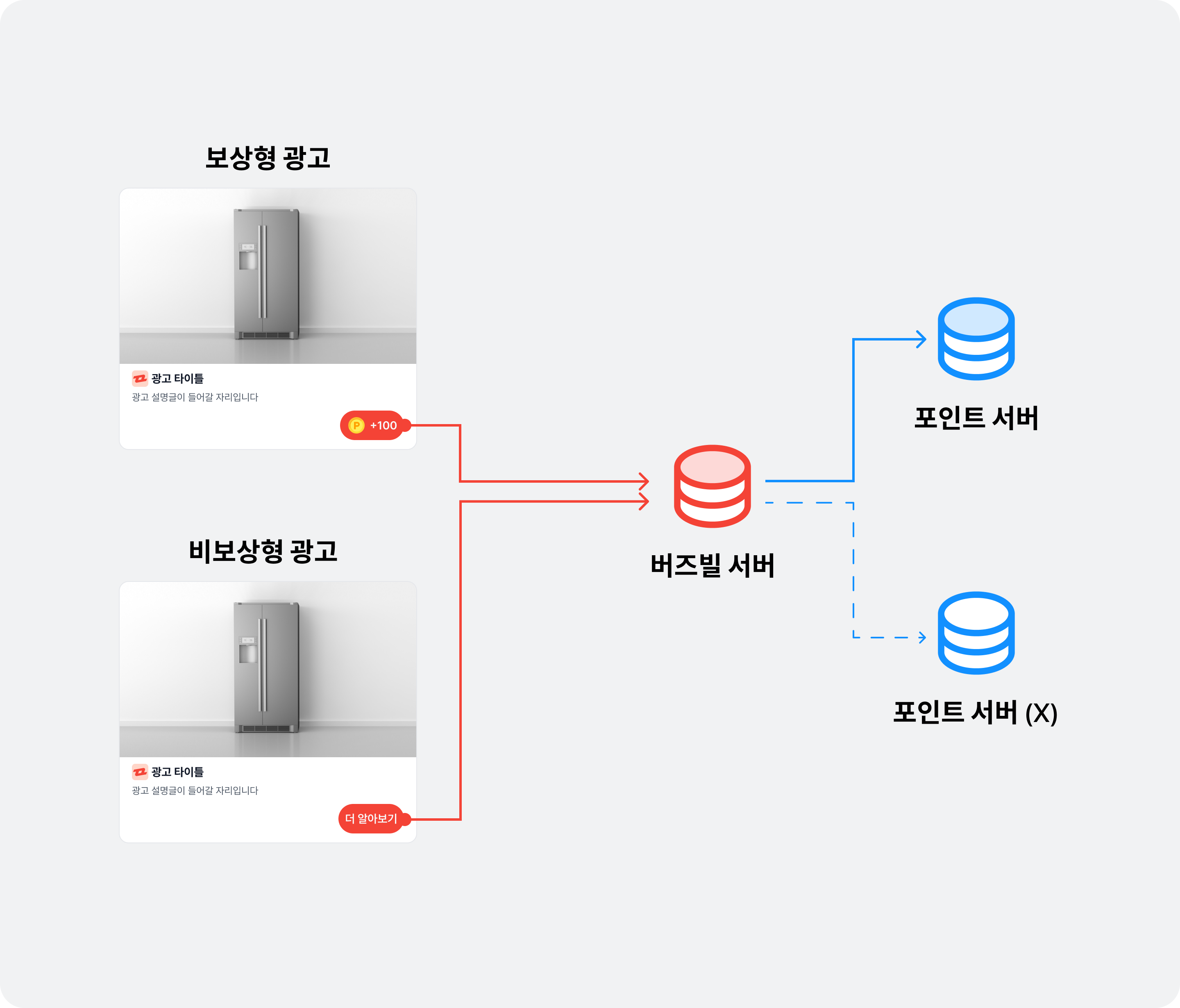
Ads supplied by Buzzvil are classified as rewarded ads, which award points to users, and non-rewarded ads, which do not.
- Non-rewarded ads: You do not need to award points when users engage with these ads, so a point-processing server is not required.
- Rewarded ads: You must award points when users engage with these ads, so you need a server that can process reward requests from the client.
If you have your own server that can process reward requests for rewarded ads, integrate it by following the postback integration guide.
Install the SDK
Swift Package Manager
Follow these steps to install the Buzzvil SDK using Swift Package Manager.
-
In Xcode, go to
File > Add Package Dependencies. -
Search for the Buzzvil SDK Swift Package GitHub repository.
https://github.com/Buzzvil/buzzvil-ios-sdk
-
Select a version. We recommend Up to Next Minor Version.
-
Select
BuzzvilSDKfrom the package products.
For details about adding package dependencies, see the official Apple Developer documentation.
Cocoapods
To install the Buzzvil SDK using CocoaPods, add BuzzvilSDK to your Podfile.
pod 'BuzzvilSDK', '~> 6.8.0'
Initialize the SDK
After installing the Buzzvil SDK, initialize it with the required information, including your App ID and user profile.
Initialize the Buzzvil SDK
- Call
BuzzBenefit.shared.initialize()at your chosen location to initialize the SDK.
🚨 Warning
Other functions do not work correctly if called beforeBuzzBenefit.shared.initialize(). Always call the initialization function before any other function.
import BuzzvilSDK

let config = BuzzBenefitConfig.Builder(appId: "YOUR_APP_ID")
    .build()
BuzzBenefit.shared.initialize(with: config)
@import BuzzvilSDK;

BuzzBenefitConfig *config = [BuzzBenefitConfig configWith:^(BuzzBenefitConfigBuilder * _Nonnull builder) {
  builder.appId = @"YOUR_APP_ID";
}];
[[BuzzBenefit sharedInstance] initializeWith:config];
Log in
You must log in before requesting an ad allocation. See the table below for the fields in a login request.
❗️❗️❗️ Important ❗️❗️❗️
Although gender and year of birth are marked as recommended, targeted ads cannot be served without them. Most Buzzvil ads are targeted, so you must provide this information for normal ad allocation.
| Required/recommended | User profile | Description |
|---|---|---|
| Required | userId | A unique ID for each user that does not identify them personally (login IDs and email addresses are not allowed). This value must remain unchanged while the user uses your service and is required for ad allocation. Limited to 255 ASCII characters or fewer. ⚠️ Caution If the user ID changes after the app is uninstalled and reinstalled, or you cannot use a fixed ID for another reason, action-based ads cannot be served because of the risk of abuse. Contact your Buzzvil business representative if a user's unique identifier can change. |
| Recommended | gender | The user's gender. Male: BuzzBenefitUserGender.male, Female: BuzzBenefitUserGender.female |
| Recommended | birthYear | The user's year of birth. |
The following example registers a user profile with the SDK. You can also delete a registered user profile.
// 로그인을 요청하는 코드입니다.
let buzzBenefitUser = BuzzBenefitUser.Builder(userId: "USER_ID")
  .setGender(.male)
  .setBirthYear(YYYY)
  .build()

BuzzBenefit.shared.login(
  with: buzzBenefitUser,
  onSuccess: {
    // 로그인이 성공한 경우 호출됩니다.
  },
  onFailure: { error in
    // 로그인이 실패한 경우 호출됩니다.
  }
)

// 로그인 상태를 확인하는 코드입니다.
BuzzBenefit.shared.isLoggedIn()

// 로그아웃하는 코드입니다.
BuzzBenefit.shared.logout()
BuzzBenefitUser *buzzBenefitUser = [BuzzBenefitUser userWith:^(BuzzBenefitUserBuilder * _Nonnull builder) {
  builder.userId = @"USER_ID";
  builder.gender = BuzzBenefitUserGenderMale;
  builder.birthYear = YYYY;
}];

[[BuzzBenefit sharedInstance] loginWith:buzzBenefitUser onSuccess:^{
  // 로그인이 성공한 경우 호출됩니다.
} onFailure:^(NSError * _Nonnull error) {
  // 로그인이 실패한 경우 호출됩니다.
}];

// 로그인 상태를 확인하는 코드입니다.
[[BuzzBenefit sharedInstance] isLoggedIn];

// 로그아웃하는 코드입니다.
[[BuzzBenefit sharedInstance] logout];
Sample code
See the GitHub sample code for examples of actual implementations.
Frequently asked questions
| Question | Answer |
|---|---|
| What changed to support iOS 17? | See Support for iOS 17. |
| How do I configure features for iOS 14? | On iOS 14 and later, the Buzzvil SDK supports displaying a popup that requests permission to track user activity. See ATT (App Tracking Transparency) permission dialog for details. |