Standard Pop
Learn how to add Standard Pop, implement its features and customize icons and other design elements.
Standard Pop is a circular button outside your app that directs users to Feed. It appears whenever users unlock their screen and can be dragged to another position. The button uses transparency to accommodate Android 12's restrictions on touch events through overlays and keep the app working reliably.
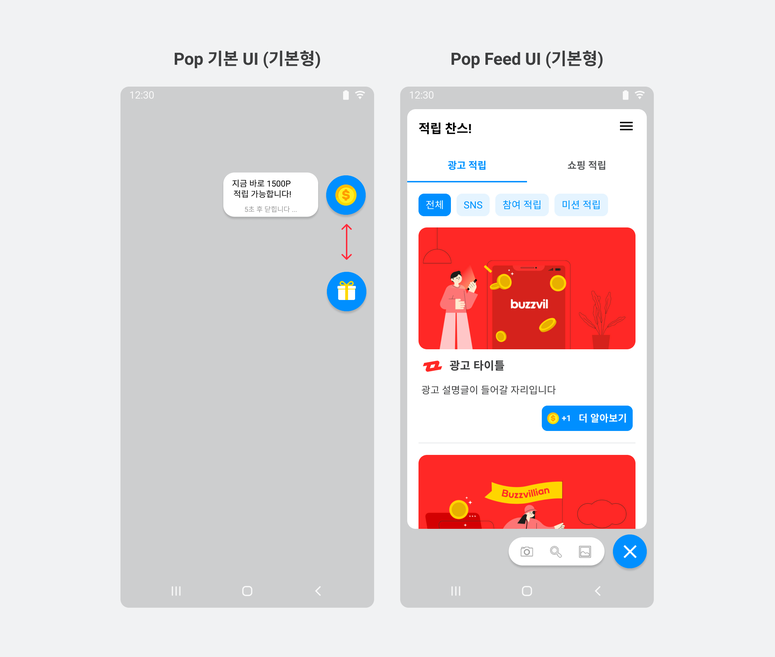
Basic settings
Prerequisites
- Complete Feed basic setup.
- Add the Pop dependency to your Gradle file.
dependencies {
    buzzAdBenefitVersion = '3.54.+'
    implementation "com.buzzvil:buzzad-benefit:$buzzAdBenefitVersion"
    implementation "com.buzzvil:buzzad-benefit-pop:$buzzAdBenefitVersion"
}
Add Pop Feed
Pop Feed is the Feed placement opened through the Pop button. Add it as a feature of your existing Feed without obtaining a separate ID. Follow these steps.
- Create a new
FeedConfigand set the Unit ID to use for the Pop Feed ID (YOUR_POP_UNIT_ID). - Set
optInFeatureListon theFeedConfigyou created.
-
The
FeedConfigsettings also apply to Pop Feed. See Feed advanced settings for details aboutFeedConfig.FeedConfig feedConfig = new FeedConfig.Builder("YOUR_POP_UNIT_ID") .optInFeatureList(Collections.singletonList(OptInFeature.Pop)) .build(); final BuzzAdBenefitConfig buzzAdBenefitConfig = new BuzzAdBenefitConfig.Builder(context) .setDefaultFeedConfig(feedConfig) .build(); BuzzAdBenefit.init(context, buzzAdBenefitConfig);
Enable Pop
Follow these steps to enable Pop for users.
- Call
BuzzAdPop.activate()to enable Pop.
- Android 6.0 Marshmallow and later require permission to draw over other apps. Prompt for this permission as needed when calling
BuzzAdPop.activate().
-
Display the Pop button with
BuzzAdPop.getInstance().show().BuzzAdPop.getInstance().activate(new BuzzAdPop.PopActivateListener() { public void onActivated() { // 정상적으로 Pop이 활성화 되었을 때 호출됩니다. // 유저 화면에 바로 Pop을 표시합니다. BuzzAdPop.getInstance().show(); } public void onActivationFailed(@Nullable Throwable error) { // Pop 활성화가 실패하면 호출됩니다. } });
Disable Pop
Call buzzAdPop.deactivate(Context) to disable Pop. The foreground service notification also disappears.
The following example disables Pop.
BuzzAdPop.getInstance().deactivate(context);
Advanced settings
Learn how to implement and configure Pop button and Pop Feed features. The main features are shown below.
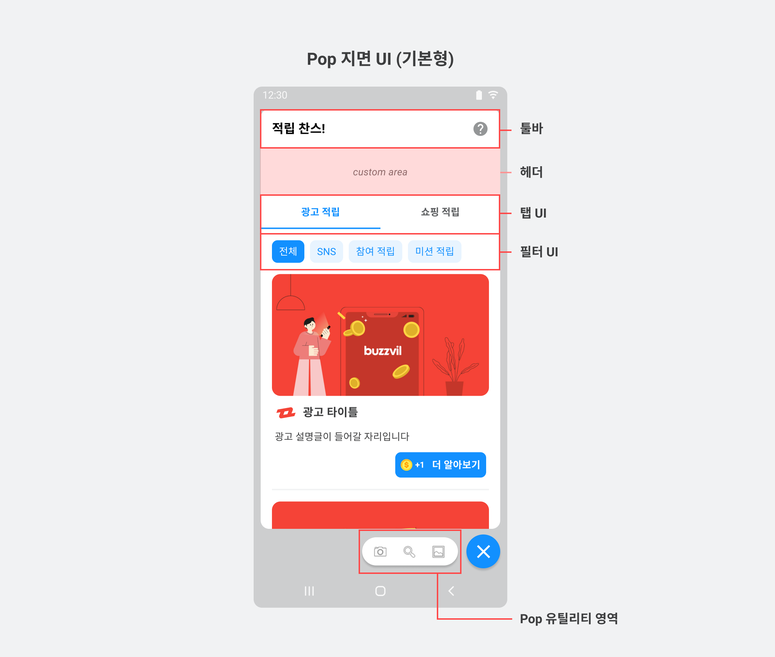
Configure PopConfig
Use PopConfig to manage Pop Feed with a separate Unit ID or configure features beyond those set through FeedConfig.
The following example adds PopConfig to BuzzAdBenefitConfig.
final FeedConfig popFeedConfig = new FeedConfig.Builder("YOUR_POP_UNIT_ID").build();
final PopConfig popConfig = new PopConfig.Builder(popFeedConfig)
                      .build();

final BuzzAdBenefitConfig buzzAdBenefitConfig = new BuzzAdBenefitConfig.Builder(context)
        .setPopConfig(popConfig)
        .build();

BuzzAdBenefit.init(context, buzzAdBenefitConfig);
Change the Pop button display duration
Set how long the Pop button remains visible before disappearing. The default is 5 seconds.
PopConfig popConfig = new PopConfig.Builder(feedConfig)
    .idleTimeInMillis(5000) //Pop 표시 시간
    .build();
Change the Pop button position
Set where the button appears when users unlock their device. The default is SidePosition.Side.RIGHT, 0.6f, on the right side at 60% of the screen height measured from the top (SidePosition.Side.LEFT / SidePositionSide.RIGHT).
PopConfig popConfig = new PopConfig.Builder(feedConfig)
    .initialSidePosition(new SidePosition(SidePosition.Side.RIGHT, 0.6f)) // Pop 표시 위치
    .build();
Set Pop button horizontal spacing
Set the space between Pop and its preview view on the left, and between Pop and the right screen edge. The defaults are 8dp between the button and message, and 0dp between the button and screen edge.
PopConfig popConfig = new PopConfig.Builder(feedConfig)
    .marginBetweenIconAndPreviewInDp(8.0f) // 팝 버튼과 메세지 사이 간격
    .marginBetweenIconAndScreenEdgeInDp(24.0f) // 팝 버튼과 화면 끝 사이 간격
    .build()
Implement a custom Pop foreground service notification
Use PopConfig to implement your own notification behavior and layout.
Enabling Pop starts its foreground service notification. Unless you customize it with PopConfig, the SDK's default notification appears in the device notification panel.
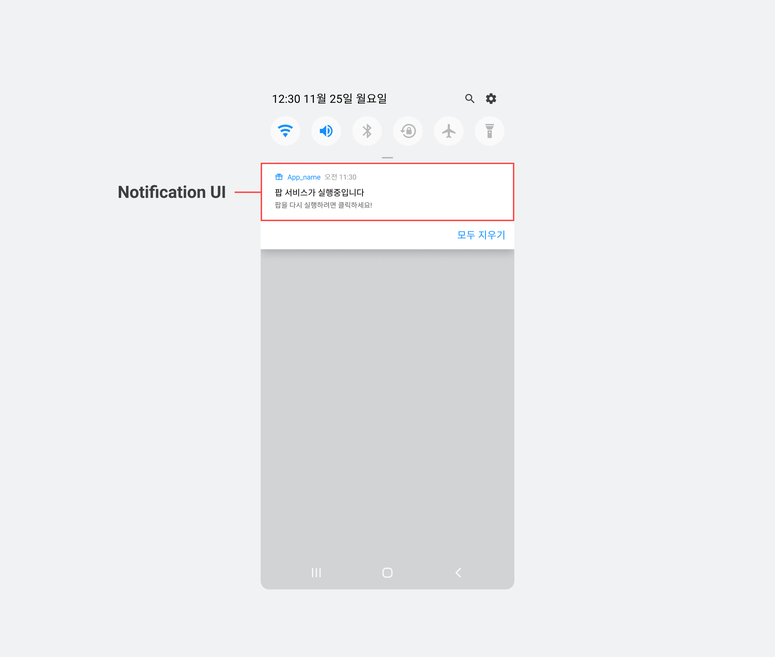
Follow these steps to implement a custom Pop foreground service notification.
- Implement a subclass of
PopControlService.
-
Create
notificationChannelor register a View. -
Use
getPopPendingIntent(unitId, context)to obtain aPendingIntentthat opens Pop.The following example implements a subclass of
PopControlService.public class YourControlService extends PopControlService { public static int NOTIFICATION_ID = 1000; @Override protected Notification buildForegroundNotification(@NonNull String unitId, @NonNull PopNotificationConfig popNotificationConfig) { // Pop을 표시하는 PendingIntent (원형 아이콘) PendingIntent popPendingIntent = getPopPendingIntent(unitId, this); // 필요에 따라 notificationChannel을 등록합니다. NotificationCompat.Builder builder; if (Build.VERSION.SDK_INT >= Build.VERSION_CODES.O) { createNotificationChannelIfNeeded(); builder = new NotificationCompat.Builder(this, NOTIFICATION_CHANNEL_ID); } else { builder = new NotificationCompat.Builder(this); } // Pop Service Notification 에 사용할 View 를 등록합니다. RemoteViews remoteView = new RemoteViews(getPackageName(), R.layout.view_custom_notification); builder.setSmallIcon(popNotificationConfig.getSmallIconResId()) .setContent(remoteView) .setContentIntent(popPendingIntent) .setPriority(NotificationCompat.PRIORITY_LOW) .setShowWhen(false) .setForegroundServiceBehavior(NotificationCompat.FOREGROUND_SERVICE_IMMEDIATE); // v3.3.x부터 지원되는 인터페이스입니다. if (popNotificationConfig.getColor() != null) { builder.setColor(popNotificationConfig.getColor()); } return builder.build(); } @TargetApi(Build.VERSION_CODES.O) protected void createNotificationChannelIfNeeded() { final NotificationManager notificationManager = (NotificationManager) getSystemService(Context.NOTIFICATION_SERVICE); if (notificationManager.getNotificationChannel(NOTIFICATION_CHANNEL_ID) == null) { final NotificationChannel channel = new NotificationChannel(NOTIFICATION_CHANNEL_ID, NOTIFICATION_CHANNEL_NAME, NotificationManager.IMPORTANCE_LOW); channel.setShowBadge(false); notificationManager.createNotificationChannel(channel); } } } -
Set
notificationIdon thePopNotificationConfigobject, as shown below.final PopNotificationConfig popNotificationConfig = new PopNotificationConfig.Builder(context) .notificationId(NOTIFICATION_ID) .build(); final FeedConfig popFeedConfig = new FeedConfig.Builder("YOUR_POP_UNIT_ID").build(); final PopConfig popConfig = new PopConfig.Builder(popFeedConfig) .popNotificationConfig(popNotificationConfig) .controlService(YourControlService.class) .build(); final BuzzAdBenefitConfig buzzAdBenefitConfig = new BuzzAdBenefitConfig.Builder(context) .setPopConfig(popConfig) .build();
-
Register your subclass as
serviceinAndroidManifest.xml.<application <service android:name=".YourControlService" /> </application>
Hide the Enable Pop button
After Pop integration, an Enable Pop button appears automatically in the existing Feed for users who have not enabled Pop. It disappears once the user enables Pop.
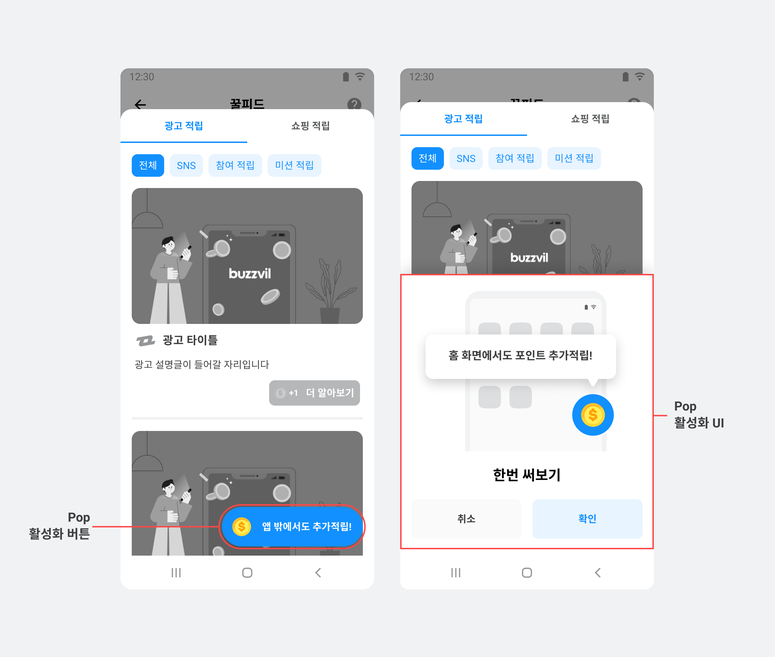
Call optInAndShowPopButtonHandlerClass(null) to hide the Enable Pop button.
final FeedConfig feedConfig = new FeedConfig.Builder("YOUR_POP_UNIT_ID")
        .optInAndShowPopButtonHandlerClass(null) // Pop 활성화 버튼 숨김
        .build();
Implement a custom toolbar
Customize the Pop Feed toolbar using either the SDK's default UI or your own custom view.
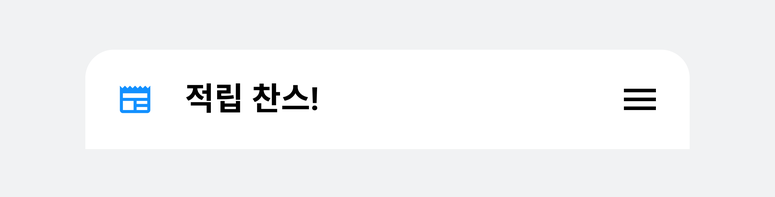
Use the SDK's default UI
Modify the default SDK UI to customize the Pop Feed toolbar.
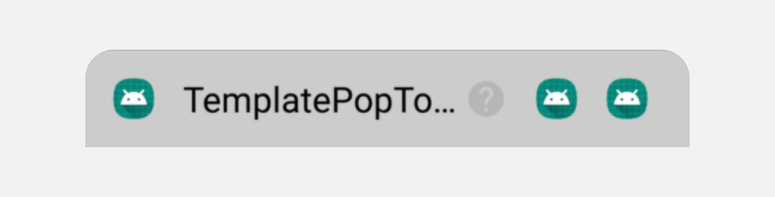
Implement a subclass of DefaultPopToolbarHolder and customize the layout using the default PopToolbar UI. Register your class in feedToolbarHolderClass of FeedConfig.
The following example implements a Pop Feed toolbar using the SDK's UI.
class YourPopToolbarHolder extends DefaultPopToolbarHolder {
    @Override
    public View getView(Activity activity, @NonNull final String unitId) {
        super.toolbar = new PopToolbar(activity); // PopToolbar 에서 제공하는 기본 Template 사용
        toolbar.setTitle("TemplatePopToolbarHolder"); // 툴바 타이틀 문구를 변경합니다.
        toolbar.setIconResource(R.mipmap.ic_launcher); // 툴바 좌측 아이콘을 변경합니다.
        toolbar.setBackgroundColor(Color.LTGRAY); // 툴바 배경색을 변경합니다.

        super.addSettingsMenuItemView(activity); // 메뉴 버튼 추가 (메뉴 안에 문의하기 버튼이 있습니다)
        super.addInquiryMenuItemView(activity); // 문의하기 버튼은 이 함수를 통해 간단하게 추가 가능합니다.
        addRightMenuItemView(activity); // custom 버튼 추가
        return toolbar;
    }

    // custom 버튼 추가는 toolbar.buildPopMenuItemView 를 사용하여 PopMenuImageView 를 생성하고
    // toolbar.addRightMenuButton 를 사용하여 toolbar 에 추가합니다.
    private void addRightMenuItemView(@NonNull final Activity activity) {
        PopMenuImageView menuItemView = toolbar.buildPopMenuItemView(activity, R.mipmap.ic_launcher);
        menuItemView.setOnClickListener(new View.OnClickListener() {
            @Override
            public void onClick(View v) {
                YourPopToolbarHolder.super.showInquiry(activity); // 문의하기 페이지로 연결합니다.
            }
        });
        toolbar.addRightMenuButton(menuItemView);
    }
}
If you added Pop Feed to FeedConfig, configure YourPopToolbarHolder as shown below.
final FeedConfig popFeedConfig = new FeedConfig.Builder("YOUR_POP_UNIT_ID")
    .feedToolbarHolderClass(YourPopToolbarHolder.class)
    .build();
new PopConfig.Builder(popFeedConfig)
    .build();
Use your own custom view
Implement a custom view instead of the SDK's UI to replace the Pop Feed toolbar.
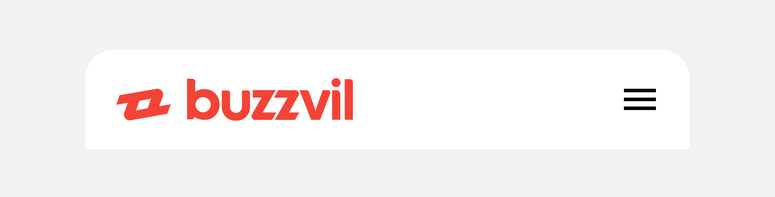
The following example subclasses DefaultPopToolbarHolder to create a custom toolbar view, then registers the class in PopConfig.
public class YourPopToolbarHolder extends DefaultPopToolbarHolder {
    @Override
    public View getView(Activity activity, @NonNull final String unitId) {
        // 직접 구성한 layout 을 사용합니다
        ViewGroup root = (ViewGroup) activity.getLayoutInflater().inflate(R.layout.your_pop_custom_toolbar_layout, null);

        View buttonInquiry = root.findViewById(R.id.yourInquiryButton);
        buttonInquiry.setOnClickListener(new View.OnClickListener() {
            @Override
            public void onClick(View v) {
                YourPopToolbarHolder.super.showInquiry(activity); // 문의하기 페이지를 엽니다.
            }
        });
        return root;
    }
}
final FeedConfig popFeedConfig = new FeedConfig.Builder("YOUR_POP_UNIT_ID")
    .feedToolbarHolderClass(YourPopToolbarHolder.class)
    .build();
new PopConfig.Builder(popFeedConfig)
    .build();
Customize the Pop utility area
Add features such as opening an app menu or navigating to another page in the utility area at the lower right of Pop.
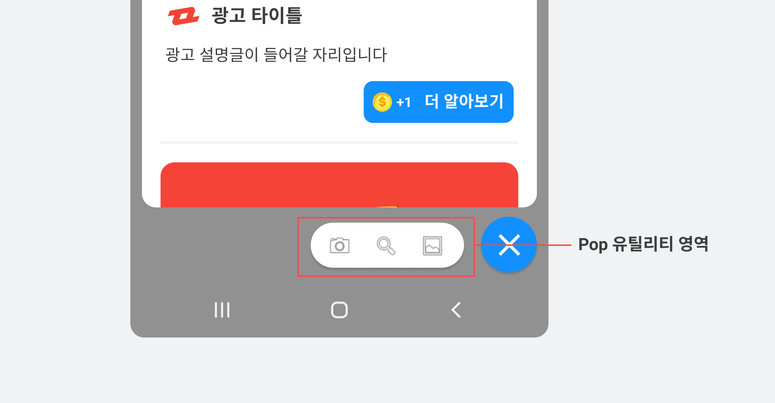
The following example extends PopUtilityLayoutHandler, adds a custom view (your_pop_utility_view), then registers the class in FeedConfig.
public final class CustomPopUtilityLayoutHandler extends PopUtilityLayoutHandler {

    private Context context;

    public CustomPopUtilityLayoutHandler(Context context) {
        super(context);
        this.context = context;
    }


    @Override
    public View onCreateView(ViewGroup parent) {
        LayoutInflater inflater = LayoutInflater.from(context);
        final FrameLayout layout = (FrameLayout) inflater.inflate(
                R.layout.your_pop_utility_view,
                parent,
                false
        );
        return layout;
    }
}
new PopConfig.Builder(popFeedConfig)
      .popUtilityLayoutHandlerClass(CustomPopUtilityLayoutHandler.class)
      .build();
Utility icon specifications
Use the following image specifications for icons in the utility area.
| Item | Specification |
|---|---|
| Image type | Raster or vector image |
| Size |
|
| Color | Monochrome or full color |
Add a custom page
Add a fully customized Pop Feed page with a toolbar and content area. Set a title in the toolbar and a Fragment of your choice in the content area.
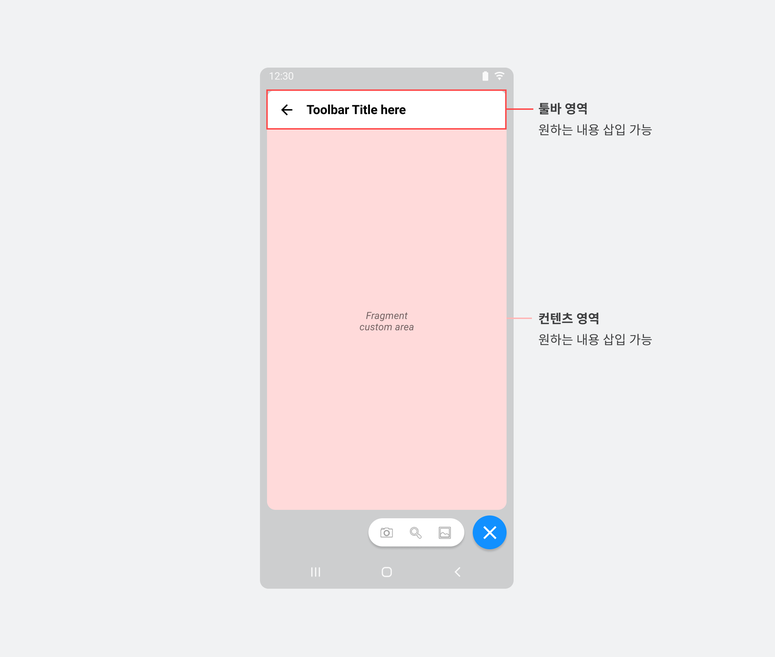
Add the following code when implementing the default Pop Feed toolbar or customizing the utility area.
new PopNavigator().launchCustomFragment(
    context,
    new CustomInAppLandingInfo(
        new YourFragment(),
        R.stirng.your_title
    )
);
Design customization
Learn how to customize the Pop button and placement UI. See the Pop design guide for detailed specifications.
For further customization, implement your own placement following Advanced settings.
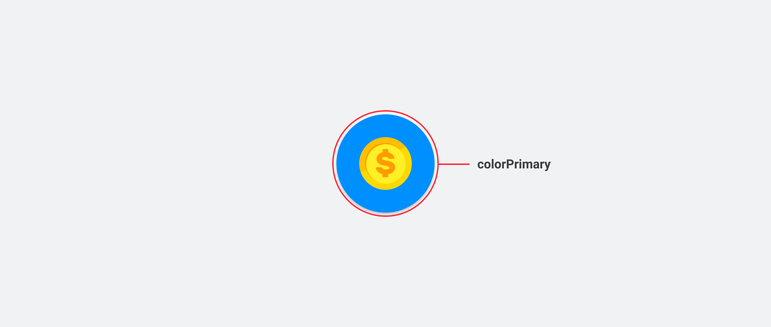
Pop button color
Use GlobalTheme, which controls the primary UI color, to change the Pop button color. See Change the global theme.
Pop button icons
Set BuzzAdPopTheme in Application.onCreate to change the default, reward and close icons.
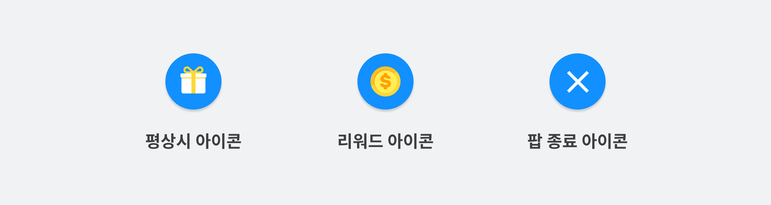
| Icon type | Code | Description | Recommended size |
|---|---|---|---|
| Default icon | iconResId | The default Pop button icon. |
|
| Reward icon | rewardReadyIconResId | Shown when points are available to earn. |
|
| Close icon | popFeedCloseIconResId | Closes Pop Feed. |
|
The following example changes Pop icons.
BuzzAdPopTheme buzzAdPopTheme = BuzzAdPopTheme.getDefault()
    ...생략...
    .iconResId(R.drawable.your_pop_icon)
    .rewardReadyIconResId(R.drawable.your_pop_icon_reward_ready)
    .popFeedCloseIconResId(R.drawable.your_pop_icon_feed_close);
BuzzAdPop.getInstance().setTheme(buzzAdPopTheme);
Configure Pop button icon resources
Configure the icon resources as follows.
iconResId: Specify the default and close icons.
<?xml version="1.0" encoding="utf-8"?>
<selector xmlns:android="http://schemas.android.com/apk/res/android">

    <item android:drawable="@drawable/icon_pop_selected" android:state_selected="true" />

    <item android:drawable="@drawable/icon_pop"/>
</selector>
rewardReadyIconResId: Specify the icon shown when points are available to earn.
<?xml version="1.0" encoding="utf-8"?>
<selector xmlns:android="http://schemas.android.com/apk/res/android">

    <item android:drawable="@drawable/icon_pop_selected" android:state_selected="true" />

    <item android:drawable="@drawable/icon_pop_reward_ready"/>
</selector>
Enable Pop button
The Enable Pop button consists of a background color, icon and text.
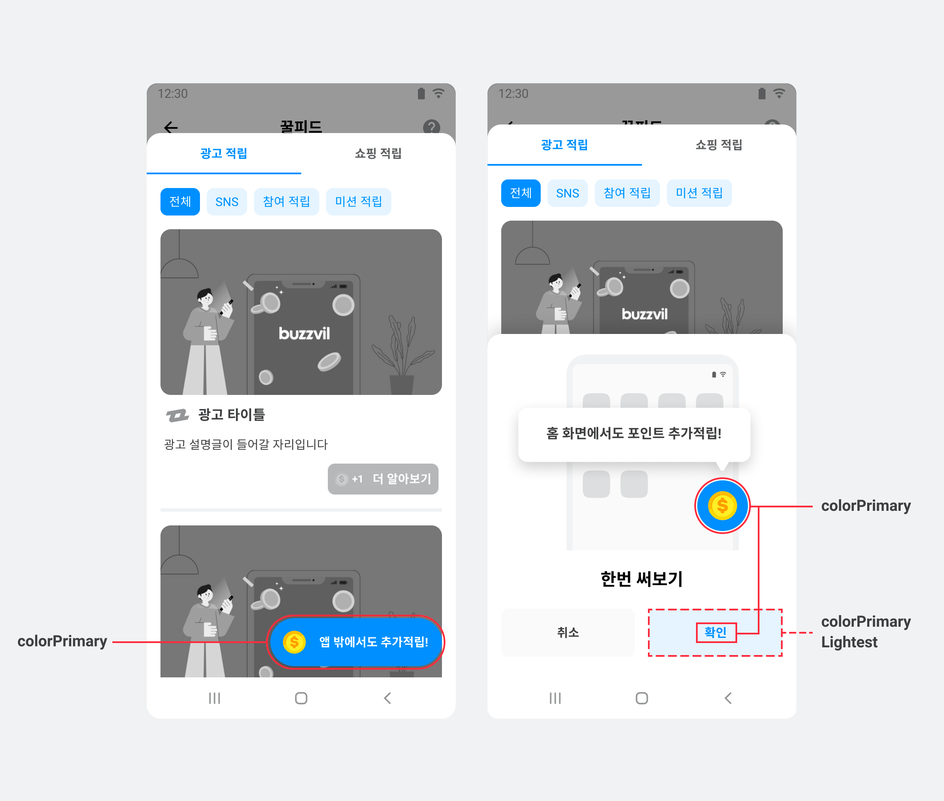
See Change the global theme to customize its color and icon.
To change the text, implement a subclass of DefaultOptInAndShowPopButtonHandler and configure it in FeedConfig.
The following example changes the Enable Pop button text.
public class CustomOptInAndShowPopButtonHandler extends DefaultOptInAndShowPopButtonHandler {
    // 활성화 버튼에 보여지는 텍스트입니다.
    @Override
    public String getOptInAndShowPopButtonText(Context context) {
        return "YOUR_BUTTON_TEXT";
    }
}
final FeedConfig feedConfig = new FeedConfig.Builder("YOUR_FEED_UNIT_ID")
        .optInAndShowPopButtonHandlerClass(CustomOptInAndShowPopButtonHandler.class)
        .build();
Pop foreground service notification
When Pop is enabled, its foreground service notification appears in the device notification panel. Customize its design using the SDK's default UI settings.
The diagram and table below show which notification elements you can customize.
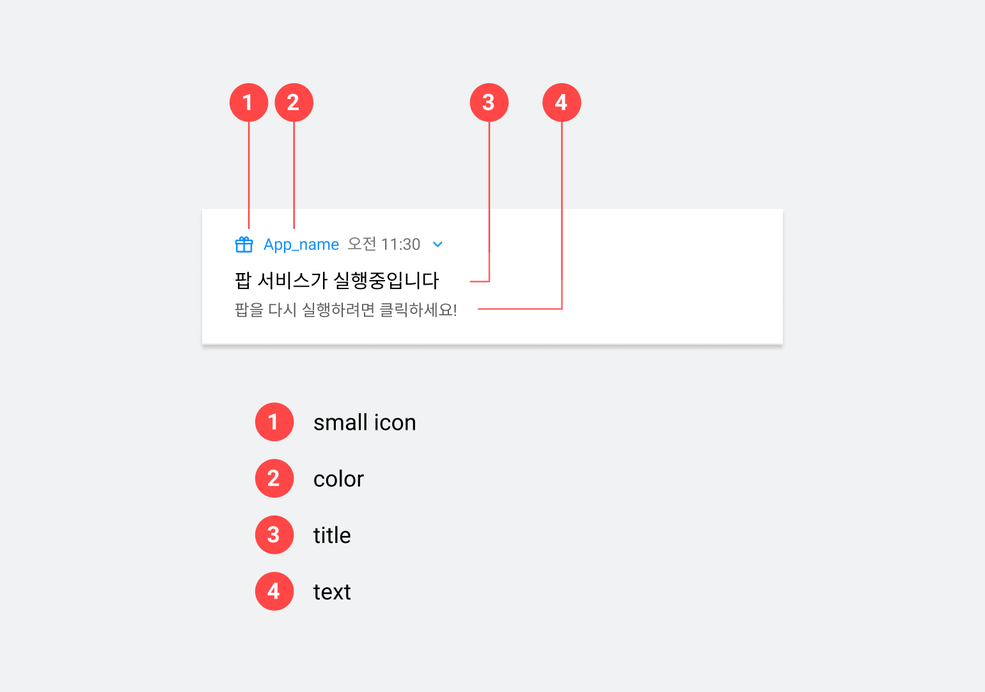
| Number | Component | Description |
|---|---|---|
| 1 | Small icon (smallIconResId) | Your app's icon. ⚠️ Caution: Adaptive Icons are not recommended because they may not display correctly. |
| 2 | Color (colorResId) | Color applied to the app icon and name. ⚠️ Caution: Avoid white, which matches the notification background. |
| 3 | Title (titleResId) | Text identifying the Pop foreground service notification. |
| 4 | Text (textResId) | Text explaining that tapping the notification opens Pop Feed. |
Configure the elements in PopNotificationConfig, then set popNotificationConfig on popFeedConfig to apply the notification design.
The following example customizes the Pop foreground service notification.
final PopNotificationConfig popNotificationConfig = new PopNotificationConfig.Builder(getApplicationContext())
      .smallIconResId(R.drawable.your_small_icon) // 흰색 아이콘, Adaptive Icon 이 설정하지 않도록 주의 요망
      .titleResId(R.string.your_pop_notification_title)
      .textResId(R.string.your_pop_notification_text)
      .colorResId(R.color.your_pop_notification_color)
      .notificationId(5000) // 기본값
      .build();
final FeedConfig popFeedConfig = new FeedConfig.Builder("YOUR_POP_UNIT_ID").build();

PopConfig popConfig = new PopConfig.Builder(popFeedConfig)
    ...생략...
    .popNotificationConfig(popNotificationConfig)
    .build();
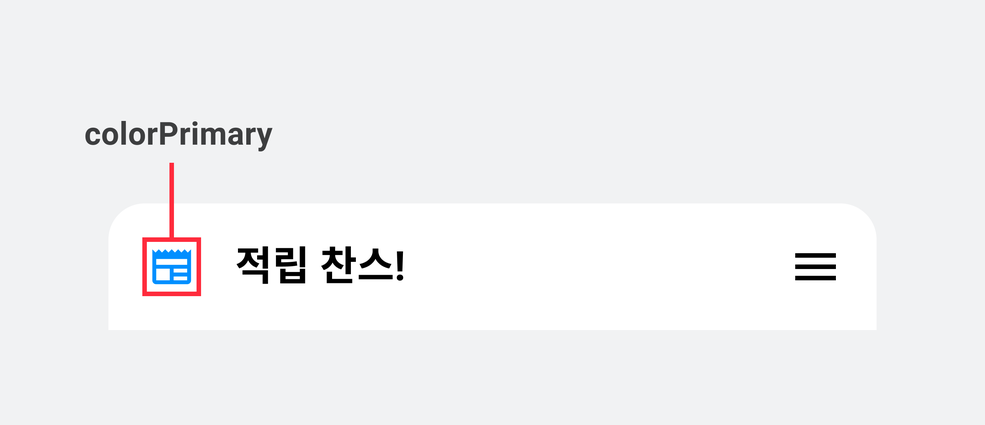
Toolbar icon color
You can change the left-hand toolbar icon color in Pop Feed. See Change the global theme.
Pop message area
When ads are available in Pop Feed, PopAdMessageViewClass displays a message bubble (preview). The default class lets you configure the available points and the remaining display time in seconds.
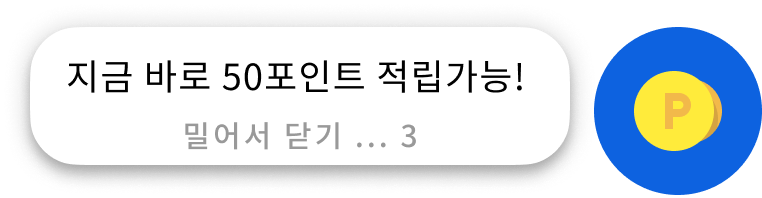
Follow these steps to customize the Pop message area.
- Override the following functions in
PopAdMessageViewClass.
- Implement
PopAdMessageViewClassby extendingPopAdMessageView.
| Function | Description |
|---|---|
updateView | Called every second when the message bubble updates. Receives the remaining seconds and available reward as arguments. |
getDurationInSeconds | Return the Pop display duration in seconds. The recommended duration is 5 seconds. |
See the following code example.
public class MyPopAdMessageView extends PopAdMessageView {

    private TextView textTitle, textDescription;

    public MyPopAdMessageView(@NonNull Context context) {
        super(context);
        LayoutInflater.from(context).inflate(R.layout.view_my_pop_ad_message, this);
        this.textTitle = findViewById(R.id.textTitle);
        this.textDescription = findViewById(R.id.textDescription);
    }

    @Override
    public void updateView(int reward, int remainSeconds) {
        textTitle.setText(reward + "포인트 적립 가능합니다.");
        textDescription.setText(remainSeconds + "초 후에 닫힙니다.");
    }

    @Override
    public int getDurationInSeconds() {
        return 5;
    }

    @NonNull
    @Override
    public String getMessage() {
        return textTitle.getText().toString();
    }
}
- Apply the following code to use Pop with your custom message area.
new PopConfig.Builder(getApplicationContext(), "POP_UNIT_ID")
    .popAdMessageViewClass(MyPopAdMessageView.class)