BenefitHub
Learn how to add and configure BenefitHub and implement additional features through the SDK interface.
Key features
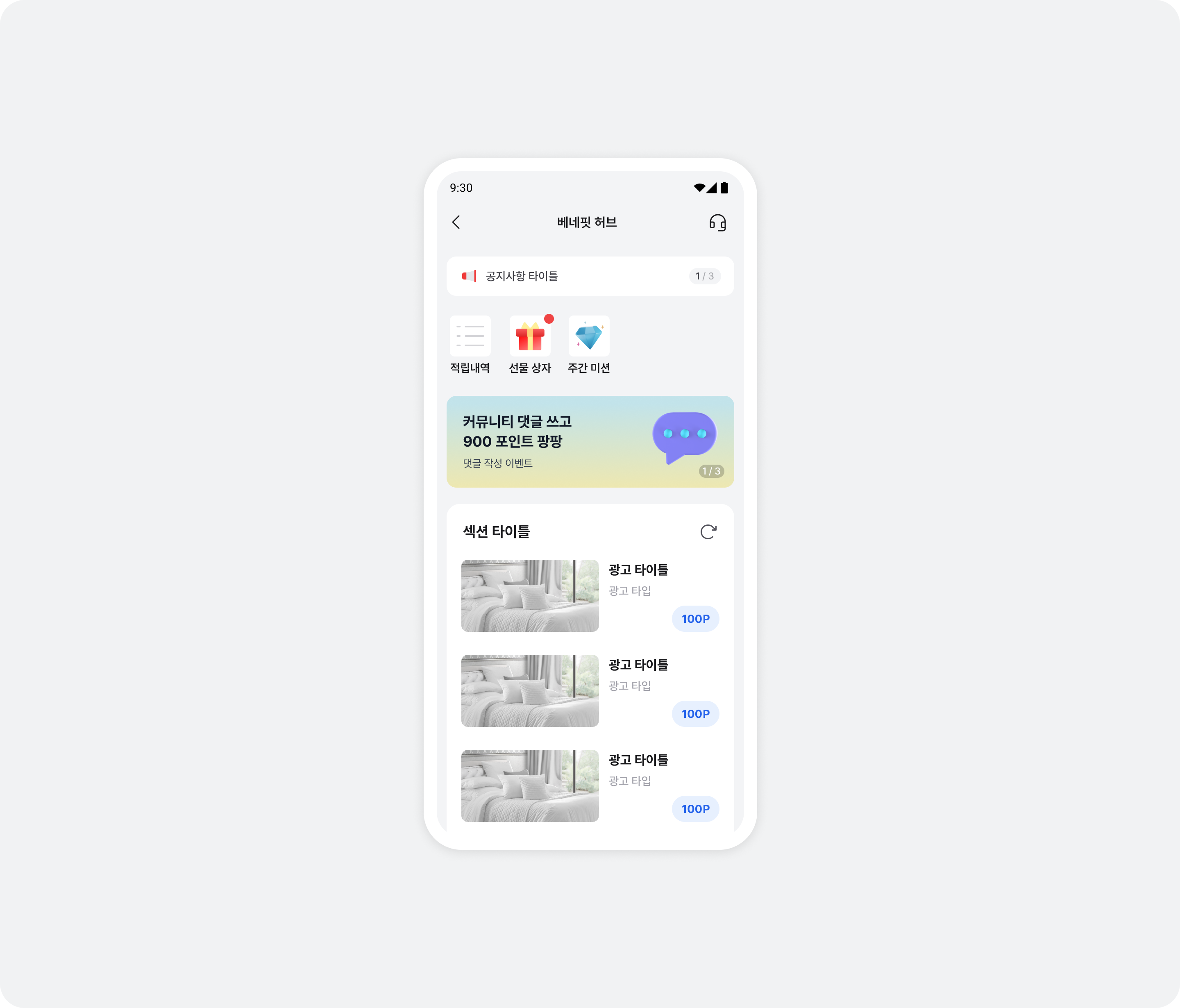
BenefitHub is an offerwall placement that can display a large number of ads. Buzzvil helps you design paths that bring users from other placement types into BenefitHub to show more ads.
Integration
Follow these steps to integrate BenefitHub.
Step 1. Prepare
- Complete Getting started.
Step 2. Display BenefitHub
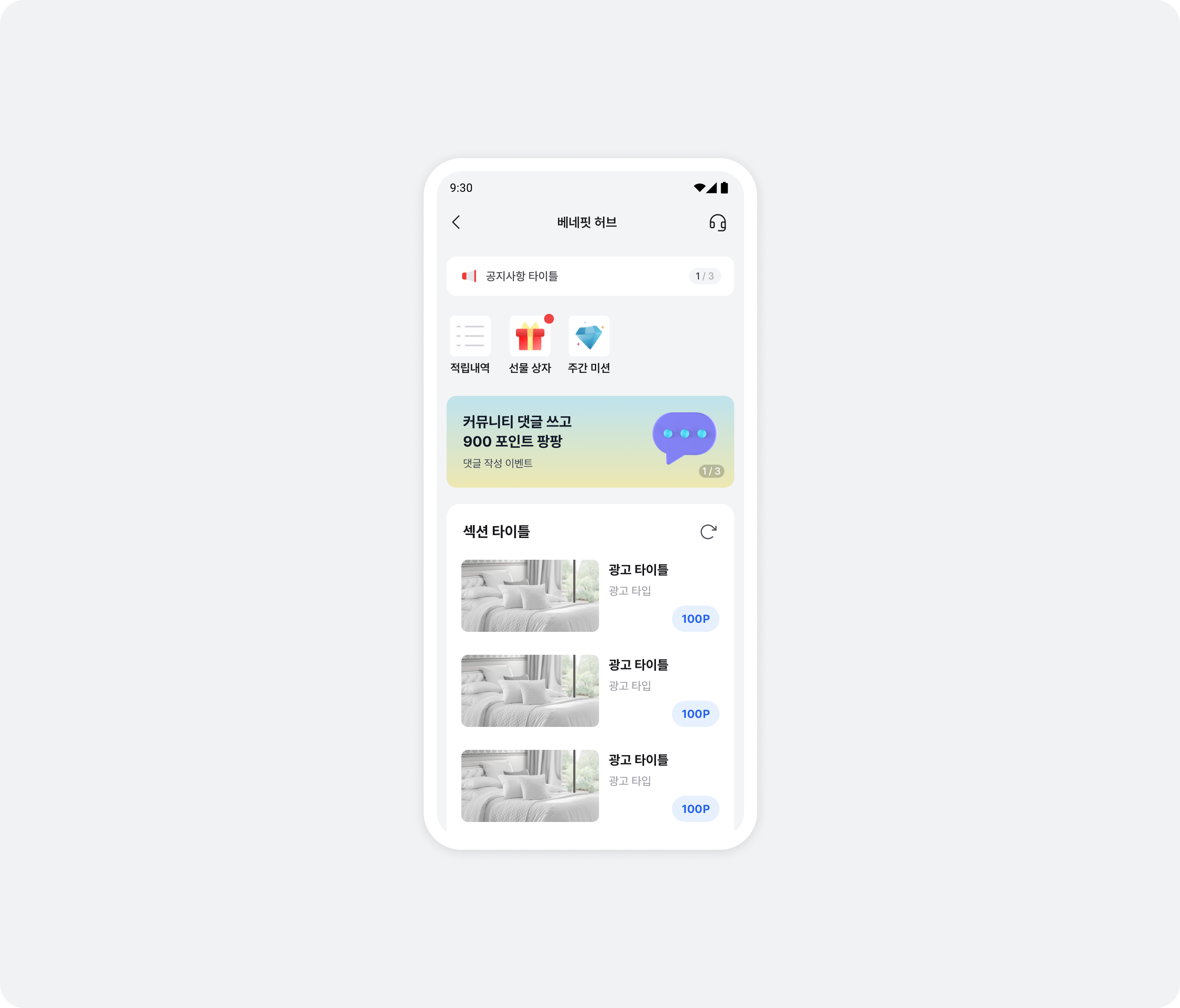
BenefitHub opens as a full-screen UI. Ads are allocated automatically when BenefitHub is shown to the user.
import com.buzzvil.buzzbenefit.benefithub.BuzzBenefitHub

BuzzBenefitHub.show(context)
Basic settings
This section covers the basic features to configure in BenefitHub. You can enable them or change their settings without modifying or redeploying your app.
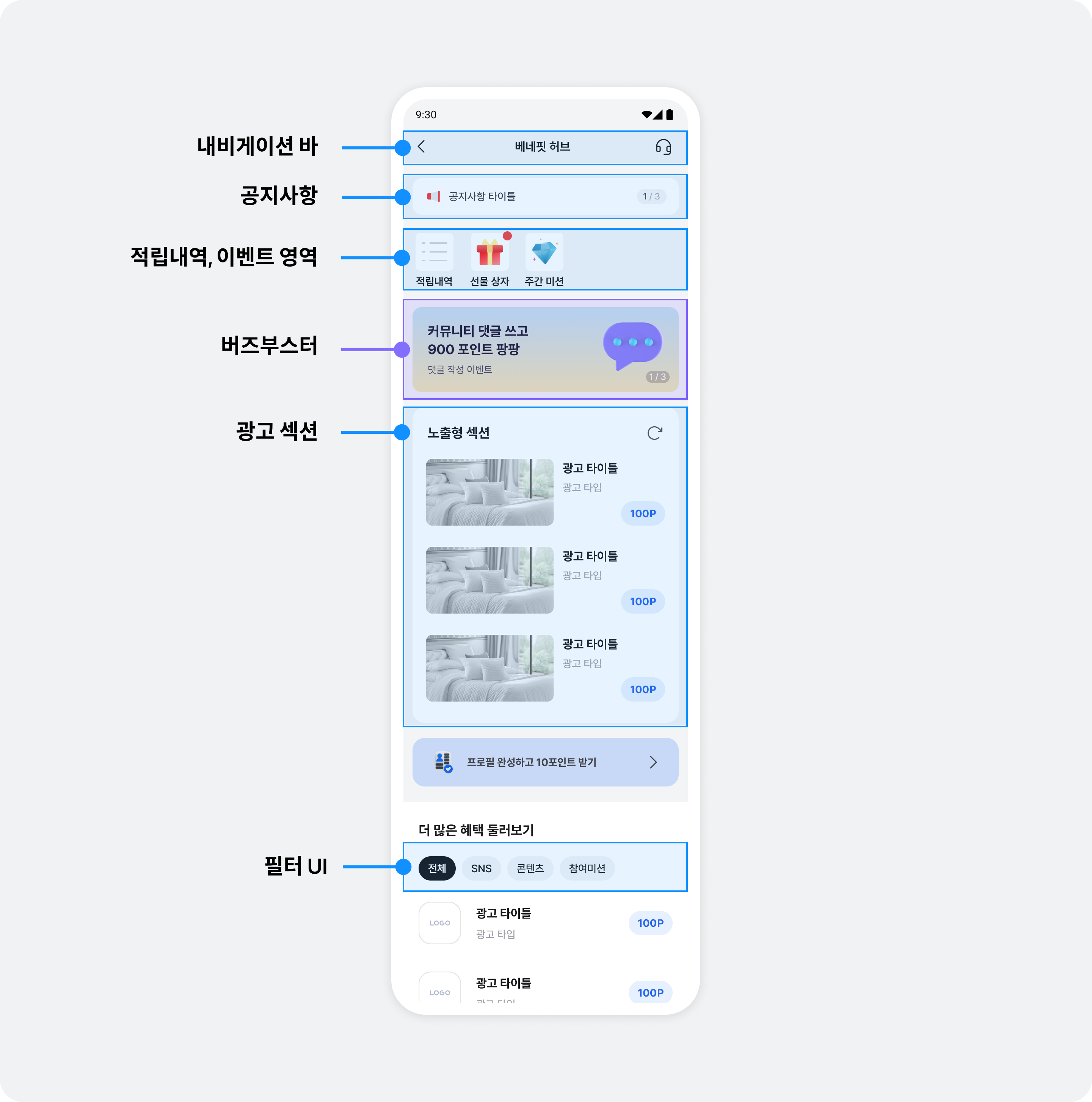
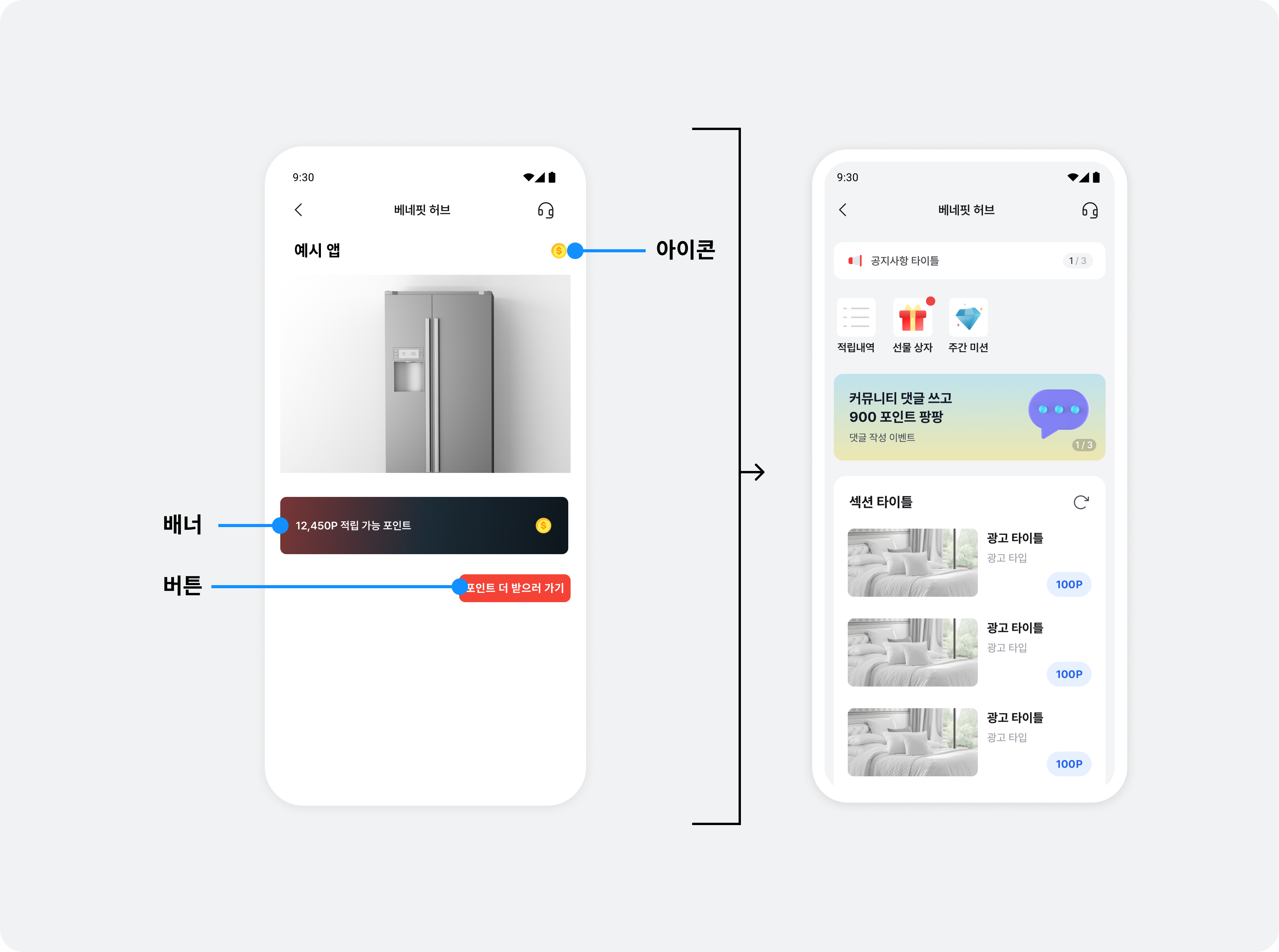
See the illustration below for BenefitHub's main features.
Lucky Box
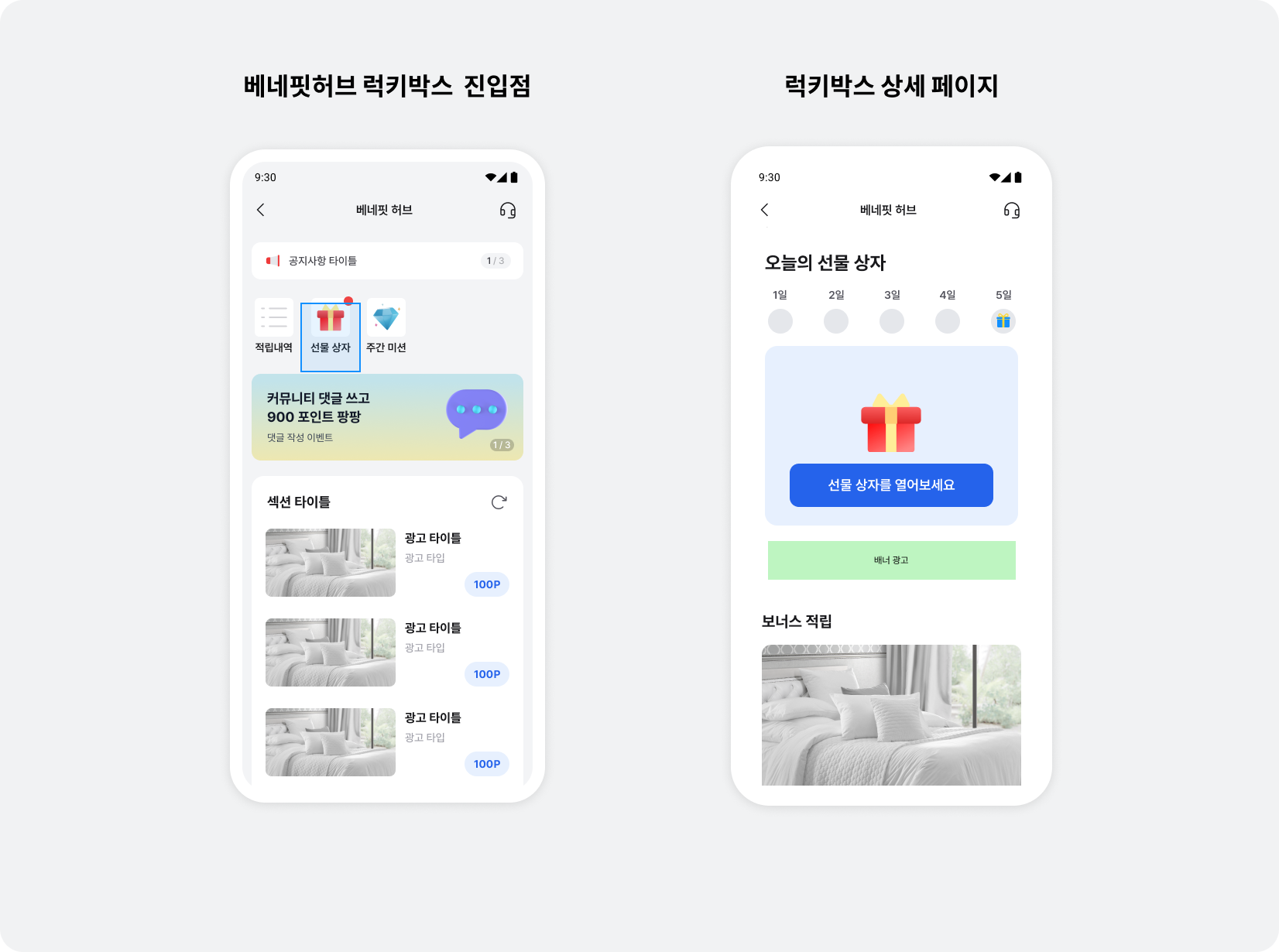
Lucky Box upgrades the Daily Reward feature that increases BenefitHub retention. Its revival system encourages users to maintain participation streaks, while network impression and video ads generate revenue through the basic Lucky Box reward flow. It also presents Buzzvil's direct-sales and network ads by category in a horizontally swipeable interface with infinite scrolling and automatic loading.
Once you integrate the SDK, you can enable this feature without additional development. It operates as a separate placement named LuckyBox, whose DAU and revenue you can monitor in the Dash admin.
After completing ad allocation and display in BenefitHub, contact your Buzzvil representative at help@buzzvil.com to enable the Lucky Box placement.
Mission Pack
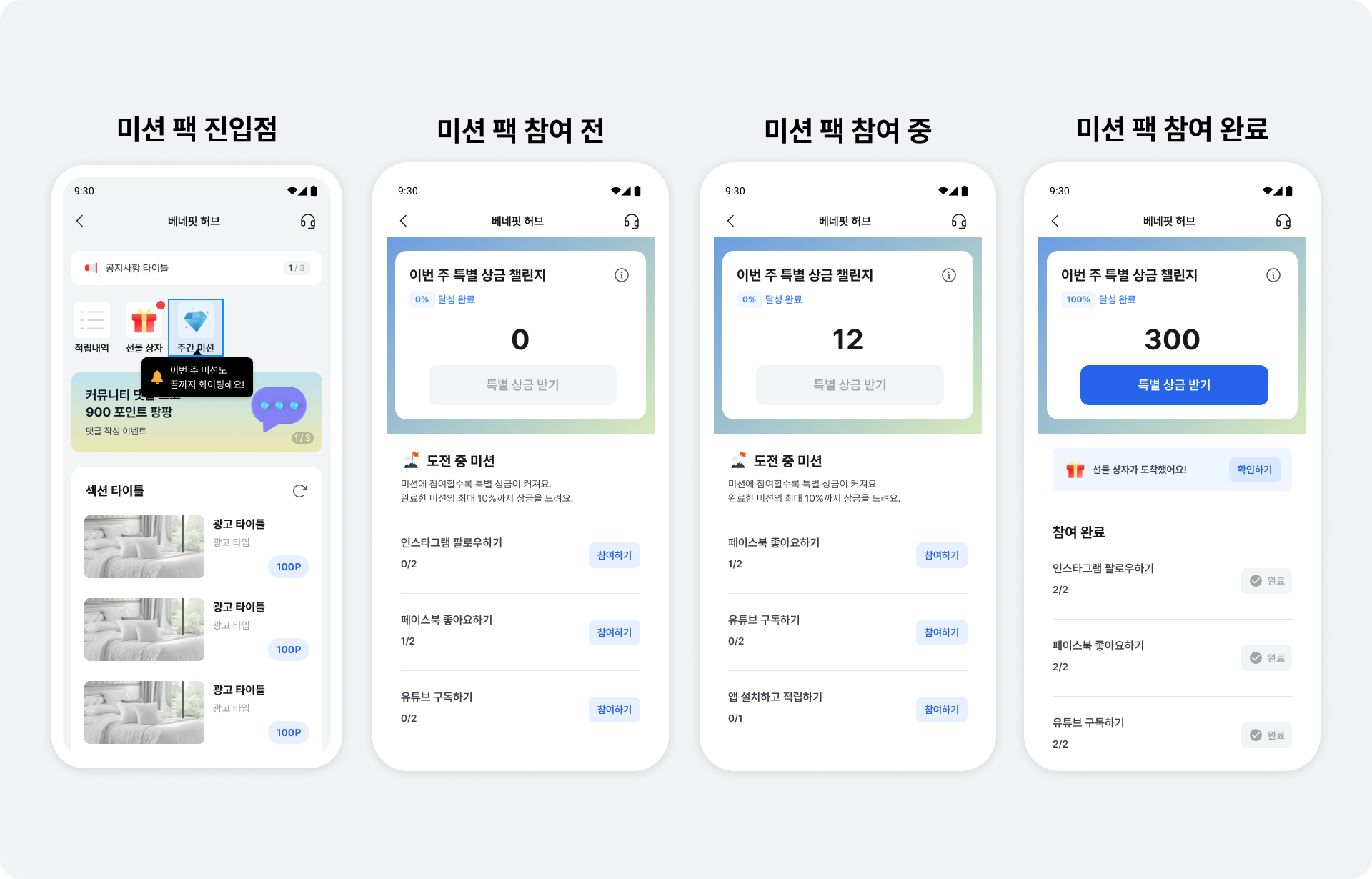
Mission Pack awards a percentage of the rewards users earn from ads as a special bonus when they complete all missions. These weekly missions start automatically on Monday and end at midnight on Sunday. Gamification introduces users to ads with strong revenue potential and can improve revenue. When a user clicks the Participate button on the Mission Pack screen, a screen opens where they can immediately engage with an ad that matches the mission.
-
A clean, polished, user-centered UI and UX
-
Support for opening the Mission Pack screen first when displaying BenefitHub
Once you integrate the SDK, you can enable this feature without additional development. After completing ad allocation and display in BenefitHub, contact your Buzzvil representative at help@buzzvil.com to enable Mission Pack.
Reward history
Reward history is a built-in feature that lets users view points earned through Buzzvil placements. Users can review the time and amount of each reward to clearly track their earnings.
Open reward history directly
You can open the reward history page directly from outside BenefitHub. See the code below.
import com.buzzvil.buzzbenefit.benefithub.BuzzBenefitHub
import com.buzzvil.buzzbenefit.benefithub.BuzzBenefitHubConfig
import com.buzzvil.buzzbenefit.benefithub.BuzzBenefitHubPage

// 적립내역 바로 열기
val benefitHubConfig = BuzzBenefitHubConfig.Builder()
    .queryParams(BuzzBenefitHubPage.HISTORY.toRedirectQueryParams())
    .build()
BuzzBenefitHub.show(context = requireContext(), benefitHubConfig = benefitHubConfig)
Consent modal for sharing personal information with third parties
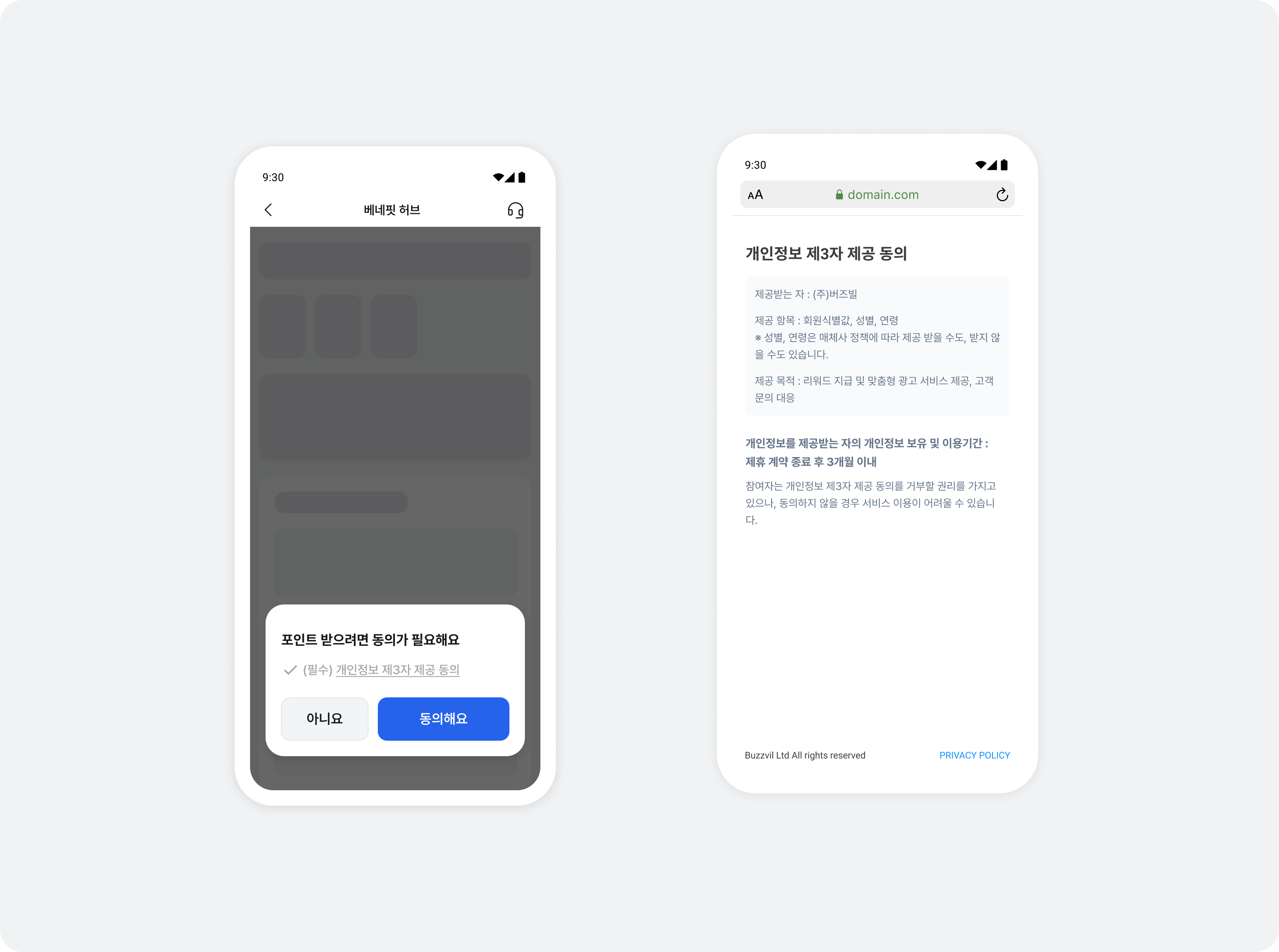
Personal information protection law and Google policy require user consent to collect and use personal information. The Buzzvil SDK provides a UI to obtain consent. If a user does not consent to collection, ads are not allocated to BenefitHub. Users entering BenefitHub for the first time see the following UI.
Prompt to add Pop
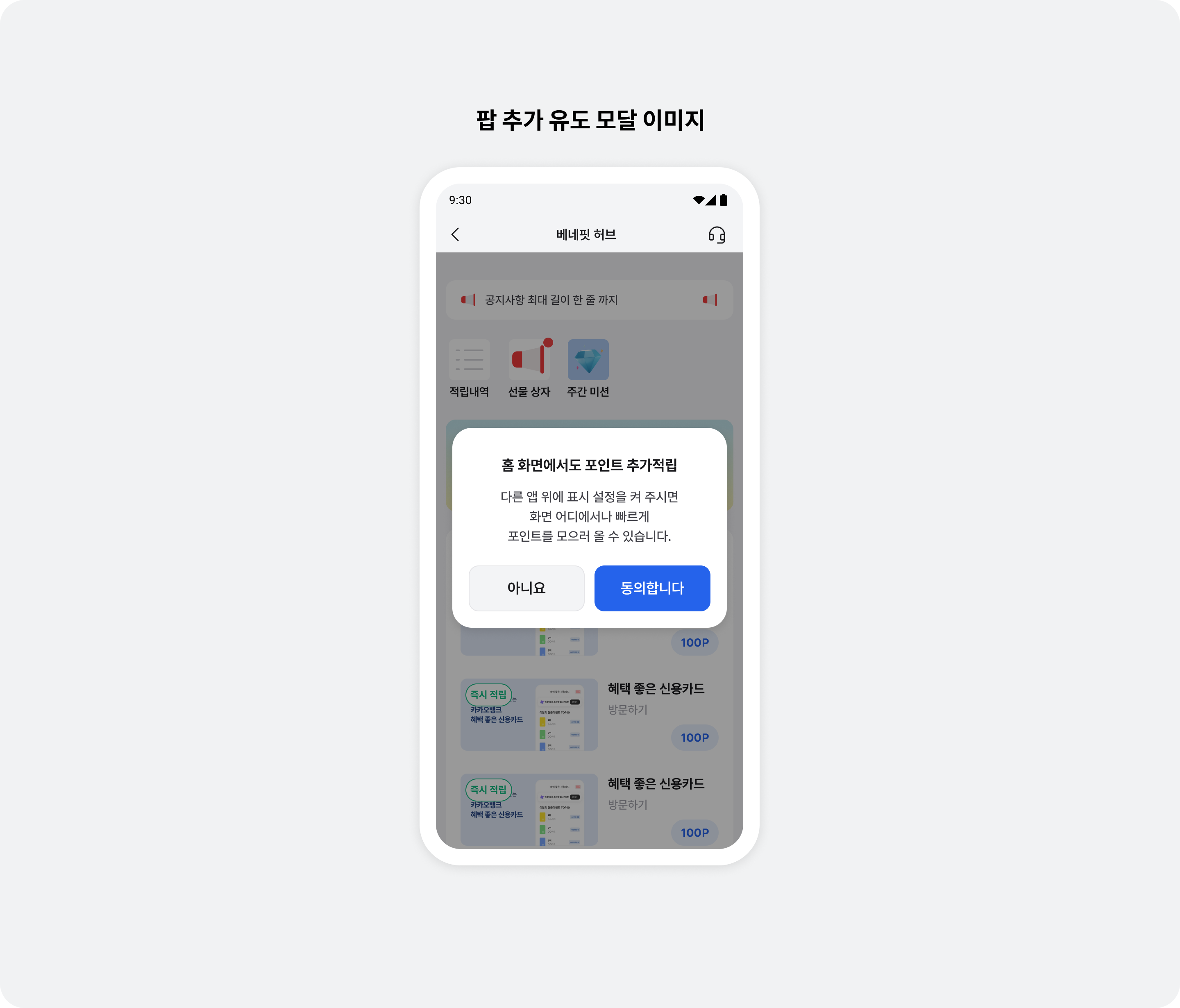
This feature is available when you integrate Pop as a BenefitHub entry point. A modal appears over the placement when a user enters BenefitHub, clicks an ad, and returns. Tapping the modal's CTA opens Display over other apps in system settings.
Error screens
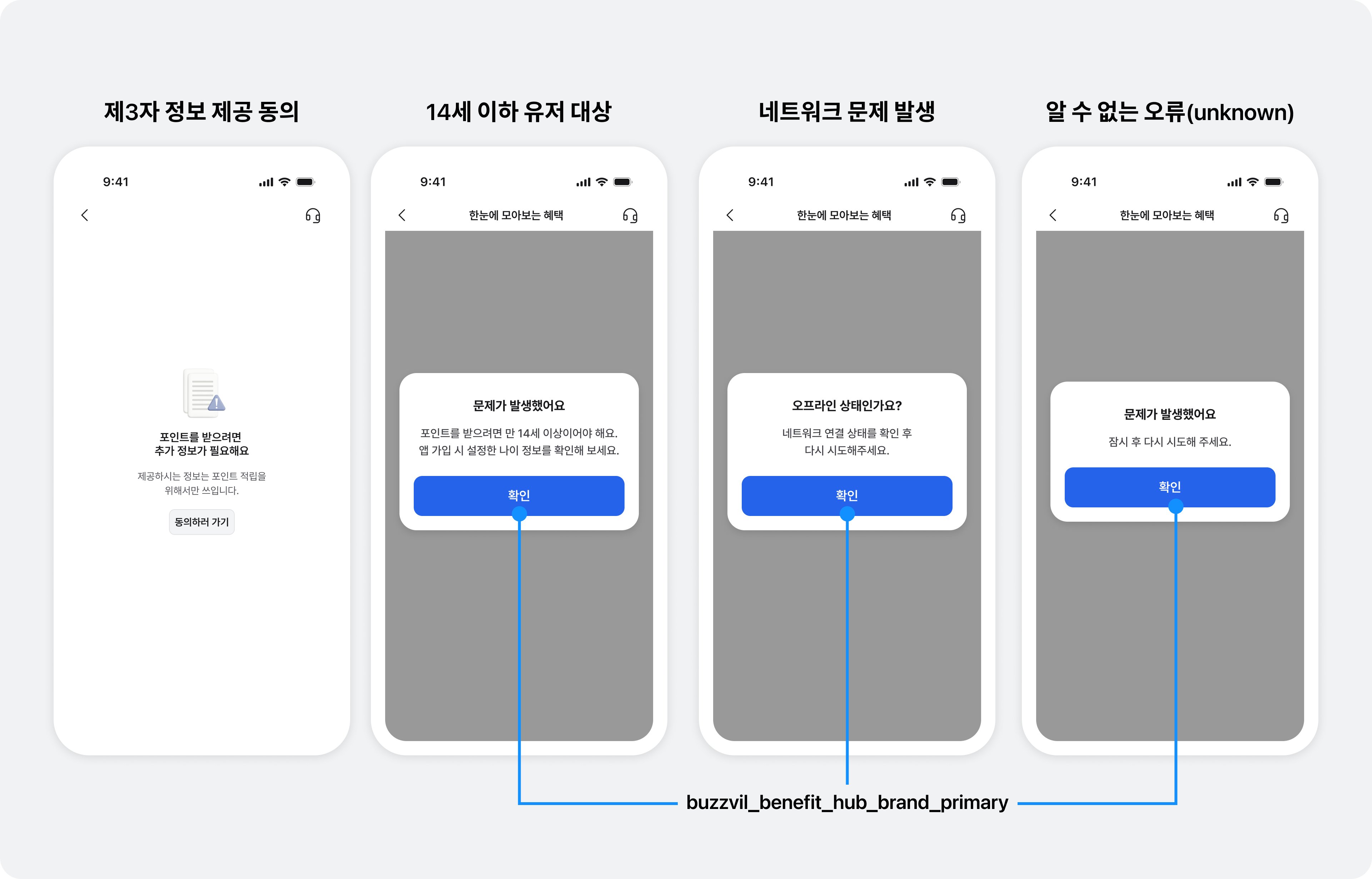
If ad allocation fails in BenefitHub, an appropriate error screen appears. Errors are distinguished by the user's state, network environment, and other conditions. Clear messages and buttons in the primary color configured in Global theme provide a consistent UI.
| Error condition | Description |
|---|---|
| Consent to share personal information with third parties | Appears when the user has not consented to sharing personal information with a third party. See Consent modal for sharing personal information with third parties. |
| Users aged 14 or younger | BenefitHub allows ad participation only for users aged 14 or older, so users under 14 see a message that the service is unavailable. This is determined from the age information set in Log in. |
| Network problem | Appears when the network connection is unstable or offline. |
| Unknown error | Appears when the system cannot identify a specific error. The message describes a temporary problem and encourages the user to try again shortly. |
Implement entry paths in your app UI
You can implement views in your app layout, such as icons, buttons, or banners, to create entry paths into BenefitHub.
See the diagram below for examples of UI components that can serve as entry paths. The GitHub sample code also provides various examples of custom entry paths.
Integrate AdMob ads (BuzzAdMob)
Add the BuzzAdMob adapter module to serve AdMob interstitial and rewarded interstitial ads within BenefitHub.
Step 1. Add the dependency
Add buzz-admob to the app module's build.gradle.
dependencies {
    implementation("com.buzzvil:buzz-admob:1.0.0")
}
Step 2. Register the AdMob App ID
Add the App ID issued in the AdMob console inside <application> in AndroidManifest.xml.
<application>
    <meta-data
        android:name="com.google.android.gms.ads.APPLICATION_ID"
        android:value="ca-app-pub-xxxxxxxxxxxxxxxx~yyyyyyyyyy" />
</application>
Step 3. Register the adapter
Call BuzzAdMob.register() in Application.onCreate().
import com.buzzvil.lib.admob.BuzzAdMob

class MyApp : Application() {
    override fun onCreate() {
        super.onCreate()
        BuzzAdMob.register(this)
    }
}
register() initializes AdMob (MobileAds), automatically tracks the current Activity, and injects Buzzvil's ad handler. Repeated calls are ignored (the operation is idempotent). To unregister the adapter, use BuzzAdMob.unregister().
Additional features
This section explains how to implement additional BenefitHub features.
Integrate BenefitHub as a fragment
To use your app's navigation bar instead of BenefitHub's navigation bar, integrate BenefitHub as a fragment.
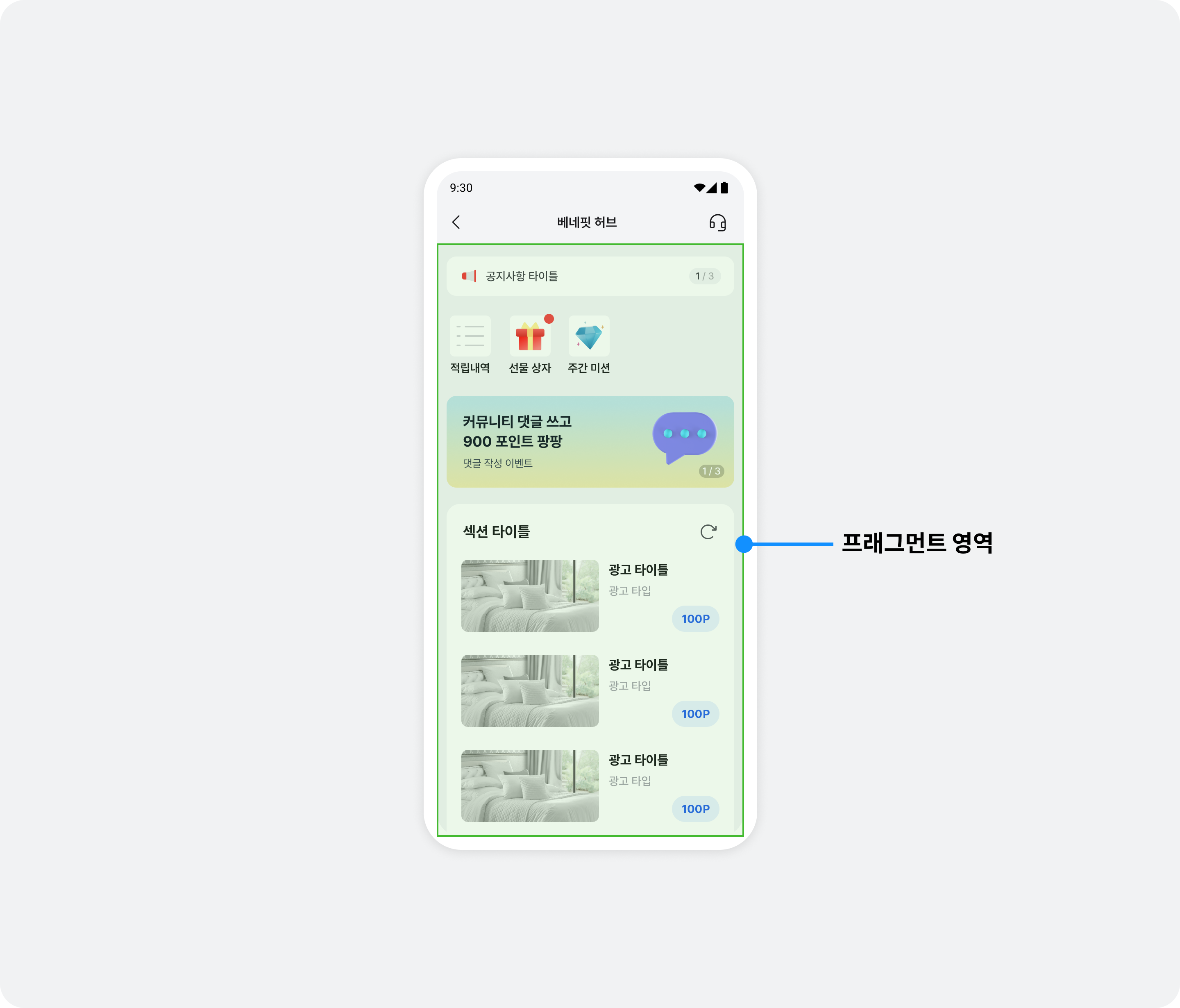
Add the fragment to an activity and initialize it in that activity's onCreate().
The following example integrates BuzzBenefitHubFragment.
import com.buzzvil.buzzbenefit.benefithub.BuzzBenefitHub

class YourBenefitHubActivity : Activity() {
    override fun onCreate(savedInstanceState: Bundle?) {
        super.onCreate(savedInstanceState)
        setContentView(R.layout.activity_your_benefit_hub)

        if (savedInstanceState == null) {
            // SDK를 초기화 하지 않은 경우 null이 반환됩니다.
            val buzzBenefitHubFragment: BuzzBenefitHubFragment? = BuzzBenefitHubFragment.newInstance()

            if (buzzBenefitHubFragment != null) {
                supportFragmentManager.beginTransaction().apply {
                    add(R.id.yourFragmentContainer, buzzBenefitHubFragment)
                    commit()
                }
            } else {
                // 적절한 예외 처리를 추가하세요.
            }
        }

        // 자체 구현한 뒤로가기 버튼을 누르면 시스템 뒤로가기 동작을 호출하세요.
        // 베네핏허브는 시스템 뒤로가기 동작에 적절하게 반응하도록 설계되어 있습니다.
        findViewById(R.id.yourBackButton).setOnClickListener {
            // OnBackPressedCallback, onBackPressedDispatcher 등 프로젝트에 적절한 방식을 채택하세요.
            super.onBackPressed()
        }
    }
}
<?xml version="1.0" encoding="utf-8"?>
<androidx.constraintlayout.widget.ConstraintLayout xmlns:android="http://schemas.android.com/apk/res/android"
    xmlns:app="http://schemas.android.com/apk/res-auto"
    xmlns:tools="http://schemas.android.com/tools"
    android:layout_width="match_parent"
    android:layout_height="match_parent"
    tools:context=".YourBenefitHubActivity">


    <LinearLayout
        android:id="@+id/yourToolbar"
        android:layout_width="0dp"
        android:layout_height="64dp"
        android:gravity="center"
        android:orientation="horizontal"
        app:layout_constraintEnd_toEndOf="parent"
        app:layout_constraintStart_toStartOf="parent"
        app:layout_constraintTop_toTopOf="parent">

        <Button
            android:id="@+id/yourBackButton"
            android:layout_width="24dp"
            android:layout_height="24dp"
            android:text="back" />

        <TextView
            android:layout_width="wrap_content"
            android:layout_height="wrap_content"
            android:text="Title" />
    </LinearLayout>

    <androidx.fragment.app.FragmentContainerView
        android:id="@+id/yourFragmentContainer"
        android:layout_width="0dp"
        android:layout_height="0dp"
        app:layout_constraintBottom_toBottomOf="parent"
        app:layout_constraintEnd_toEndOf="parent"
        app:layout_constraintStart_toStartOf="parent"
        app:layout_constraintTop_toBottomOf="@+id/yourToolbar" />
</androidx.constraintlayout.widget.ConstraintLayout>
Remove the default navigation bar
You can hide the default navigation bar at the top of BenefitHub.
To change this setting, contact your Buzzvil representative at help@buzzvil.com.
Open a More page
You can open a specific More page directly from outside BenefitHub.
Open a More page on its own
The More page opens independently and closes when the user goes back.
import com.buzzvil.buzzbenefit.benefithub.BuzzBenefitHub
import com.buzzvil.buzzbenefit.benefithub.BuzzBenefitHubConfig
import com.buzzvil.buzzbenefit.benefithub.BuzzBenefitHubPage

// 더보기 페이지 바로 열기
val benefitHubConfig = BuzzBenefitHubConfig.Builder()
    .routePath("0") // "0" 대신 "1", "2", "3" 등 버즈빌 담당자에게 전달받은 페이지 번호를 사용하세요.
    .build()
BuzzBenefitHub.show(context = requireContext(), benefitHubConfig = benefitHubConfig)
Open a More page with a return to the main page
The main page is included in the navigation history when the More page opens, so going back returns to the main page.
val benefitHubConfig = BuzzBenefitHubConfig.Builder()
    .queryParams(
        mapOf(
            "redirect_to" to "0", // "0" 대신 "1", "2", "3" 등 버즈빌 담당자에게 전달받은 페이지 번호를 사용하세요.
            "target" to "newTab"
        )
    )
    .build()