Native
Learn how to add and configure native placements and implement additional features through the SDK interface.
Key features
The Buzzvil SDK's native inventory displays ads customized for your app that blend naturally into its screens. After a user engages with an ad, the next ad appears automatically, continuously serving ads in a single placement to accelerate app monetization. It also provides dynamic features that encourage users to engage with more ads.
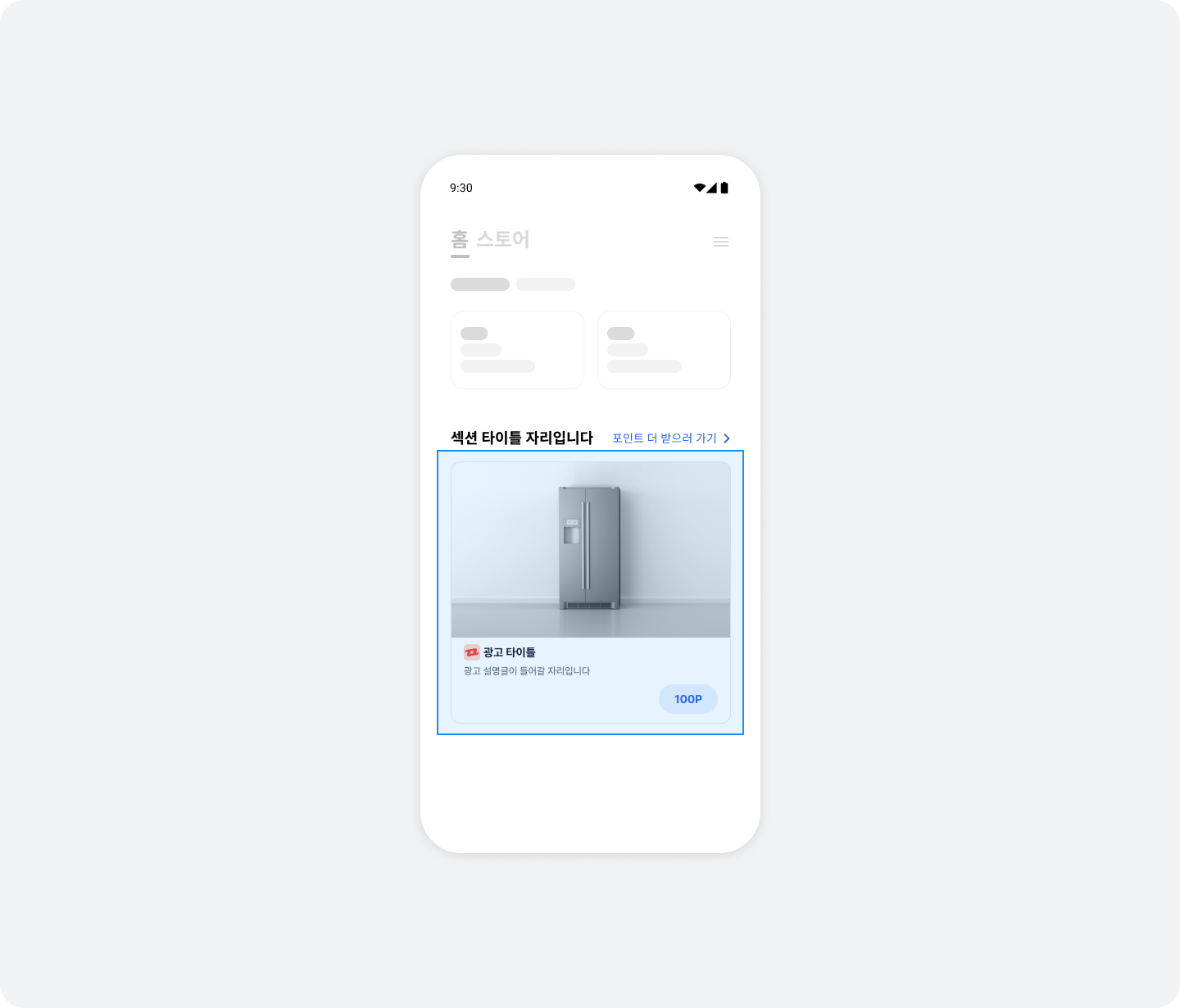
Integration
Follow these steps to integrate native placements into your app.
Step 1. Prepare
- Complete Getting started.
- Obtain a Unit ID for the native placement (referred to below as
YOUR_NATIVE_UNIT_ID).
Step 2. Configure the ad layout
See the illustration and table below for the components and UI of a native ad layout.
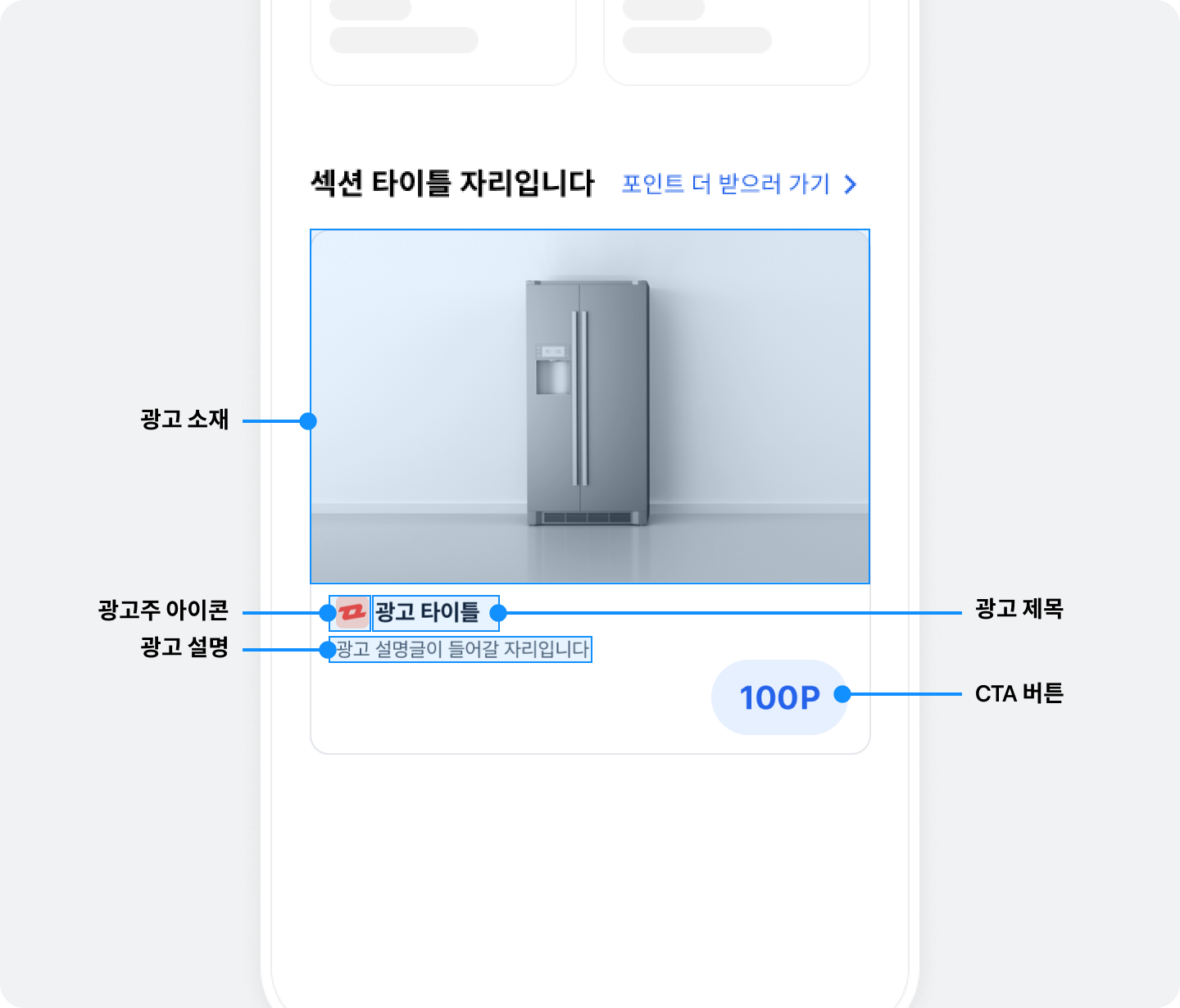
| Component | Description |
|---|---|
| Ad title (required) | The ad's title. We recommend no more than 10 characters. You can replace part of the text with an ellipsis as needed, regardless of character count. |
| Ad creative (required) |
|
| Ad description (required) | A detailed description of the ad. We recommend no more than 40 characters. You can replace part of the text with an ellipsis as needed, regardless of character count. |
| Advertiser icon (required) |
|
| CTA button (required) |
|
| BenefitHub entry point (required) | An entry point that takes users directly to BenefitHub when clicked. |
| Ad disclosure (recommended) | Text identifying the content as an ad (for example, 광고, ad, 스폰서, or Sponsored). |
Build the native ad layout in an activity or fragment according to the structure below. Implement a layout (your_native_ad.xml) that meets the specifications of BuzzNativeAdView.
The following is an example layout for BuzzNativeAdView.
<com.buzzvil.buzzbenefit.buzznative.BuzzNativeAdView
    android:id="@+id/buzzNativeAdView">


    <com.buzzvil.buzzbenefit.buzznative.BuzzMediaView
        android:id="@+id/buzzMediaView"
        ...생략... />
    <TextView
        android:id="@+id/textTitle"
        ...생략... />
    <TextView
        android:id="@+id/textDescription"
        ...생략... />
    <ImageView
        android:id="@+id/imageIcon"
        ...생략... />

    <com.buzzvil.buzzbenefit.DefaultBuzzCtaView
        android:id="@+id/buzzCtaView"
        ...생략... />
    <View
        android:id="@+id/yourNativeToBenefitHubEntryPoint">

        ...생략...
    </View>
</com.buzzvil.buzzbenefit.buzznative.BuzzNativeAdView>
Implement the BenefitHub entry point in code.
import com.buzzvil.buzzbenefit.benefithub.BuzzBenefitHub

val yourNativeToBenefitHubEntryPoint: View = ...

yourNativeToBenefitHubEntryPoint.setOnClickListener {
    BuzzBenefitHub.show(context)
}
Step 3. Display ads
Follow these steps and the sample code to display ads in the ad layout.
- Use
YOUR_NATIVE_UNIT_IDto create aBuzzNativeobject. - Use
BuzzNativeViewBinder.Builderto configure every view required to display an ad, includingBuzzNativeAdViewandBuzzMediaView. Callbuild()to create aBuzzNativeViewBinderobject. - Call
load()onBuzzNativeto allocate an ad. UseonSuccessandonFailureto add behavior for successful and failed allocations. - (Optional) Register
BuzzNativeAdEventsListeneronBuzzNativeto implement UI according to the ad request state.- If allocation fails, no ad appears in the layout. Register
BuzzNativeRefreshEventsListenerto define failure behavior. - When the user completes participation (the CTA view shows the completion label
참여 완료(Participation complete)) and returns to the native placement, it automatically refreshes to the next ad.
- If allocation fails, no ad appears in the layout. Register
- Call
bind()on theBuzzNativeViewBinderobject to display the allocated ad in the layout. Callingbind()without an allocated ad triggers theonFailureevent onBuzzNativeRefreshEventsListener.
import com.buzzvil.buzzbenefit.BuzzAdError
import com.buzzvil.buzzbenefit.buzznative.BuzzNative
import com.buzzvil.buzzbenefit.buzznative.BuzzNativeAd
import com.buzzvil.buzzbenefit.buzznative.BuzzNativeRefreshEventsListener
import com.buzzvil.buzzbenefit.buzznative.BuzzNativeViewBinder

val buzzNativeAdView = findViewById(R.id.buzzNativeAdView)
val buzzMediaView = findViewById(R.id.buzzMediaView)
val titleTextView = findViewById(R.id.textTitle)
val descriptionTextView = findViewById(R.id.textDescription)
val iconImageView = findViewById(R.id.imageIcon)
val buzzCtaView = findViewById(R.id.buzzCtaView)

// 광고 레이아웃을 설정합니다.
val binder: BuzzNativeViewBinder = BuzzNativeViewBinder.Builder()
    .buzzNativeAdView(buzzNativeAdView)
    .buzzMediaView(buzzMediaView)
    .titleTextView(titleTextView)
    .descriptionTextView(descriptionTextView)
    .iconImageView(iconImageView)
    .buzzCtaView(buzzCtaView)
    .build()

// BuzzNative 객체를 생성합니다.
val buzzNative = BuzzNative(Constant.YOUR_NATIVE_UNIT_ID)


// BuzzNative에서 광고를 할당받습니다.
buzzNative.load(
    onSuccess = { nativeAd ->
        // 광고 할당에 성공하면 호출됩니다.
        // 이후에 광고 갱신 시 onRequest()가 다시 호출됩니다.
        // 광고 자동 갱신을 성공할 때마다 반복적으로 호출됩니다.
        Toast.makeText(this@MainActivity, "onSuccess : 광고 할당 성공 ${nativeAd.title}", Toast.LENGTH_SHORT).show()

        // 할당받은 광고를 화면에 표시합니다.
        binder.bind(buzzNative)
    },
    onFailure = { adError ->
        // 최초 광고 할당에 실패하면 호출됩니다.
        Toast.makeText(this@MainActivity, "onFailure : 광고 할당 실패 ${adError.type.name}", Toast.LENGTH_SHORT).show()
    }
)

// (Optional) 광고 요청 상태에 따른 UI를 구현합니다. load() 이후에 Listener 등록을 시도해주세요
buzzNative.setRefreshEventsListener(object : BuzzNativeRefreshEventsListener {
    override fun onRequest() {
        // 광고 할당을 요청한 상태입니다.
        // 이후에는 onSuccess() 또는 onFailure() 중 하나가 호출됩니다.
        // 광고 자동 갱신을 시도할 때마다 반복적으로 호출됩니다.
        // 로딩 화면 등을 구현할 수 있습니다.
        Toast.makeText(this@MainActivity, "onRequest", Toast.LENGTH_SHORT).show()
    }

    override fun onSuccess(buzzNativeAd: BuzzNativeAd) {
        // 광고 할당에 성공하면 호출됩니다.
        // 이후에 광고 갱신 시 onRequest()가 다시 호출됩니다.
        // 광고 자동 갱신을 성공할 때마다 반복적으로 호출됩니다.
        // 로딩 화면 등을 구현한 경우, 여기에서 로딩을 종료합니다.
        Toast.makeText(this@MainActivity, "onSuccess", Toast.LENGTH_SHORT).show()
    }

    override fun onFailure(adError: BuzzAdError) {
        // 광고 할당에 실패하면 호출됩니다.
        // 로딩 화면 등을 구현한 경우, 여기에서 로딩을 종료합니다.
        Toast.makeText(this@MainActivity, "onFailure: ${adError.type.name}", Toast.LENGTH_SHORT).show()
    }
})
Step 4. Test the basic integration
After completing the basic integration, verify that ads are allocated and displayed correctly. Also check that NativeToFeedLayout (the layout in the native placement that opens BenefitHub) works and opens BenefitHub when clicked.
Ad operation policy (mandatory requirements)
1. Do not refresh ads
- Make the initial ad request only once when the app screen opens.
- Subsequent ad requests (reallocations) are allowed only after a clear user action, such as a screen transition.
- Automatically refreshing ads at fixed intervals or continuously requesting new ads is prohibited.
Excessive ad requests can harm the user experience, ad performance, and revenue.
2. Do not selectively use only impression-based ads
- Buzzvil combines different ad types to provide an optimized ad experience.
- API integrations must not selectively use only a specific ad type, such as impression-based ads.
- SDK integrations must not request ads from another platform when impression-based ads are unavailable.
- Operate all ad types in balance according to Buzzvil's ad logic.
Restricting or selectively using ad types negatively affects Buzzvil's ad operation strategy and revenue optimization.
Additional features
This section explains how to implement additional native placement features.
Use a native overlay
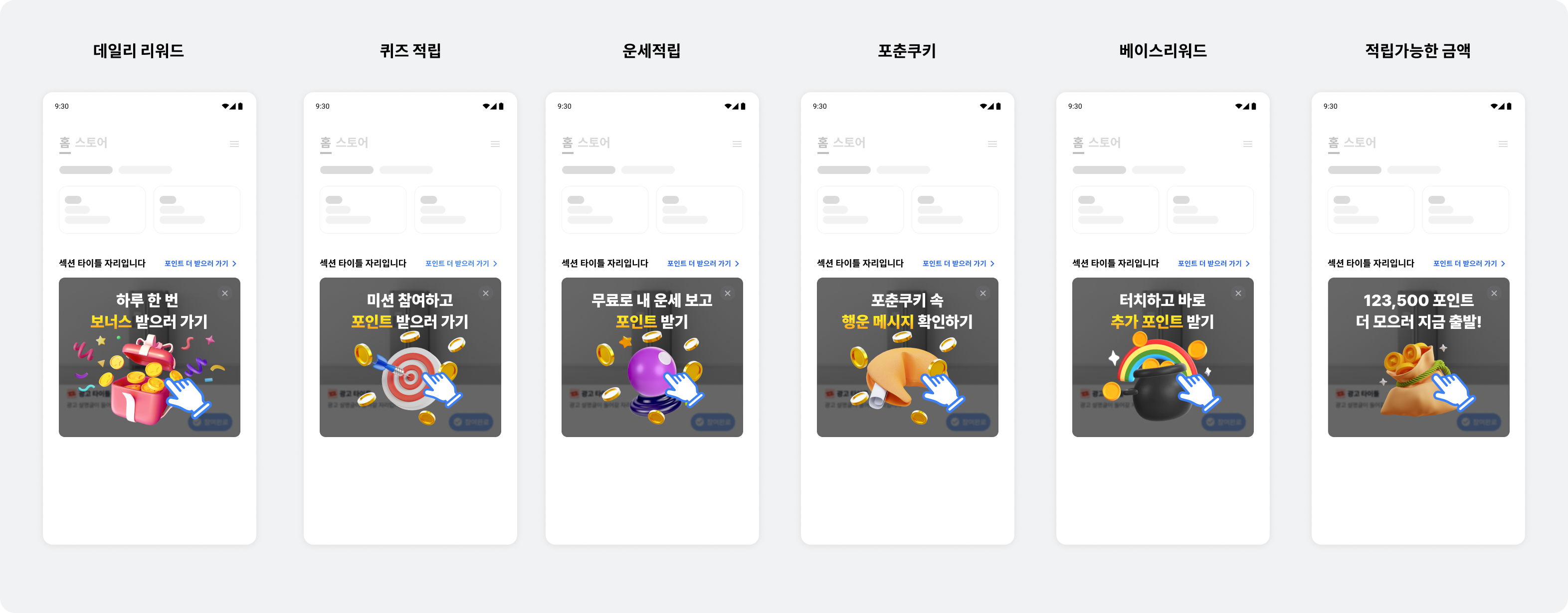
Native overlays require no separate integration or implementation. When a user returns to your app after participating in a native ad, an overlay appears over the completed ad to encourage entry into BenefitHub. The overlay contains text and an icon, covering the entire native area (NativeAdView) to encourage a click. It disappears automatically when the user clicks Close, or clicks the overlay and then returns.
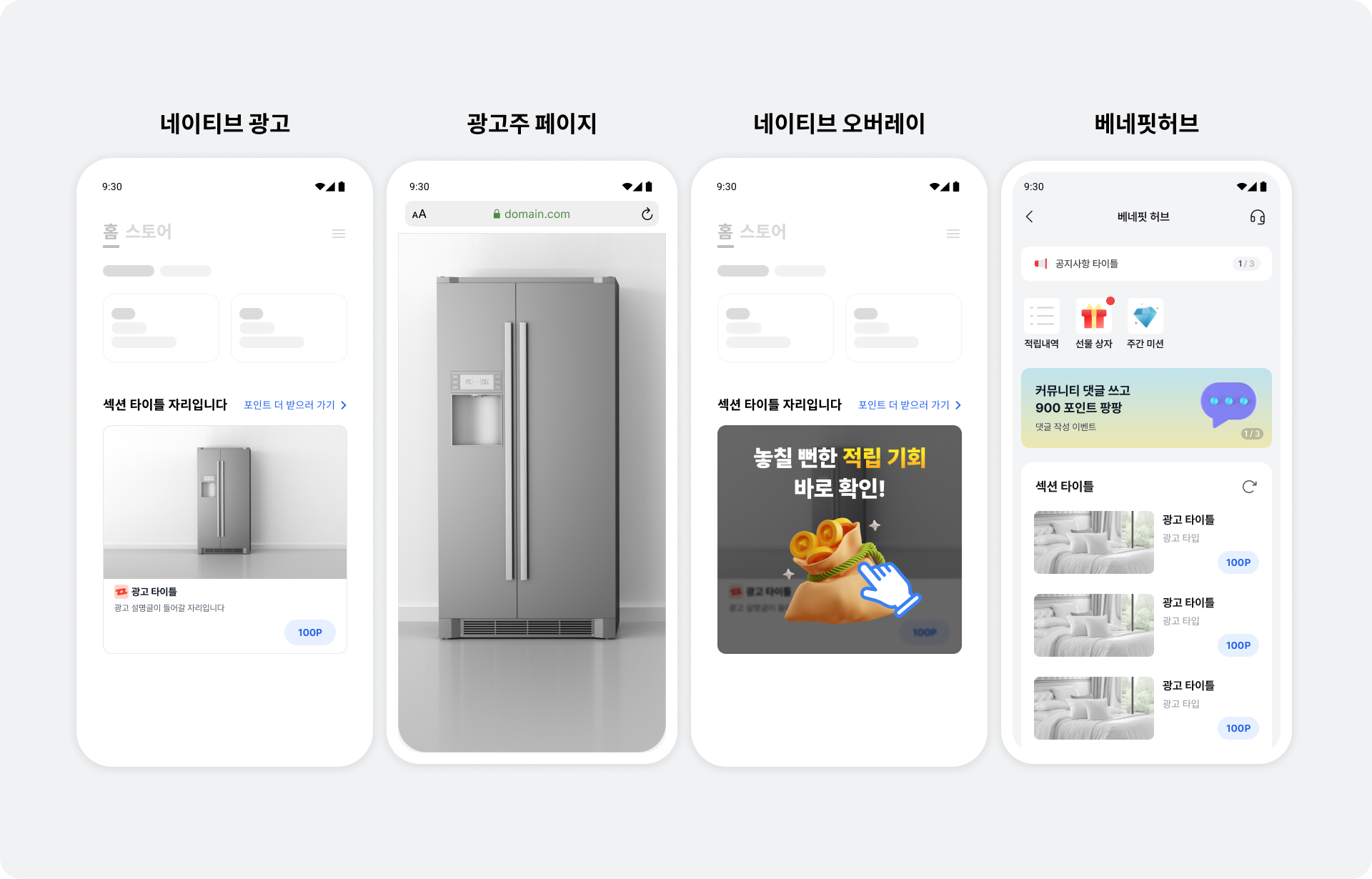
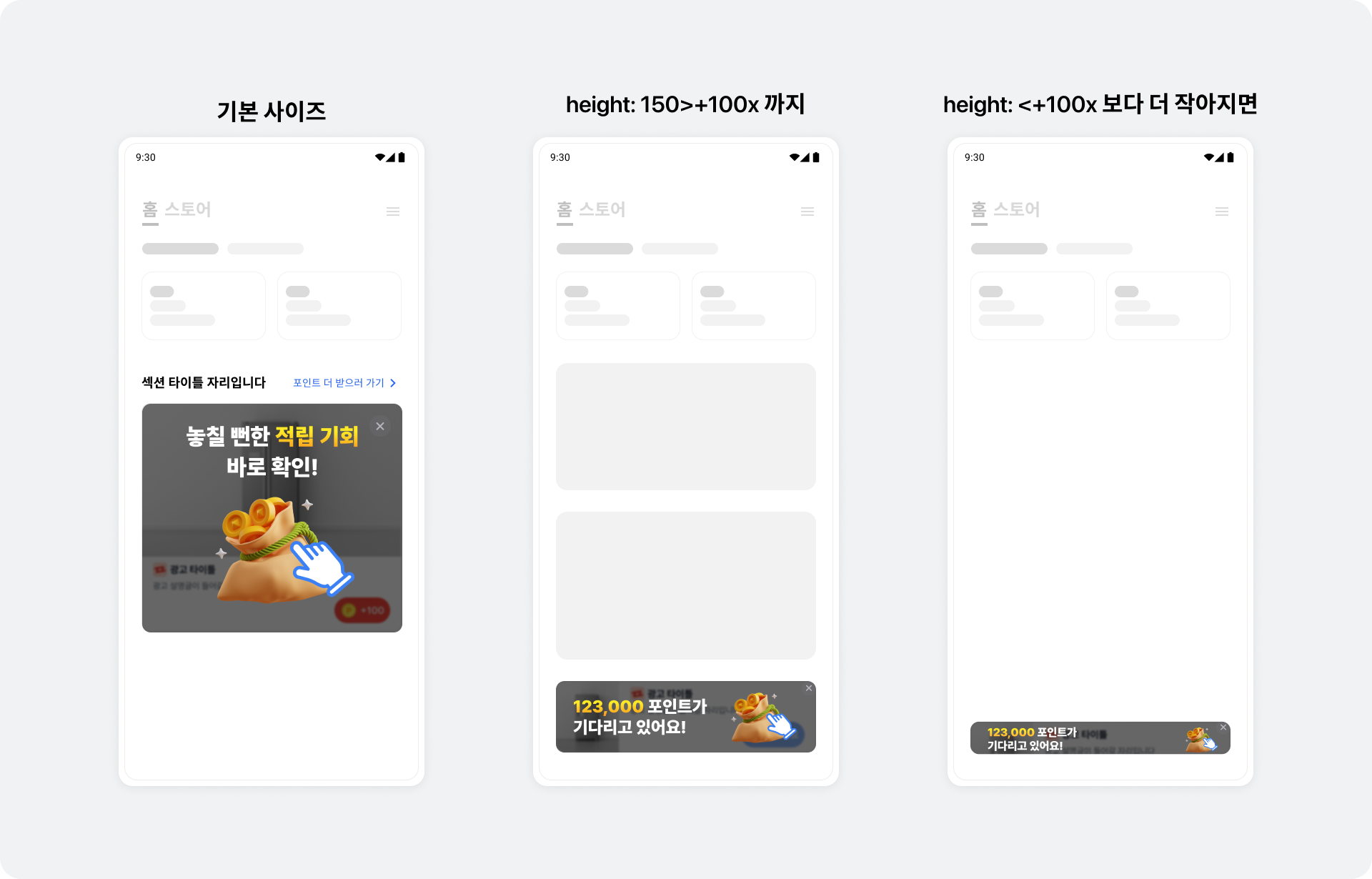
Overlay UIs adapt to the native placement's size. To increase BenefitHub entry rates, the overlay shows different ad or content product UIs based on the user's past participation and preferences.
Register an ad event listener
Receive ad callback events through BuzzNativeAdEventsListener. Register a listener on BuzzNative before calling BuzzNativeViewBinder.bind().
The following example registers an ad event listener on BuzzNative.
import com.buzzvil.buzzbenefit.buzznative.BuzzNativeAdEventsListener
import com.buzzvil.buzzbenefit.buzznative.BuzzRewardResult
import com.buzzvil.buzzbenefit.buzznative.BuzzNative
import com.buzzvil.buzzbenefit.buzznative.BuzzNativeAd

// (Optional) 광고 이벤트 리스너를 등록합니다.
// 로그 기록, 단순 알림 외에 다른 동작을 추가하는 것을 권장하지 않습니다. 직접 구현한 동작이 네이티브에서 제공하는 기능(광고 자동 갱신 등)과 충돌할 수 있습니다.
buzzNative.setAdEventsListener(object : BuzzNativeAdEventsListener {
    override fun onImpressed(buzzNativeAd: BuzzNativeAd) {
        // Native 광고가 유저에게 노출되었을 때 호출됩니다.
    }

    override fun onClicked(buzzNativeAd: BuzzNativeAd) {
        // 유저가 Native 광고를 클릭했을 때 호출됩니다.
    }

    override fun onRewardRequested(buzzNativeAd: BuzzNativeAd) {
        // 리워드 적립을 요청했을 때 호출됩니다.
    }

    override fun onParticipated(buzzNativeAd: BuzzNativeAd) {
        // 유저가 광고 참여를 완료하였을 때 호출됩니다.
    }

    override fun onRewarded(buzzNativeAd: BuzzNativeAd, buzzRewardResult: BuzzRewardResult) {
        // 리워드가 적립되었을 때 호출됩니다.
    }
})

buzzNative.load(...)
Reward result types (BuzzRewardResult)
BuzzRewardResult | Result | Description |
|---|---|---|
SUCCESS | Success | The reward was credited successfully. |
ALREADY_PARTICIPATED | Failure | The reward for this ad has already been credited. |
MISSING_REWARD | Failure | The ad has no reward. |
TOO_SHORT_TO_PARTICIPATE | Failure | The user returned from the ad landing page too quickly. |
CONNECTION_TIMEOUT | Failure | A network timeout occurred. |
CONNECTION_TIMEOUT_IN_POWER_SAVE_MODE | Failure | A network timeout occurred because of the device's power-saving mode (절전모드). |
BROWSER_NOT_LAUNCHED | Failure | The browser did not launch to display the ad landing page. |
REQUEST_ERROR | Failure | The request is invalid. |
UNKNOWN_NETWORK_ERROR | Failure | An unknown network error occurred. |
SERVER_ERROR | Failure | An unknown server error occurred. |
CLIENT_ERROR | Failure | An unknown client error occurred. |
UNKNOWN | Failure | An unknown error occurred. |
- When a user enables power-saving mode (
절전모드) on their device, background execution restrictions make rewards for click-based ads (CPC, CPM) likely to fail. UseBuzzRewardResult.CONNECTION_TIMEOUT_IN_POWER_SAVE_MODEto explain the failure to users who have enabled power-saving mode (절전모드).
Implement a carousel
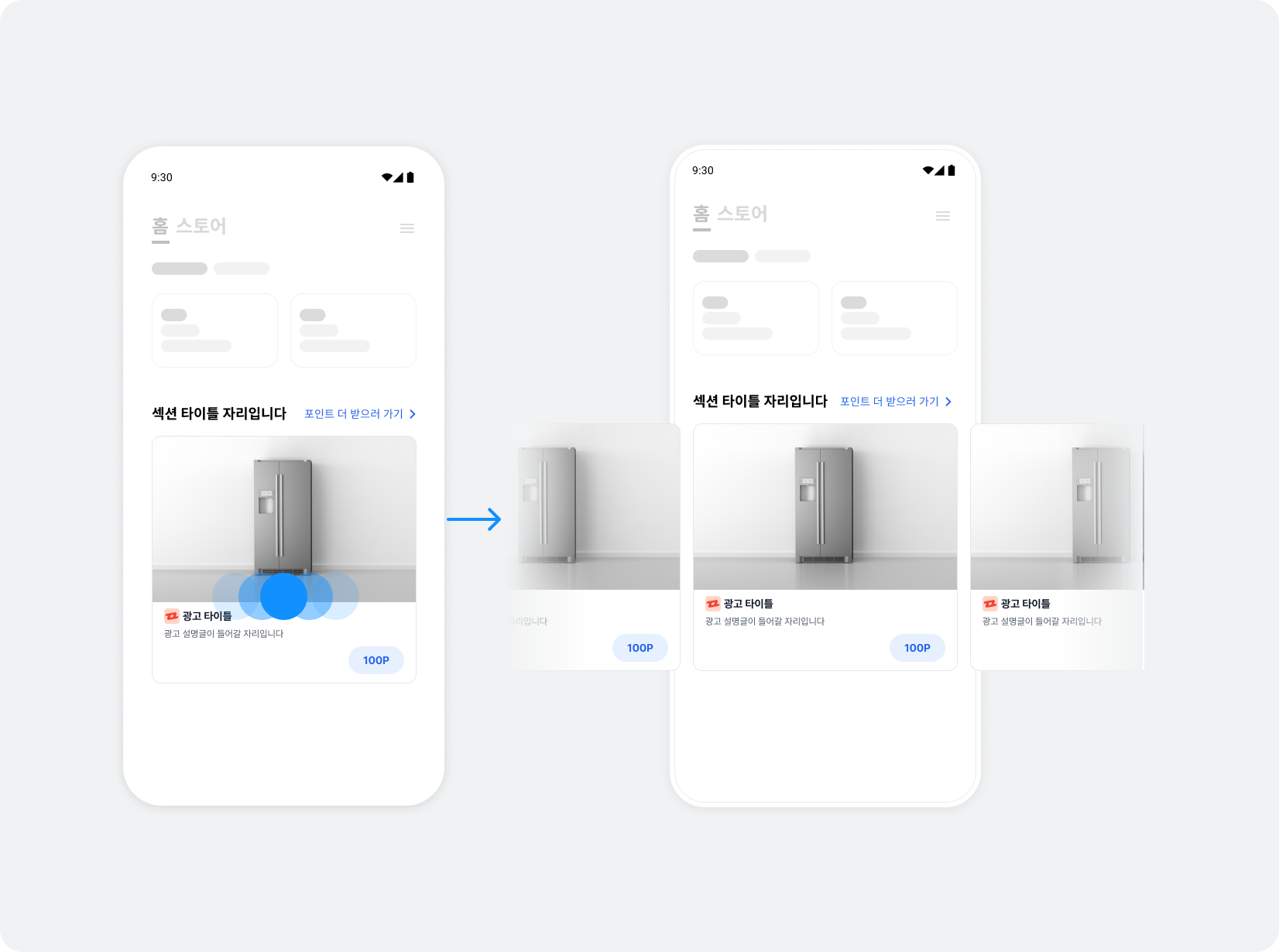
A carousel is a UI that displays multiple ads through horizontal scrolling. Use the Buzzvil SDK to create a carousel in a native placement and implement its required features. Optional features can further improve the user experience.
Implement basic carousel features
Step 1. Allocate ads
To allocate multiple ads in a native placement, use BuzzNativeGroup, which controls duplicate ad allocation.
Create a BuzzNativeGroup object using YOUR_NATIVE_ID. Dispose of BuzzNativeGroup when the screen is destroyed.
Call BuzzNativeGroup.load() to check how many ads can currently be allocated.
import com.buzzvil.buzzbenefit.BuzzAdError
import com.buzzvil.buzzbenefit.buzznative.BuzzNativeGroup

// 캐러셀 광고에서 광고 중복 할당을 방지하기 위한 BuzzNativeGroup 인스턴스입니다.
// Fragment의 생명 주기에 맞추어 생성 및 해제하세요.
private var buzzNativeGroup: BuzzNativeGroup? = null

private fun initCarouselNativeGroup() {
    // 광고 중복 할당을 막기 위해 하나의 캐러셀에 하나의 BuzzNativeGroup 인스턴스를 생성하여 사용합니다.
    buzzNativeGroup = BuzzNativeGroup(YOUR_NATIVE_UNIT_ID)
    val REQUEST_AD_COUNT = 5

    // 현재 할당 받을 수 있는 광고의 갯수를 확인합니다.
    buzzNativeGroup?.let {
        it.load(
            REQUEST_AD_COUNT,
            onSuccess = { adCount ->
                // TODO 할당 받은 광고 갯수(adCount)만큼 아이템 리스트를 만들어 RecyclerView 어댑터를 초기화 합니다.
            },
            onFailure = { adError ->
                // TODO 광고 레이아웃을 숨김 처리 하는 등 적절한 에러 처리를 할 수 있습니다.
            }
        )
    }
}

override fun onDestroyView() {
    super.onDestroyView()

    buzzNativeGroup?.dispose()
}
Step 2. Create a RecyclerView
Use RecyclerView to lay out item views horizontally and an adapter to manage them, creating a carousel in a native placement with the Buzzvil SDK.
Follow these steps to create RecyclerView.
-
Add
RecyclerViewwhere you want the carousel.<androidx.recyclerview.widget.RecyclerView android:id="@+id/carouselRecyclerView" android:layout_width="match_parent" android:layout_height="wrap_content" android:orientation="horizontal" app:layoutManager="androidx.recyclerview.widget.LinearLayoutManager" tools:listitem="@layout/your_native_ad_view" /> -
Define a layout for each item of
RecyclerViewin the view layout file (your_native_ad_view.xml).
```xml
<?xml version="1.0" encoding="utf-8"?>

<com.buzzvil.buzzbenefit.buzznative.BuzzNativeAdView xmlns:android="http://schemas.android.com/apk/res/android"
    xmlns:card_view="http://schemas.android.com/apk/res-auto"
    xmlns:tools="http://schemas.android.com/tools"
    android:id="@+id/buzzNativeAdView"
    android:layout_width="match_parent"
    android:layout_height="wrap_content">
    ...
</com.buzzvil.buzzbenefit.buzznative.BuzzNativeAdView>
```
Step 3. Implement the RecyclerView adapter
Follow these steps to implement the RecyclerView adapter and ViewHolder.
-
Implement
BuzzNativeCarouselViewHolderto bind BuzzNative.import com.buzzvil.buzzbenefit.buzznative.BuzzNative import com.buzzvil.buzzbenefit.buzznative.BuzzNativeViewBinder class BuzzNativeCarouselViewHolder( binding: BuzzNativeAdViewBinding ) : RecyclerView.ViewHolder(binding.root) { private val buzzNativeViewBinder: BuzzNativeViewBinder init { val buzzNativeAdView = binding.buzzNativeAdView val buzzMediaView = binding.buzzMediaView val titleTextView = binding.textTitle val descriptionTextView = binding.textDescription val iconImageView = binding.imageIcon val buzzCtaView = binding.buzzCtaView // BuzzNativeView와 하위 컴포넌트를 바인드합니다. buzzNativeViewBinder = BuzzNativeViewBinder.Builder() .buzzNativeAdView(buzzNativeAdView) .buzzMediaView(buzzMediaView) .titleTextView(titleTextView) .descriptionTextView(descriptionTextView) .iconImageView(iconImageView) .buzzCtaView(buzzCtaView) .build() } fun bind(native: BuzzNative) { // BuzzNativeViewBinder의 bind()를 호출하면 광고 갱신이 자동으로 수행됩니다. // (Optional) BuzzNativeRefreshEventsListener, BuzzNativeAdEventsListener를 bind 하기 전 연결해야 합니다. buzzNativeViewBinder.bind(native) } fun unbind() { // unbind를 반드시 호출하여 뷰를 재사용할 때 문제가 발생하지 않게 합니다. buzzNativeViewBinder.unbind() } } -
Implement an adapter (
BuzzNativeCarouselAdapter) to manage the carousel.
```kotlin
import androidx.recyclerview.widget.RecyclerView
import com.buzzvil.buzzbenefit.buzznative.BuzzNative

class BuzzNativeCarouselAdapter(
    private val list: List<BuzzNative>
) : RecyclerView.Adapter<BuzzNativeCarouselViewHolder>() {

    override fun onCreateViewHolder(parent: ViewGroup, viewType: Int): BuzzNativeCarouselViewHolder {
        val inflater = parent.context.getSystemService(Context.LAYOUT_INFLATER_SERVICE) as LayoutInflater
        val binding = BuzzNativeAdViewBinding.inflate(inflater, parent, false)
        return BuzzNativeCarouselViewHolder(binding)
    }

    override fun getItemCount(): Int {
        return list.size
    }

    override fun onBindViewHolder(holder: BuzzNativeCarouselViewHolder, position: Int) {
        val item = list[position]
        holder.bind(item)
    }

    override fun onViewRecycled(holder: BuzzNativeCarouselViewHolder) {
        super.onViewRecycled(holder)

        // unbind를 반드시 호출하여 뷰를 재사용할 때 문제가 발생하지 않게 합니다.
        holder.unbind()
    }
}
```
Step 4. Attach to an activity or fragment
The following example creates the BuzzNativeCarouselAdapter implemented above in an activity (BuzzNativeCarouselActivity).
- Implement
buildCarouselItems()to create an item list whose size equals the number of allocated ads (adCount). - Create
BuzzNativeCarouselAdapterinBuzzNativeGroup.load(onSuccess)and set it on the RecyclerView.
The following is an example implementation of BuzzNativeCarouselActivity.
    import com.buzzvil.buzzbenefit.BuzzAdError
    import com.buzzvil.buzzbenefit.buzznative.BuzzNative
    import com.buzzvil.buzzbenefit.buzznative.BuzzNativeGroup

    private var buzzNativeGroup: BuzzNativeGroup? = null

    private fun initCarouselNativeGroup(nativeUnitId: String) {
        // 광고 중복 할당을 막기 위해 하나의 캐러셀에 하나의 BuzzNativeGroup 인스턴스를 생성하여 사용합니다.
        buzzNativeGroup = BuzzNativeGroup(nativeUnitId)

        val REQUEST_AD_COUNT = 5

        // 현재 할당 받을 수 있는 광고의 갯수를 확인합니다.
        buzzNativeGroup?.let {
            it.load(
                REQUEST_AD_COUNT,
                onSuccess = { adCount ->
                    // 어댑터를 초기화 합니다.
                    initCarouselAdapter(it.natives, adCount)
                },
                onFailure = { adError ->
                    // TODO 광고 레이아웃을 숨김 처리 하는 등 적절한 에러 처리를 할 수 있습니다.
                }
            )
        }
    }

    private fun initCarouselAdapter(natives: List<BuzzNative>, adCount: Int) {
        // 할당 받은 광고 리스트로 BuzzNativeCarouselAdapter를 생성합니다.
        val adapter = BuzzNativeCarouselAdapter(natives)

        // RecyclerView에 어댑터를 설정합니다.
        binding.carouselRecyclerView.adapter = adapter
    }
Run the app to see the carousel in action. Then complete the integration by following Implement required carousel features below.
Implement required carousel features
The Buzzvil SDK provides a slide page and entry point into BenefitHub, where users can find a variety of ads and filter them to suit their preferences.
BenefitHub entry point
Implement an entry point above or below the carousel so users can open BenefitHub from it.
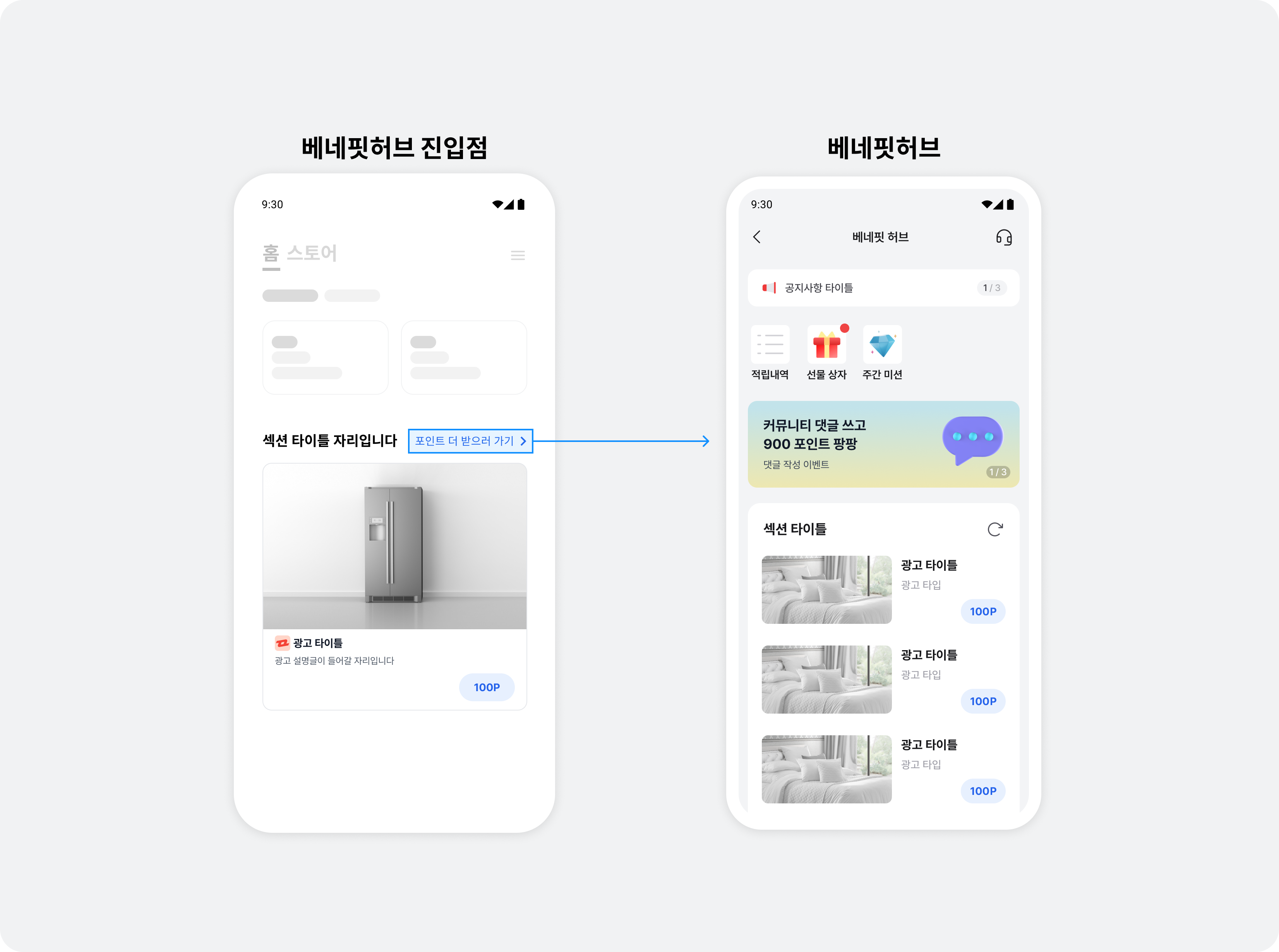
Follow these steps to implement the BenefitHub entry point.
-
Add a layout below the RecyclerView used for the carousel.
The complete code for
activity_native_ad2_carousel.xmlis available in the GitHub sample code.<androidx.recyclerview.widget.RecyclerView android:id="@+id/carouselRecyclerView" ... /> <LinearLayout android:id="@+id/carouselToBenefitHubEntryView" android:layout_width="wrap_content" android:layout_height="wrap_content" android:orientation="horizontal"> <TextView android:layout_width="wrap_content" android:layout_height="wrap_content" android:text="포인트 더 받으러 가기 >" /> </LinearLayout> -
Set the visibility of the BenefitHub entry point according to the ad allocation response.
- Show the carousel and BenefitHub entry point when there are ads to display.
- Hide the carousel and BenefitHub entry point while ads have not yet loaded, if an error occurs, or if there are no ads.
The following example changes the visibility of
RecyclerView(the carousel) andcarouselToFeedLinkinBuzzNativeCarouselActivityaccording to whether the allocation request succeeded.import com.buzzvil.buzzbenefit.BuzzAdError import com.buzzvil.buzzbenefit.buzznative.BuzzNativeGroup private fun initCarouselNativeGroup(nativeUnitId: String) { // 광고 중복 할당을 막기 위해 하나의 캐러셀에 하나의 BuzzNativeGroup 인스턴스를 생성하여 사용합니다. buzzNativeGroup = BuzzNativeGroup(nativeUnitId) val REQUEST_AD_COUNT = 5 // 현재 할당 받을 수 있는 광고의 갯수를 확인합니다. buzzNativeGroup?.let { it.load( REQUEST_AD_COUNT, onSuccess = { adCount -> // 어댑터를 초기화 합니다. initCarouselAdapter(it.natives, adCount, nativeUnitId) binding.carouselRecyclerView.visibility = View.VISIBLE binding.carouselToFeedLink.visibility = View.VISIBLE }, onFailure = { adError -> // TODO 광고 레이아웃을 숨김 처리 하는 등 적절한 에러 처리를 할 수 있습니다. binding.carouselRecyclerView.visibility = View.GONE binding.carouselToFeedLink.visibility = View.GONE } ) } } -
Fix the position of the BenefitHub entry point.
Different lengths of ad description text (
textDescription) can produce different line counts, making the entry point shift between slides. Set a fixedlinesvalue on the description view to keep it in a consistent position.The following example sets the description view's lines value to
2.<TextView android:id="@+id/textDescription" android:ellipsize="end" android:lines="2" /> -
Implement the BenefitHub entry point in code.
import com.buzzvil.buzzbenefit.benefithub.BuzzBenefitHub

val carousleToFeedLint: View = ...

carouselToFeedLink.setOnClickListener {
    BuzzBenefitHub.show(context)
}
Run the app to see the BenefitHub entry slide on the last carousel page and the entry point below the carousel. Then see Implement optional carousel features below to provide a user-friendly UI and UX.
Implement optional carousel features
This section presents some of the ways you can add features to a carousel. Adapt the code to your needs.
Implement infinite scrolling
You can implement an infinite loop that lets users scroll continuously through a finite set of carousel items. There are many approaches; this guide uses a simple method in which the adapter's getItemCount() returns a very large value.
Follow these steps to implement an infinite loop.
-
Modify the adapter (
BuzzNativeCarouselAdapter) to accept theisInfiniteLoopEnabledparameter.class BuzzNativeCarouselAdapter( ... private val isInfiniteLoopEnabled: Boolean, ) : RecyclerView.Adapter<RecyclerView.ViewHolder>() { ... } -
Change the implementation of
getItemCount()inBuzzNativeCarouselAdapter. When using position, take the remainder after division by the list size to obtain the actual index.
-
getItemCount(): To make the RecyclerView appear to have infinite data, returnInteger.MAX_VALUEwhenisInfiniteLoopEnabledistrueand there are items to display. -
getItemPosition(): Use the remainder ofpositiondivided by the list size to return the actual index.class BuzzNativeCarouselAdapter( private val list: List<BuzzNative>, private val isInfiniteLoopEnabled: Boolean, ) : RecyclerView.Adapter<RecyclerView.ViewHolder>() { override fun onCreateViewHolder(parent: ViewGroup, viewType: Int): RecyclerView.ViewHolder { val inflater = parent.context.getSystemService(Context.LAYOUT_INFLATER_SERVICE) as LayoutInflater val binding = CarouselItemBinding.inflate(inflater, parent, false) return BuzzNativeCarouselViewHolder(binding) } override fun getItemCount(): Int { val actualItemCount = list.size return if (isInfiniteLoopEnabled && actualItemCount > 0) { // 무한 루프를 쉽게 구현하는 방법으로 매우 큰 수를 여기서 반환합니다. Int.MAX_VALUE } else actualItemCount } override fun onBindViewHolder(holder: BuzzNativeCarouselViewHolder, position: Int) { // (무한 루프 구현 시) position 대신 itemPosition을 사용합니다. val itemPosition = getItemPosition(position) val item = list[itemPosition] // 해당 position에 해당하는 buzzAdBenefitViewBinder가 carouselPool을 사용하도록 합니다. holder.bind(item, itemPosition) } override fun onViewRecycled(holder: BuzzNativeCarouselViewHolder) { super.onViewRecycled(holder) holder.unbind() } private fun getItemPosition(position: Int): Int { return if (isInfiniteLoopEnabled) { position % list.size } else { position } } }
- Add
BuzzNativeCarouselAdapter(isInfiniteLoopEnabled)to the activity (BuzzNativeCarouselActivity).
import com.buzzvil.buzzbenefit.buzznative.BuzzNative

private fun initCarouselAdapter(natives: List<BuzzNative>, adCount: Int) {
    // 무한 스크롤을 적용합니다.
    val isInfiniteLoopEnabled = true
    // 할당 받은 광고 리스트로 BuzzNativeCarouselAdapter를 생성합니다.
    val adapter = BuzzNativeCarouselAdapter(natives, isInfiniteLoopEnabled)
    // RecyclerView에 어댑터를 설정합니다.
    binding.carouselRecyclerView.adapter = adapter
    if (isInfiniteLoopEnabled) {
        // 적당히 큰 수의 position으로 이동하여 무한 스크롤 효과를 구현합니다.
        binding.carouselRecyclerView.layoutManager?.scrollToPosition(adCount * 10000)
    }
}
Implement a loading screen
Use setRefreshEventsListener to show a loading screen during refreshes after ad participation, visually indicating network request delays.
import com.buzzvil.buzzbenefit.BuzzAdError
import com.buzzvil.buzzbenefit.buzznative.BuzzNative
import com.buzzvil.buzzbenefit.buzznative.BuzzNativeRefreshEventsListener

class BuzzNativeCarouselViewHolder(
    private val binding: CarouselItemBinding
) : RecyclerView.ViewHolder(binding.root) {
    ...

    init {
        ...
    }

    ...

    fun bind(native: BuzzNative) {
        ...

        native.setRefreshEventsListener(
            object : BuzzNativeRefreshEventsListener {
                override fun onSuccess(buzzNativeAd: BuzzNativeAd) {
                    setLoadingView(false)
                }

                override fun onFailure(adError: BuzzAdError) {
                    setLoadingView(false)
                }

                override fun onRequest() {
                    setLoadingView(true)
                }
            }
        )

        ...
        buzzNativeViewBinder.bind(native)
    }

    private fun setLoadingView(isLoading: Boolean) {
        if (isLoading) {
            binding.loadingView.visibility = View.VISIBLE
        } else {
            binding.loadingView.visibility = View.GONE
        }
    }
}
Register an ad event listener
Record when carousel ad events occur, such as impressions and clicks, to understand user behavior.
import com.buzzvil.buzzbenefit.buzznative.BuzzNative
import com.buzzvil.buzzbenefit.buzznative.BuzzNativeAd
import com.buzzvil.buzzbenefit.buzznative.BuzzNativeAdEventsListener
import com.buzzvil.buzzbenefit.buzznative.BuzzRewardResult

class BuzzNativeCarouselViewHolder(
    private val binding: CarouselItemBinding
) : RecyclerView.ViewHolder(binding.root) {
    private val buzzNativeViewBinder: BuzzNativeViewBinder
...

    init {
        ...
    }

    ...

    fun bind(native: BuzzNative) {
        ...

        native.setAdEventsListener(object : BuzzNativeAdEventsListener {
            override fun onClicked(buzzNativeAd: BuzzNativeAd) {}

            override fun onImpressed(buzzNativeAd: BuzzNativeAd) {}

            override fun onParticipated(buzzNativeAd: BuzzNativeAd) {}

            override fun onRewardRequested(buzzNativeAd: BuzzNativeAd) {}

            override fun onRewarded(buzzNativeAd: BuzzNativeAd, buzzRewardResult: BuzzRewardResult) {}
        })

        ...
        buzzNativeViewBinder.bind(native)
    }
}
Partially show adjacent ad items
Use RecyclerView's padding and clipToPadding properties to reduce item sizes and partially show the previous and next ads, encouraging users to scroll.
<androidx.recyclerview.widget.RecyclerView
    android:id="@+id/carouselRecyclerView"
    android:layout_width="match_parent"
    android:layout_height="wrap_content"
    android:clipToPadding="false"
    android:orientation="horizontal"
    android:paddingHorizontal="32dp"
    app:layoutManager="androidx.recyclerview.widget.LinearLayoutManager"
    tools:listitem="@layout/view_native_ad2_item" />
Set spacing between ad items
There are several ways to set spacing between ad items in a RecyclerView. This guide uses ItemDecoration. Follow these steps.
-
Implement
PaddingDividerDecorationby extendingRecyclerView.ItemDecoration.class PaddingDividerDecoration(private val paddingDp: Int) : RecyclerView.ItemDecoration() { override fun getItemOffsets(outRect: Rect, view: View, parent: RecyclerView, state: RecyclerView.State) { super.getItemOffsets(outRect, view, parent, state) // 여백을 한 쪽만 설정하면 PagerSnapHelper가 약간 어긋나게 동작하므로, 양쪽에 동일하게 여백을 넣습니다. val paddingPx = paddingDp.dpToPx() / 2 outRect.left = paddingPx outRect.right = paddingPx } private fun Int.dpToPx(): Int { return (this * Resources.getSystem().displayMetrics.density).toInt() } } -
Add
PaddingDividerDecorationto the RecyclerView.
import com.buzzvil.buzzbenefit.buzznative.BuzzNative

private fun initCarouselAdapter(natives: List<BuzzNative>, adCount: Int) {
    ...

    // 양 옆 여백 설정
    binding.carouselRecyclerView.addItemDecoration(PaddingDividerDecoration(16))

    ...
}
Frequently asked questions
| Question | Answer |
|---|---|
| Why must I add a user support button for action-based ads? | If you allocate action-based ads, you must implement user support to operate the service reliably. See Add user support for action-based ads. |