UI configuration
Global theme
You can customize the theme of the Buzzvil SDK's default UI, including colors and icon images for ad placements and CTAs.
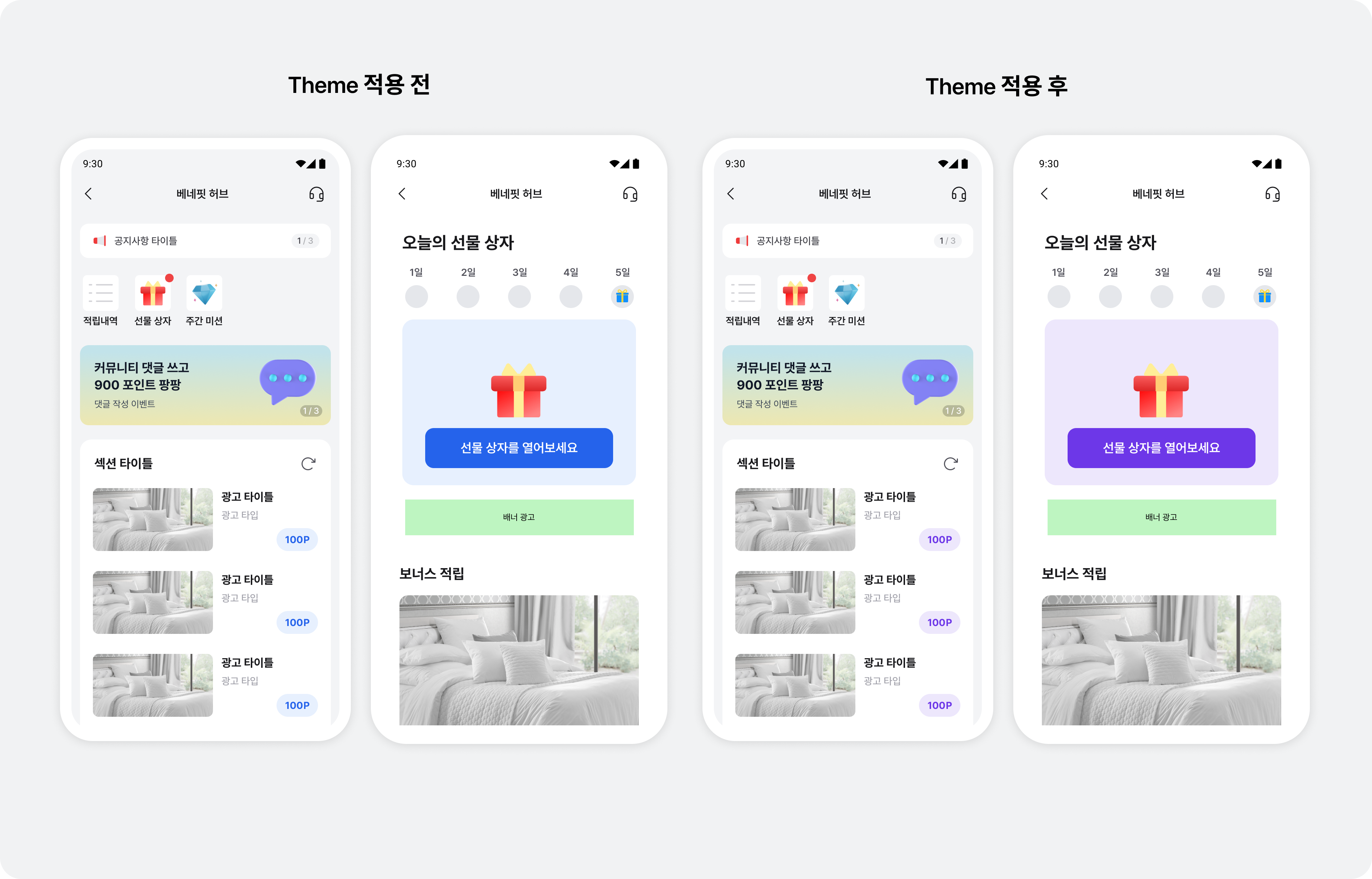
Primary color
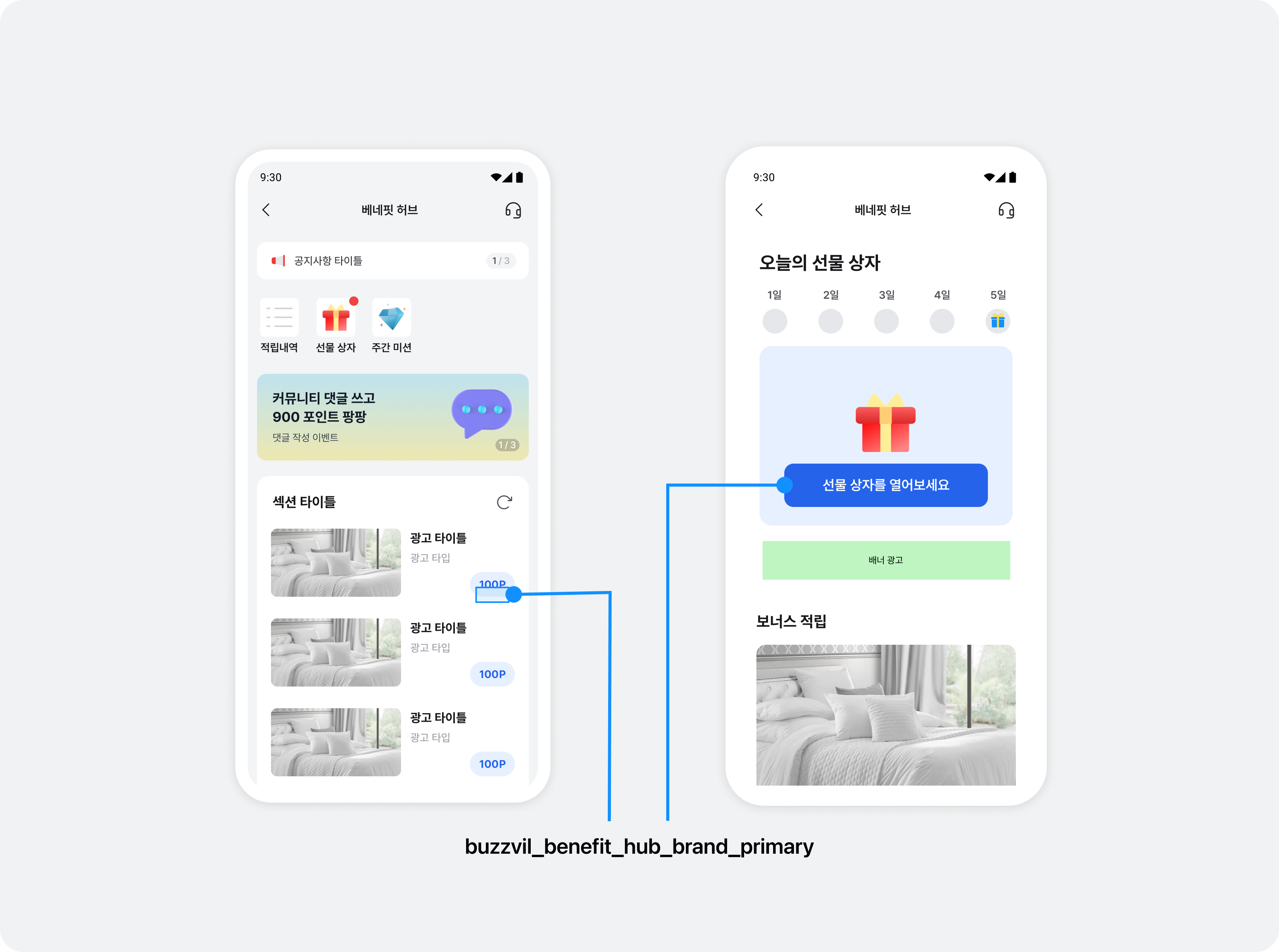
You can change the primary color of key UI elements across all integrated placements, including dialog buttons and bottom sheet confirmation buttons. Send your preferred color to your Buzzvil representative at help@buzzvil.com.
Implement a custom CTA button
You can implement your own CTA button instead of using the SDK's default UI. Custom CTA buttons can be used in native and interstitial placements.
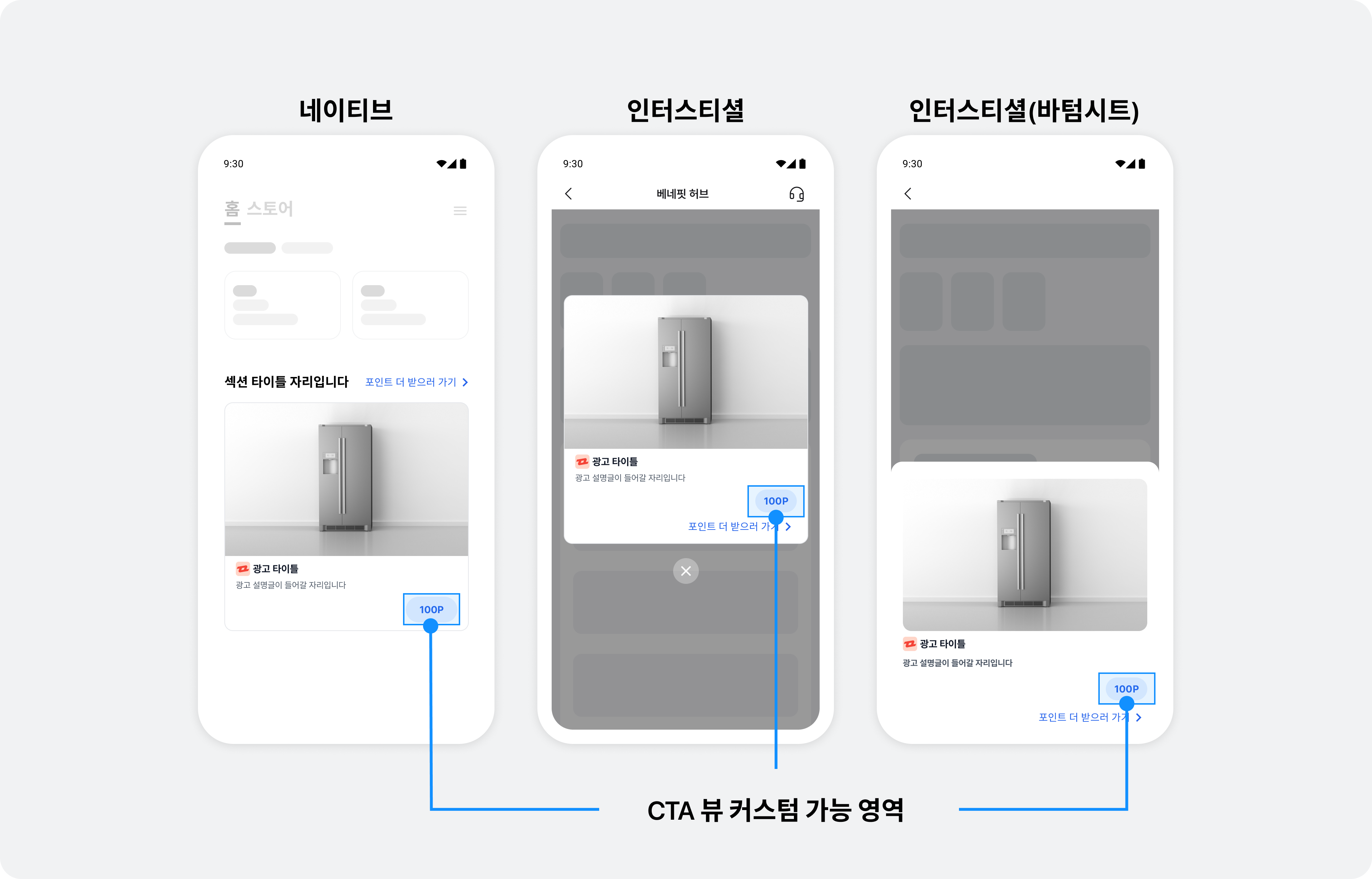
Follow these steps to implement your own CTA button.
-
Implement the view layout (
view_customized_cta.xml). The following example implements a view layout as a layout resource.<LinearLayout android:layout_width="wrap_content" android:layout_height="wrap_content" android:background="@color/colorPrimaryDark"> <TextView android:id="@+id/textCta"/> <ImageView android:id="@+id/imageReward" android:layout_width="24dp" android:layout_height="24dp" android:src="아이콘 이미지 리소스"/> <TextView android:id="@+id/textReward"/> </LinearLayout> -
Create
YourCustomBuzzCtaView, a subclass ofBuzzCtaView. -
In your subclass of
BuzzCtaView, useinflateto load the CTA view layout. -
Implement the CTA button's icon, text, and reward value in the following override methods, which are called according to the user's ad participation state.
-
renderViewParticipatingState: The user is participating in an ad (for example, has entered an action-based ad's landing page). -
renderViewParticipatedState: The user has completed ad participation. -
renderViewRewardAvailableState: The user has not yet participated in the ad. -
renderViewRewardNotAvailableState: The ad offers no reward to the user.import com.buzzvil.buzzbenefit.BuzzCtaView class YourCustomBuzzCtaView(context: Context, attrs: AttributeSet?, defStyleAttr: Int) : BuzzCtaView(context, attrs, defStyleAttr) { private val rewardImageView: ImageView private val rewardTextView: TextView private val ctaTextView: TextView constructor(context: Context) : this( context, null ) constructor(context: Context, attrs: AttributeSet?) : this( context, attrs, 0 ) init { inflate(getContext(), R.layout.view_customized_cta, this) rewardImageView = findViewById(R.id.imageReward) rewardTextView = findViewById(R.id.textReward) ctaTextView = findViewById(R.id.textCta) } private fun setRewardIcon(@DrawableRes iconResId: Int) { rewardImageView.setImageResource(iconResId) rewardImageView.visibility = View.VISIBLE } private fun hideRewardIcon() { rewardImageView.visibility = View.GONE } private fun setCtaText(ctaText: String) { ctaTextView.text = ctaText } private fun setRewardText(rewardText: String) { rewardTextView.text = rewardText } override fun renderViewParticipatingState(callToAction: String) { setCtaText("참여 확인 중") hideRewardIcon() setRewardText("") } override fun renderViewParticipatedState(callToAction: String) { setRewardIcon(R.drawable.custom_participated_icon) setRewardText("") setCtaText("참여 완료") } override fun renderViewRewardAvailableState(callToAction: String, reward: Int) { setRewardIcon(R.drawable.custom_reward_icon) setRewardText(String.format(Locale.US, "+%,d", reward)) // 원하는 포인트 단위를 적용하세요. (예시: `+1`, `1P`) setCtaText(callToAction) } override fun renderViewRewardNotAvailableState(callToAction: String) { hideRewardIcon() setRewardText("") setCtaText(callToAction) } }
Apply the custom CTA button to GlobalTheme
Call BuzzTheme.setCustomBuzzCtaView() to apply your custom CTA button.
import com.buzzvil.buzzbenefit.BuzzTheme
import com.buzzvil.sdk.BuzzvilSdk

class App : Application() {
    override fun onCreate() {
        super.onCreate()

        val buzzAdBenefitConfig = ...

        // BuzzvilSdk.initialize()를 호출하기 전에 BuzzTheme을 설정합니다.
        BuzzTheme.setCustomBuzzCtaView(YourCustomBuzzCtaView::class.java)

        // Buzzvil SDK 초기화
        BuzzvilSdk.initialize(...)
    }
}
Native
Native overlay UI
To customize the native overlay UI, contact your Buzzvil representative at help@buzzvil.com.
- Supported image and UI text specifications:
- Image formats: PNG, JPG, JSON (Lottie)
- File size: Up to 2 MB
- Image ratio: 312 x 212 (width x height). A different ratio may leave blank space or crop part of the image.
- UI text: Up to 20 characters, including spaces, across two lines
Native overlay area
To change where the native overlay appears, set its display area using nativeOverlayViewLayout() on BuzzNativeViewBinder as shown below.
import com.buzzvil.buzzbenefit.buzznative.BuzzNativeViewBinder

buzzNativeViewBinder = BuzzNativeViewBinder.Builder()
    .buzzNativeView(buzzNativeAdView)
    ...
    .nativeOverlayViewLayout(yourCustomNativeAdLayout)
    .build(Constant.YOUR_NATIVE_ID)
BenefitHub
This section explains how to change the design of the UI provided by the Buzzvil SDK.
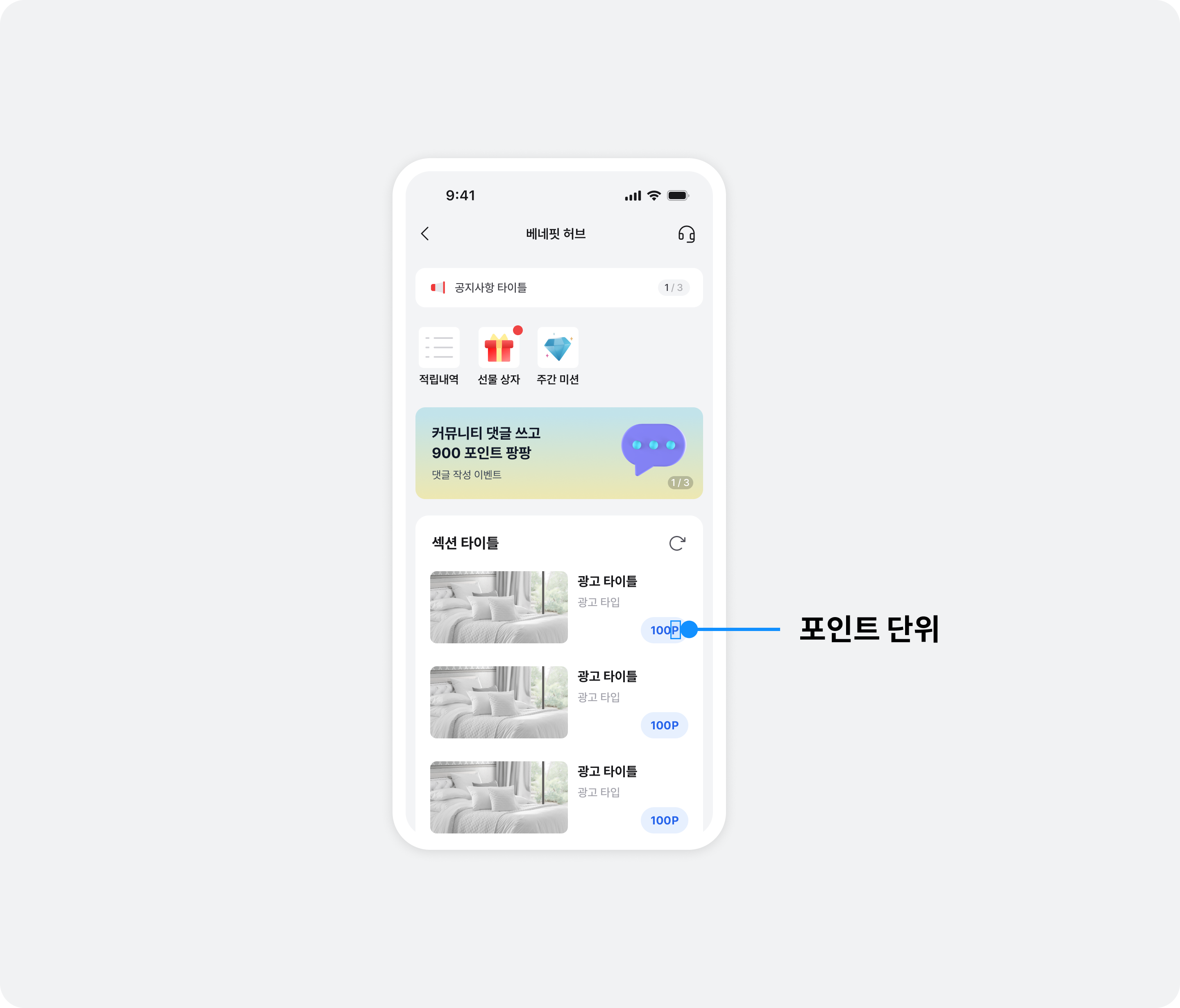
Change the point unit
You can change the point unit displayed in BenefitHub. Send the desired unit to your Buzzvil representative at help@buzzvil.com.
Navigation bar
You can change the text in BenefitHub's navigation bar or implement your own navigation bar.
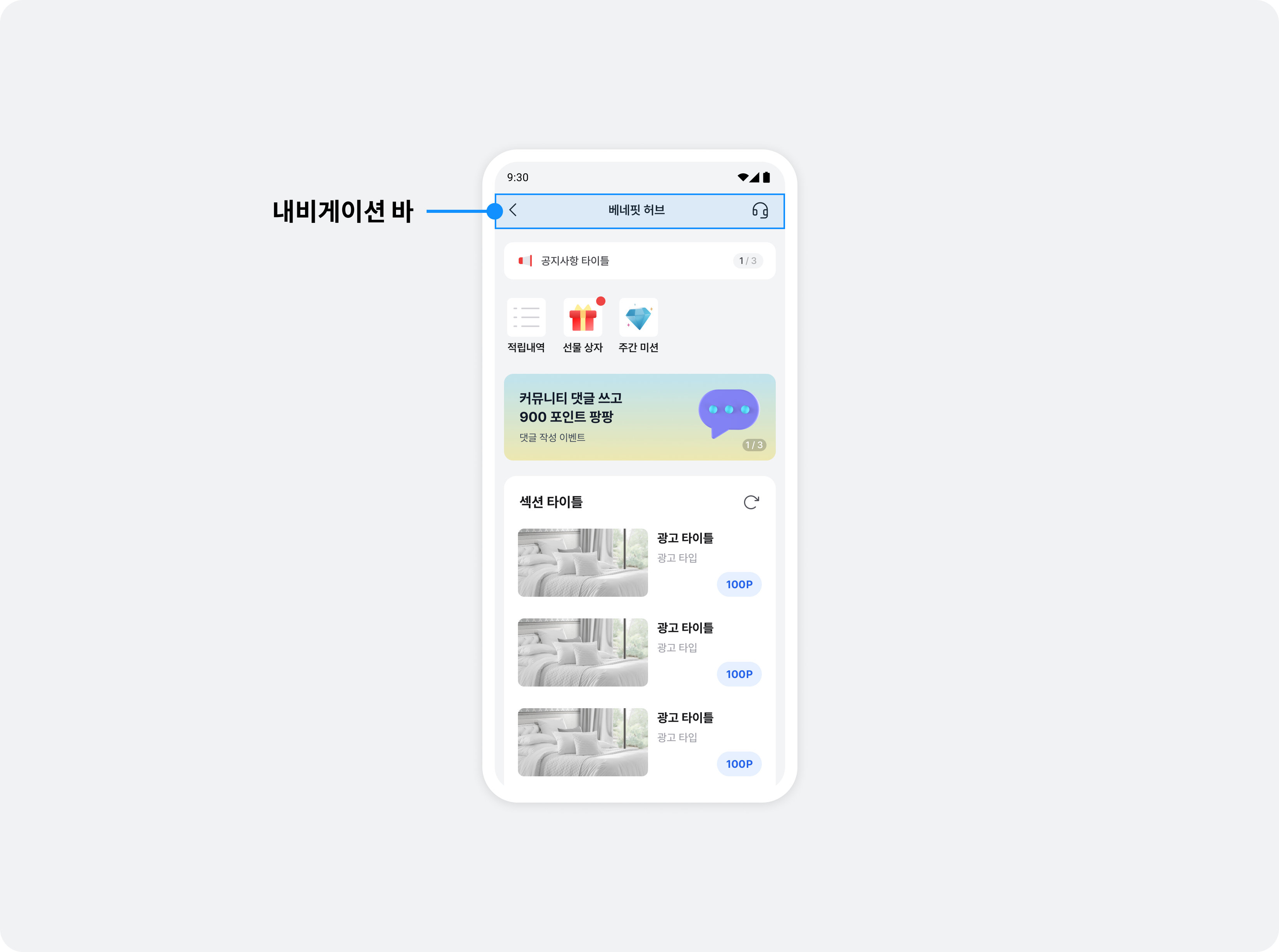
Change navigation bar text
You can change the text in the navigation bar. Send your preferred wording to your Buzzvil representative at help@buzzvil.com.
Implement a custom navigation bar
See Integrate BenefitHub as a fragment to implement your own navigation bar.
Implement a custom UI for consent to share personal information with third parties
If you implement your own UI for consent to share personal information with third parties, you must pass the user's consent status to the SDK.
Call the appropriate function as shown below.
import com.buzzvil.buzzbenefit.BuzzBenefit

lifecycleScope.launch(Dispatchers.IO) {
    // SDK 초기화를 하지 않으면 privacyPolicyManager는 null을 반환합니다.

    // 개인정보 동의 여부를 확인합니다.
    val isConsentGranted: Result<Boolean>? = BuzzBenefit.privacyPolicyManager?.isConsentGranted()

    // 직접 구현한 개인정보 제3자 제공 동의 UI에서 동의를 받았을 경우 아래 코드를 실행하면, 베네핏허브 진입 시 개인정보 제3자 제공 동의 UI가 노출되지 않으면서 광고 할당이 정상적으로 진행 됩니다.
    val result: Result<Unit>? = BuzzBenefit.privacyPolicyManager?.grantConsent()
}