EntryPoint
Learn how to add an entry point and implement additional features through the SDK interface.
Key features
EntryPoint is an entry component that fits naturally into various locations in your app and gives users easy access to content. It supports a floating action button (FAB), Banner, BottomSheet, Popup, and Custom UI, allowing you to choose and position it to suit your design. Configure it through the Buzzvil Dash admin. Clicking it can open BenefitHub, Lucky Box, or Mission Pack, or follow a deep link to a specific screen in your app.
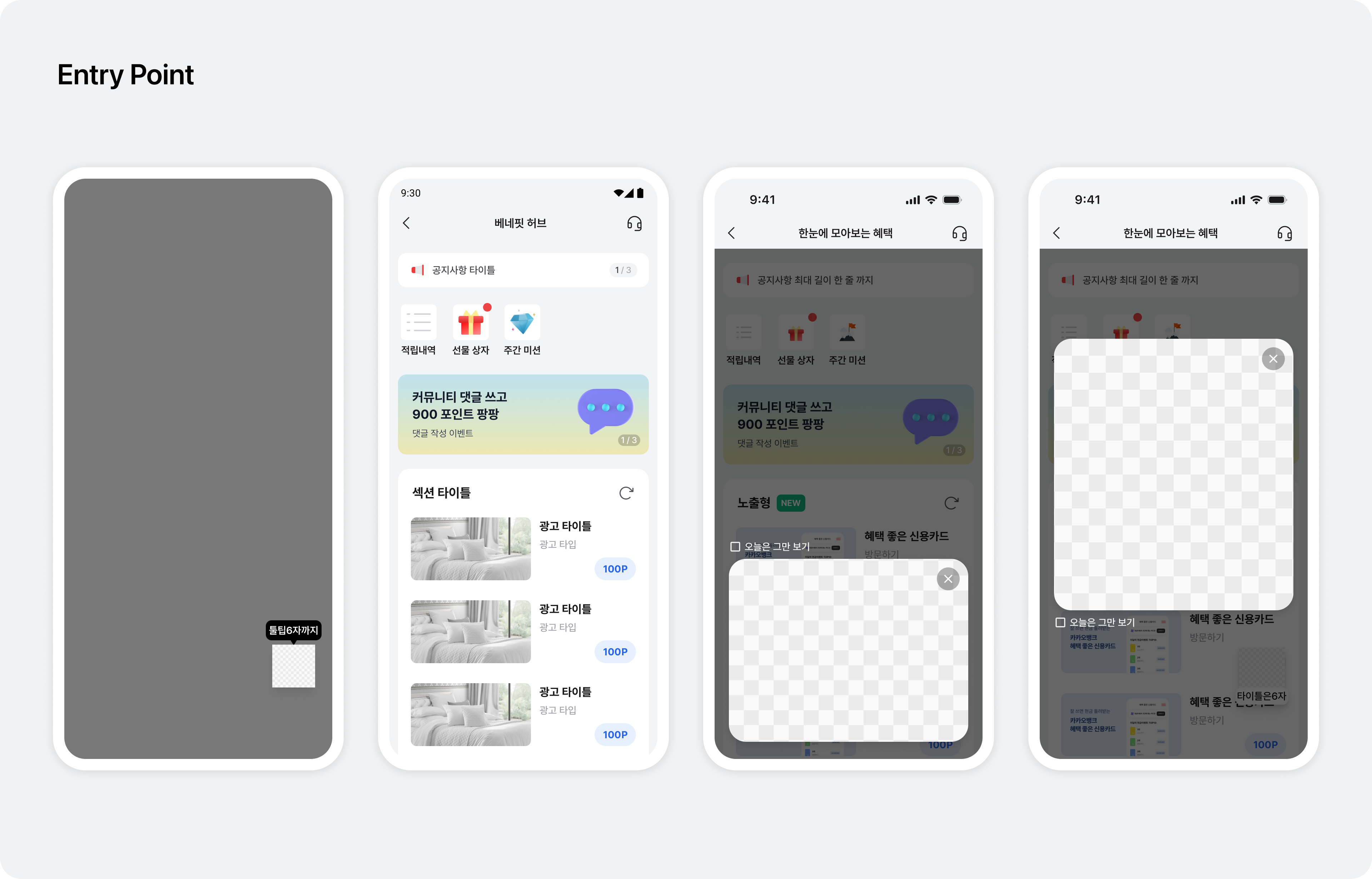
Integration
Follow these steps to integrate EntryPoint.
Step 1. Prepare
- Complete Getting started.
Step 2. Configure
Entry point types
| Type | Description |
|---|---|
FAB | A floating action button at the bottom right of the screen. |
Banner | A banner fixed at your chosen position on the screen. Multiple banner entries appear as slides and advance automatically every three seconds. |
Popup | A popup in the center of the screen. |
BottomSheet | A bottom sheet that slides up from the bottom of the screen. |
Custom | Lets you implement an entry point with a custom UI. |
Entry point images
| Type | Image |
|---|---|
FAB | 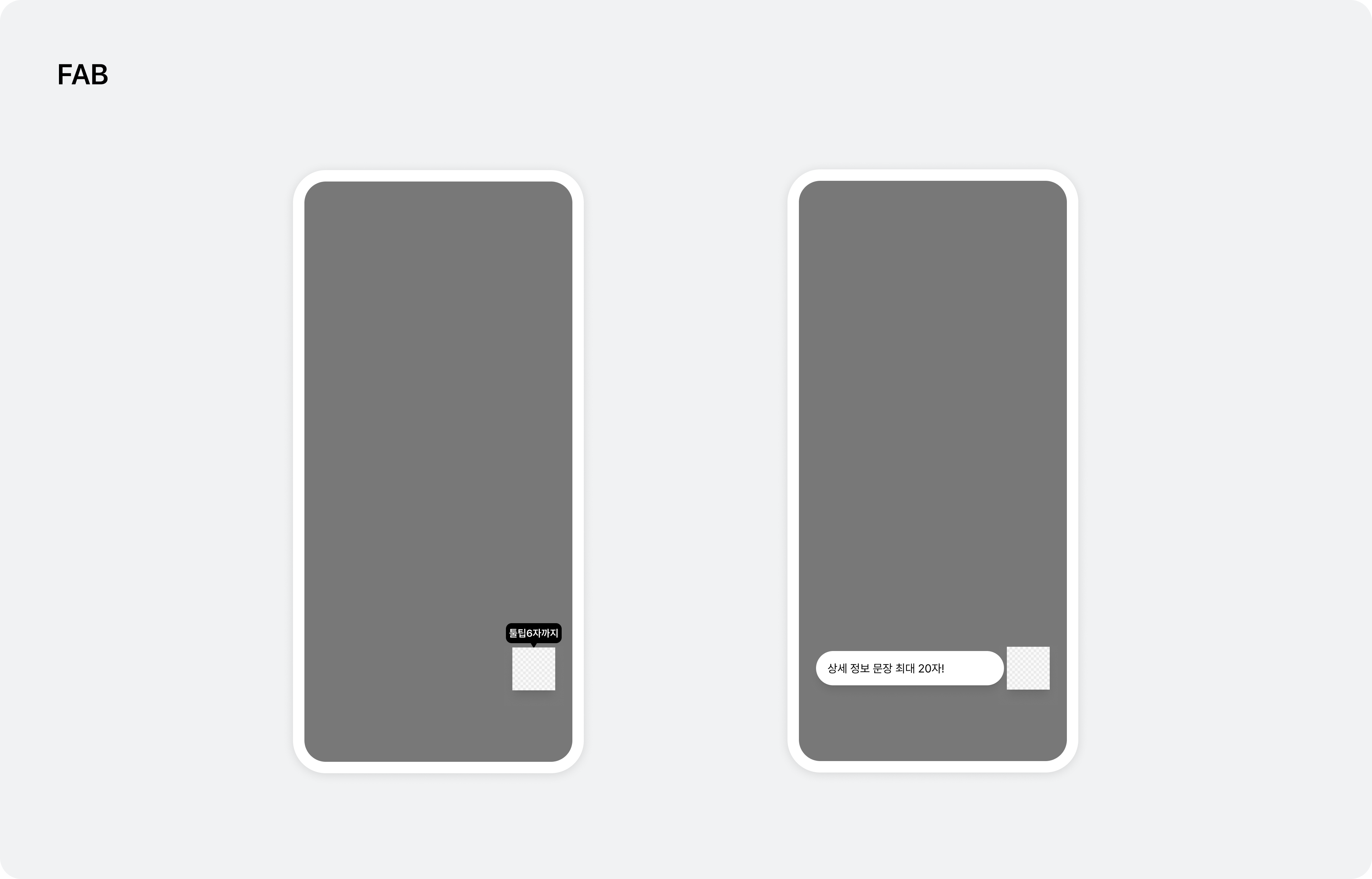 |
Banner | 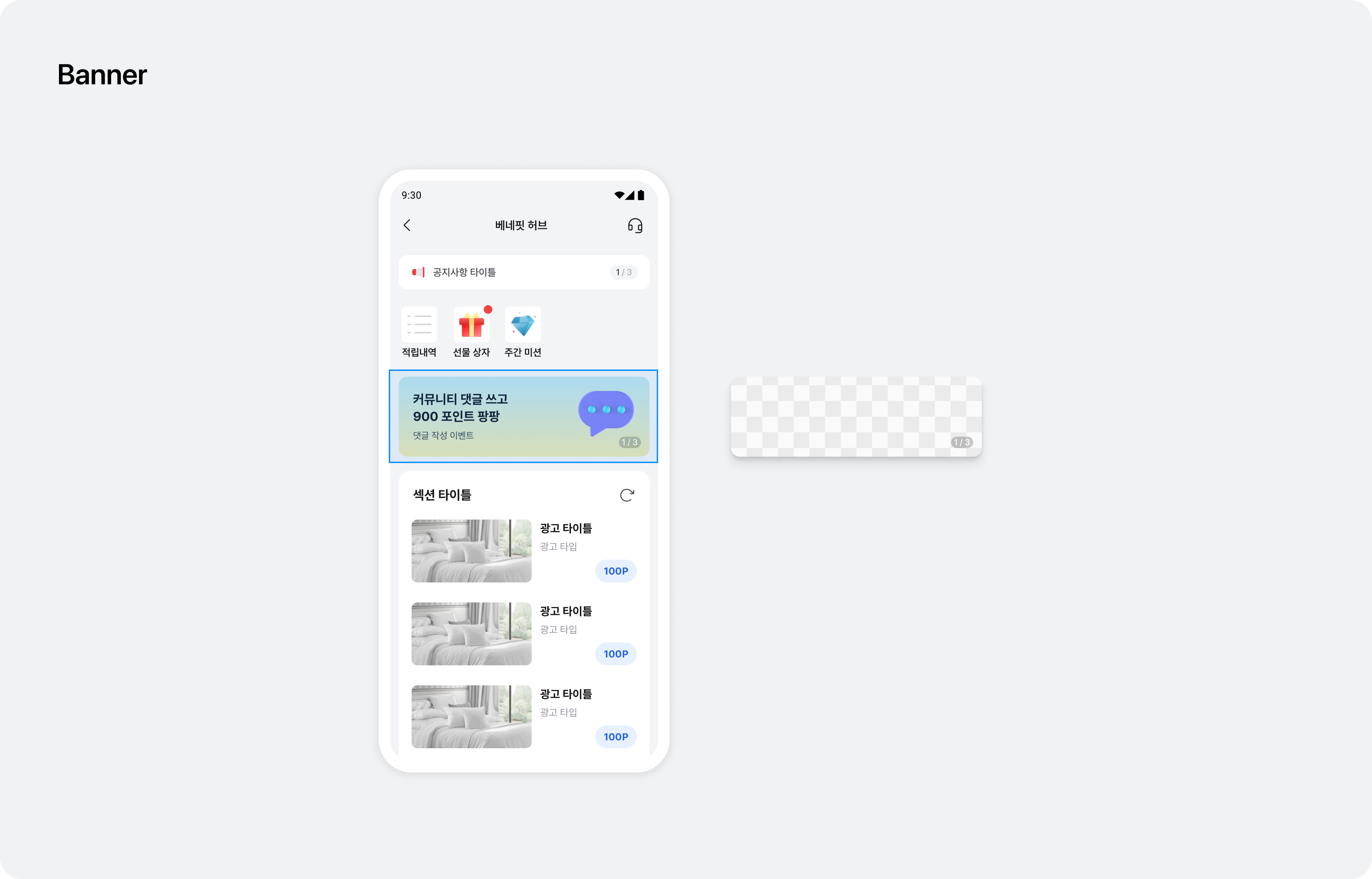 |
Popup | 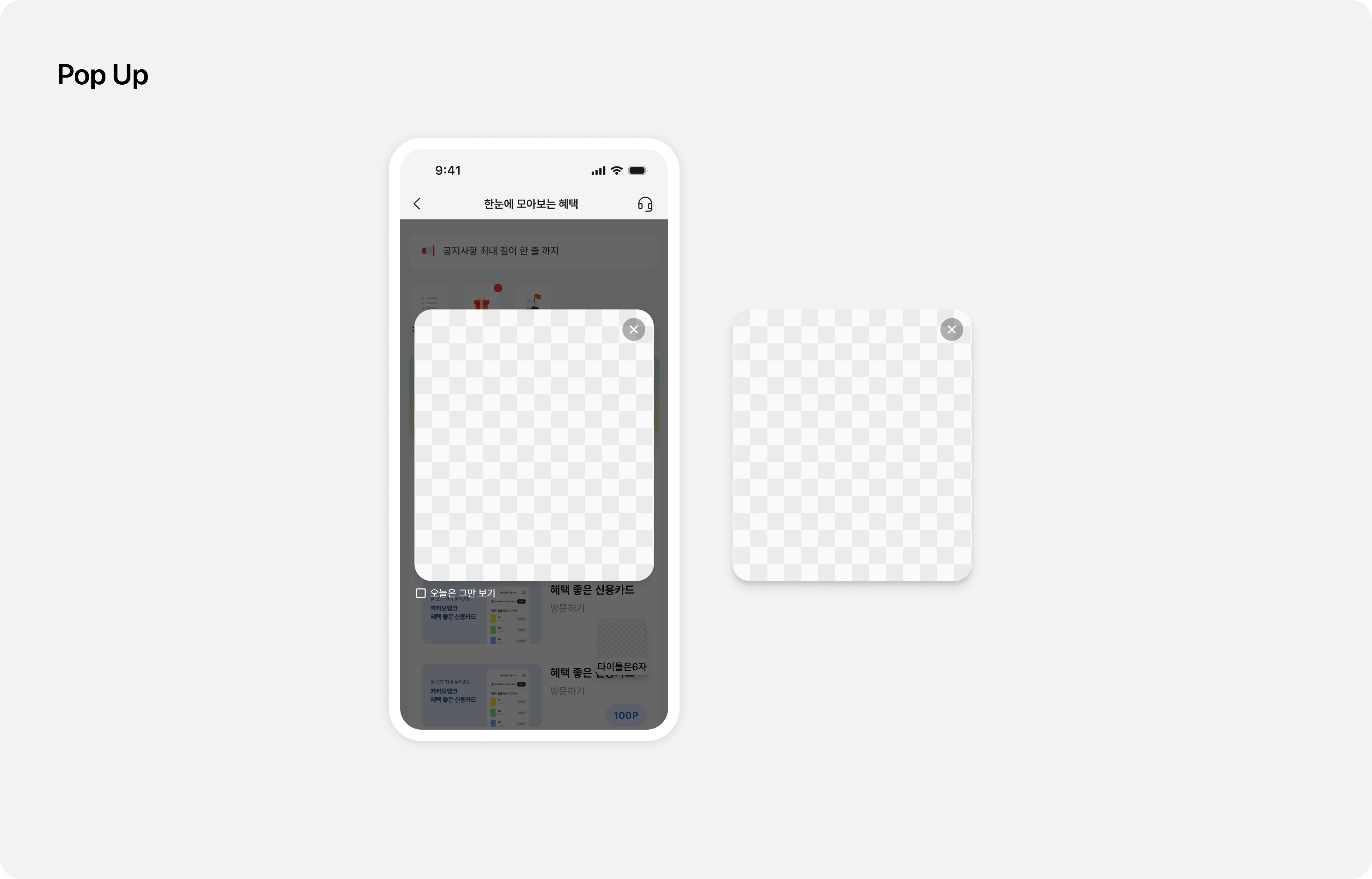 |
BottomSheet | 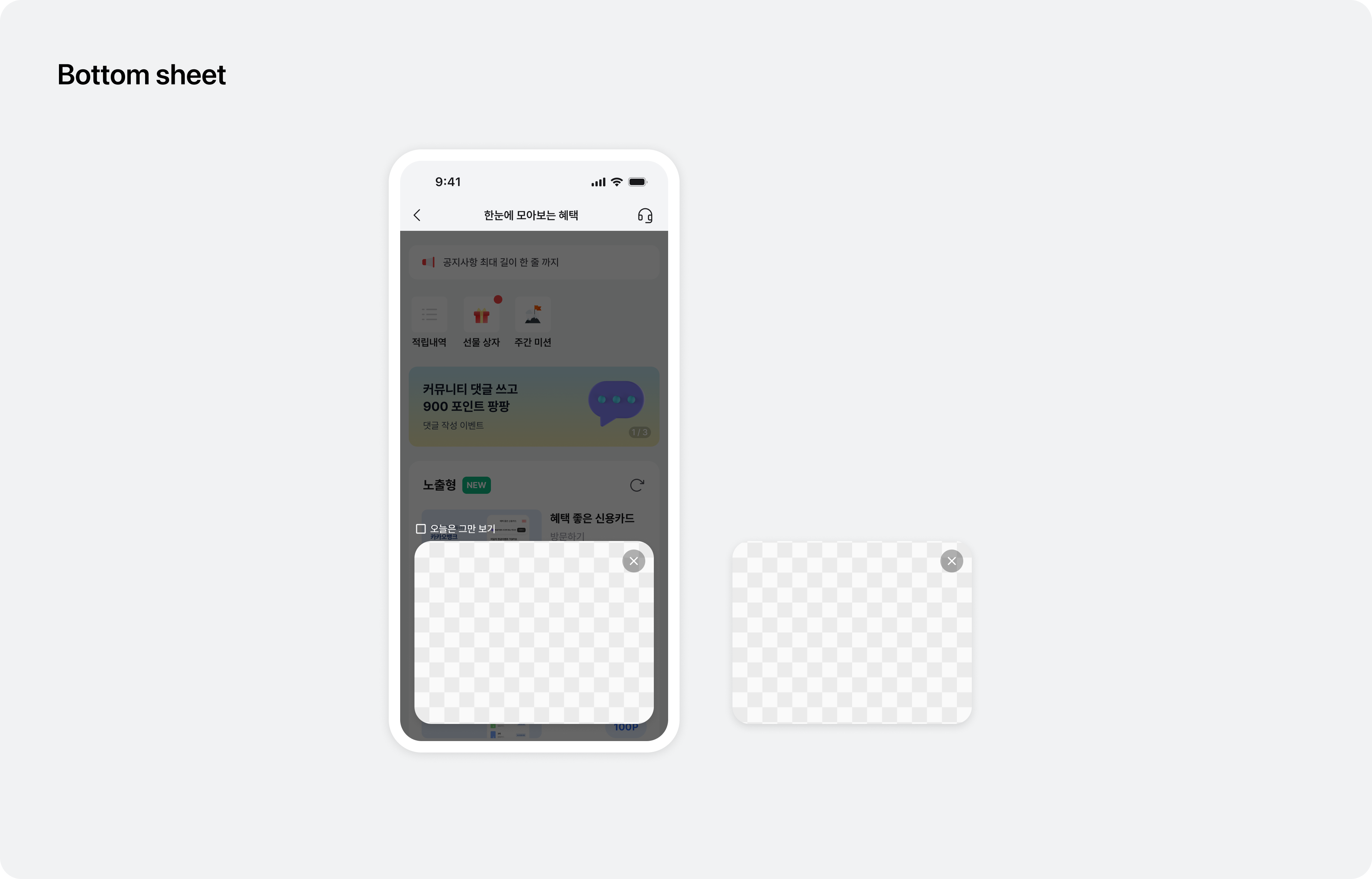 |
Supported entry point UI specifications
| Type | Specifications |
|---|---|
FAB |
|
Banner |
|
Popup |
|
BottomSheet |
|
Step 3. Request
Request entry points as shown in the code below.
BuzzEntryPoint.load(
    onSuccess = { availableTypes ->
        // 요청에 성공하면 표시 가능한 엔트리포인트 타입 배열과 함께 호출됩니다.
    }, onError = { buzzAdError ->
        // 요청에 실패하면 에러와 함께 호출됩니다.
    }
)
Entry point types in BuzzEntryPointType
| Type | BuzzEntryPointType |
|---|---|
FAB | BuzzEntryPointType.FAB |
Banner | BuzzEntryPointType.BANNER |
Popup | BuzzEntryPointType.POPUP |
BottomSheet | BuzzEntryPointType.BOTTOM_SHEET |
Custom | BuzzEntryPointType.CUSTOM |
Step 4. Display (FAB)
Display the FAB entry point as shown below.
import com.buzzvil.entrypoint.BuzzEntryPoint

if (BuzzEntryPoint.canShow(BuzzEntryPointType.FAB)) {
    BuzzEntryPoint.showFab(binding.root)
}
Step 4. Display (Banner)
Display the Banner entry point as shown below.
<com.buzzvil.entrypoint.presentation.BuzzEntryPointBanner
    android:id="@+id/entryPointBanner"
    android:layout_width="match_parent"
    android:layout_height="wrap_content"/>
import com.buzzvil.entrypoint.BuzzEntryPoint

if (BuzzEntryPoint.canShow(BuzzEntryPointType.BANNER)) {
    BuzzEntryPoint.showBanner(entryPointBanner)
}
Step 4. Display (Popup)
Display the Popup entry point as shown below.
import com.buzzvil.entrypoint.BuzzEntryPoint

if (BuzzEntryPoint.canShow(BuzzEntryPointType.POPUP)) {
    BuzzEntryPoint.showPopup(requireContext())
}
Step 4. Display (BottomSheet)
Display the BottomSheet entry point as shown below.
import com.buzzvil.entrypoint.BuzzEntryPoint

if (BuzzEntryPoint.canShow(BuzzEntryPointType.BOTTOM_SHEET)) {
    BuzzEntryPoint.showBottomSheet(requireContext())
}
Step 4. Display (Custom)
Display a Custom entry point using the example below.
You can design the UI freely and call customEntryPointClicked to handle clicks.
val identifier = "YOUR_IDENTIFIER"
BuzzEntryPoint.customEntryPointClicked(requireContext(), identifier)
Additional features
This section explains how to implement additional EntryPoint features.
Customize deep-link behavior
You can customize deep-link behavior when an entry point is clicked. See the example below.
BuzzEntryPoint.setDeepLinkHandler { deepLinkUrl ->
    // 대시 어드민을 통해 설정한 deepLink url string이 전달됩니다.
    YourRouter.route(deepLinkUrl)
}