UI configuration
Global theme
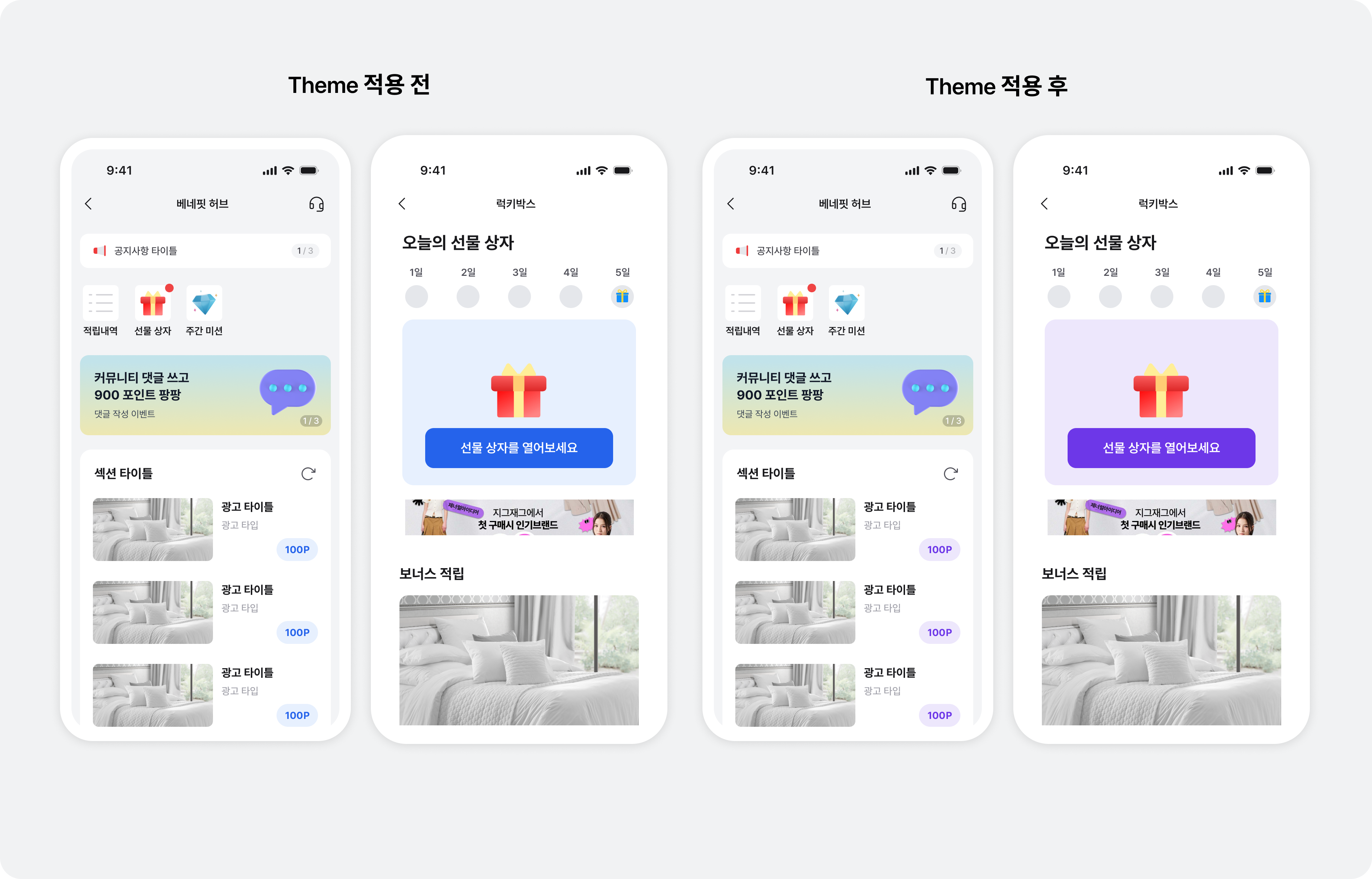
You can customize the theme of the Buzzvil SDK's default UI, including colors and icon images for ad placements and CTAs.
Primary color
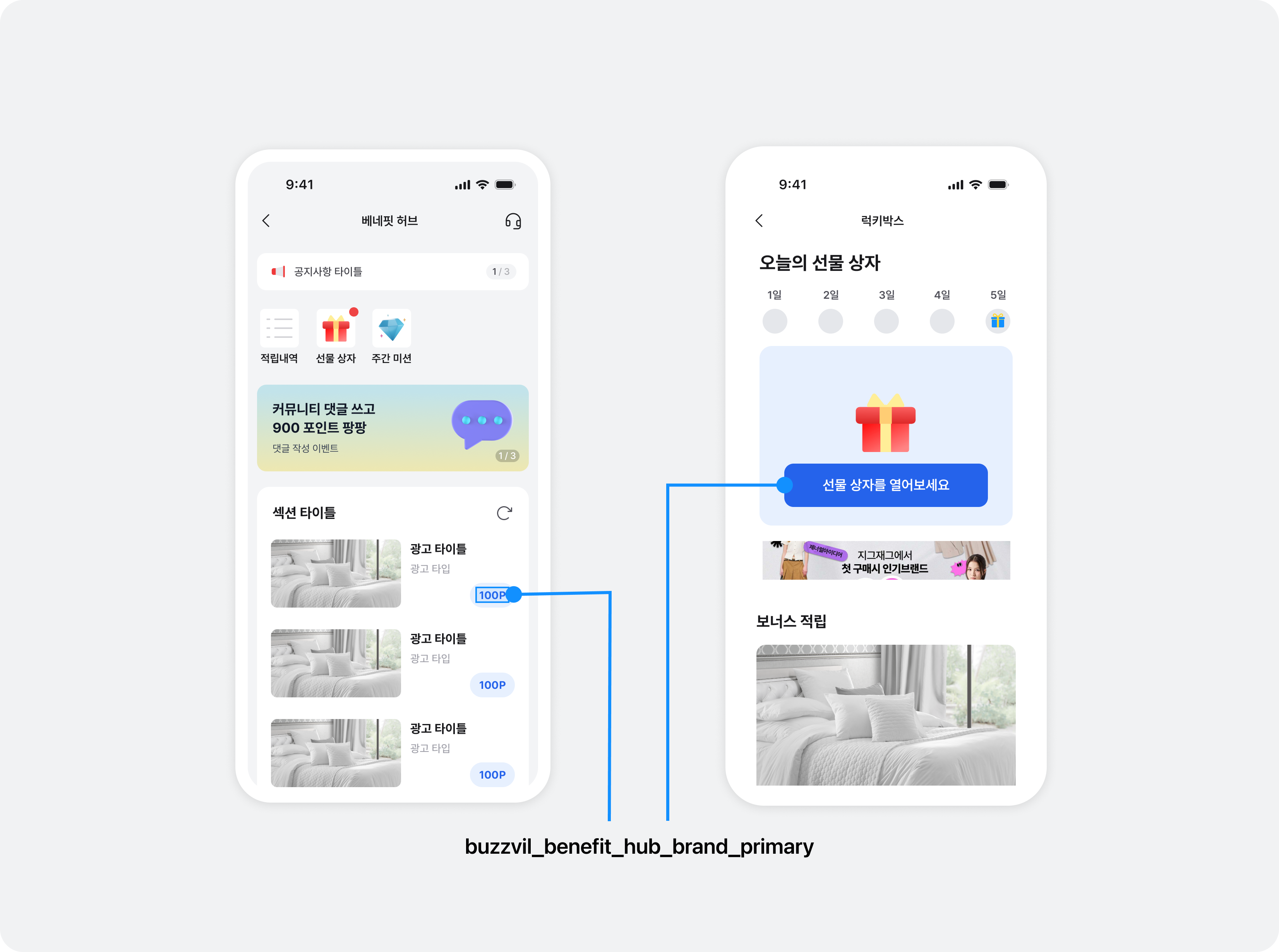
You can change the primary color of key UI elements across all integrated placements, including dialog buttons and bottom sheet confirmation buttons. Send your preferred color to your Buzzvil representative at help@buzzvil.com.
Implement a custom CTA button
You can implement your own CTA button instead of using the SDK's default UI. Custom CTA buttons can be used in native and interstitial placements.
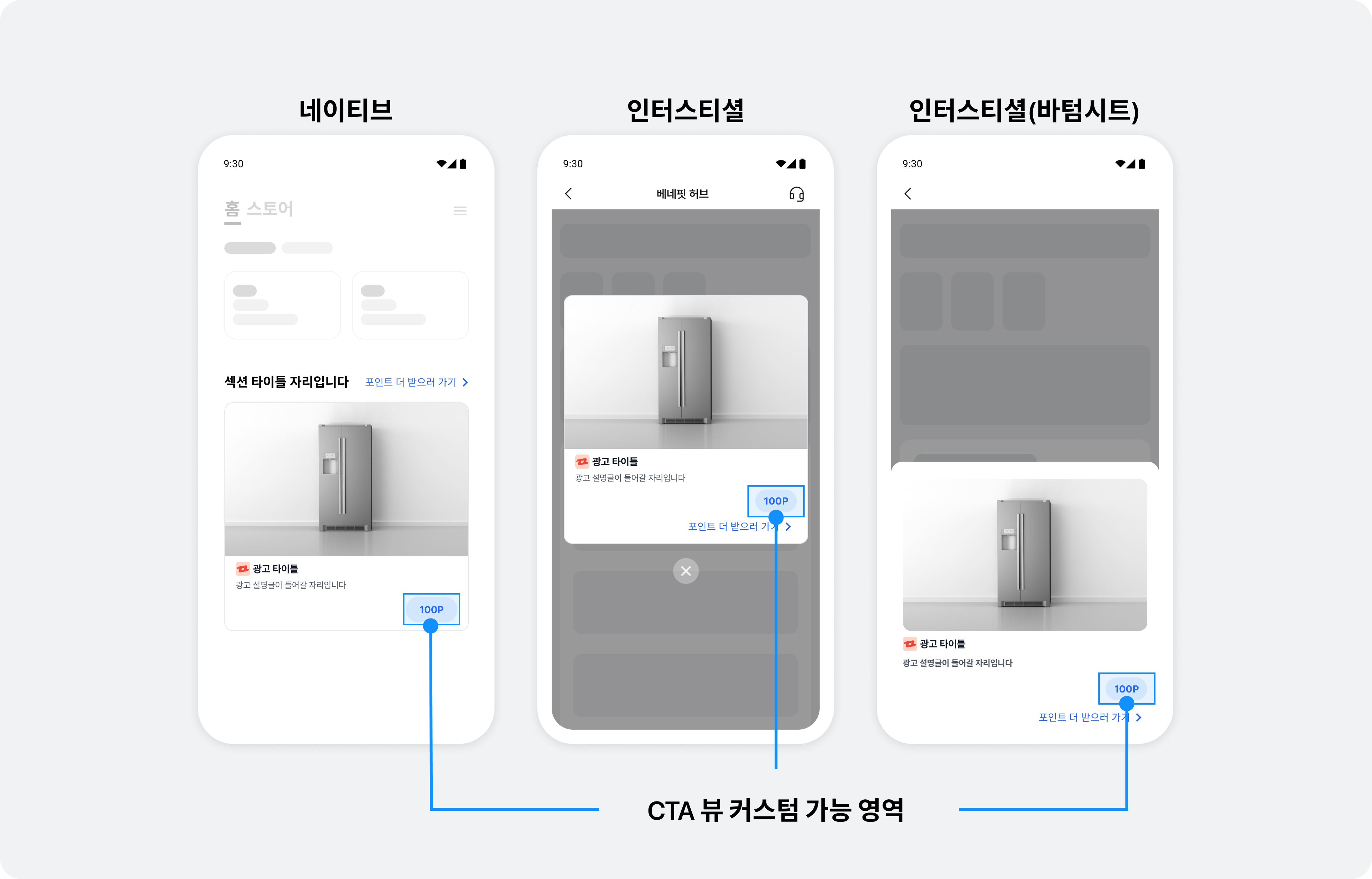
To implement your own CTA button, create a subclass of UIView that conforms to the BuzzCtaViewProtocol protocol.
The following example creates a CTA View class using UIStackView.
import UIKit
import BuzzvilSDK

final class CustomCtaView: UIStackView, BuzzCtaViewProtocol {
  let rewardImageView = UIImageView(frame: .zero)
  let rewardLabel = UILabel(frame: .zero)
  let ctaLabel = UILabel(frame: .zero)

  required init(coder: NSCoder) {
    super.init(coder: coder)
    setUpView()
  }

  override init(frame: CGRect) {
    super.init(frame: frame)
    setUpView()
  }

  private func setUpView() {
    addArrangedSubview(rewardImageView)
    addArrangedSubview(rewardLabel)
    addArrangedSubview(ctaLabel)
  }

  // MARK: BuzzCtaViewProtocol
  func renderRewardNotAvailableViewState(ctaText: String) {
    // 리워드가 없는 광고에 대한 CTA 뷰 레이아웃을 정의합니다.
    rewardImageView.isHidden = true
    rewardLabel.isHidden = true
    ctaLabel.text = ctaText
  }

  func renderRewardAvailableViewState(ctaText: String, reward: Int) {
    // 리워드가 있는 광고에 대한 CTA 뷰 레이아웃을 정의합니다.
    rewardImageView.isHidden = false
    rewardLabel.isHidden = false

    rewardImageView.image = UIImage(named: "YOUR_REWARD_IMAGE")
    rewardLabel.text = "+\(reward)" // 원하는 포인트 단위를 적용하세요. (예시: `+1`, `1P`)
    ctaLabel.text = ctaText
  }

  func renderParticipatingViewState(ctaText: String) {
    // 참여 확인 중인 광고에 대한 CTA 뷰 레이아웃을 정의합니다.
    rewardImageView.isHidden = true
    rewardLabel.isHidden = true
    ctaLabel.text = "YOUR_PARTICIPATING_TEXT"
  }

  func renderParticipatedViewState(ctaText: String) {
    // 참여 완료한 광고에 대한 CTA 뷰 레이아웃을 정의합니다.
    rewardImageView.isHidden = false
    rewardLabel.isHidden = true

    rewardImageView.image = UIImage(named: "YOUR_PARTICIPATED_IMAGE")
    ctaLabel.text = "YOUR_PARTICIPATED_TEXT"
  }
}
@import UIKit;
@import BuzzvilSDK;

@interface CustomCtaView : UIStackView <BuzzCtaViewProtocol>

@end

@interface CustomCtaView ()

@property (nonatomic, strong, readonly) UIImageView *rewardImageView;
@property (nonatomic, strong, readonly) UILabel *rewardLabel;
@property (nonatomic, strong, readonly) UILabel *ctaLabel;

@end

@implementation CustomCtaView

- (instancetype)initWithCoder:(NSCoder *)coder {
  if (self = [super initWithCoder:coder]) {
    [self setupView];
  }
  return self;
}

- (instancetype)initWithFrame:(CGRect)frame {
  if (self = [super initWithFrame:frame]) {
    [self setupView];
  }
  return self;
}

- (void)setupView {
  _rewardImageView = [[UIImageView alloc] initWithFrame:CGRectZero];
  [self addArrangedSubview:_rewardImageView];

  _rewardLabel = [[UILabel alloc] initWithFrame:CGRectZero];
  [self addArrangedSubview:_rewardLabel];

  _ctaLabel = [[UILabel alloc] initWithFrame:CGRectZero];
  [self addArrangedSubview:_ctaLabel];
}

#pragma mark - BuzzCtaViewProtocol
- (void)renderRewardNotAvailableViewStateWithCtaText:(NSString *)ctaText {
  // 리워드가 없는 광고에 대한 CTA 뷰 레이아웃을 정의합니다.
  [_rewardImageView setHidden:YES];
  [_rewardLabel setHidden:YES];
  [_ctaLabel setText:ctaText];
}

- (void)renderRewardAvailableViewStateWithCtaText:(NSString *)ctaText reward:(NSInteger)reward {
  // 리워드가 있는 광고에 대한 CTA 뷰 레이아웃을 정의합니다.
  [_rewardImageView setHidden:NO];
  [_rewardLabel setHidden:NO];

  [_rewardImageView setImage:[UIImage imageNamed:@"YOUR_REWARD_IMAGE"]];
  [_rewardLabel setText:[NSString stringWithFormat:@"+%ld", reward]]; // 원하는 포인트 단위를 적용하세요. (예시: `+1`, `1P`)
  [_ctaLabel setText:ctaText];
}

- (void)renderParticipatingViewStateWithCtaText:(NSString *)ctaText {
  // 참여 확인 중인 광고에 대한 CTA 뷰 레이아웃을 정의합니다.
  [_rewardImageView setHidden:YES];
  [_rewardLabel setHidden:YES];
  [_ctaLabel setText:@"YOUR_PARTICIPATING_TEXT"];
}

- (void)renderParticipatedViewStateWithCtaText:(NSString *)ctaText {
  // 참여 완료한 광고에 대한 CTA 뷰 레이아웃을 정의합니다.
  [_rewardImageView setHidden:NO];
  [_rewardLabel setHidden:YES];

  [_rewardImageView setImage:[UIImage imageNamed:@"YOUR_PARTICIPATED_IMAGE"]];
  [_ctaLabel setText:@"YOUR_PARTICIPATED_TEXT"];
}

@end
Apply the custom CTA button to GlobalTheme
Add ctaViewClass to BuzzBenefitTheme to apply your custom CTA button.
import BuzzvilSDK

@main
class AppDelegate: UIResponder, UIApplicationDelegate {
    func application(_ application: UIApplication, didFinishLaunchingWithOptions launchOptions: [UIApplication.LaunchOptionsKey: Any]? = nil) -> Bool {
        let config = ...

        // BuzzBenefit.initialize()를 호출하기 전에  GlobalTheme을 설정합니다.

        let theme = BuzzTheme.Builder()
          .ctaViewClass(CustomCtaView.self)
          .build()
        BuzzAdBenefit.shared.setTheme(theme)

        // ...
        return true
    }
}
@import BuzzvilSDK;

@implementation AppDelegate

- (BOOL)application:(UIApplication *)application didFinishLaunchingWithOptions:(NSDictionary *)launchOptions {
    BuzzBenefitConfig *config = ...

    // BuzzBenefit.initialize()를 호출하기 전에  GlobalTheme을 설정합니다.
    BuzzTheme * buzzTheme = [BuzzTheme themeWithBlock:^(BuzzThemeBuilder * _Nonnull builder) {
      builder.ctaViewClass = CustomCtaView.self;
    }];
    [BuzzAdBenefit.sharedInstance setTheme:buzzTheme];

    // ...
    return YES;
}

@end
Native
Native overlay UI
To customize the native overlay UI, contact your Buzzvil representative at help@buzzvil.com.
- Supported image and UI text specifications:
- Image formats: PNG, JPG, JSON (Lottie)
- File size: Up to 2 MB
- Image ratio: 312 x 212 (width x height). A different ratio may leave blank space or crop part of the image.
- UI text: Up to 20 characters, including spaces, across two lines
BenefitHub
This section explains how to change the design of the UI provided by the Buzzvil SDK.
Change the point unit
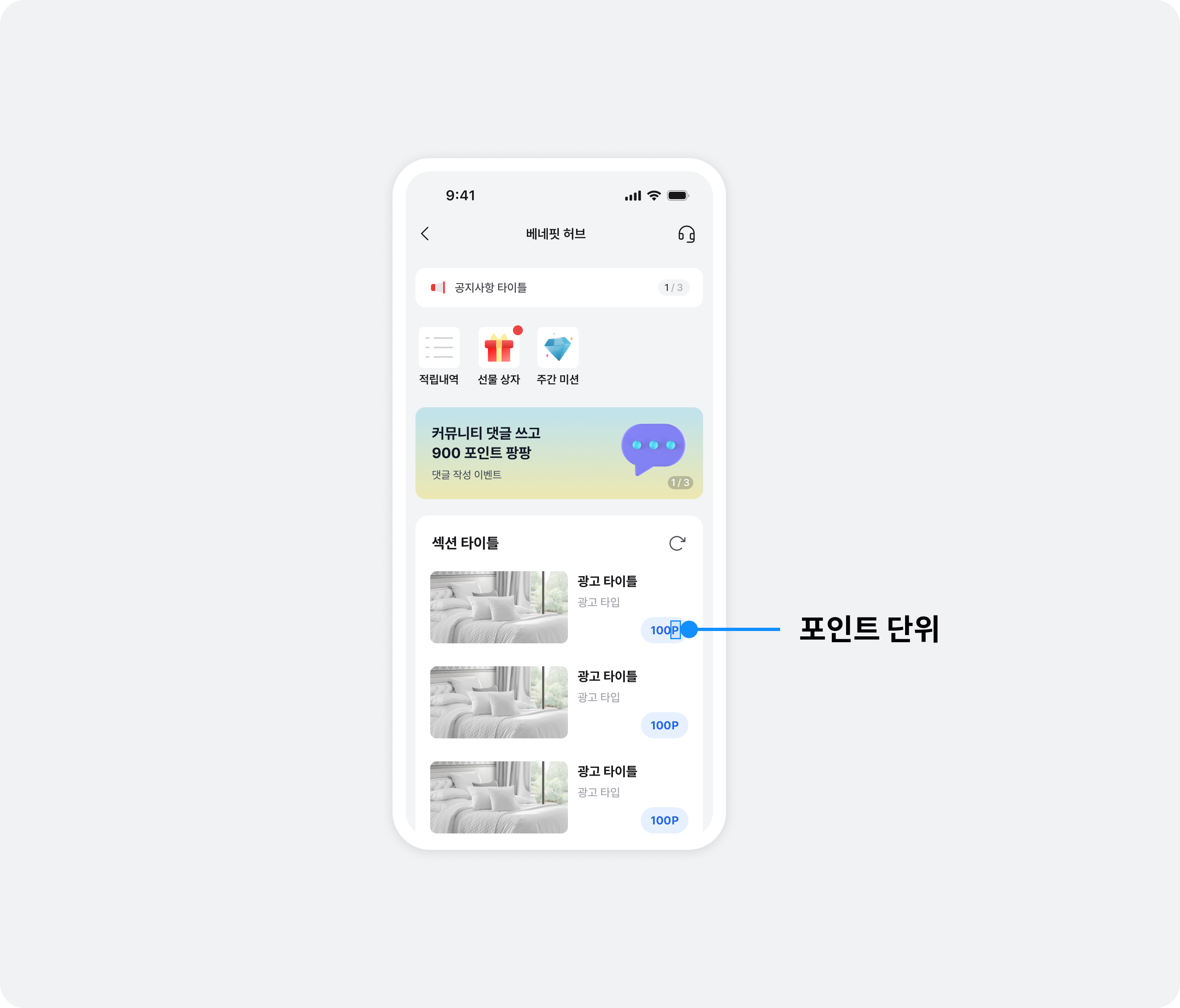
You can change the point unit displayed in BenefitHub. Send the desired unit to your Buzzvil representative at help@buzzvil.com.
Navigation bar
You can change the text in BenefitHub's navigation bar or implement your own navigation bar.
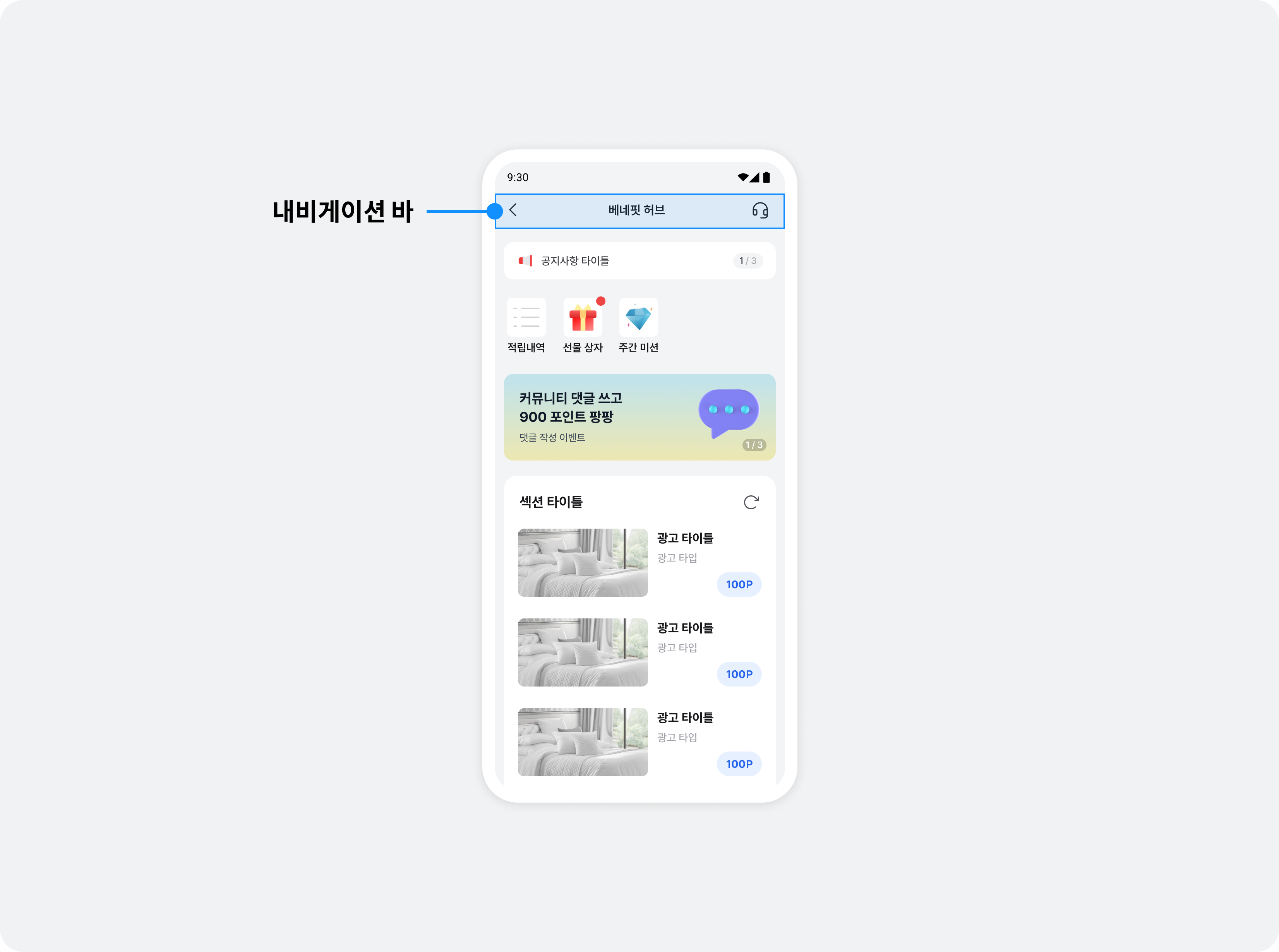
Change navigation bar text
You can change the text in the navigation bar. Send your preferred wording to your Buzzvil representative at help@buzzvil.com.
Implement a custom navigation bar
See Integrate BenefitHub as a child view controller to implement your own navigation bar.
Implement a custom UI for consent to share personal information with third parties
If you implement your own privacy policy UI, you must pass the user's consent status to the SDK. Refer to the table below and call the appropriate function.
| Class | API | Description |
|---|---|---|
BuzzAdBenefit.shared | grantPrivacyConsent() | Consent to personal information collection. |
loadPrivacyConsentStatus() | Check whether the user has consented to personal information collection. |
Usage example
BuzzAdBenefit.shared.loadPrivacyConsentStatus(onSuccess: { [weak self] status in
  // 현재 개인정보 처리 방침 상태를 가져올 수 있습니다
}, onFailure: { [weak self] error in
  // 개인정보 처리방침에 대한 상태를 가져오는데 실패 했을 경우 호출 됩니다.
})

BuzzAdBenefit.shared.grantPrivacyConsent(onSuccess: { [weak self] in
  // 개인정보 처리방침 동의에 성공했을 경우 호출 됩니다.
}, onFailure: { [weak self] error in
  // 개인정보 처리방침 동의 요청에 실패했을 경우 호출 됩니다.
})
[BuzzAdBenefit.sharedInstance loadPrivacyConsentStatusOnSuccess:^(enum BuzzPrivacyConsentStatus status) {
  // 현재 개인정보 처리 방침 상태를 가져올 수 있습니다
} onFailure:^(NSError * _Nonnull error) {
  // 개인정보 처리방침에 대한 상태를 가져오는데 실패 했을 경우 호출 됩니다.
}];

[BuzzAdBenefit.sharedInstance grantPrivacyConsentOnSuccess:^{
  // 개인정보 처리방침 동의에 성공했을 경우 호출 됩니다.
} onFailure:^(NSError * _Nonnull error) {
  // 개인정보 처리방침 동의 요청에 실패했을 경우 호출 됩니다.
}];