Native
Learn how to add and configure native placements and implement additional features through the SDK interface.
Key features
The Buzzvil SDK's native inventory displays ads customized for your app that blend naturally into its screens. After a user engages with an ad, the next ad appears automatically, continuously serving ads in a single placement to accelerate app monetization. It also provides dynamic features that encourage users to engage with more ads.
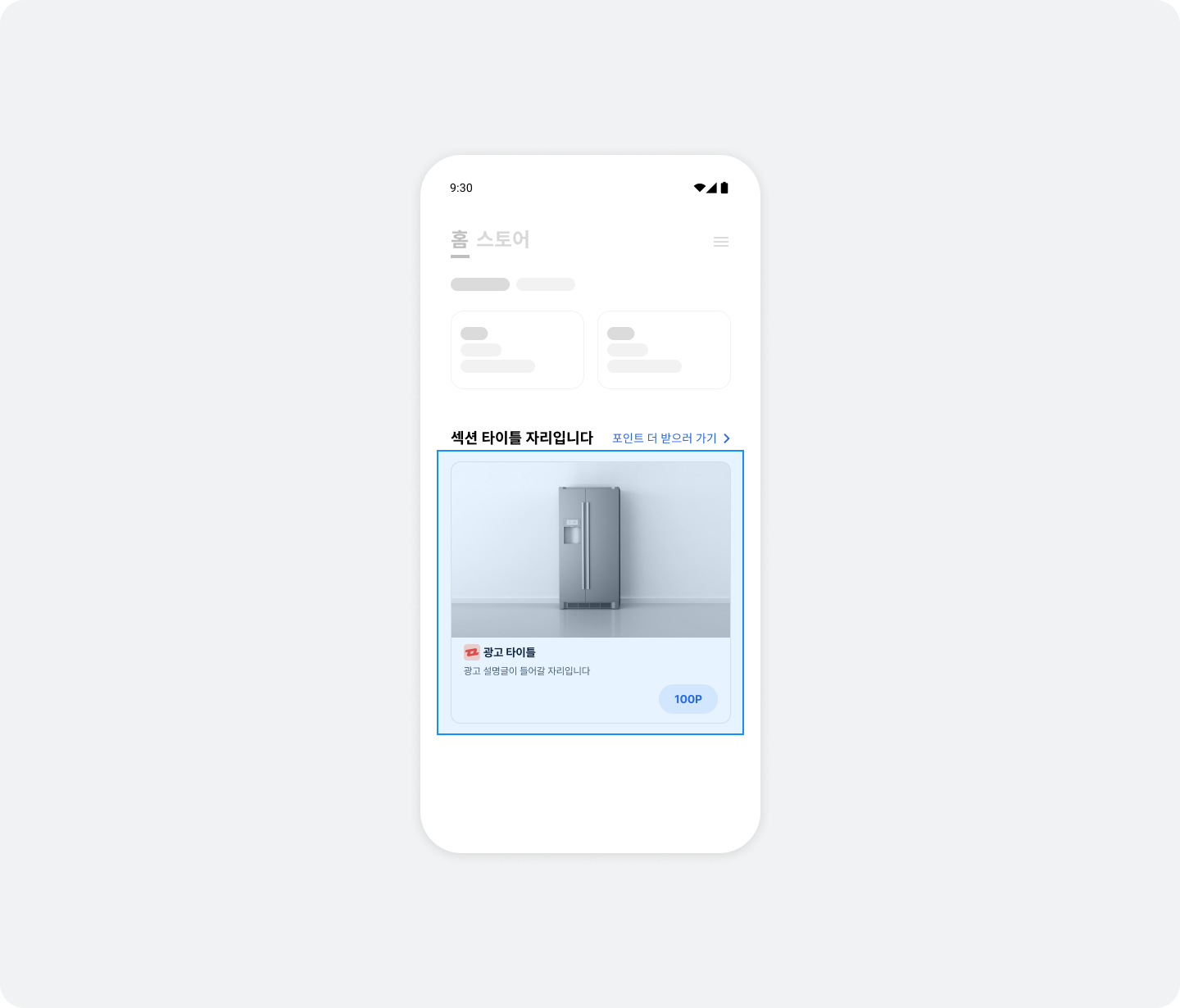
Integration
Follow these steps to integrate native placements into your app.
Step 1. Prepare
- Complete Getting started.
- Obtain a Unit ID for the native placement (referred to below as
YOUR_NATIVE_UNIT_ID).
Step 2. Configure the ad layout
See the illustration and table below for the components and UI of a native ad layout.
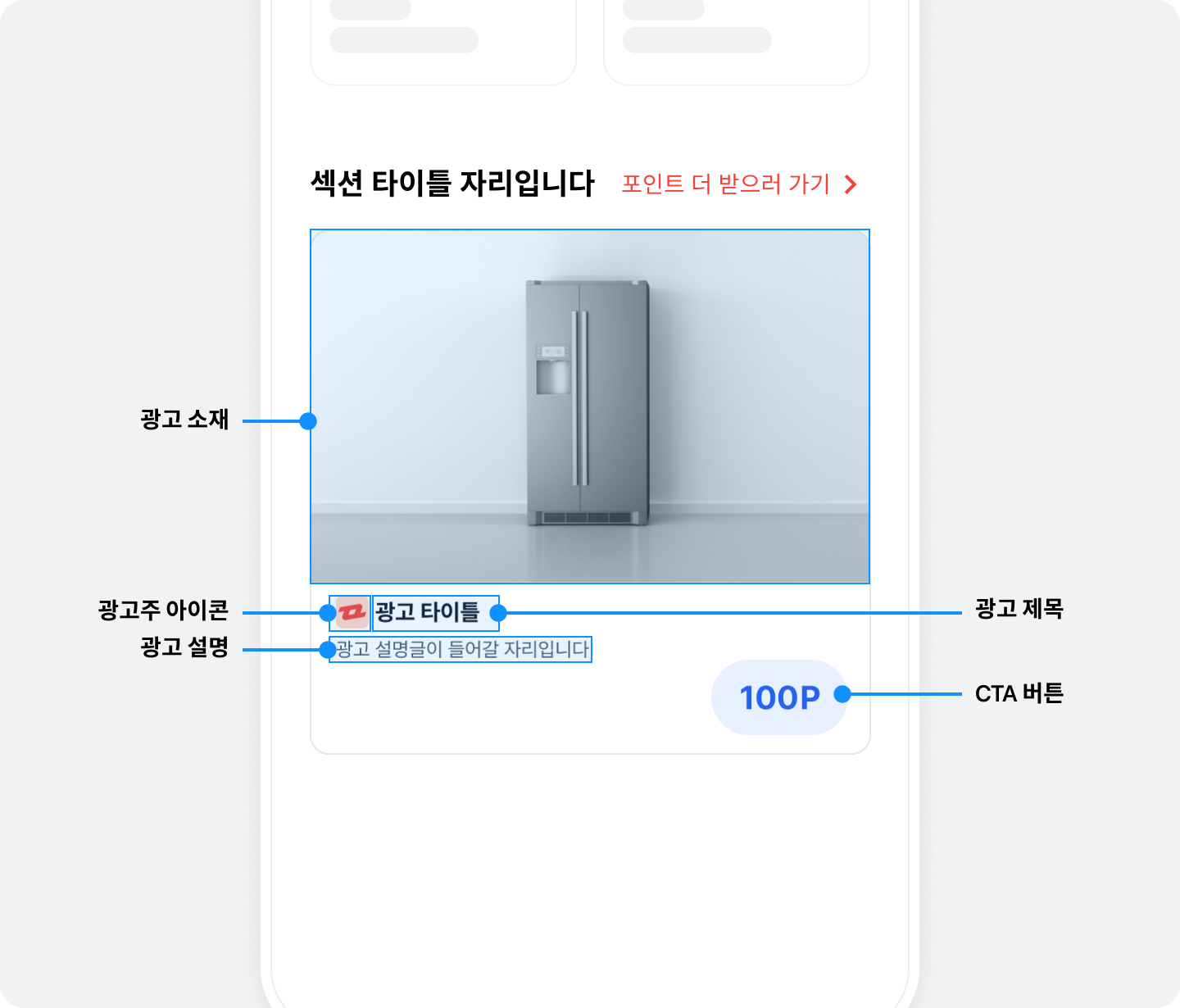
| Component | Description |
|---|---|
| Ad title (required) | The ad's title. We recommend no more than 10 characters. You can replace part of the text with an ellipsis as needed, regardless of character count. |
| Ad creative (required) | The ad's image, video, or other creative. You must preserve its aspect ratio., Display it using BuzzMediaView., Size: 1,200 x 627 px, You can add margins. Contact your Buzzvil account manager at help@buzzvil.com for details. |
| Ad description (required) | A detailed description of the ad. We recommend no more than 40 characters. You can replace part of the text with an ellipsis as needed, regardless of character count. |
| Advertiser icon (required) | The advertiser's icon image. You must preserve its aspect ratio., Size: 80 x 80 px |
| CTA button (required) | A button that encourages participation. We recommend no more than 7 characters. You can replace part of the text with an ellipsis as needed, regardless of character count., Display it using the BuzzDefaultCtaView class., To change the button color, see Primary color. For other design changes, see Implement a custom CTA button and replace it with your own design. |
| BenefitHub entry point (required) | A UI element that opens BenefitHub directly when clicked. Design it as your preferred view and add it below the BuzzNativeAdView layout. |
Build the native ad layout in a view controller or custom view according to the structure below. Follow these steps to implement a native placement.
The following example configures a view controller according to the native ad layout specifications.
import UIKit
import BuzzvilSDK

final class ViewController: UIViewController {
  private let nativeAdView = BuzzNativeAdView(frame: .zero)
  private let mediaView = BuzzMediaView(frame: .zero)
  private let iconImageView = UIImageView(frame: .zero)
  private let titleLabel = UILabel(frame: .zero)
  private let descriptionLabel = UILabel(frame: .zero)
  private let ctaView = BuzzDefaultCtaView(frame: .zero) // DefaultBuzzCtaView 대신 자체 구현 CTA 뷰를 사용할 수 있습니다.

  private lazy var benefitHubEntryView: UILabel = {
    let label = UILabel(frame: .zero)
    label.text = "포인트 더 받으러 가기 >"

    return label
  }()

  private lazy var viewBinder = BuzzNativeViewBinder.Builder()
    .nativeAdView(nativeAdView)
    .mediaView(mediaView)
    .iconImageView(iconImageView)
    .titleLabel(titleLabel)
    .descriptionLabel(descriptionLabel)
    .ctaView(ctaView)
    .build()

  override func viewDidLoad() {
    super.viewDidLoad()

    self.view.addSubview(benefitHubEntryView)
    benefitHubEntryView.addGestureRecognizer(UITapGestureRecognizer(target: self, action: #selector(showBenefitHub)))

    self.view.addSubview(nativeAdView)
    nativeAdView.addSubview(mediaView)
    nativeAdView.addSubview(iconImageView)
    nativeAdView.addSubview(titleLabel)
    nativeAdView.addSubview(descriptionLabel)
    nativeAdView.addSubview(ctaView)

    // AutoLayout Constraints 설정
    // ...
  }

  @objc
  private func showBenefitHub() {
    let benefitHub = BuzzBenefitHub()

    benefitHub.show(on: self)
  }
}
@import BuzzvilSDK;

@interface ViewController ()

@property (nonatomic, strong, readonly) BuzzNativeAdView *nativeAdView;
@property (nonatomic, strong, readonly) BuzzMediaView *mediaView;
@property (nonatomic, strong, readonly) UIImageView *iconImageView;
@property (nonatomic, strong, readonly) UILabel *titleLabel;
@property (nonatomic, strong, readonly) UILabel *descriptionLabel;
@property (nonatomic, strong, readonly) BuzzDefaultCtaView *ctaView;  // DefaultBuzzCtaView 대신 자체 구현 CTA 뷰를 사용할 수 있습니다.
@property (nonatomic, strong, readonly) BuzzNativeViewBinder *viewBinder;

@property (nonatomic, strong) UILabel *benefitHubEntryView;

@end

@implementation ViewController

- (void)viewDidLoad {
  [super viewDidLoad];

  _nativeAdView = [[BuzzNativeAdView alloc] initWithFrame:CGRectZero];
  [self.view addSubview:_nativeAdView];

  _mediaView = [[BuzzMediaView alloc] initWithFrame:CGRectZero];
  [_nativeAdView addSubview:_mediaView];

  _iconImageView = [[UIImageView alloc] initWithFrame:CGRectZero];
  [_nativeAdView addSubview:_iconImageView];

  _titleLabel = [[UILabel alloc] initWithFrame:CGRectZero];
  [_nativeAdView addSubview:_titleLabel];

  _descriptionLabel = [[UILabel alloc] initWithFrame:CGRectZero];
  [_nativeAdView addSubview:_descriptionLabel];

  _ctaView = [[BuzzDefaultCtaView alloc] initWithFrame:CGRectZero];
  [_nativeAdView addSubview:_ctaView];

  _benefitHubEntryView = [[UILabel alloc] initWithFrame:CGRectZero];
  _benefitHubEntryView.text = @"포인트 더 받으러 가기 >";
  [_benefitHubEntryView addGestureRecognizer:[[UITapGestureRecognizer alloc] initWithTarget:self action:@selector(showBenefitHub:)]];

  _viewBinder = [BuzzNativeViewBinder viewBinderWith:^(BuzzNativeViewBinderBuilder * _Nonnull builder) {
    builder.nativeAdView = self.nativeAdView;
    builder.mediaView = self.mediaView;
    builder.iconImageView = self.iconImageView;
    builder.titleLabel = self.titleLabel;
    builder.descriptionLabel = self.descriptionLabel;
    builder.ctaView = self.ctaView;
  }];

  // AutoLayout Constraints 설정
  // ...
}

- (void)showBenefitHub:(id)sender {
  BuzzBenefitHub * benefitHub = [[BuzzBenefitHub alloc] init];
  [benefitHub showOn:self];
}

@end
Step 3. Display ads
Follow these steps and the sample code to display ads in the ad layout.
- Create a
BuzzNativeinstance and callload()to allocate an ad.- Implement the
onSuccessandonFailureclosures to define behavior for successful and failed allocations.
- Implement the
- Pass the
BuzzNativeinstance tobind()ofBuzzNativeViewBinderto display the ad in the layout.- When the user completes participation, the placement automatically refreshes to the next ad.
- (Optional) To update the UI or perform other actions according to the refresh state, implement the
onRequest,onSuccess, andonFailureclosures as arguments tosubscribeRefreshEvents().- Call
subscribeRefreshEvents()before callingload(). - Once configured, the same closures are used for subsequent automatic refreshes.
- Call
final class ViewController: UIViewController {
  private lazy var native = BuzzNative(unitId: "YOUR_NATIVE_UNIT_ID")

  private lazy var viewBinder = BuzzNativeViewBinder.Builder()
    .nativeAdView(nativeAdView)
    .mediaView(mediaView)
    .iconImageView(iconImageView)
    .titleLabel(titleLabel)
    .descriptionLabel(descriptionLabel)
    .ctaView(ctaView)
    .build()

  override func viewDidLoad() {
    // Warning: retain cycle 방지를 위해 closure 내에서 반드시 weak self를 사용해주세요.
    native.subscribeRefreshEvents(
      onRequest: { [weak self] in
        // 광고 갱신 할당을 요청한 상태입니다.
        // 이후에는 onSuccess, onFailure 중 하나가 호출됩니다.
        // 광고 자동 갱신을 시도할 때마다 반복적으로 호출됩니다.
      },
      onSuccess: { [weak self] nativeAd in
        // 광고 갱신 할당에 성공하면 호출됩니다.
      },
      onFailure: { [weak self] error in
        // 더 이상 갱신할 수 있는 광고가 없을 때 호출됩니다.
      }
    )

    // 광고 할당을 수행합니다.
    native.load(
      onSuccess: { [weak self] nativeAd in
        // 초기 광고 할당에 성공하면 호출됩니다.
      },
      onFailure: { [weak self] error in
        // 초기 광고 할당에 실패하면 호출됩니다.
      }
    )

    // 할당된 광고 표시를 자동으로 수행합니다.
    viewBinder.bind(native)
  }
}
@interface ViewController ()

@property (nonatomic, strong, readonly) BuzzNative *native;
@property (nonatomic, strong, readonly) BuzzNativeViewBinder *viewBinder;

@end

@implementation ViewController

- (void)viewDidLoad {
  // ...생략...

  // Warning: retain cycle 방지를 위해 weak self를 사용해주세요.
  __weak typeof(self) weakSelf = self;
  [_viewBinder subscribeRefreshEvents:^{
    // 광고 갱신 할당을 요청한 상태입니다.
    // 이후에는 onSuccess, onFailure 중 하나가 호출됩니다.
    // 광고 자동 갱신을 시도할 때마다 반복적으로 호출됩니다.
    __strong typeof(self) strongSelf = weakSelf;
    if (strongSelf) {
      // ...
    }
  } onSuccess:^(BuzzNativeAd * _Nonnull nativeAd) {
    // 광고 갱신 할당에 성공하면 호출됩니다.
    __strong typeof(self) strongSelf = weakSelf;
    if (strongSelf) {
      // ...
    }
  } onError:^(NSError * _Nonnull error) {
    // 더 이상 갱신할 수 있는 광고가 없을 때 호출됩니다.
    __strong typeof(self) strongSelf = weakSelf;
    if (strongSelf) {
      // ...
    }
  }];

  // 광고 할당을 수행합니다.
  [_native loadOnSuccess:^(BuzzNativeAd * _Nonnull nativeAd) {
    // 초기 광고 할당에 성공하면 호출됩니다.
    __strong typeof(self) strongSelf = weakSelf;
    if (strongSelf) {
      // ...
    }
  } onFailure:^(NSError * _Nonnull error) {
    // 초기 광고 할당에 실패하면 호출됩니다.
    __strong typeof(self) strongSelf = weakSelf;
    if (strongSelf) {
      // ...
    }
  }];

  // 할당된 광고 표시를 자동으로 수행합니다.
  [_viewBinder bindWithNative:_native];
}

@end
Ad operation policy (mandatory requirements)
1. Do not refresh ads
- Make the initial ad request only once when the app screen opens.
- Subsequent ad requests (reallocations) are allowed only after a clear user action, such as a screen transition.
- Automatically refreshing ads at fixed intervals or continuously requesting new ads is prohibited.
Excessive ad requests can harm the user experience, ad performance, and revenue.
2. Do not selectively use only impression-based ads
- Buzzvil combines different ad types to provide an optimized ad experience.
- API integrations must not selectively use only a specific ad type, such as impression-based ads.
- SDK integrations must not request ads from another platform when impression-based ads are unavailable.
- Operate all ad types in balance according to Buzzvil's ad logic.
Restricting or selectively using ad types negatively affects Buzzvil's ad operation strategy and revenue optimization.
Additional features
This section explains how to implement additional native placement features.
Use a native overlay
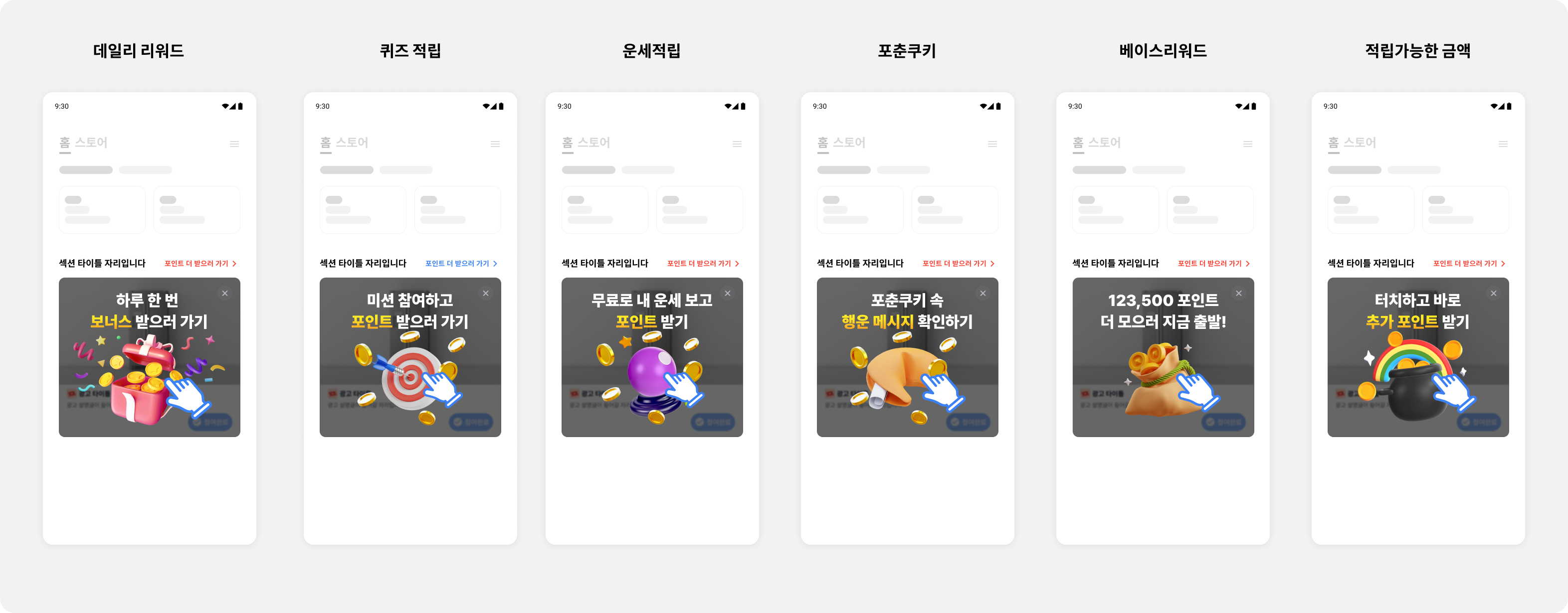
Native overlays require no separate integration or implementation. When a user returns to your app after participating in a native ad, an overlay appears over the completed ad to encourage entry into BenefitHub. The overlay contains text and an icon, covering the entire native area (NativeAdView) to encourage a click. It disappears automatically when the user clicks Close, or clicks the overlay and then returns.
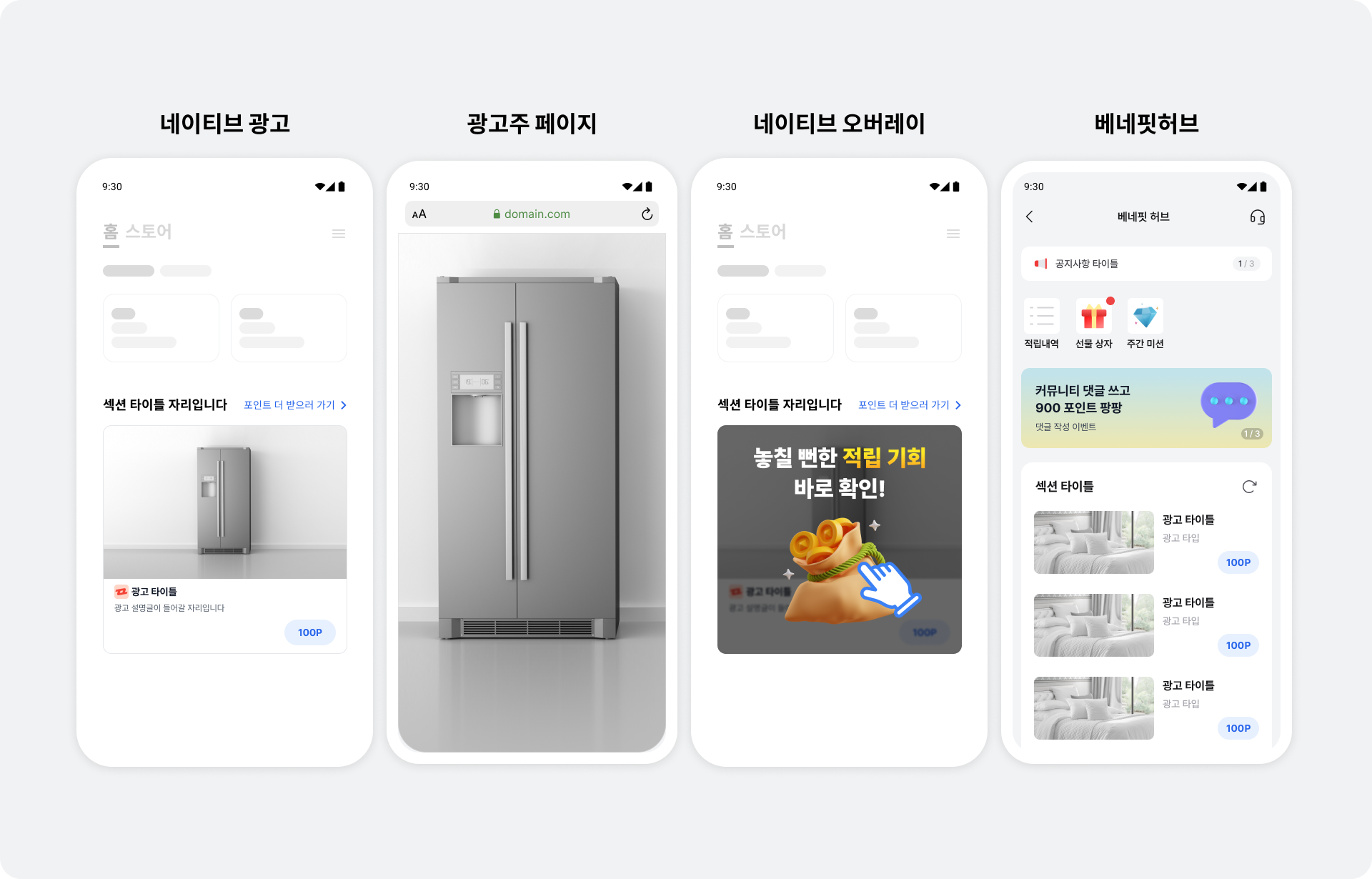
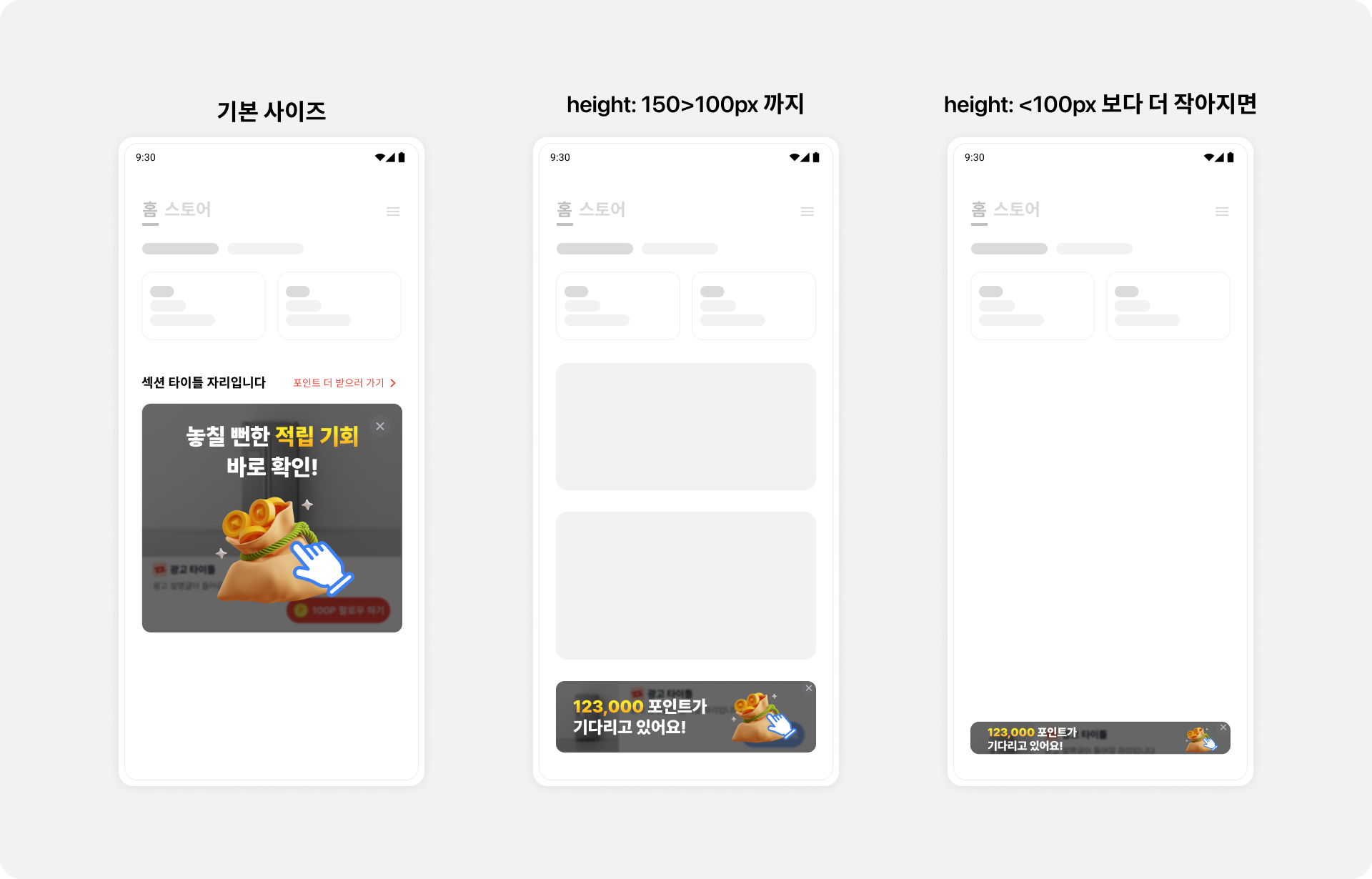
Overlay UIs adapt to the native placement's size. To increase BenefitHub entry rates, the overlay shows different ad or content product UIs based on the user's past participation and preferences. Each UI type opens the following landing page.
- Daily Reward: BenefitHub's Daily Reward bottom sheet
- This does not appear unless Daily Reward is enabled in BenefitHub.
- See here for details about Daily Reward.
- Quiz rewards: BenefitHub's content rewards filter
- Fortune-telling rewards: BenefitHub's content rewards filter
- Fortune Cookie: BenefitHub's content rewards filter
- Base reward: BenefitHub
- This does not appear unless base rewards are enabled in BenefitHub.
- Total available rewards: BenefitHub
- Default UI: BenefitHub
- Appears when a server communication error occurs.
Register an ad event listener
Receive ad callback events through BuzzNative.subscribeAdEvents(). Call subscribeAdEvents() before calling load() to receive them.
The following example receives ad events in BuzzNative.
final class ViewController: UIViewController {
  // ...생략...

  override func viewDidLoad() {
    // ...생략...

    // Native 광고 이벤트 처리를 위한 closure를 등록하고 각 이벤트에 따라 필요한 기능을 구현합니다.
    // Warning: retain cycle 방지를 위해 closure 내에서 반드시 weak self를 사용해주세요.
    native.subscribeAdEvents(onImpressed: { [weak self] nativeAd in
      // Native 광고가 유저에게 노출되었을 때 호출됩니다.
    }, onClicked: { [weak self] nativeAd in
      // 유저가 Native 광고를 클릭했을 때 호출됩니다.
    }, onRewardRequested: { [weak self] nativeAd in
      // 리워드 적립 요청시에 호출됩니다.
    }, onRewarded: { [weak self] nativeAd, rewardResult in
      // 리워드 적립 결과를 수신했을 때 호출됩니다.
    }, onParticipated: { [weak self] nativeAd in
      // 광고 참여가 완료되었을 때 호출됩니다.
    })

    // ...생략...
  }
}
@implementation ViewController

- (void)viewDidLoad {
  // ...생략...

  // Native 광고 이벤트 처리를 위한 closure를 등록하고 각 이벤트에 따라 필요한 기능을 구현합니다.
  // Warning: retain cycle 방지를 위해 closure 내에서 반드시 weak self를 사용해주세요.
  __weak typeof(self) weakSelf = self;
  [_native subscribeAdEventsOnImpressed:^(BuzzNativeAd * _Nonnull nativeAd) {
    __strong typeof(self) strongSelf = weakSelf;
    // Native 광고가 유저에게 노출되었을 때 호출됩니다.
  } onClicked:^(BuzzNativeAd * _Nonnull nativeAd) {
    __strong typeof(self) strongSelf = weakSelf;
    // 유저가 Native 광고를 클릭했을 때 호출됩니다.
  } onRewardRequested:^(BuzzNativeAd * _Nonnull nativeAd) {
    __strong typeof(self) strongSelf = weakSelf;
    // 리워드 적립 요청시에 호출됩니다.
  } onRewarded:^(BuzzNativeAd * _Nonnull nativeAd, BuzzRewardResult rewardResult) {
    __strong typeof(self) strongSelf = weakSelf;
    // 리워드 적립 결과를 수신했을 때 호출됩니다.
  } onParticipated:^(BuzzNativeAd * _Nonnull nativeAd) {
    __strong typeof(self) strongSelf = weakSelf;
    // 광고 참여가 완료되었을 때 호출됩니다.
  }];

  // ...생략...
}

@end
Reward result types (BuzzRewardResult)
| BuzzRewardResult | Result | Description |
|---|---|---|
success | Success | The reward was credited successfully. |
alreadyParticipated | Failure | The reward for this ad has already been credited. |
missingReward | Failure | The ad has no reward. |
tooShortToParticipate | Failure | The user returned from the ad landing page too quickly. |
connectionTimeout | Failure | A network timeout occurred. |
browserNotLaunched | Failure | The browser did not launch to display the ad landing page. |
networkError | Failure | An unknown network error occurred. |
serverError | Failure | An unknown server error occurred. |
clientError | Failure | An unknown client error occurred. |
unknown | Failure | An unknown error occurred. |
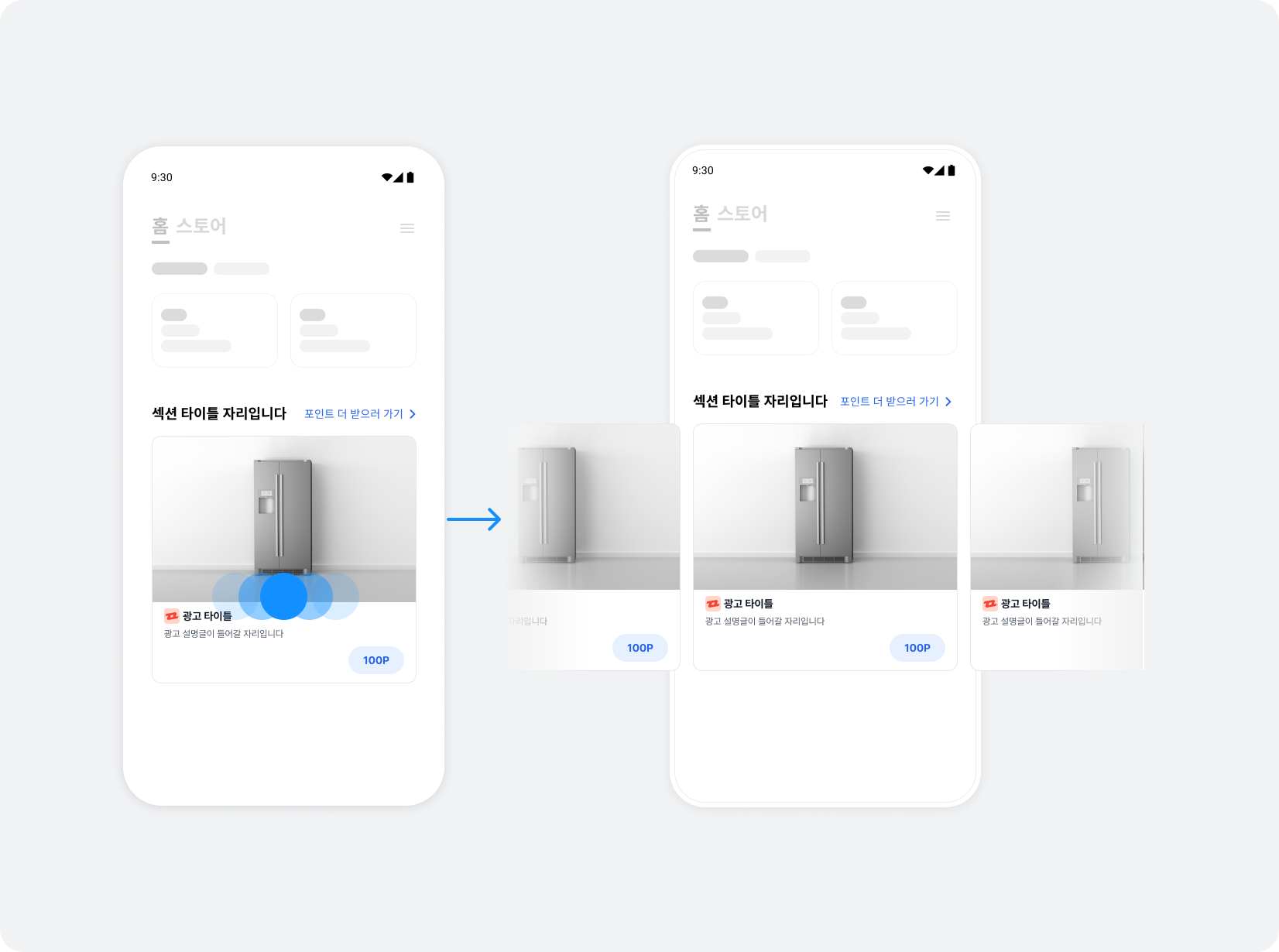
Implement a carousel
A carousel is a UI that displays multiple ads through horizontal scrolling. Use the Buzzvil SDK to create a carousel in a native placement and implement its required features. Optional features can further improve the user experience.
Implement basic carousel features
Step 1. Allocate ads
To allocate multiple ads in a native placement, use BuzzNativeGroup, which controls duplicate ad allocation.
Call BuzzNativeGroup.load() to check how many ads can currently be allocated.
import UIKit
import BuzzvilSDK

final class CarouselViewController: UIViewController {
  private let unitId = "YOUR_UNIT_ID"

  // 최대 10개의 광고를 요청할 수 있습니다.
  private let adRequestCount = 5

  // 실제 할당받은 광고의 개수입니다.
  // 이 값은 collectionView datasource의 collectionView(_:numberOfItemsInSection:) 함수의 return 값으로 사용합니다.
  private var loadedAdCount = 0

  // 광고 중복 할당을 막기 위해 하나의 캐러셀에 하나의 BuzzNativeGroup 인스턴스를 생성하여 사용합니다.
  private lazy var nativeGroup = BuzzNativeGroup(unitId: unitId)

  override func viewDidLoad() {
    super.viewDidLoad()
    setupCarousel()
  }

  private func setupCarousel() {
    // BuzzNativeGroup에 광고 할당을 요청합니다.
    nativeGroup.load(
      count: adRequestCount,
      onSuccess: { [weak self] adCount in
        // 실제로 할당받은 광고의 개수(count)를 업데이트합니다.
        self?.loadedAdCount = adCount
      },
      onFailure: { [weak self] error in
        // 광고 할당 실패 시 발생하는 NSError 오류 코드에 대한 자세한 내용은 오류 코드가 나타납니다 토픽을 참고하세요.
      }
    )
  }
}
@import BuzzvilSDK;

static NSString * const kUnitId = @"YOUR_UNIT_ID";

@interface CarouselViewController ()

// 최대 10개의 광고를 요청할 수 있습니다.
@property (nonatomic, assign, readonly) NSInteger adRequestCount;

// 실제 할당받은 광고의 개수입니다.
// 이 값은 collectionView datasource의 collectionView(_:numberOfItemsInSection:) 함수의 return 값으로 사용합니다.
@property (nonatomic, assign, readwrite) NSInteger loadedAdCount;

// 광고 중복 할당을 막기 위해 하나의 캐러셀에 하나의 BuzzNativeGroup 인스턴스를 생성하여 사용합니다.
@property (nonatomic, strong, readonly) BuzzNativeGroup *nativeGroup;

@end

@implementation CarouselViewController

- (void)viewDidLoad {
  [super viewDidLoad];

  _adRequestCount = 5;
  _loadedAdCount = 0;
  _nativeGroup = [[BuzzNativeGroup alloc] initWithUnitId:kUnitId];

  [self setupCarousel];
}

- (void)setupCarousel {
  __weak typeof(self) weakSelf = self;
 // BuzzNativeGroup에 광고 할당을 요청합니다.
  [self.nativeGroup loadWithCount:self.adRequestCount onSuccess:^(NSInteger count) {
    __strong typeof(self) strongSelf = weakSelf;
    if (strongSelf) {
      // 실제로 할당받은 광고의 개수(count)를 업데이트합니다.
      strongSelf.loadedAdCount = count;
    }
  } onFailure:^(NSError * _Nonnull error) {
    // 광고 할당 실패 시 발생하는 NSError 오류 코드에 대한 자세한 내용은 오류 코드가 나타납니다 토픽을 참고하세요.
  }];
}

@end
Step 2. Implement UICollectionViewCell
Use UICollectionView to lay out item views horizontally and implement a carousel in a native placement.
Follow these steps to create a UICollectionViewCell for use in UICollectionView.
- Declare
CarouselCellas a subclass ofUICollectionViewCell. Configure the ad UI by following Configure the ad layout.
import UIKit
import BuzzvilSDK

final class CarouselCell: UICollectionViewCell {
  private lazy var nativeAdView = BuzzNativeAdView(frame: .zero)
  private lazy var mediaView = BuzzMediaView(frame: .zero)
  private lazy var iconImageView = UIImageView(frame: .zero)
  private lazy var titleLabel = UILabel(frame: .zero)
  private lazy var descriptionLabel = UILabel(frame: .zero)
  private lazy var ctaView = BuzzDefaultCtaView(frame: .zero)

  override init(frame: CGRect) {
    super.init(frame: frame)
    setupView()
    setupLayout()
  }

  required init?(coder: NSCoder) {
    fatalError()
  }

  private func setupView() {
    contentView.addSubview(nativeAdView)
    nativeAdView.addSubview(mediaView)
    nativeAdView.addSubview(iconImageView)
    nativeAdView.addSubview(titleLabel)
    nativeAdView.addSubview(descriptionLabel)
    nativeAdView.addSubview(ctaView)
  }

  private func setupLayout() {
    // eg. auto layout constraints for nativeAd2View
    nativeAdView.translatesAutoresizingMaskIntoConstraints = false
    NSLayoutConstraint.activate([
      nativeAdView.topAnchor.constraint(equalTo: safeAreaLayoutGuide.topAnchor),
      nativeAdView.leadingAnchor.constraint(equalTo: safeAreaLayoutGuide.leadingAnchor, constant: 16),
      nativeAdView.trailingAnchor.constraint(equalTo: safeAreaLayoutGuide.trailingAnchor, constant: -16),
      nativeAdView.bottomAnchor.constraint(equalTo: safeAreaLayoutGuide.bottomAnchor),
    ])

    // AutoLayout Constraints를 설정하세요.
    // ...
  }
}
@import BuzzvilSDK;

@interface CarouselCell ()

@property (nonatomic, strong, readonly) BuzzNativeAdView *nativeAdView;
@property (nonatomic, strong, readonly) BuzzMediaView *mediaView;
@property (nonatomic, strong, readonly) UIImageView *iconImageView;
@property (nonatomic, strong, readonly) UILabel *titleLabel;
@property (nonatomic, strong, readonly) UILabel *descriptionLabel;
@property (nonatomic, strong, readonly) BuzzDefaultCtaView *ctaView;

@end

@implementation CarouselCell

- (instancetype)initWithFrame:(CGRect)frame {
  if (self = [super initWithFrame:frame]) {
    [self setupView];
    [self setupLayout];
  }
  return self;
}

- (void)setupView {
  _nativeAdView = [[BuzzNativeAdView alloc] initWithFrame:CGRectZero];
  [self.contentView addSubview:_nativeAdView];

  _mediaView = [[BuzzMediaView alloc] initWithFrame:CGRectZero];
  [self.nativeAdView addSubview:_mediaView];

  _iconImageView = [[UIImageView alloc] initWithFrame:CGRectZero];
  [self.nativeAdView addSubview:_iconImageView];

  _titleLabel = [[UILabel alloc] initWithFrame:CGRectZero];
  [self.nativeAdView addSubview:_titleLabel];

  _descriptionLabel = [[UILabel alloc] initWithFrame:CGRectZero];
  [self.nativeAdView addSubview:_descriptionLabel];

  _ctaView = [[BuzzDefaultCtaView alloc] initWithFrame:CGRectZero];
  [self.nativeAdView addSubview:_ctaView];
}

- (void)setupLayout {
  // eg. auto layout constraints for nativeAd2View
  _nativeAdView.translatesAutoresizingMaskIntoConstraints = NO;
  [NSLayoutConstraint activateConstraints:@[
    [_nativeAdView.topAnchor constraintEqualToAnchor:self.contentView.safeAreaLayoutGuide.topAnchor],
    [_nativeAdView.leadingAnchor constraintEqualToAnchor:self.contentView.safeAreaLayoutGuide.leadingAnchor constant:16],
    [_nativeAdView.trailingAnchor constraintEqualToAnchor:self.contentView.safeAreaLayoutGuide.trailingAnchor constant:-16],
    [_nativeAdView.bottomAnchor constraintEqualToAnchor:self.contentView.safeAreaLayoutGuide.bottomAnchor],
  ]];

  // AutoLayout Constraints를 설정하세요.
  // ...
}

@end
- Declare
BuzzNativeViewBinderinCarouselCell. ConfigureBuzzNativeAdView,BuzzMediaView, and every view needed to display an ad, then create aBuzzNativeViewBinderobject.
final class CarouselCell: UICollectionViewCell {
  private lazy var nativeAdView = BuzzNativeAdView(frame: .zero)
  private lazy var mediaView = BuzzMediaView(frame: .zero)
  private lazy var iconImageView = UIImageView(frame: .zero)
  private lazy var titleLabel = UILabel(frame: .zero)
  private lazy var descriptionLabel = UILabel(frame: .zero)
  private lazy var ctaView = BuzzDefaultCtaView(frame: .zero)

  // NativeAdView와 하위 컴포넌트를 연결합니다.
  private lazy var viewBinder = BuzzNativeViewBinder.Builder()
    .nativeAdView(nativeAdView)
    .mediaView(mediaView)
    .iconImageView(iconImageView)
    .titleLabel(titleLabel)
    .descriptionLabel(descriptionLabel)
    .ctaView(ctaView)
    .build()

  // ...
}
@interface CarouselCell ()

@property (nonatomic, strong, readonly) BuzzNativeAd2View *nativeAdView;
@property (nonatomic, strong, readonly) BuzzMediaView *mediaView;
@property (nonatomic, strong, readonly) UIImageView *iconImageView;
@property (nonatomic, strong, readonly) UILabel *titleLabel;
@property (nonatomic, strong, readonly) UILabel *descriptionLabel;
@property (nonatomic, strong, readonly) BuzzDefaultCtaView *ctaView;
@property (nonatomic, strong, readonly) BuzzNativeViewBinder *viewBinder;

@end

@implementation CarouselCell

// ...

- (void)setupView {
  // ...

  // NativeAdView와 하위 컴포넌트를 연결합니다.
  [BuzzNativeViewBinder viewBinderWith:^(BuzzNativeViewBinderBuilder * _Nonnull builder) {
    builder.nativeAdView = self.nativeAdView;
    builder.mediaView = self.mediaView;
    builder.iconImageView = self.iconImageView;
    builder.titleLabel = self.titleLabel;
    builder.descriptionLabel = self.descriptionLabel;
    builder.ctaView = self.ctaView;
  }];
}

// ...

@end
- Implement
bind()inCarouselCellto configure the cell data for theUICollectionViewindex. Callunbind()inprepareForReuse()so previous ad data does not remain when a cell is reused.
final class CarouselCell: UICollectionViewCell {
  // ...

  private lazy var viewBinder = BuzzNativeViewBinder.Builder()
    .nativeAdView(nativeAdView)
    .mediaView(mediaView)
    .iconImageView(iconImageView)
    .titleLabel(titleLabel)
    .descriptionLabel(descriptionLabel)
    .ctaView(ctaView)
    .build()

  // ...

  override func prepareForReuse() {
    super.prepareForReuse()
    // prepareForReuse 내에서 unbind를 반드시 호출하여 cell을 재사용할 때 문제가 발생하지 않게 합니다.
    viewBinder.unbind()
  }

  // collectionView의 collectionView(_:cellForItemAt:) 시점에 호출합니다.
  func bind(with native: BuzzNative) {
   // bind()를 호출하면 할당된 광고 표시 및 갱신이 자동으로 수행됩니다.
    viewBinder.bind(native)
  }
}
@interface CarouselCell : UICollectionViewCell

- (void)bind:(BuzzNativeAd *)native;

@end

@interface CarouselCell ()

// ...
@property (nonatomic, strong, readonly) BuzzNativeViewBinder *viewBinder;

@end

@implementation CarouselCell

// ...

- (void)prepareForReuse {
  [super prepareForReuse];
  // prepareForReuse 내에서 unbind를 반드시 호출하여 cell을 재사용할 때 문제가 발생하지 않게 합니다.
  [_viewBinder unbind];
}

// collectionView의 collectionView(_:cellForItemAt:) 시점에 호출합니다.
- (void)bind {
  // bind()를 호출하면 할당된 광고 표시 및 갱신이 자동으로 수행됩니다.
  [_viewBinder bindWithNative:native];
}

@end
Step 3. Implement UICollectionView
Follow these steps to create UICollectionView for the native placement carousel.
- Declare
UICollectionViewwhere you want the carousel. Configure the properties, view hierarchy, and Auto Layout ofUICollectionViewas shown below.
final class CarouselViewController: UIViewController {
  // ...

  // 광고를 표시할 Carousel CollectionView
  private lazy var carouselCollectionView: UICollectionView = {
    let collectionView = UICollectionView(frame: .zero)
    collectionView.register(CarouselCell.self, forCellWithReuseIdentifier: "CarouselCell")
    collectionView.delegate = self
    collectionView.dataSource = self
    collectionView.showsHorizontalScrollIndicator = false
    collectionView.isPagingEnabled = true
    return collectionView
  }()

  override func viewDidLoad() {
    super.viewDidLoad()
    setupView()
    setupLayout()
    setupCarousel()
  }

  // ...

  private func setupView() {
    view.addSubview(carouselCollectionView)
  }

  private func setupLayout() {
    // eg. auto layout constraints for carouselCollectionView
    carouselCollectionView.translatesAutoresizingMaskIntoConstraints = false
    NSLayoutConstraint.activate([
      carouselCollectionView.topAnchor.constraint(equalTo: view.safeAreaLayoutGuide.topAnchor, constant: 16),
      carouselCollectionView.leadingAnchor.constraint(equalTo: view.safeAreaLayoutGuide.leadingAnchor),
      carouselCollectionView.trailingAnchor.constraint(equalTo: view.safeAreaLayoutGuide.trailingAnchor),
      carouselCollectionView.heightAnchor.constraint(equalTo: carouselCollectionView.widthAnchor, multiplier: 0.8),
    ])
  }

  // ...
}
@interface CarouselViewController () <UICollectionViewDelegate, UICollectionViewDataSource>

// ...

// 광고를 표시할 Carousel CollectionView
@property (nonatomic, strong, readonly) UICollectionView *carouselCollectionView;

@end

@implementation CarouselViewController

- (void)viewDidLoad {
  [super viewDidLoad];

  _adRequestCount = 5;
  _loadedAdCount = 0;
  _pool = [[BZVNativeAd2Pool alloc] initWithUnitId:kUnitId];

  [self setupCarousel];
  [self setupView];
    [self setupLayout];
}

// ...

- (void)setupView {
  _carouselCollectionView = [[UICollectionView alloc] initWithFrame:CGRectZero];
  [_carouselCollectionView registerClass:[CarouselCell class] forCellWithReuseIdentifier:@"CarouselCell"];
  _carouselCollectionView.delegate = self;
  _carouselCollectionView.dataSource = self;
  _carouselCollectionView.showsHorizontalScrollIndicator = NO;
  _carouselCollectionView.pagingEnabled = YES;
  [self.view addSubview:_carouselCollectionView];
}

- (void)setupLayout {
  // eg. auto layout constraints for carouselCollectionView
  self.carouselCollectionView.translatesAutoresizingMaskIntoConstraints = NO;
  [NSLayoutConstraint activateConstraints:@[
    [self.carouselCollectionView.topAnchor constraintEqualToAnchor:self.view.safeAreaLayoutGuide.topAnchor constant:16],
    [self.carouselCollectionView.leadingAnchor constraintEqualToAnchor:self.view.safeAreaLayoutGuide.leadingAnchor],
    [self.carouselCollectionView.trailingAnchor constraintEqualToAnchor:self.view.safeAreaLayoutGuide.trailingAnchor],
    [self.carouselCollectionView.heightAnchor constraintEqualToAnchor:self.carouselCollectionView.widthAnchor multiplier:0.8]
  ]];
}

// ...

@end
- Implement the required methods of
UICollectionViewDataSourceas shown below. Set the return value ofcollectionView(_:numberOfItemsInSection:)toloadedAdCount, the actual number of allocated ads. IncollectionView(_:cellForItemAt:), dequeueCarouselCelland then callbind().
final class CarouselViewController: UIViewController {
  // ...

  private var loadedAdCount = 0

  private lazy var carouselCollectionView: UICollectionView = {
    let collectionView = UICollectionView(frame: .zero)
    // ...
    return collectionView
  }()

  // ...
}

extension CarouselViewController: UICollectionViewDataSource {
  func collectionView(_ collectionView: UICollectionView, numberOfItemsInSection section: Int) -> Int {
    return loadedAdCount
  }

  func collectionView(_ collectionView: UICollectionView, cellForItemAt indexPath: IndexPath) -> UICollectionViewCell {
    guard let cell = collectionView.dequeueReusableCell(withReuseIdentifier: "CarouselCell", for: indexPath) as? CarouselCell else {
      return UICollectionViewCell()
    }

    let native = nativeGroup.natives[indexPath.item]
    cell.bind(with: native)
    return cell
  }
}
@interface CarouselViewController () <UICollectionViewDelegate, UICollectionViewDataSource>

@property (nonatomic, strong, readonly) UICollectionView *carouselCollectionView;
@property (nonatomic, assign, readwrite) NSInteger loadedAdCount;

@end

@implementation CarouselViewController

- (void)viewDidLoad {
  [super viewDidLoad];

  _loadedAdCount = 0;

  // ...
}

// ...

#pragma mark - UICollectionViewDataSource

- (NSInteger)collectionView:(UICollectionView *)collectionView numberOfItemsInSection:(NSInteger)section {
  return _loadedAdCount;
}

- (UICollectionViewCell *)collectionView:(UICollectionView *)collectionView cellForItemAtIndexPath:(NSIndexPath *)indexPath {
  CarouselCell *cell = [collectionView dequeueReusableCellWithReuseIdentifier:@"CarouselCell" forIndexPath:indexPath];

  BuzzNative *native = self.nativeGroup.natives[indexPath.item];
  [cell bindWithNative:native];
  return cell;
}

@end
- Declare
UICollectionViewFlowLayout. Configure the properties ofUICollectionViewFlowLayoutas shown below and set it oncarouselCollectionView. ImplementcollectionView(_:layout:sizeForItemAt:)ofUICollectionViewDelegateFlowLayoutas shown below.
final class CarouselViewController: UIViewController {
  // ...

  private lazy var flowLayout: UICollectionViewFlowLayout = {
    let flowLayout = UICollectionViewFlowLayout()
    flowLayout.scrollDirection = .horizontal
    flowLayout.minimumLineSpacing = .zero
    flowLayout.minimumInteritemSpacing = .zero
    return flowLayout
  }()

  private lazy var carouselCollectionView: UICollectionView = {
    // flowLayout을 carouselCollectionView에 설정하세요.
    let collectionView = UICollectionView(frame: .zero, collectionViewLayout: flowLayout)
    // ...
    return collectionView
  }()

  // ...
}

// ...

extension CarouselViewController: UICollectionViewDelegateFlowLayout {
  func collectionView(_ collectionView: UICollectionView, layout collectionViewLayout: UICollectionViewLayout, sizeForItemAt indexPath: IndexPath) -> CGSize {
    return CGSize(width: collectionView.frame.size.width, height: collectionView.frame.size.height)
  }
}
@interface CarouselViewController () <UICollectionViewDelegate, UICollectionViewDataSource>

@property (nonatomic, strong, readonly) UICollectionView *carouselCollectionView;

@end

@implementation CarouselViewController

// ...

- (void)setupView {
  UICollectionViewFlowLayout *flowLayout = [[UICollectionViewFlowLayout alloc] init];
  flowLayout.scrollDirection = UICollectionViewScrollDirectionHorizontal;
  flowLayout.minimumLineSpacing = 0;
  flowLayout.minimumInteritemSpacing = 0;

  // flowLayout을 carouselCollectionView에 설정하세요.
  _carouselCollectionView = [[UICollectionView alloc] initWithFrame:CGRectZero collectionViewLayout:flowLayout];
  // ...
}

// ...

#pragma mark - UICollectionViewDelegateFlowLayout

- (CGSize)collectionView:(UICollectionView *)collectionView layout:(UICollectionViewLayout *)collectionViewLayout sizeForItemAtIndexPath:(NSIndexPath *)indexPath {
  return CGSizeMake(collectionView.frame.size.width, collectionView.frame.size.height);
}

@end
- When
BuzzNativeGroup.load()completes, callreloadData()to refreshcarouselCollectionView.
final class CarouselViewController: UIViewController {
  // ...

  private lazy var carouselCollectionView: UICollectionView = {
    let collectionView = UICollectionView(frame: .zero, collectionViewLayout: flowLayout)
    // ...
    return collectionView
  }()

  private lazy var nativeGroup = BuzzNativeGroup(unitId: unitId)

  override func viewDidLoad() {
    super.viewDidLoad()
    // ...
    setupCarousel()
  }

  // ...

  private func setupCarousel() {
    nativeGroup.load(count: adRequestCount) { [weak self] adCount in
      // ...

      // 광고 할당이 완료되면 carouselCollectionView를 갱신합니다.
      self?.carouselCollectionView.reloadData()
    } errorHandler: { [weak self] error in
      // ...
    }
  }
}
@interface CarouselViewController () <UICollectionViewDelegate, UICollectionViewDataSource>

// ...
@property (nonatomic, strong, readonly) UICollectionView *carouselCollectionView;
@property (nonatomic, strong, readonly) BuzzNativeGroup *nativeGroup;

@end

@implementation CarouselViewController

- (void)viewDidLoad {
  [super viewDidLoad];
  // ...
  [self setupCarousel];
}

// ...

- (void)setupCarousel {
  __weak typeof(self) weakSelf = self;
  [self.nativeGroup loadAdWithCount:self.adRequestCount completionHandler:^(NSInteger count) {
    __strong typeof(self) strongSelf = weakSelf;
    if (strongSelf) {
      // ...

      // 광고 할당이 완료되면 carouselCollectionView를 갱신합니다.
      [strongSelf.carouselCollectionView reloadData];
    }
  } errorHandler:^(NSError * _Nonnull error) {
    // ...
  }];
}

@end
Step 4. Implement UIPageControl
Follow these steps to create a UIPageControl that indicates the carousel item's position.
- Declare
UIPageControl. Configure the properties, view hierarchy, and Auto Layout ofUIPageControlas shown below.
final class CarouselViewController: UIViewController {
  // ...

  private lazy var pageControl: UIPageControl = {
    let pageControl = UIPageControl(frame: .zero)
    pageControl.currentPage = .zero
    pageControl.isUserInteractionEnabled = false
    return pageControl
  }()

  // ...

  override func viewDidLoad() {
    super.viewDidLoad()
    setupView()
    setupLayout()
    // ...
  }

  private func setupView() {
    // ...
    view.addSubview(pageControl)
  }

  private func setupLayout() {
    // ...

    // eg. auto layout constraints for pageControl
    pageControl.translatesAutoresizingMaskIntoConstraints = false
    NSLayoutConstraint.activate([
      pageControl.topAnchor.constraint(equalTo: carouselCollectionView.bottomAnchor, constant: 16),
      pageControl.centerXAnchor.constraint(equalTo: carouselCollectionView.centerXAnchor),
    ])
  }
}
@interface CarouselViewController () <UICollectionViewDelegate, UICollectionViewDataSource>

// ...
@property (nonatomic, strong, readonly) UIPageControl *pageControl;

@end

@implementation CarouselViewController

- (void)viewDidLoad {
  [super viewDidLoad];
  [self setupView];
  [self setupLayout];
  // ...
}

- (void)setupView {
  // ...

  _pageControl = [[UIPageControl alloc] initWithFrame:CGRectZero];
  _pageControl.currentPage = 0;
  _pageControl.userInteractionEnabled = NO;
  [self.view addSubview:self.pageControl];
}

- (void)setupLayout {
  // ...

  // eg. auto layout constraints for pageControl
  _pageControl.translatesAutoresizingMaskIntoConstraints = NO;
  [NSLayoutConstraint activateConstraints:@[
    [_pageControl.topAnchor constraintEqualToAnchor:_carouselCollectionView.bottomAnchor constant:16],
    [_pageControl.centerXAnchor constraintEqualToAnchor:_carouselCollectionView.centerXAnchor],
  ]];
}

@end
- After allocating ads through
BuzzNativeGroup.load(), setUIPageControl.numberOfPages.
final class CarouselViewController: UIViewController {
  // ...

  private lazy var pageControl: UIPageControl = {
    let pageControl = UIPageControl(frame: .zero)
    // ...
    return pageControl
  }()

  // ...

  override func viewDidLoad() {
    super.viewDidLoad()
    // ...
    setupCarousel()
  }

  // ...

  private func setupCarousel() {
    nativeGroup.load(count: adRequestCount) { [weak self] adCount in
      // ...
      self?.pageControl.numberOfPages = adCount
    } errorHandler: { [weak self] error in
      // ...
    }
  }
}
@interface CarouselViewController () <UICollectionViewDelegate, UICollectionViewDataSource>

// ...
@property (nonatomic, strong, readonly) UIPageControl *pageControl;

@end

@implementation CarouselViewController

- (void)viewDidLoad {
  [super viewDidLoad];
  // ...
  [self setupCarousel];
}

// ...

- (void)setupCarousel {
  __weak typeof(self) weakSelf = self;
  [self.nativeGroup loadWithCount:self.adRequestCount completionHandler:^(NSInteger count) {
    __strong typeof(self) strongSelf = weakSelf;
    if (strongSelf) {
      // ...
      strongSelf.pageControl.numberOfPages = count;
    }
  } errorHandler:^(NSError * _Nonnull error) {
    // ...
  }];
}

@end
- Synchronize
currentPageofUIPageControlwith the carousel item index. ImplementscrollViewDidScroll(_:)ofUIScrollViewDelegateas shown below.
final class CarouselViewController: UIViewController {
  // ...

  private lazy var pageControl: UIPageControl = {
    let pageControl = UIPageControl(frame: .zero)
    // ...
    return pageControl
  }()

  // ...
}

// ...

extension CarouselViewController: UICollectionViewDelegate {
  func scrollViewDidScroll(_ scrollView: UIScrollView) {
    let centerOffsetX = scrollView.contentOffset.x + (scrollView.frame.width / 2)
    let pageWidth = scrollView.frame.width

    // pageWidth가 0이 되는 경우 division by zero를 방지합니다.
    guard pageWidth != .zero else { return }
    // 현재 캐러셀 아이템의 인덱스를 pageControl의 currentPage에 지정합니다.
    pageControl.currentPage = Int(centerOffsetX / pageWidth)
  }
}
@interface CarouselViewController () <UICollectionViewDelegate, UICollectionViewDataSource>

// ...
@property (nonatomic, strong, readonly) UIPageControl *pageControl;

@end

@implementation CarouselViewController

// ...

#pragma mark - UICollectionViewDelegate

- (void)scrollViewDidScroll:(UIScrollView *)scrollView {
  CGFloat centerOffsetX = scrollView.contentOffset.x + (scrollView.frame.size.width / 2);
  CGFloat pageWidth = scrollView.frame.size.width;

  // pageWidth가 0이 되는 경우 division by zero를 방지합니다.
  if (pageWidth == 0) {
    return;
  }
  // 현재 캐러셀 아이템의 인덱스를 pageControl의 currentPage에 지정합니다.
  _pageControl.currentPage = (NSInteger)centerOffsetX / (NSInteger)pageWidth;
}

@end
Run the app to see the carousel in action. Then complete the integration by following Implement required carousel features below.
Implement required carousel features
The Buzzvil SDK provides a slide page and entry point into BenefitHub, where users can find a variety of ads and filter them to suit their preferences.
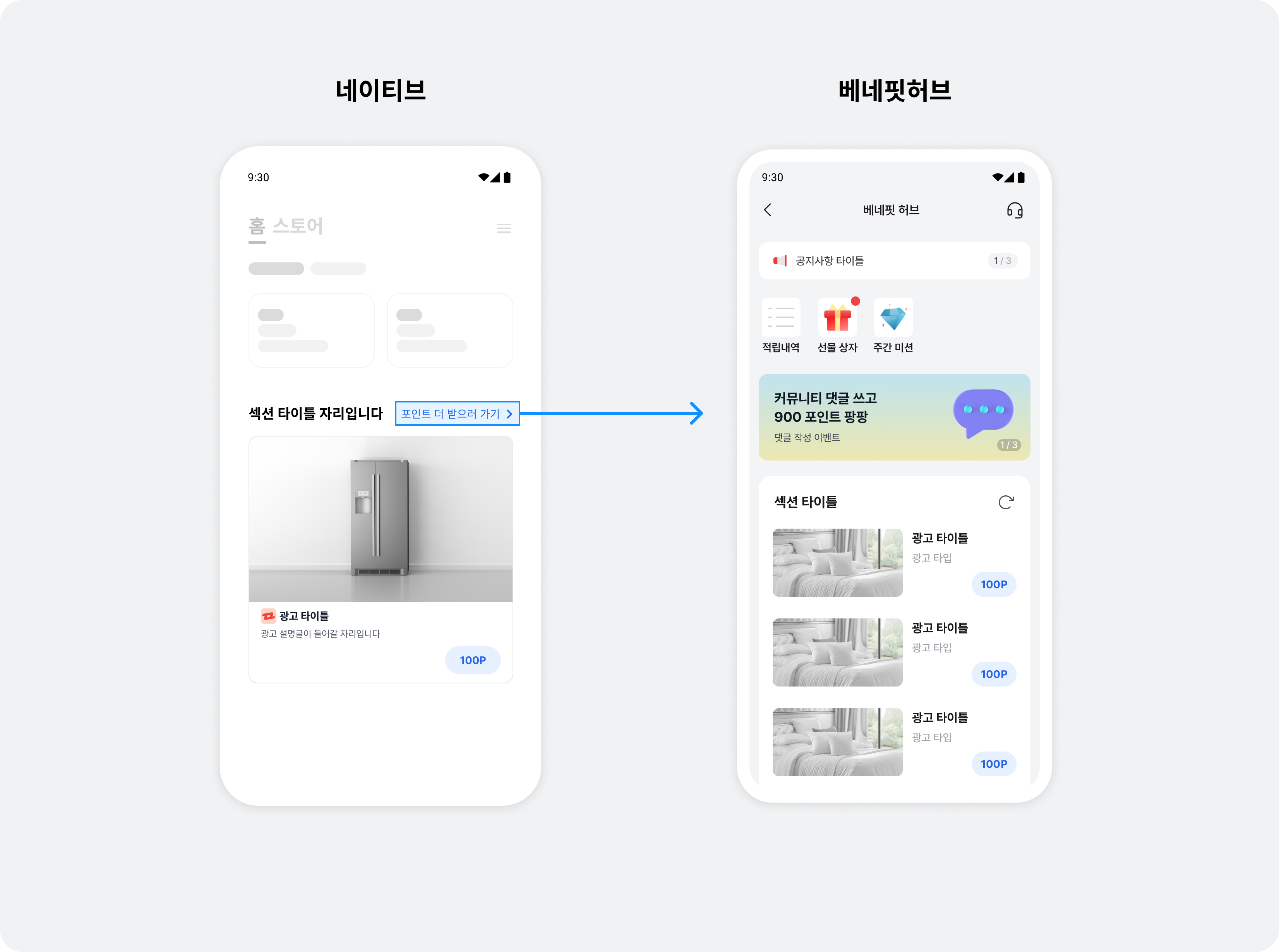
BenefitHub entry point
Implement an entry point above or below the carousel so users can open BenefitHub from it.
private lazy var benefitHubEntryView: UILabel = {
  let label = UILabel(frame: .zero)
  label.text = "포인트 더 받으러 가기 >"

  label.addGestureRecognizer(UITapGestureRecognizer(target: self, action: #selector(showBenefitHub)))

  return label
}()

@objc
private func showBenefitHub() {
  let benefitHub = BuzzBenefitHub()

  benefitHub.show(on: self)
}
@property (nonatomic, strong) UILabel *benefitHubEntryView;

...
- (void)viewDidLoad {
  ...

  _benefitHubEntryView = [[UILabel alloc] initWithFrame:CGRectZero];
  _benefitHubEntryView.text = @"포인트 더 받으러 가기 >";
  [_benefitHubEntryView addGestureRecognizer:[[UITapGestureRecognizer alloc] initWithTarget:self action:@selector(showBenefitHub:)]];
  ...
}

- (void)showBenefitHub:(id)sender {
  BuzzBenefitHub * benefitHub = [[BuzzBenefitHub alloc] init];
  [benefitHub showOn:self];
}
Implement optional carousel features
This section presents some of the ways you can add features to a carousel. Adapt the code to your needs.
Implement infinite scrolling
You can implement an infinite loop that lets users scroll continuously through a finite set of carousel items. There are many approaches; this guide uses a simple method in which collectionView(_:numberOfItemsInSection:) returns a large value.
Follow these steps to implement an infinite loop.
- Modify
collectionView(_:numberOfItemsInSection:)ofUICollectionViewDataSourceto make the carousel appear to have infinite data. You must also synchronizeUIPageControl.numberOfPages.
final class CarouselViewController: UIViewController {
  // ...

  private var loadedAdCount = 0

  private var infiniteItemCount: Int {
    return loadedAdCount * 1000
  }

  // ...

  private lazy var pageControl: UIPageControl = {
    let pageControl = UIPageControl(frame: .zero)
    // ...
    return pageControl
  }()

  override func viewDidLoad() {
    super.viewDidLoad()
    // ...
    setupCarousel()
  }

  // ...

  private func setupCarousel() {
    nativeGroup.load(count: adRequestCount) { [weak self] adCount in
      // ...

      // 고유한 cell 개수를 저장합니다.
      self?.loadedAdCount = adCount
      // 총 cell 개수를 pageControl 개수로 설정합니다.
      self?.pageControl.numberOfPages = self?.infiniteItemCount ?? adCount * 1000
    } errorHandler: { [weak self] error in
      // ...
    }
  }
}

extension CarouselViewController: UICollectionViewDataSource {
  func collectionView(_ collectionView: UICollectionView, numberOfItemsInSection section: Int) -> Int {
    return infiniteItemCount
  }

  // ...
}
@interface CarouselViewController () <UICollectionViewDelegate, UICollectionViewDataSource>

// ...
@property (nonatomic, assign, readwrite) NSInteger loadedAdCount;
@property (nonatomic, strong, readonly) UIPageControl *pageControl;
// ...

@end

@implementation CarouselViewController

// ...

- (NSInteger)infiniteItemCount {
  return _loadedAdCount * 1000;
}

// ...

- (void)viewDidLoad {
  [super viewDidLoad];
  // ...
  [self setupCarousel];
}

// ...

- (void)setupCarousel {
  __weak typeof(self) weakSelf = self;
  [self.nativeGroup loadAdsWithCount:self.adRequestCount completionHandler:^(NSInteger count) {
    __strong typeof(self) strongSelf = weakSelf;
    if (strongSelf) {
      // ...

      // 고유한 cell 개수를 저장합니다.
      strongSelf.loadedAdCount = count;
      // 총 cell 개수를 pageControl 개수로 설정합니다.
      strongSelf.pageControl.numberOfPages = [strongSelf infiniteItemCount];
    }
  } errorHandler:^(NSError * _Nonnull error) {
    // ...
  }];
}

#pragma mark - UICollectionViewDataSource

- (NSInteger)collectionView:(UICollectionView *)collectionView numberOfItemsInSection:(NSInteger)section {
  return [self infiniteItemCount];
}

// ...

@end
- Modify
collectionView(_:cellForItemAt:)ofUICollectionViewDataSourceas shown below. Use modulo with the number of unique cells to calculate the index.
extension CarouselViewController: UICollectionViewDataSource {
  func collectionView(_ collectionView: UICollectionView, cellForItemAt indexPath: IndexPath) -> UICollectionViewCell {
    guard let cell = collectionView.dequeueReusableCell(withReuseIdentifier: "CarouselCell", for: indexPath) as? CarouselCell else {
      return UICollectionViewCell()
    }

    // 할당된 고유 광고 개수로 모듈러 연산하여 index를 적용합니다.
    let native = nativeGroup.natives[indexPath.item % loadedAdCount]
    cell.bind(with: native)
    return cell
  }
}
@implementation CarouselViewController

// ...

#pragma mark - UICollectionViewDataSource

- (UICollectionViewCell *)collectionView:(UICollectionView *)collectionView cellForItemAtIndexPath:(NSIndexPath *)indexPath {
  CarouselCell *cell = [collectionView dequeueReusableCellWithReuseIdentifier:@"CarouselCell" forIndexPath:indexPath];

  // 할당된 고유 광고 개수로 모듈러 연산하여 index를 적용합니다.
  BuzzNative *native = self.nativeGroup.natives[indexPath.item % _loadedAdCount];
  [cell bindWithNative:native];
  return cell;
}

// ...

@end
- After allocating ads through
BuzzNativeGroup.load(), move theUICollectionViewindex to the middle.
final class CarouselViewController: UIViewController {
  // ...

  private var loadedAdCount = 0

  private var infiniteItemCount: Int {
    return loadedAdCount * 1000
  }

  // ...

  private lazy var carouselCollectionView: UICollectionView = {
    let collectionView = UICollectionView(frame: .zero, collectionViewLayout: flowLayout)
    // ...
    return collectionView
  }()

  private lazy var pageControl: UIPageControl = {
    let pageControl = UIPageControl(frame: .zero)
    // ...
    return pageControl
  }()

  override func viewDidLoad() {
    super.viewDidLoad()
    // ...
    setupCarousel()
  }

  // ...

  private func setupCarousel() {
    nativeGroup.load(count: adRequestCount) { [weak self] count in
      // ...
      self?.loadedAdCount = count
      self?.pageControl.numberOfPages = infiniteItemCount
      self?.carouselCollectionView.reloadData()
      self?.moveCarouselToMiddle()
    } errorHandler: { [weak self] error in
      // ...
    }
  }

  private func moveCarouselToMiddle() {
    let middleIndex = ((loadedAdCount * 1000) / 2) % loadedAdCount
    let indexPath = IndexPath(item: middleIndex, section: .zero)
    carouselCollectionView.scrollToItem(at: indexPath, at: [.centeredVertically, .centeredHorizontally], animated: false)
    pageControl.currentPage = indexPath.item
  }
}
@interface CarouselViewController () <UICollectionViewDelegate, UICollectionViewDataSource>

// ...
@property (nonatomic, assign, readwrite) NSInteger loadedAdCount;
@property (nonatomic, strong, readonly) UICollectionView *carouselCollectionView;
@property (nonatomic, strong, readonly) UIPageControl *pageControl;
// ...

@end

@implementation CarouselViewController

- (NSInteger)infiniteItemCount {
  return _loadedAdCount * 1000;
}

- (void)viewDidLoad {
  [super viewDidLoad];
  // ...
  [self setupCarousel];
}

// ...

- (void)setupCarousel {
  __weak typeof(self) weakSelf = self;
  [self.nativeGroup loadWithCount:self.adRequestCount completionHandler:^(NSInteger count) {
    __strong typeof(self) strongSelf = weakSelf;
    if (strongSelf) {
      // ...
      strongSelf.loadedAdCount = count;
      strongSelf.pageControl.numberOfPages = [strongSelf infiniteItemCount];
      [strongSelf.carouselCollectionView reloadData];
      [strongSelf moveCarouselToMiddle];
    }
  } errorHandler:^(NSError * _Nonnull error) {
    // ...
  }];
}

- (void)moveCarouselToMiddle {
  NSInteger middleIndex = ((self.loadedAdCount * 1000) / 2) % _loadedAdCount;
  NSIndexPath *indexPath = [NSIndexPath indexPathForItem:middleIndex inSection:0];
  [self.carouselCollectionView scrollToItemAtIndexPath:indexPath atScrollPosition:UICollectionViewScrollPositionCenteredVertically | UICollectionViewScrollPositionCenteredHorizontally animated:NO];
  _pageControl.currentPage = indexPath.item;
}

// ...

@end
Implement a loading screen
Use BuzzNative.subscribeRefreshEvents() to show a loading screen during refreshes after ad participation, visually indicating network request delays.
final class CarouselCell: UICollectionViewCell {
  // ...

  private lazy var activityIndicatorView: UIActivityIndicatorView = {
    let indicator = UIActivityIndicatorView(frame: .zero)
    indicator.hidesWhenStopped = true
    return indicator
  }()

  override init(frame: CGRect) {
    super.init(frame: frame)
    setupView()
    setupLayout()
  }

  private func setupView() {
    // ...
    contentView.addSubview(activityIndicatorView)
  }

  private func setupLayout() {
    // ...

    activityIndicatorView.translatesAutoresizingMaskIntoConstraints = false
    NSLayoutConstraint.activate([
      activityIndicatorView.centerXAnchor.constraint(equalTo: centerXAnchor),
      activityIndicatorView.centerYAnchor.constraint(equalTo: centerYAnchor),
    ])
  }

  func bind(with native: BuzzNative) {
    native.subscribeRefreshEvents(
      onRequest: { [weak self] in
        self?.activityIndicatorView.startAnimating()
        self?.nativeAdView.alpha = 0.5
      },
      onSuccess: { [weak self] _ in
        self?.activityIndicatorView.stopAnimating()
        self?.nativeAdView.alpha = 1
      },
      onFailure: { [weak self] error in
        self?.activityIndicatorView.stopAnimating()
        self?.nativeAdView.alpha = 1
      },
    )

    viewBinder.bind(native: native)
  }
}

extension CarouselViewController: UICollectionViewDataSource {
  func collectionView(_ collectionView: UICollectionView, cellForItemAt indexPath: IndexPath) -> UICollectionViewCell {
    // ...
    cell.bind(with: native)
    return cell
  }
}
@interface CarouselCell ()

// ...
@property (nonatomic, strong, readonly) UIActivityIndicatorView *activityIndicatorView;

@end

@implementation CarouselCell

- (instancetype)initWithFrame:(CGRect)frame {
  self = [super initWithFrame:frame];
  if (self) {
    [self setupView];
    [self setupLayout];
  }
  return self;
}

- (void)setupView {
  // ...

  _activityIndicatorView = [[UIActivityIndicatorView alloc] initWithFrame:CGRectZero];
  _activityIndicatorView.hidesWhenStopped = YES;
  [self.contentView addSubview:_activityIndicatorView];
}

- (void)setupLayout {
  // ...

  _activityIndicatorView.translatesAutoresizingMaskIntoConstraints = NO;
  [NSLayoutConstraint activateConstraints:@[
    [_activityIndicatorView.centerXAnchor constraintEqualToAnchor:self.centerXAnchor],
    [_activityIndicatorView.centerYAnchor constraintEqualToAnchor:self.centerYAnchor],
  ]];
}

- (void)bindWithNative:(BuzzNative *)native {
  __weak typeof(self) weakSelf = self;
  [_native subscribeRefreshEventsOnRequest:^{
    __strong typeof(self) strongSelf = weakSelf;
    if (strongSelf) {
      [strongSelf.activityIndicatorView startAnimating];
      strongSelf.nativeAdView.alpha = 0.5;
    }
  } onSuccess:^{
    __strong typeof(self) strongSelf = weakSelf;
    if (strongSelf) {
      [strongSelf.activityIndicatorView stopAnimating];
      strongSelf.nativeAdView.alpha = 1;
    }
  } onFailure:^(NSError * _Nonnull error) {
    __strong typeof(self) strongSelf = weakSelf;
    if (strongSelf) {
      [strongSelf.activityIndicatorView stopAnimating];
      strongSelf.nativeAdView.alpha = 1;
    }
  }];
}

@end

@implementation CarouselViewController

// ...

#pragma mark - UICollectionViewDataSource

- (UICollectionViewCell *)collectionView:(UICollectionView *)collectionView cellForItemAtIndexPath:(NSIndexPath *)indexPath {
  // ...
  [cell bindWithNative:native];
  return cell;
}

@end
Register an ad event listener
Record when carousel ad events occur, such as impressions and clicks, to understand user behavior.
final class CarouselCell: UICollectionViewCell {
  // ...

  func bind(with native: BuzzNative) {
    // ...

    native.subscribeAdEvents(
      onImpressed: { [weak self] in
        print("impressed: \($0.title)")
      },
      onClicked: { [weak self] in
        print("clicked: \($0.title)")
      },
      onRewardRequested: { [weak self] in
        print("requested reward: \($0.title)")
      },
      onRewarded: { [weak self] in
        print("received reward result: \($0.title), \($1)")
      },
      onParticipated: { [weak self] in
        print("participated: \($0.title)")
      }
    )

    // ...
  }
}

extension CarouselViewController: UICollectionViewDataSource {
  func collectionView(_ collectionView: UICollectionView, cellForItemAt indexPath: IndexPath) -> UICollectionViewCell {
    // ...
    cell.bind(with: native)
    return cell
  }
}
@implementation CarouselCell

// ...

- (void)bindWithNative:(BuzzNative *)native {
  __weak typeof(self) weakSelf = self;
  [native subscribeAdEventsOnImpressed:^(BuzzNativeAd * _Nonnull ad) {
    __strong typeof(self) strongSelf = weakSelf;
    if (strongSelf) {
      NSLog(@"impressed: %@", ad.title);
    }
  } onClicked:^(BuzzNativeAd * _Nonnull ad) {
    __strong typeof(self) strongSelf = weakSelf;
    if (strongSelf) {
      NSLog(@"clicked: %@", ad.title);
    }
  } onRewardRequested:^(BuzzNativeAd * _Nonnull ad) {
    __strong typeof(self) strongSelf = weakSelf;
    if (strongSelf) {
      NSLog(@"requested reward: %@", ad.title);
    }
  } onRewarded:^(BuzzNativeAd * _Nonnull ad, BuzzRewardResult result) {
    __strong typeof(self) strongSelf = weakSelf;
    if (strongSelf) {
      NSLog(@"received reward result: %@", ad.title);
    }
  } onParticipated:^(BuzzNativeAd * _Nonnull ad) {
    __strong typeof(self) strongSelf = weakSelf;
    if (strongSelf) {
      NSLog(@"participated: %@", ad.title);
    }
  }];
}

@end

@implementation CarouselViewController

// ...

#pragma mark - UICollectionViewDataSource

- (UICollectionViewCell *)collectionView:(UICollectionView *)collectionView cellForItemAtIndexPath:(NSIndexPath *)indexPath {
  // ...
  [cell bindWithNative:native];
  return cell;
}

@end
Partially show adjacent ad items
Follow these steps to show the previous and next carousel items partially.
- Change the Auto Layout of
CarouselCellas shown below.
final class CarouselCell: UICollectionViewCell {
  private lazy var nativeAdView = BuzzNativeAdView(frame: .zero)

  // ...

  override init(frame: CGRect) {
    super.init(frame: frame)
    // ...
    setupLayout()
    // ...
  }

  private func setupLayout() {
    // CarouselCell과 동일한 크기로 설정합니다.
    nativeAdView.translatesAutoresizingMaskIntoConstraints = false
    NSLayoutConstraint.activate([
      nativeAdView.topAnchor.constraint(equalTo: safeAreaLayoutGuide.topAnchor),
      nativeAdView.leadingAnchor.constraint(equalTo: safeAreaLayoutGuide.leadingAnchor),
      nativeAdView.trailingAnchor.constraint(equalTo: safeAreaLayoutGuide.trailingAnchor),
      nativeAdView.bottomAnchor.constraint(equalTo: safeAreaLayoutGuide.bottomAnchor),
    ])

    // ...
  }

  // ...
}
@interface CarouselCell ()

@property (nonatomic, strong, readonly) BuzzNativeAdView *nativeAdView;
// ...

@end

@implementation CarouselCell

- (instancetype)initWithFrame:(CGRect)frame {
  self = [super initWithFrame:frame];
  if (self) {
    // ...
    [self setupLayout];
    // ...
  }
  return self;
}

- (void)setupLayout {
  // CarouselCell과 동일한 크기로 설정합니다.
  _nativeAdView.translatesAutoresizingMaskIntoConstraints = NO;
  [NSLayoutConstraint activateConstraints:@[
    [_nativeAdView.topAnchor constraintEqualToAnchor:self.contentView.safeAreaLayoutGuide.topAnchor],
    [_nativeAdView.leadingAnchor constraintEqualToAnchor:self.contentView.safeAreaLayoutGuide.leadingAnchor],
    [_nativeAdView.trailingAnchor constraintEqualToAnchor:self.contentView.safeAreaLayoutGuide.trailingAnchor],
    [_nativeAdView.bottomAnchor constraintEqualToAnchor:self.contentView.safeAreaLayoutGuide.bottomAnchor],
  ]];

  // ...
}

// ...

@end
- Set
flowLayoutandcarouselCollectionViewofCarouselViewControlleras shown below. SetisPagingEnabledofUICollectionViewtofalsewhen configuring the carousel to show adjacent items.
final class CarouselViewController: UIViewController {
  private let spacing: CGFloat = 8

  // ...

  private lazy var flowLayout: UICollectionViewFlowLayout = {
    let flowLayout = UICollectionViewFlowLayout()
    // ...

    // flowLayout의 minimumLineSpacing을 spacing 값으로 설정합니다.
    flowLayout.minimumLineSpacing = spacing
    return flowLayout
  }()

  private lazy var carouselCollectionView: UICollectionView = {
    let collectionView = UICollectionView(frame: .zero, collectionViewLayout: flowLayout)
    // ...

    // isPagingEnabled를 false로 설정합니다.
    collectionView.isPagingEnabled = false
    // 아래 속성들을 설정합니다.
    collectionView.decelerationRate = .fast
    collectionView.contentInset = UIEdgeInsets(top: .zero, left: 2 * spacing, bottom: .zero, right: 2 * spacing)
    return collectionView
  }()

  // ...
}
@implementation CarouselViewController

- (NSInteger)spacing {
  return 8;
}

- (void)viewDidLoad {
  [super viewDidLoad];
  // ...
  [self setupView];
  // ...
}

- (void)setupView {
  UICollectionViewFlowLayout *flowLayout = [[UICollectionViewFlowLayout alloc] init];
  flowLayout.scrollDirection = UICollectionViewScrollDirectionHorizontal;
  // flowLayout의 minimumLineSpacing을 spacing 값으로 설정합니다.
  flowLayout.minimumLineSpacing = [self spacing];
  // ...

  _carouselCollectionView = [[UICollectionView alloc] initWithFrame:CGRectZero collectionViewLayout:flowLayout];
  // ...

  // isPagingEnabled를 false로 설정합니다.
  _carouselCollectionView.pagingEnabled = NO;
  // 아래 속성들을 설정합니다.
  _carouselCollectionView.decelerationRate = UIScrollViewDecelerationRateFast;
  _carouselCollectionView.contentInset = UIEdgeInsetsMake(0, 2 * [self spacing], 0, 2 * [self spacing]);

  // ...
}

// ...

@end
- Because this does not use the
isPagingEnabledvalue ofUICollectionView, implement paging yourself. ImplementscrollViewWillEndDragging(_:withVelocity:targetContentOffset:)ofUICollectionViewDelegateas shown below and move the code that updates thepageControlindex here as well.
final class CarouselViewController: UIViewController {
  private let spacing = 8

  // ...

  private lazy var pageControl: UIPageControl = {
    let pageControl = UIPageControl(frame: .zero)
    // ...
    return pageControl
  }()

  // ...
}

// 위에서 구현했던 scrollViewDidScroll(_:)를 제거합니다.
//
//extension CarouselViewController: UICollectionViewDelegate {
//  func scrollViewDidScroll(_ scrollView: UIScrollView) {
//    let centerOffsetX = scrollView.contentOffset.x + (scrollView.frame.width / 2)
//    let pageWidth = scrollView.frame.width
//    guard pageWidth != .zero else { return }
//    pageControl.currentPage = Int(centerOffsetX / pageWidth)
//  }
//}

// 캐러셀 아이템이 화면에서 일정 부분 넘어가면 다음 아이템으로 이동하도록 구현합니다.
extension CarouselViewController: UICollectionViewDelegate {
  func scrollViewWillEndDragging(_ scrollView: UIScrollView, withVelocity velocity: CGPoint, targetContentOffset: CGPoint) {
    let cellWidth = scrollView.frame.width - (4 * spacing)
    let cellWidthWithSpace = cellWidth + spacing
    let estimatedIndex = scrollView.contentOffset.x / cellWidthWithSpace
    let index: Int

    if velocity.x > 0 {
      index = Int(ceil(estimatedIndex))
    } else if velocity.x < 0 {
      index = Int(floor(estimatedIndex))
    } else {
      index = Int(round(estimatedIndex))
    }
    pageControl.currentPage = index

    targetContentOffset.pointee = CGPoint(x: CGFloat(index) * cellWidthWithSpace - (2 * spacing), y: .zero)
  }
}
@interface CarouselViewController ()

// ...
@property (nonatomic, strong, readonly) UIPageControl *pageControl;

@end

@implementation CarouselViewController

- (NSInteger)spacing {
  return 8;
}

// ...

// 위에서 구현했던 scrollViewDidScroll(_:)를 제거합니다.
//
//#pragma mark - UICollectionViewDelegate
//
//- (void)scrollViewDidScroll:(UIScrollView *)scrollView {
//  CGFloat centerOffsetX = scrollView.contentOffset.x + (scrollView.frame.size.width / 2);
//  CGFloat pageWidth = scrollView.frame.size.width;
//
//  if (pageWidth == 0) {
//    return;
//  }
//  _pageControl.currentPage = (NSInteger)centerOffsetX / (NSInteger)pageWidth;
//}

#pragma mark - UICollectionViewDelegate

// 캐러셀 아이템이 화면에서 일정 부분 넘어가면 다음 아이템으로 이동하도록 구현합니다.
- (void)scrollViewWillEndDragging:(UIScrollView *)scrollView withVelocity:(CGPoint)velocity targetContentOffset:(CGPoint *)targetContentOffset {
  CGFloat cellWidth = scrollView.frame.size.width - (4 * [self spacing]);
  CGFloat cellWidthWithSpace = cellWidth + [self spacing];
  CGFloat estimatedIndex = scrollView.contentOffset.x / cellWidthWithSpace;
  NSInteger index;

  if (velocity.x > 0) {
    index = (NSInteger)ceil(estimatedIndex);
  } else if (velocity.x < 0) {
    index = (NSInteger)floor(estimatedIndex);
  } else {
    index = (NSInteger)round(estimatedIndex);
  }
  _pageControl.currentPage = index;

  targetContentOffset->x = index * cellWidthWithSpace - (2 * [self spacing]);
  targetContentOffset->y = 0;
}

@end
- Modify
collectionView(_:layout:sizeForItemAt:)ofUICollectionViewDelegateFlowLayoutas shown below.
final class CarouselViewController: UIViewController {
  private let spacing = 8

  // ...
}

// ...

extension CarouselViewController: UICollectionViewDelegateFlowLayout {
  func collectionView(_ collectionView: UICollectionView, layout collectionViewLayout: UICollectionViewLayout, sizeForItemAt indexPath: IndexPath) -> CGSize {
    return CGSize(width: collectionView.frame.size.width - (4 * spacing), height: collectionView.frame.size.height)
  }
}
@implementation CarouselViewController

- (NSInteger)spacing {
  return 8;
}

// ...

#pragma mark - UICollectionViewDelegateFlowLayout

- (CGSize)collectionView:(UICollectionView *)collectionView layout:(UICollectionViewLayout *)collectionViewLayout sizeForItemAtIndexPath:(NSIndexPath *)indexPath {
  return CGSizeMake(collectionView.frame.size.width - (4 * [self spacing]), collectionView.frame.size.height);
}

@end
Adjust spacing between ad items
To adjust spacing between carousel ad items, change the spacing value configured in Partially show adjacent ad items.
final class CarouselViewController: UIViewController {
  // eg. spacing 값을 12로 설정합니다.
  private let spacing = 12

  // ...
}
@implementation CarouselViewController

// eg. spacing 값을 12로 설정합니다.
- (NSInteger)spacing {
  return 12;
}

// ...

@end
Frequently asked questions
| Question | Answer |
|---|---|
| Why must I add a user support button for action-based ads? | If you allocate action-based ads, you must implement user support to operate the service reliably. See Add user support for action-based ads. |