EntryPoint
Learn how to add an entry point and implement additional features through the SDK interface.
Key features
EntryPoint is an entry component that fits naturally into various locations in your app and gives users easy access to content. It supports a floating action button (FAB), Banner, BottomSheet, Popup, and Custom UI, allowing you to choose and position it to suit your design. Configure it through the Buzzvil Dash admin. Clicking it can open BenefitHub, Lucky Box, or Mission Pack, or follow a deep link to a specific screen in your app.
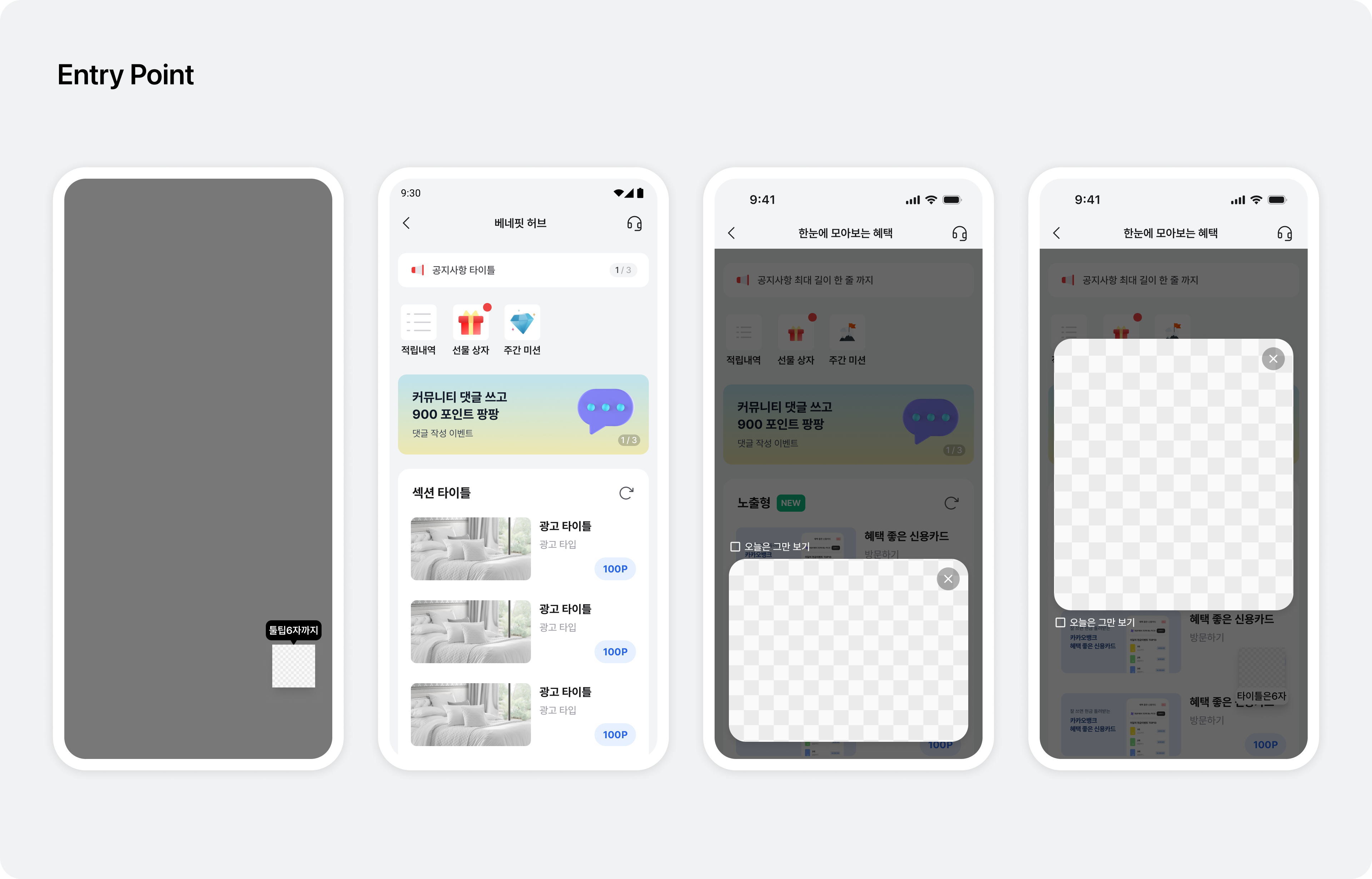
Integration
Follow these steps to integrate EntryPoint.
Step 1. Prepare
- Complete Getting started.
Step 2. Configure
Entry point types
| Type | Description |
|---|---|
FAB | A floating action button at the bottom right of the screen. |
Banner | A banner fixed at your chosen position on the screen. Multiple banner entries appear as slides and advance automatically every three seconds. |
Popup | A popup in the center of the screen. |
BottomSheet | A bottom sheet that slides up from the bottom of the screen. |
Custom | Lets you implement an entry point with a custom UI. |
Entry point images
| Type | Image |
|---|---|
FAB | 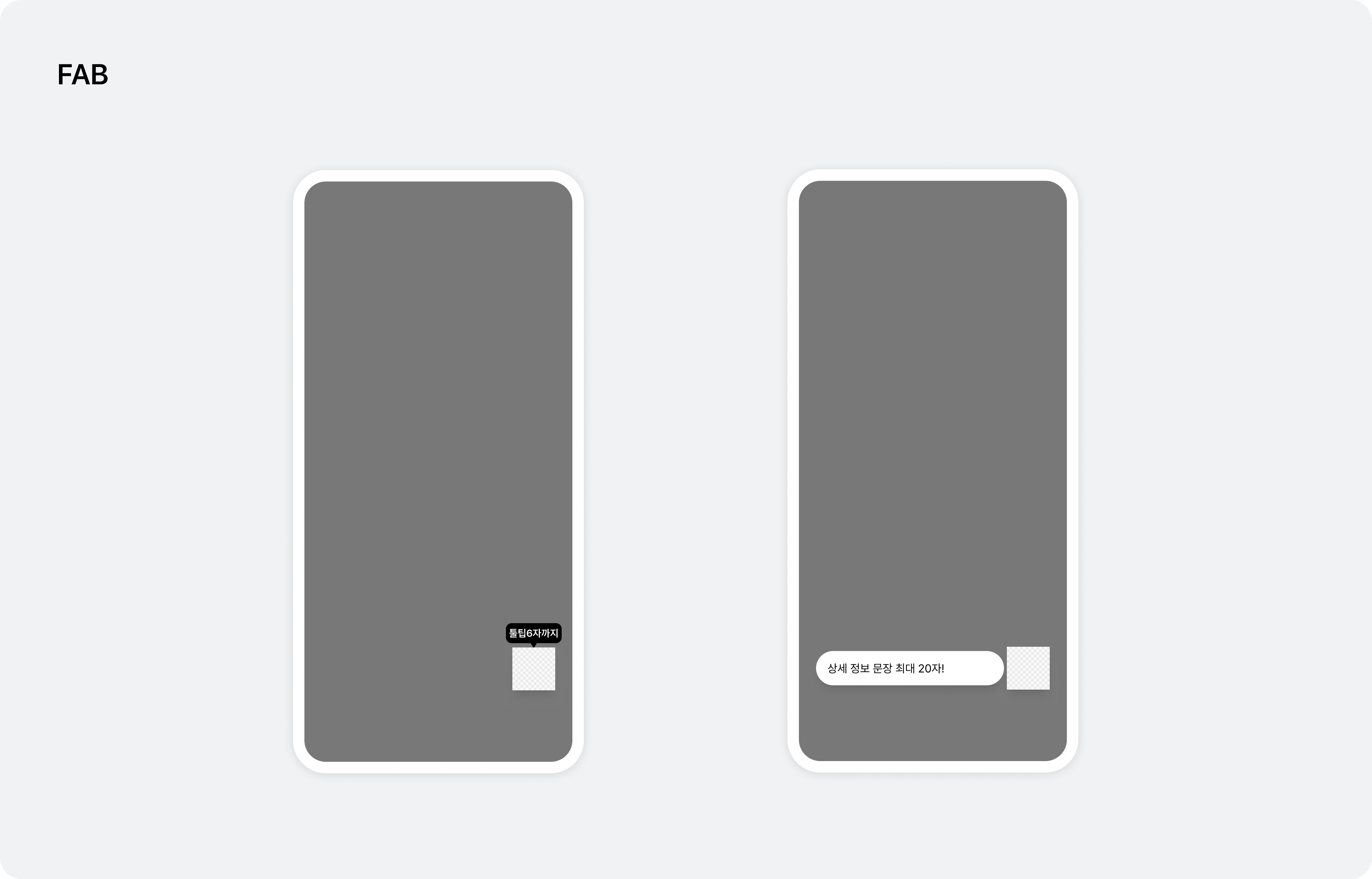 |
Banner | 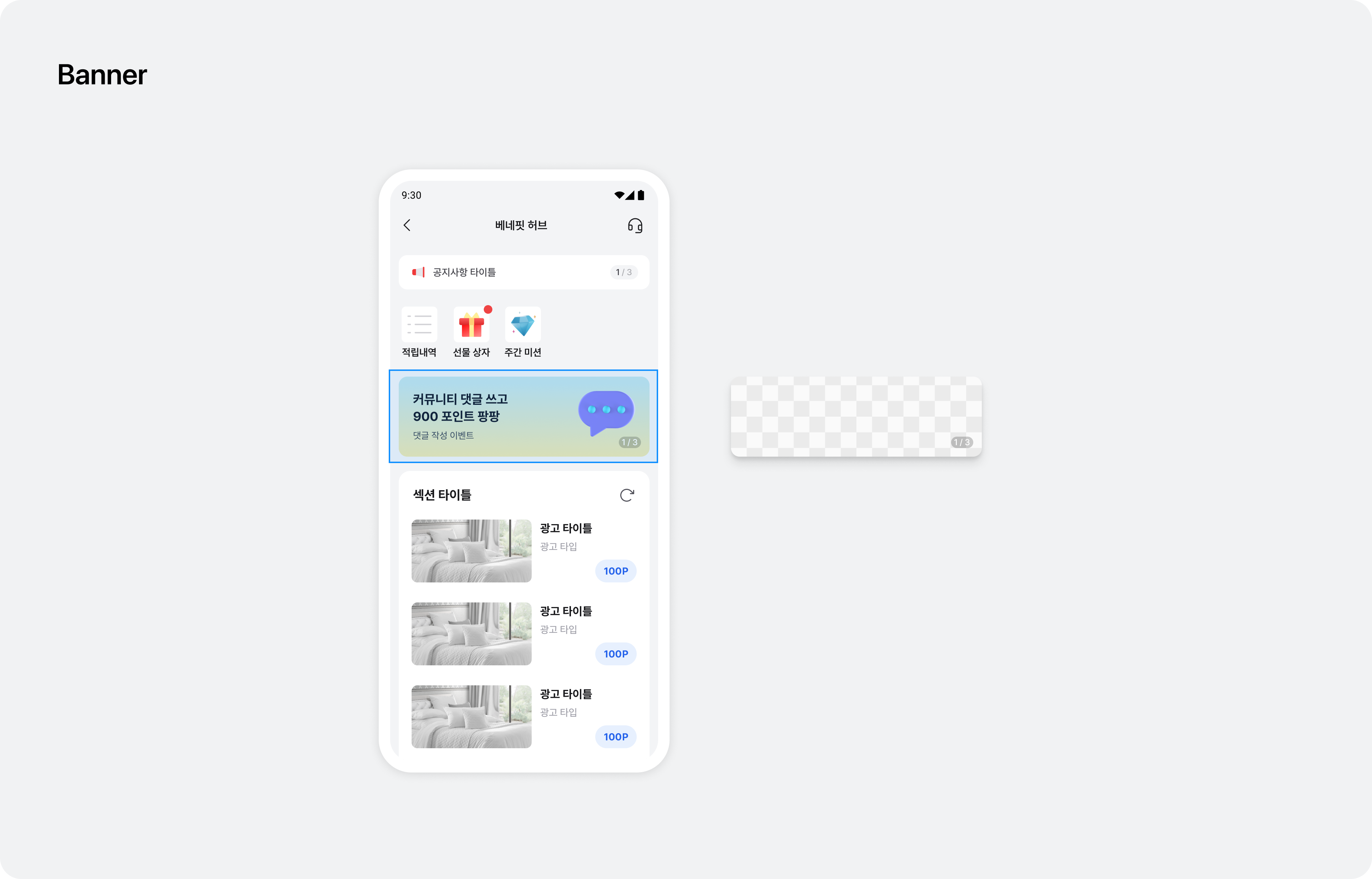 |
Popup | 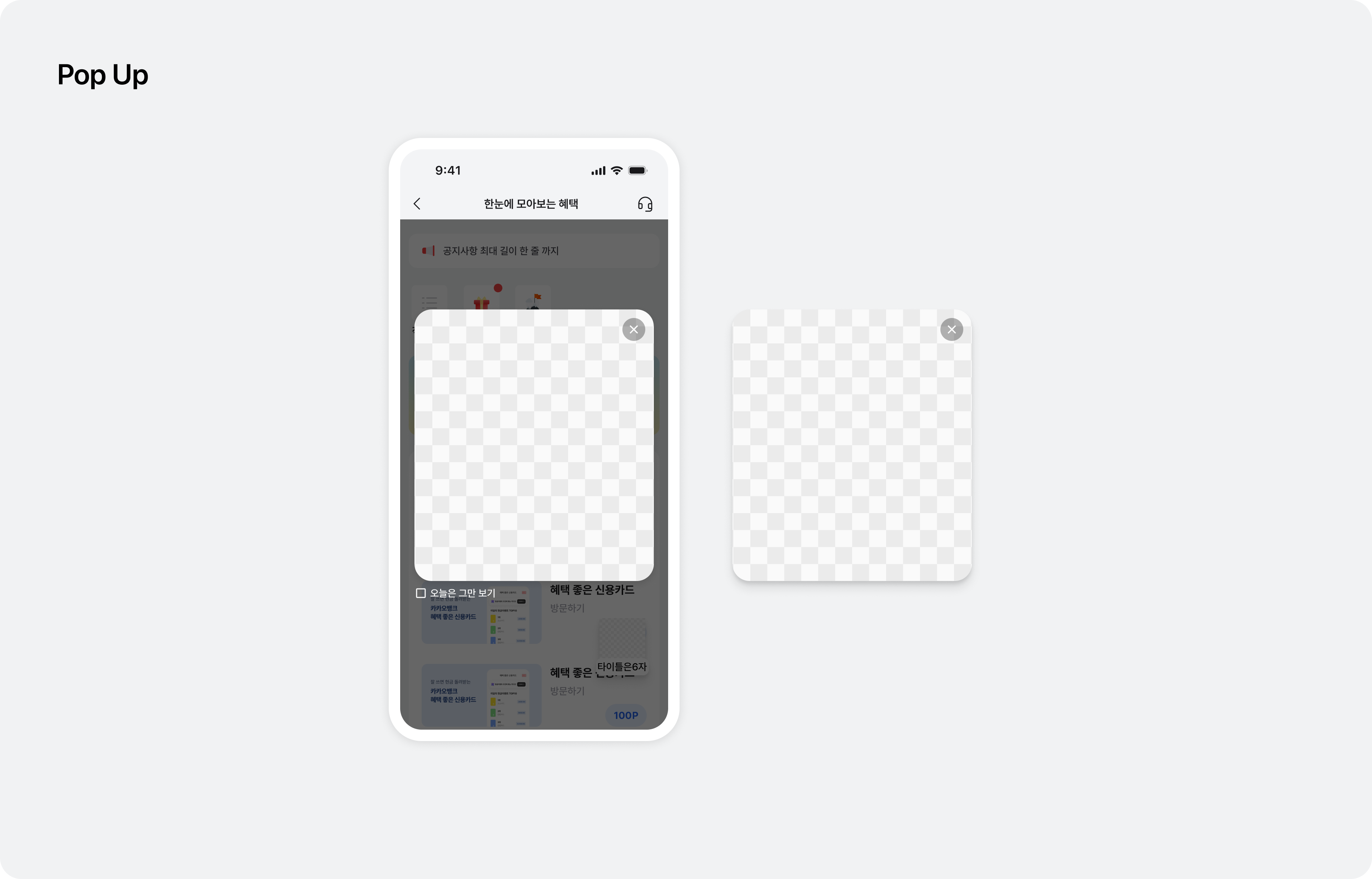 |
BottomSheet | 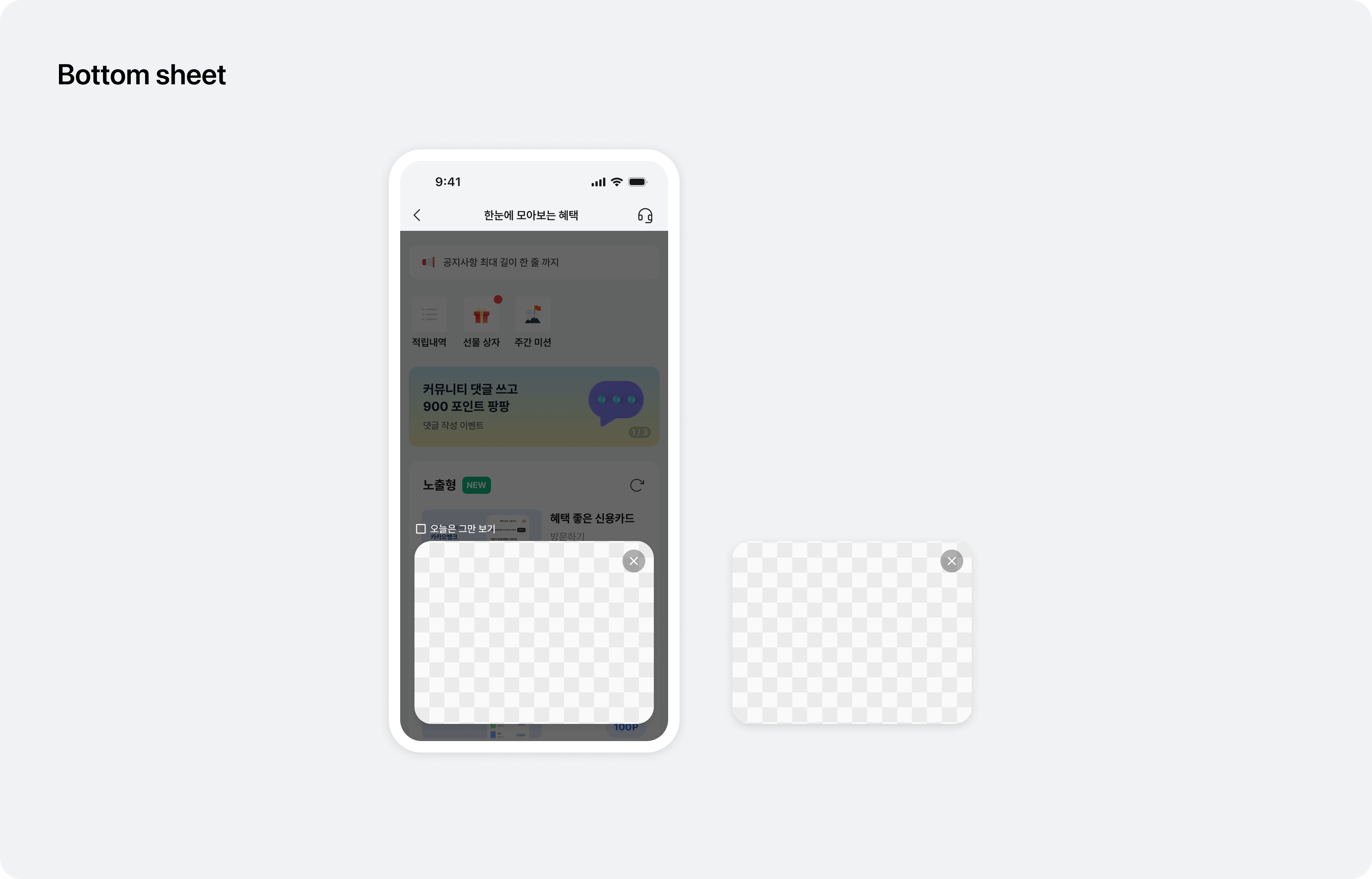 |
Supported entry point UI specifications
| Type | Specifications |
|---|---|
FAB | Image formats: PNG, JPG, JSON (Lottie), File size: Up to 2 MB, Image ratio: 60 x 60 (width x height), Tooltip: Up to 6 characters, including spaces, Message: Up to 20 characters, including spaces |
Banner | Image formats: PNG, JPG, JSON (Lottie), File size: Up to 2 MB, Image ratio: 351 x 112 (width x height) |
Popup | Image formats: PNG, JPG, JSON (Lottie), File size: Up to 2 MB, Image ratio: 335 x 380 (width x height) |
BottomSheet | Image formats: PNG, JPG, JSON (Lottie), File size: Up to 2 MB, Image ratio: 335 x 256 (width x height) |
Step 3. Request
Request entry points as shown in the code below.
BuzzEntryPoint.shared.load(
  onSuccess: { [weak self] availableTypes in
    // 요청에 성공하면 표시 가능한 엔트리포인트 타입 배열과 함께 호출됩니다.
  },
  onFailure: { [weak self] error in
    // 요청에 실패하면 에러와 함께 호출됩니다.
  }
)
[BuzzEntryPoint.shared loadOnSuccess:^(NSArray<NSNumber *> * _Nonnull types) {
  // 요청에 성공하면 표시 가능한 엔트리포인트 타입 배열과 함께 호출됩니다.
  for (NSNumber *typeNumber in types) {
    BuzzEntryPointType type = (BuzzEntryPointType)[typeNumber integerValue];
  }
} onFailure:^(NSError * _Nonnull error) {
  // 요청에 실패하면 에러와 함께 호출됩니다.
}];
Entry point types in BuzzEntryPointType
| Type | Swift | Objective-C |
|---|---|---|
FAB | .fab | BuzzEntryPointTypeFab |
Banner | .banner | BuzzEntryPointTypeBanner |
Popup | .popup | BuzzEntryPointTypePopup |
BottomSheet | .bottomSheet | BuzzEntryPointTypeBottomSheet |
Custom | .custom | BuzzEntryPointTypeCustom |
Step 4. Display (FAB)
Display the FAB entry point as shown below.
import SwiftUI
import BuzzvilSDK

struct YourView: View {
  @State private var isFabPresented = false

  var body: some View {
    Color.clear
      .buzzEntryPointFab(isPresented: $isFabPresented)
  }
}
import UIKit
import BuzzvilSDK

final class YourViewController: UIViewController {

  override func viewDidLoad() {
    super.viewDidLoad()

    if BuzzEntryPoint.shared.canShow(type: .fab) {
      BuzzEntryPoint.shared.showFab(on: self)
    }
  }
}
@import UIKit;
@import BuzzvilSDK;

@interface YourViewController ()

@end

@implementation YourViewController

- (void)viewDidLoad {
  [super viewDidLoad];

  if ([BuzzEntryPoint.shared canShowWithType:BuzzEntryPointTypeFab]) {
    [BuzzEntryPoint.shared showFabOn:self];
  }
}

@end
Step 4. Display (Banner)
Display the Banner entry point as shown below.
import SwiftUI
import BuzzvilSDK

struct YourView: View {
  @State private var isBannerPresented = false

  var body: some View {
    VStack {
      if isBannerPresented {
        // aspectRatio 는 연동 가이드 비율(351 x 112)에 맞추는 것을 권장합니다. 비율이 맞지 않을 경우 이미지가 잘리거나, 여백이 생길 수 있습니다.
        BuzzEntryPointBannerView.Representable(isVisible: $isBannerPresented)
            .aspectRatio(351.0 / 112.0, contentMode: .fit)
            .frame(maxWidth: .infinity)
            .listRowInsets(EdgeInsets())
            .listRowBackground(Color.clear)
      }
    }
  }
}
import UIKit
import BuzzvilSDK

final class YourViewController: UIViewController {
  private let entryBannerView = BuzzEntryPointBannerView(frame: .zero)

  override func viewDidLoad() {
    super.viewDidLoad()

    view.addSubview(entryBannerView)
    // aspectRatio 는 연동 가이드 비율(351 x 112)에 맞추는 것을 권장합니다. 비율이 맞지 않을 경우 이미지가 잘리거나, 여백이 생길 수 있습니다.
    entryBannerView.translatesAutoresizingMaskIntoConstraints = false
    NSLayoutConstraint.activate([
      entryBannerView.heightAnchor.constraint(equalTo: entryBannerView.widthAnchor, multiplier: 112.0/351.0),
      // ...
    ])

    BuzzEntryPoint.shared.showBanner(on: entryBannerView)
  }
}
@import UIKit;
@import BuzzvilSDK;

@interface YourViewController ()

@property (nonatomic, strong, readonly) BuzzEntryPointBannerView *entryBannerView;

@end

@implementation YourViewController

- (void)viewDidLoad {
  [super viewDidLoad];

  self.entryBannerView = [[BuzzEntryPointBannerView alloc] initWithFrame:CGRectZero];
  [self.view addSubview:self.entryBannerView];
  // aspectRatio 는 연동 가이드 비율(351 x 112)에 맞추는 것을 권장합니다. 비율이 맞지 않을 경우 이미지가 잘리거나, 여백이 생길 수 있습니다.
  self.entryBannerView.translatesAutoresizingMaskIntoConstraints = NO;
  [NSLayoutConstraint activateConstraints:@[
    [self.entryBannerView.heightAnchor constraintEqualToAnchor:self.entryBannerView.widthAnchor multiplier:(112.0/351.0)],
    // ...
  ]];

  [BuzzEntryPoint.shared showBannerOn:entryBannerView];
}

@end
Step 4. Display (Popup)
Display the Popup entry point as shown below.
import SwiftUI
import BuzzvilSDK

struct YourView: View {
  @State private var isPopupPresented = false

  var body: some View {
    Color.clear
      .buzzEntryPointPopup(isPresented: $isPopupPresented)
  }
}
import UIKit
import BuzzvilSDK

final class YourViewController: UIViewController {

  override func viewDidLoad() {
    super.viewDidLoad()

    if BuzzEntryPoint.shared.canShow(type: .popup) {
      BuzzEntryPoint.shared.showPopup(on: self)
    }
  }
}
@import UIKit;
@import BuzzvilSDK;

@interface YourViewController ()

@end

@implementation YourViewController

- (void)viewDidLoad {
  [super viewDidLoad];

  if ([BuzzEntryPoint.shared canShowWithType:BuzzEntryPointTypePopup]) {
    [BuzzEntryPoint.shared showPopupOn:self];
  }
}

@end
Step 4. Display (BottomSheet)
Display the BottomSheet entry point as shown below.
import SwiftUI
import BuzzvilSDK

struct YourView: View {
  @State private var isBottomSheetPresented = false

  var body: some View {
    Color.clear
      .buzzEntryPointBottomSheet(isPresented: $isBottomSheetPresented)
  }
}
import UIKit
import BuzzvilSDK

final class YourViewController: UIViewController {

  override func viewDidLoad() {
    super.viewDidLoad()

    if BuzzEntryPoint.shared.canShow(type: .bottomSheet) {
      BuzzEntryPoint.shared.showBottomSheet(on: self)
    }
  }
}
@import UIKit;
@import BuzzvilSDK;

@interface YourViewController ()

@end

@implementation YourViewController

- (void)viewDidLoad {
  [super viewDidLoad];

  if ([BuzzEntryPoint.shared canShowWithType:BuzzEntryPointTypeBottomSheet]) {
    [BuzzEntryPoint.shared showBottomSheetOn:self];
  }
}

@end
Step 4. Display (Custom)
Display a Custom entry point using the example below.
You can design the UI freely and call customEntryPointClicked to handle clicks.
import SwiftUI
import BuzzvilSDK

struct YourView: View {
  var body: some View {
    CustomEntryViewControllerRepresentable()
      .frame(maxWidth: .infinity, maxHeight: .infinity)
  }
}

fileprivate struct CustomEntryViewControllerRepresentable: UIViewControllerRepresentable {
  func makeUIViewController(context: Context) -> CustomEntryViewController {
    CustomEntryViewController()
  }

  func updateUIViewController(_ uiViewController: CustomEntryViewController, context: Context) {}
}

fileprivate final class CustomEntryViewController: UIViewController {
  private lazy var customEntryButton: UIButton = {
    let button = UIButton(type: .system)
    button.setTitle("Custom Entry", for: .normal)
    button.addTarget(self, action: #selector(customEntryButtonTapped), for: .touchUpInside)
    return button
  }()

  override func viewDidLoad() {
    super.viewDidLoad()

    view.addSubview(customEntryButton)

    customEntryButton.translatesAutoresizingMaskIntoConstraints = false
    NSLayoutConstraint.activate([
      customEntryButton.centerXAnchor.constraint(equalTo: view.centerXAnchor),
      customEntryButton.centerYAnchor.constraint(equalTo: view.centerYAnchor)
    ])
  }

  @objc
  private func customEntryButtonTapped() {
    BuzzEntryPoint.shared.customEntryPointClicked(identifier: "YOUR_IDENTIFIER", on: self)
  }
}
import UIKit
import BuzzvilSDK

final class YourViewController: UIViewController {
  private lazy var customEntryButton: UIButton = {
    let button = UIButton(type: .system)
    button.setTitle("Custom Entry", for: .normal)
    button.addTarget(self, action: #selector(customEntryButtonTapped), for: .touchUpInside)
    return button
  }()

  override func viewDidLoad() {
    super.viewDidLoad()

    view.addSubview(customEntryButton)

    customEntryButton.translatesAutoresizingMaskIntoConstraints = false
    NSLayoutConstraint.activate([
      customEntryButton.centerXAnchor.constraint(equalTo: view.centerXAnchor),
      customEntryButton.centerYAnchor.constraint(equalTo: view.centerYAnchor)
    ])
  }

  @objc
  private func customEntryButtonTapped() {
    BuzzEntryPoint.shared.customEntryPointClicked(identifier: "YOUR_IDENTIFIER", on: self)
  }
}
@import UIKit;
@import BuzzvilSDK;

@interface YourViewController ()

@property (nonatomic, strong) UIButton *customEntryButton;

@end

@implementation YourViewController

- (void)viewDidLoad {
  [super viewDidLoad];

  self.customEntryButton = [UIButton buttonWithType:UIButtonTypeSystem];
  [self.customEntryButton setTitle:@"Custom Entry" forState:UIControlStateNormal];
  [self.customEntryButton addTarget:self action:@selector(customEntryButtonTapped) forControlEvents:UIControlEventTouchUpInside];

  [self.view addSubview:self.customEntryButton];
  self.customEntryButton.translatesAutoresizingMaskIntoConstraints = NO;
  [NSLayoutConstraint activateConstraints:@[
    [self.customEntryButton.centerXAnchor constraintEqualToAnchor:self.view.centerXAnchor],
    [self.customEntryButton.centerYAnchor constraintEqualToAnchor:self.view.centerYAnchor]
  ]];
}

- (void)customEntryButtonTapped {
  [BuzzEntryPoint.shared customEntryPointClickedWithIdentifier:@"YOUR_IDENTIFIER" on:self];
}

@end
Additional features
This section explains how to implement additional EntryPoint features.
Customize deep-link behavior
You can customize deep-link behavior when an entry point is clicked. See the example below.
BuzzEntryPoint.shared.setDeepLinkHandler { deepLinkURL in
  // 대시 어드민을 통해 설정한 deepLink url string이 전달됩니다.
  YourRouter.route(deepLinkURL)
}
[BuzzEntryPoint.shared setDeepLinkHandler:^(NSString * _Nonnull deepLinkURL) {
  // 대시 어드민을 통해 설정한 deepLink url string이 전달됩니다.
  [YourRouter route:deepLinkURL];
}];