UI configuration
Global theme
You can customize the theme of the Buzzvil SDK's default UI, including colors and icon images for ad placements and CTAs.
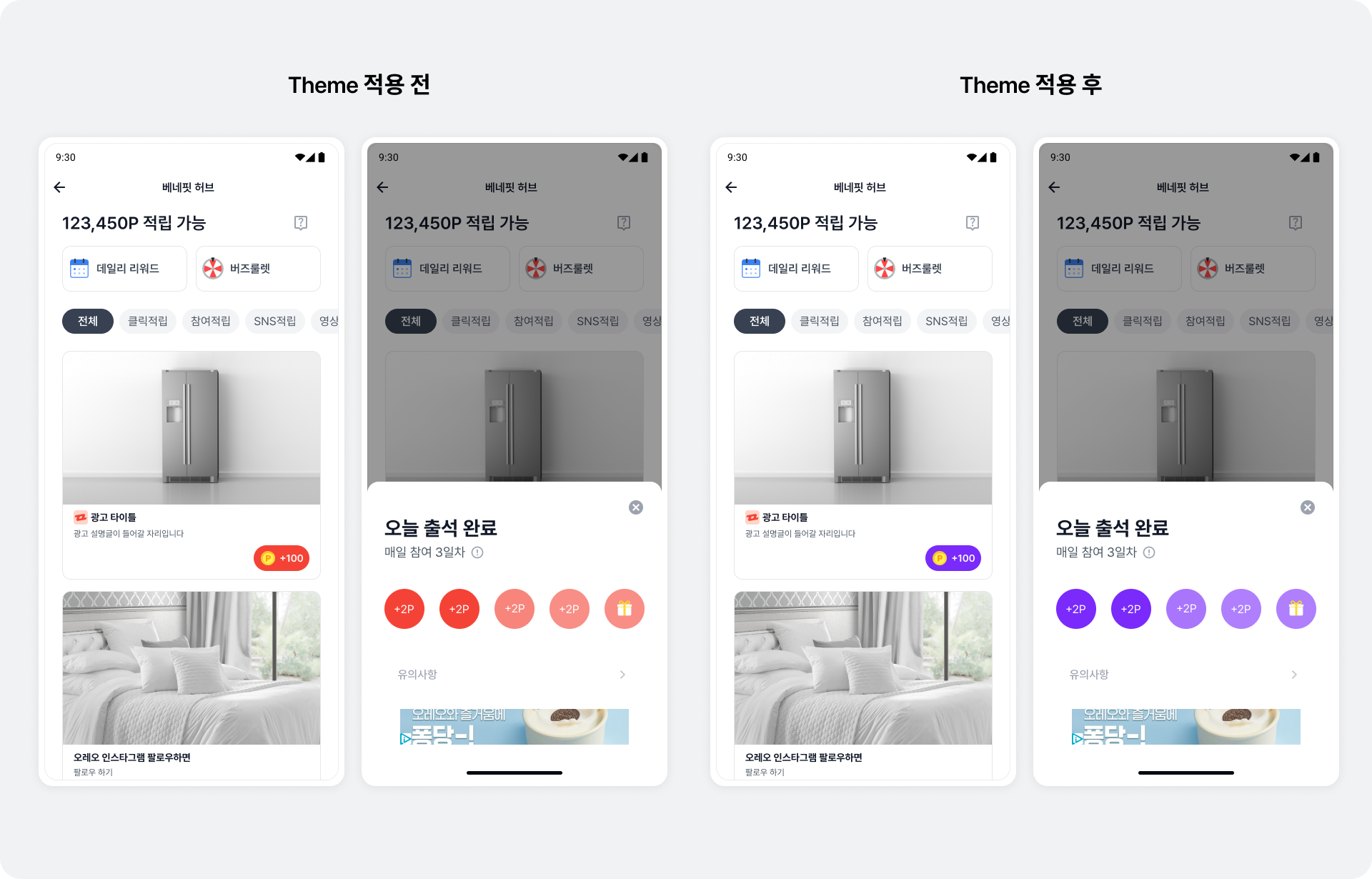
Primary color
Change the primary color of key SDK UI elements across all placements, including dialog buttons and bottom sheet confirmation buttons.
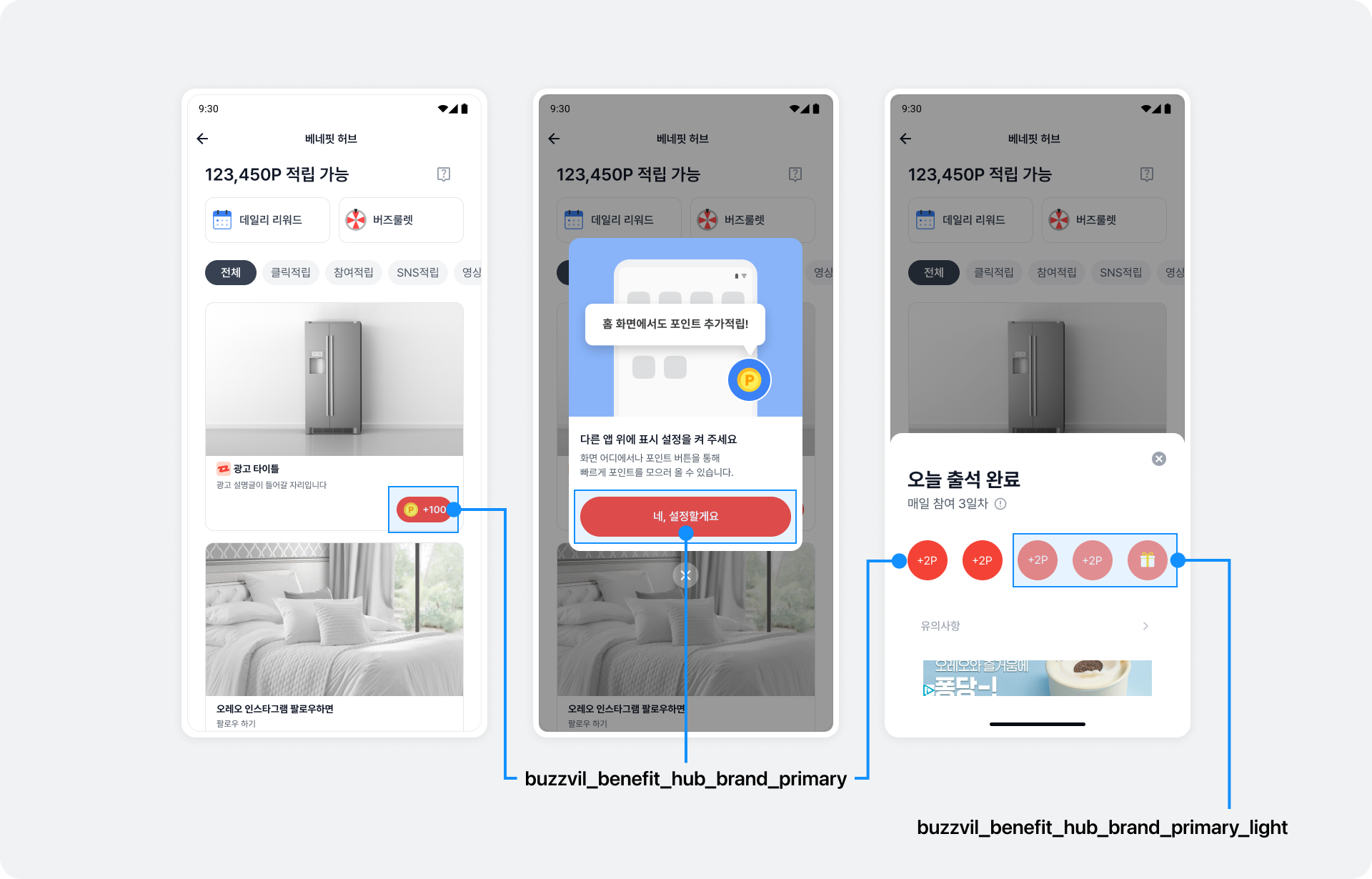
Add color resources as shown below to change the primary color.
<?xml version="1.0" encoding="utf-8"?>
<resources>
    <color name="your_primary_color">#FF0000</color>
    <color name="your_primary_light_color">#99FF0000</color>

    <color name="buzzvil_benefit_hub_brand_primary">@color/your_primary_color</color>
    <color name="buzzvil_benefit_hub_brand_primary_light">@color/your_primary_light_color</color>
</resources>
Reward icon
Customize icons in SDK UI elements such as CTA buttons, Pop buttons and the profile input banner.
The following example adds rewardIcon to BuzzAdTheme to change the reward icon. The table lists the UI controlled by each property.
| Property | Configurable UI |
|---|---|
rewardIcon |
|
participatedIcon |
|
import com.buzzvil.buzzad.benefit.BuzzAdBenefitConfig
import com.buzzvil.buzzad.benefit.presentation.BuzzAdTheme
import com.buzzvil.sdk.BuzzvilSdk

class App : Application() {
    override fun onCreate() {
        super.onCreate()

        val buzzAdBenefitConfig = ...

        // BuzzvilSdk.initialize()를 호출하기 전에  GlobalTheme을 설정합니다.
        val buzzAdTheme = BuzzAdTheme()
            .rewardIcon(R.drawable.your_reward_icon)
            .participatedIcon(R.drawable.your_participated_icon)
        BuzzAdTheme.setGlobalTheme(buzzAdTheme)

        // Buzzvil SDK 초기화
        BuzzvilSdk.initialize(...)
    }
}
Implement a custom CTA button
Implement custom CTA buttons instead of the default UI. You can use them in BenefitHub and Native.
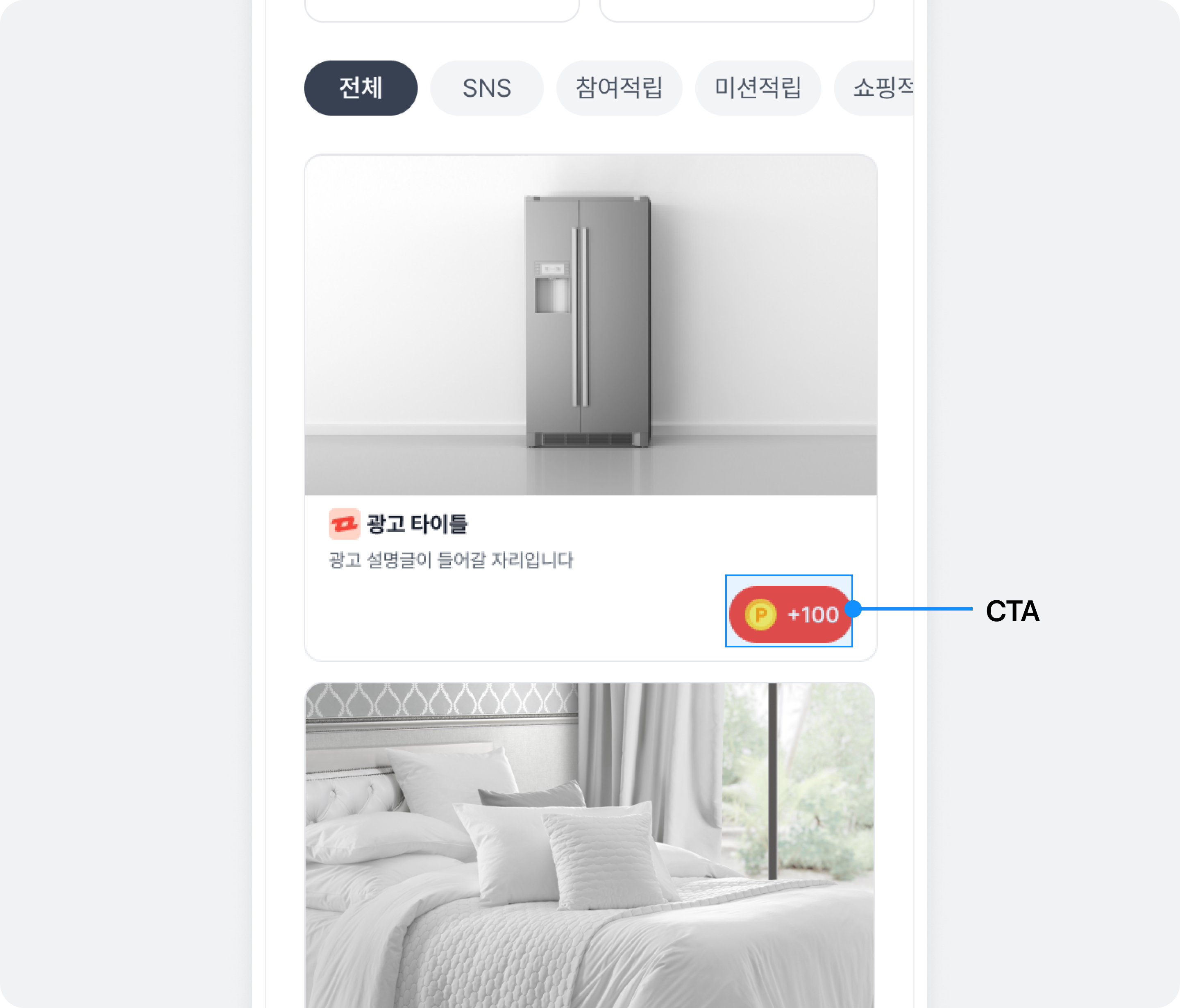
Follow these steps to implement your own CTA button.
-
Implement the view layout (
view_customized_cta.xml). The following example implements a view layout as a layout resource.<LinearLayout android:layout_width="wrap_content" android:layout_height="wrap_content" android:background="@color/colorPrimaryDark"> <TextView android:id="@+id/textCta"/> <ImageView android:id="@+id/imageReward" android:layout_width="24dp" android:layout_height="24dp" android:src="아이콘 이미지 리소스"/> <TextView android:id="@+id/textReward"/> </LinearLayout> -
Create
CustomCtaView, a subclass ofCtaView. -
In your subclass of
CtaView, useinflateto load the CTA view layout. -
Implement the CTA button's icon, text, and reward value in the following override methods, which are called according to the user's ad participation state.
-
renderViewParticipatingState: The user is participating in an ad (for example, has entered an action-based ad's landing page). -
renderViewParticipatedState: The user has completed ad participation. -
renderViewRewardAvailableState: The user has not yet participated in the ad. -
renderViewRewardNotAvailableState: The ad offers no reward to the user.import com.buzzvil.buzzad.benefit.presentation.theme.CtaView class CustomCtaView(context: Context, attrs: AttributeSet?, defStyleAttr: Int) : CtaView(context, attrs, defStyleAttr) { private val rewardImageView: ImageView private val rewardTextView: TextView private val ctaTextView: TextView constructor(context: Context) : this( context, null ) constructor(context: Context, attrs: AttributeSet?) : this( context, attrs, 0 ) init { inflate(getContext(), R.layout.custom_cta_view, this) rewardImageView = findViewById(R.id.imageReward) rewardTextView = findViewById(R.id.textReward) ctaTextView = findViewById(R.id.textCta) } private fun setRewardIcon(@DrawableRes iconResId: Int) { rewardImageView.setImageResource(iconResId) rewardImageView.visibility = View.VISIBLE } private fun hideRewardIcon() { rewardImageView.visibility = View.GONE } private fun setCtaText(ctaText: String) { ctaTextView.text = ctaText } private fun setRewardText(rewardText: String) { rewardTextView.text = rewardText } override fun renderViewParticipatingState(callToAction: String) { setCtaText("참여 확인 중") hideRewardIcon() setRewardText("") } override fun renderViewParticipatedState(callToAction: String) { setRewardIcon(R.drawable.custom_participated_icon) setRewardText("") setCtaText("참여 완료") } override fun renderViewRewardAvailableState(callToAction: String, reward: Int) { setRewardIcon(R.drawable.custom_reward_icon) setRewardText(String.format(Locale.US, "+%,d", reward)) setCtaText(callToAction) } override fun renderViewRewardNotAvailableState(callToAction: String) { hideRewardIcon() setRewardText("") setCtaText(callToAction) } }
Apply the custom CTA button to GlobalTheme
Add customCtaView to BuzzAdTheme to apply your custom CTA button.
import com.buzzvil.buzzad.benefit.presentation.BuzzAdTheme
import com.buzzvil.sdk.BuzzvilSdk

class App : Application() {
    override fun onCreate() {
        super.onCreate()

        val buzzAdBenefitConfig = ...

        // BuzzvilSdk.initialize()를 호출하기 전에 GlobalTheme을 설정합니다.
        val buzzAdTheme = BuzzAdTheme()
            .ctaViewClass(CustomCtaView::class.java)
        BuzzAdTheme.setGlobalTheme(buzzAdTheme)

        // Buzzvil SDK 초기화
        BuzzvilSdk.initialize(...)
    }
}
Native
Native overlay UI
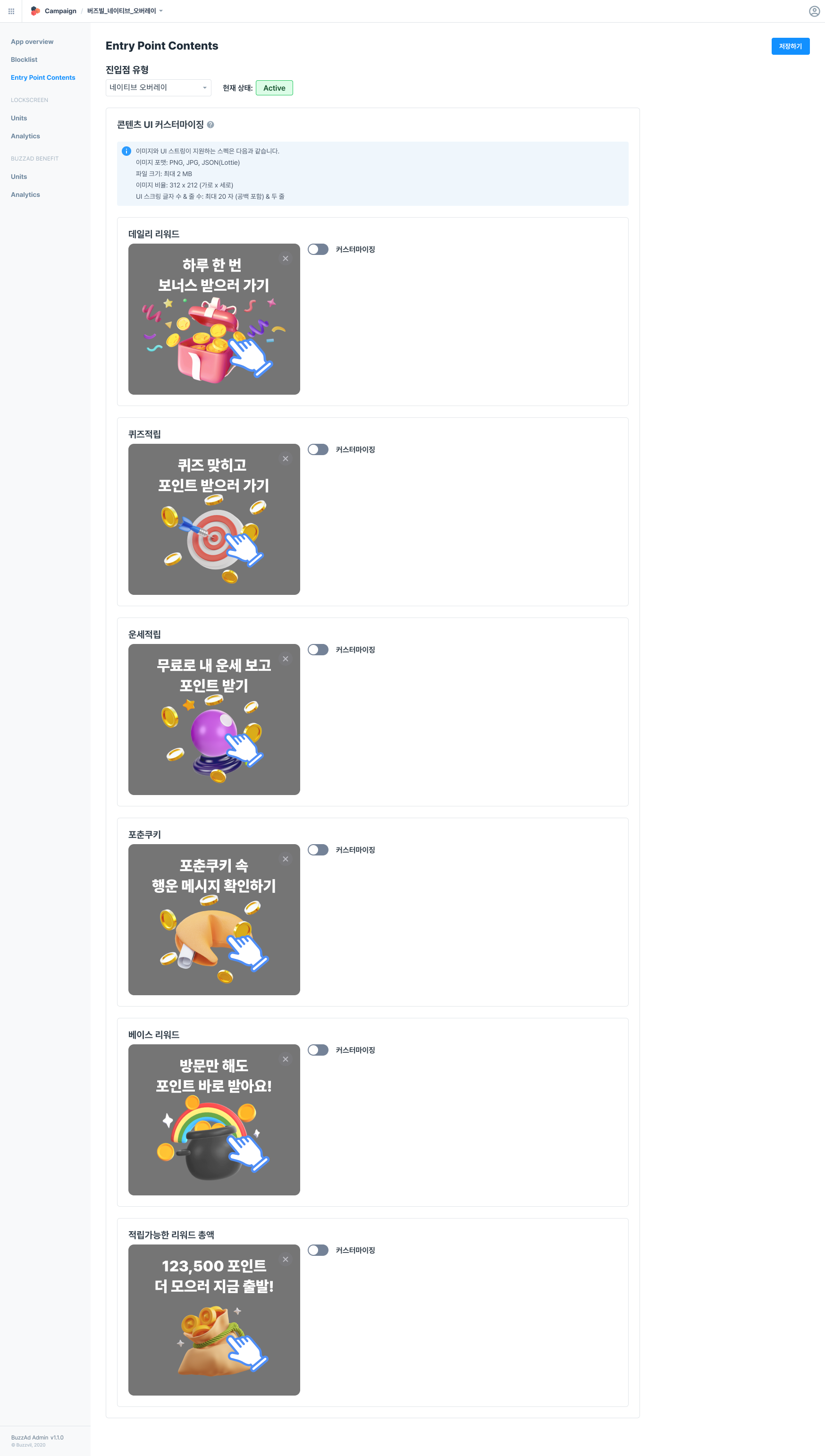
Configure overlay images and text in Buzzvil Dash Admin.
Follow these steps to configure Native Overlay UI.
- Open Buzzvil Dash Admin (https://dashboard.buzzvil.com/).
- Find and select your app in Inventory Manager, then open Entry Point Contents in the left menu.
- Select “Native Overlay” from the Entry point type dropdown.
- Enable Customization for each overlay type.
- Add your images and UI strings.
- Preview changes in real time.
- Unconfigured overlays use Buzzvil's default UI.
- Supported image and UI text specifications:
- Image formats: PNG, JPG, JSON (Lottie)
- File size: Up to 2 MB - Image ratio: 312 × 212, width × height.
- UI text: Up to 20 characters, including spaces, across two lines
- Click Save in the upper-right corner.
Native overlay area
To change where the native overlay appears, set its display area using nativeOverlayViewLayout() on NativeAd2ViewBinder as shown below.
import com.buzzvil.buzzad.benefit.nativead2.api.NativeAd2ViewBinder

nativeAd2ViewBinder = NativeAd2ViewBinder.Builder()
    .nativeAd2View(nativeAd2View)
    ...
    .nativeOverlayViewLayout(yourCustomNativeAdLayout)
    .build(Constant.YOUR_NATIVE_ID)
BenefitHub
This section explains how to change the design of the UI provided by the Buzzvil SDK.
Lucky Box
Customize Lucky Box strings and images without an SDK patch. Send the settings and content you want to change to help@buzzvil.com.
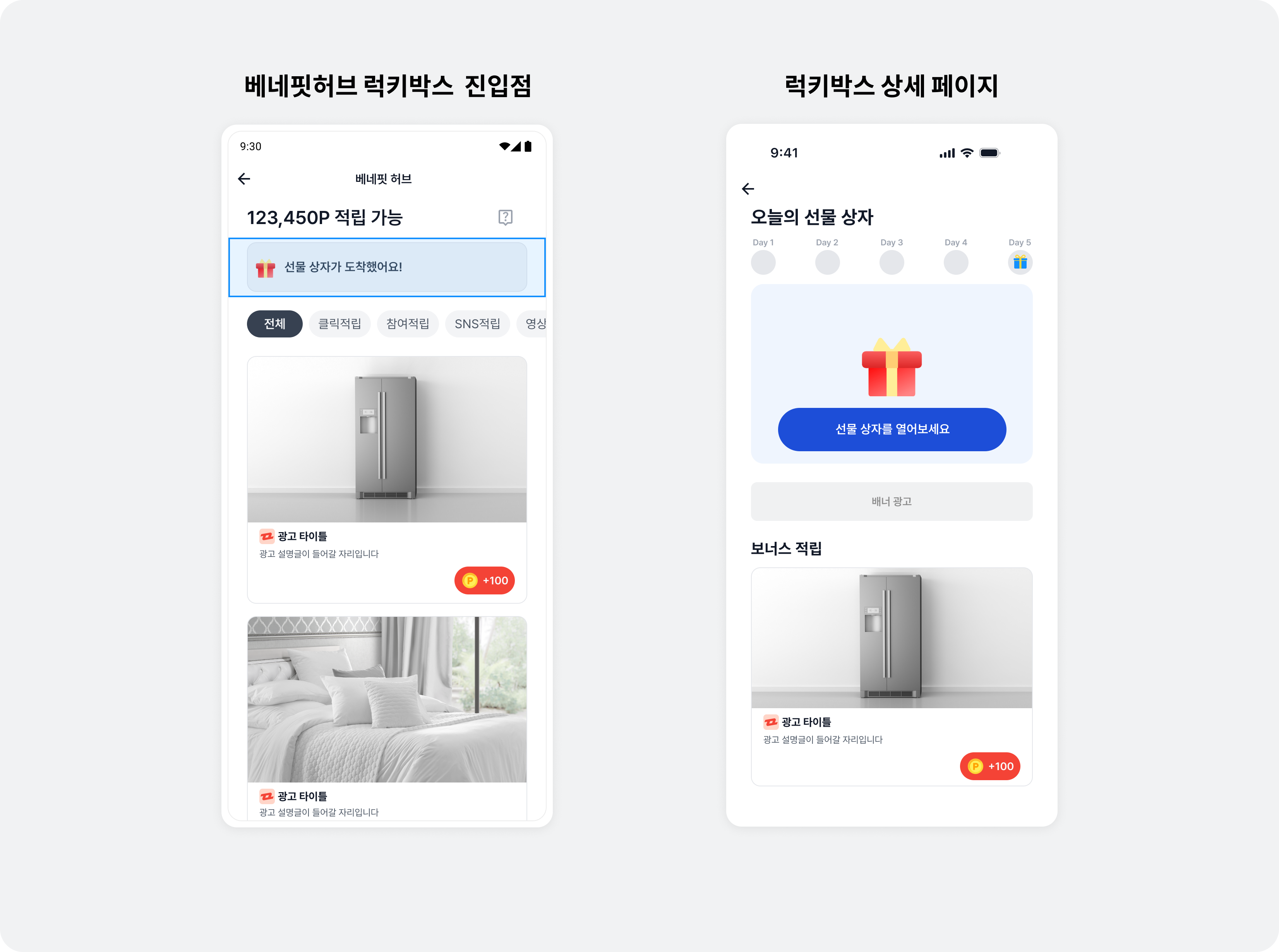
| Item | Description |
|---|---|
| Promotion name |
|
| Entry point before and after participation |
|
| Participation progress icons |
|
| Lucky Box CTA before and after participation |
|
| Images before and after participation |
|
| Additional reward banner |
|
| Daily reward amount |
|
| Streak reward amount |
|
| Streak completion text |
|
| Streak completion text color |
|
| Streak completion icon |
|
| Streak completion effects |
|
| Notices |
|
Mission Pack
Customize MissionPack strings and images without an SDK patch. Send the settings and content you want to change to help@buzzvil.com.
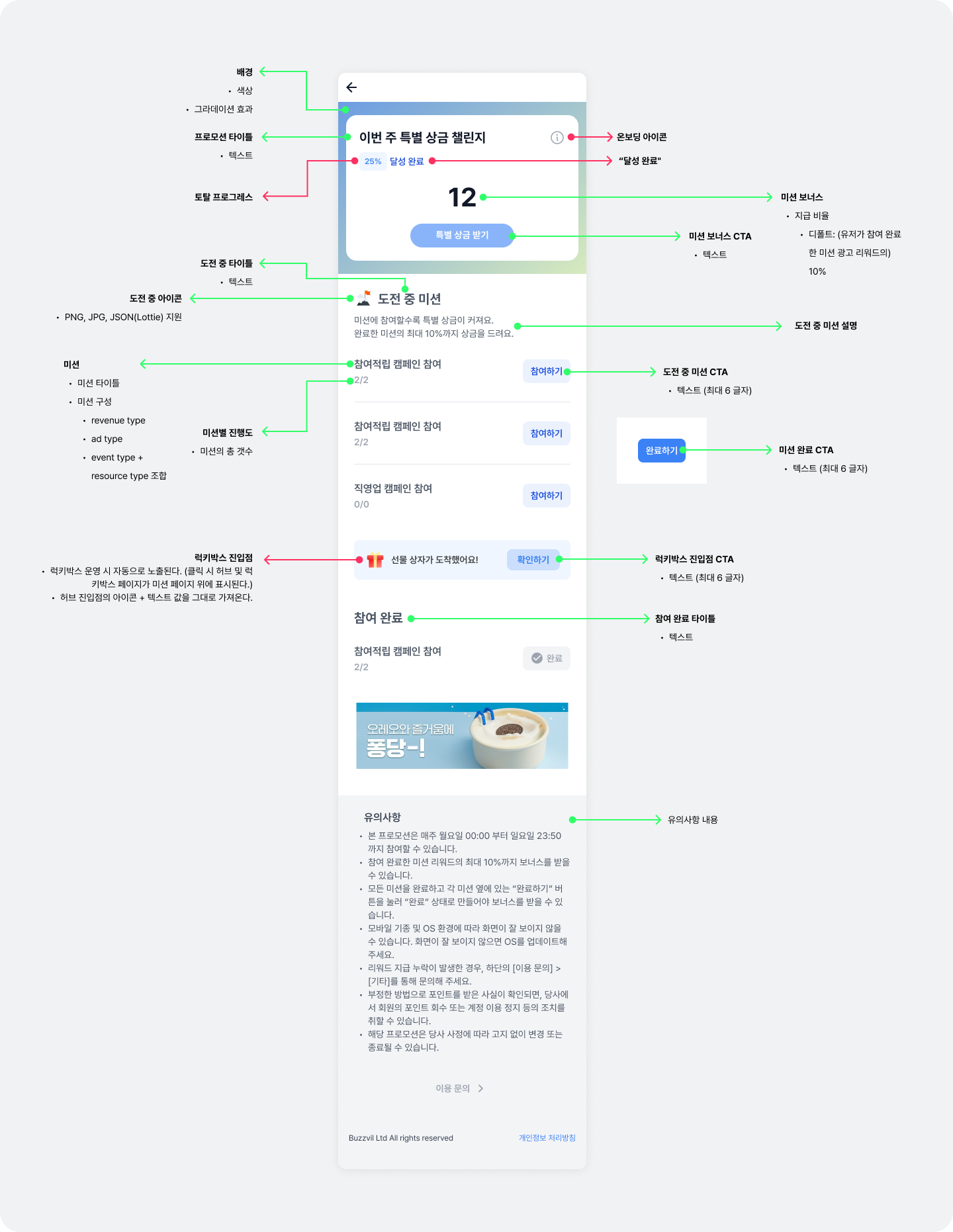
| Item | Detail | Description |
|---|---|---|
| BenefitHub entry point | Title |
|
| BenefitHub entry point | Icon |
|
| Background | Color |
|
| Background | Gradient |
|
| Promotion title | Text | - |
| Mission bonus | Reward percentage |
|
| Mission bonus CTA | Text | - |
| Mission in progress | Title | - |
| Mission in progress | Icon |
|
| Mission in progress | Description |
|
| Mission in progress | In-progress CTA |
|
| Mission in progress | Completion CTA |
|
| Completed participation | Title | - |
| Mission configuration | Mission title | - |
| Mission configuration | Criteria |
|
| Mission configuration | Progress per mission |
|
| Lucky Box entry point | CTA |
|
| Notices | - |
|
| Performance tracking unit | - |
|
| Participation credit unit | - |
|
Configure the MissionPack background gradient
import com.buzzvil.buzzad.benefit.BuzzAdBenefitConfig
import com.buzzvil.buzzad.benefit.presentation.feed.BuzzAdFeed
import com.buzzvil.buzzad.benefit.presentation.feed.BuzzAdFeedTheme
import com.buzzvil.sdk.BuzzvilSdk

class App : Application() {
    override fun onCreate() {
        super.onCreate()

        val buzzAdBenefitConfig = ...

        // BuzzvilSdk.initialize()를 호출하기 전에 GlobalTheme을 설정합니다.
        val buzzAdFeedTheme = BuzzAdFeedTheme.getDefaultFeedTheme()
            .missionPackGradientColors(intArrayOf(0xAF568DE8.toInt(), 0xAFF4FFB3.toInt()))
            .missionPackGradientColorPositions(floatArrayOf(0.0f, 1.0f))
        BuzzAdFeed.setDefaultTheme(buzzAdTheme)

        // Buzzvil SDK 초기화
        BuzzvilSdk.initialize(...)
    }
}
Navigation bar
You can change the text in BenefitHub's navigation bar or implement your own navigation bar.
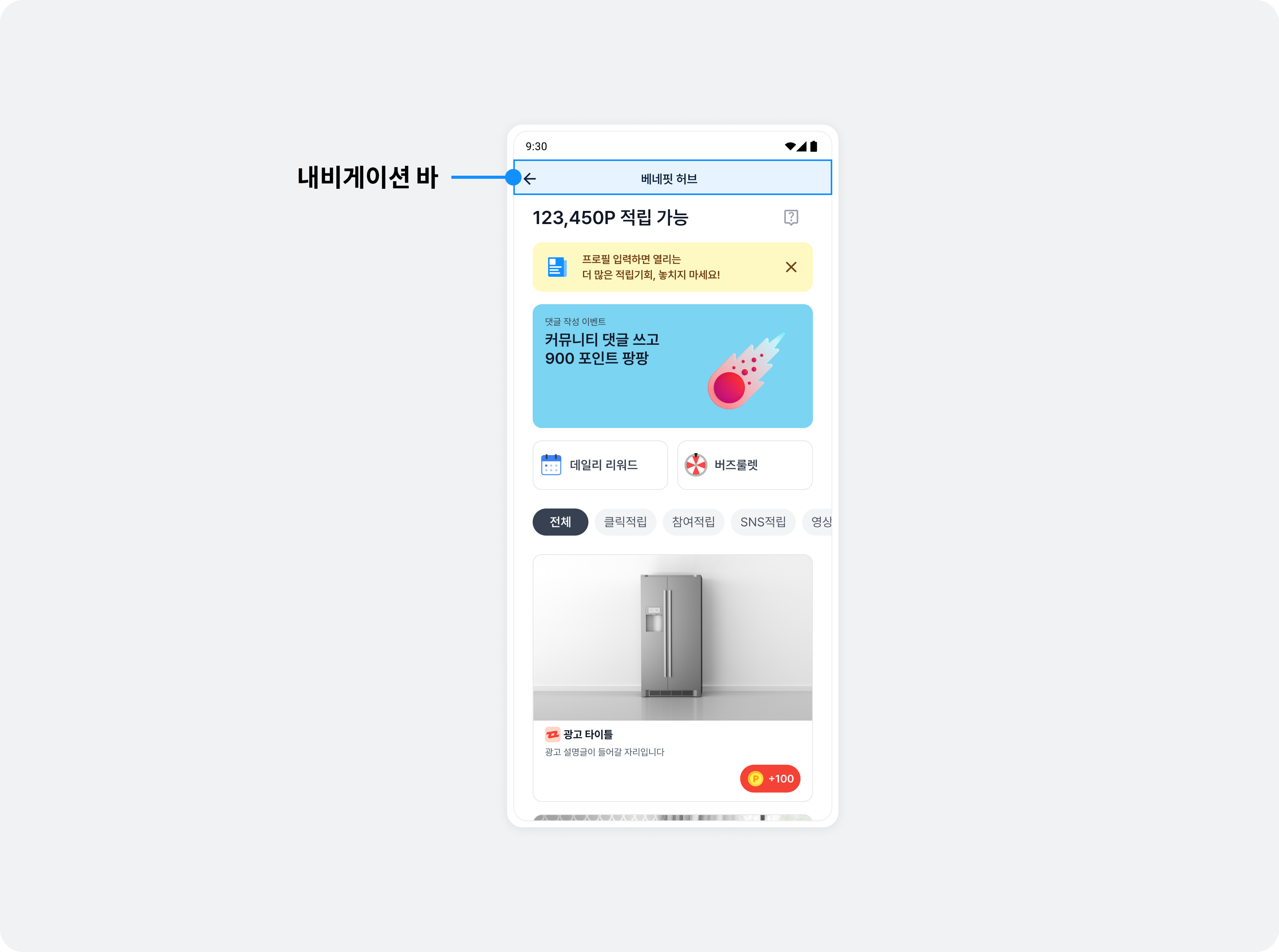
Change navigation bar text
You can change navigation bar UI strings.
<resources>
    <string name="your_custom_title">원하는 타이틀 입력</string>
</resources>
import com.buzzvil.buzzad.benefit.presentation.feed.BuzzAdFeed
import com.buzzvil.buzzad.benefit.presentation.feed.BuzzAdFeedTheme

val buzzAdFeedTheme = BuzzAdFeedTheme.getDefault()
    .navigationBarTitle(R.string.your_custom_title)
BuzzAdFeed.setDefaultTheme(buzzAdFeedTheme)
Implement a custom navigation bar
See Integrate BenefitHub as a fragment to implement your own navigation bar.
Profile input banner
You can change the profile input banner icon.
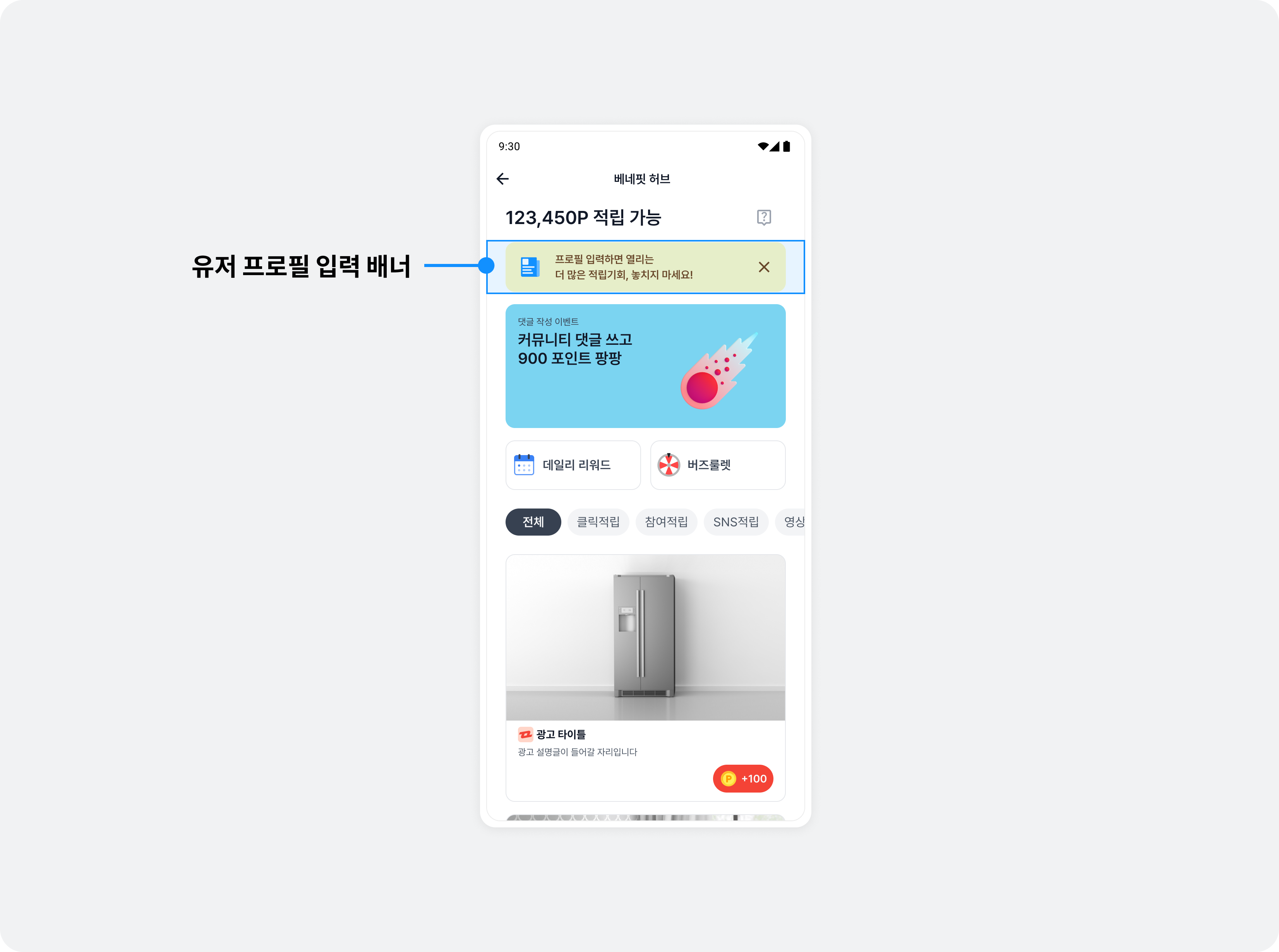
import com.buzzvil.buzzad.benefit.presentation.feed.BuzzAdFeed
import com.buzzvil.buzzad.benefit.presentation.feed.BuzzAdFeedTheme
import com.buzzvil.sdk.BuzzvilSdk

class App : Application() {
    override fun onCreate() {
        super.onCreate()

        val buzzAdBenefitConfig = ...

        // BuzzvilSdk.initialize()를 호출하기 전에 FeedTheme을 설정합니다.
        val buzzAdFeedTheme = BuzzAdFeedTheme()
            .profileBannerIcon(R.drawable.your_profile_banner_icon)
        BuzzAdFeed.setDefaultTheme(buzzAdFeedTheme)

        // Buzzvil SDK 초기화
        BuzzvilSdk.initialize(...)
    }
}
Header
Use BenefitHub's header for your own content, such as an explanation of the placement or the available reward amount.
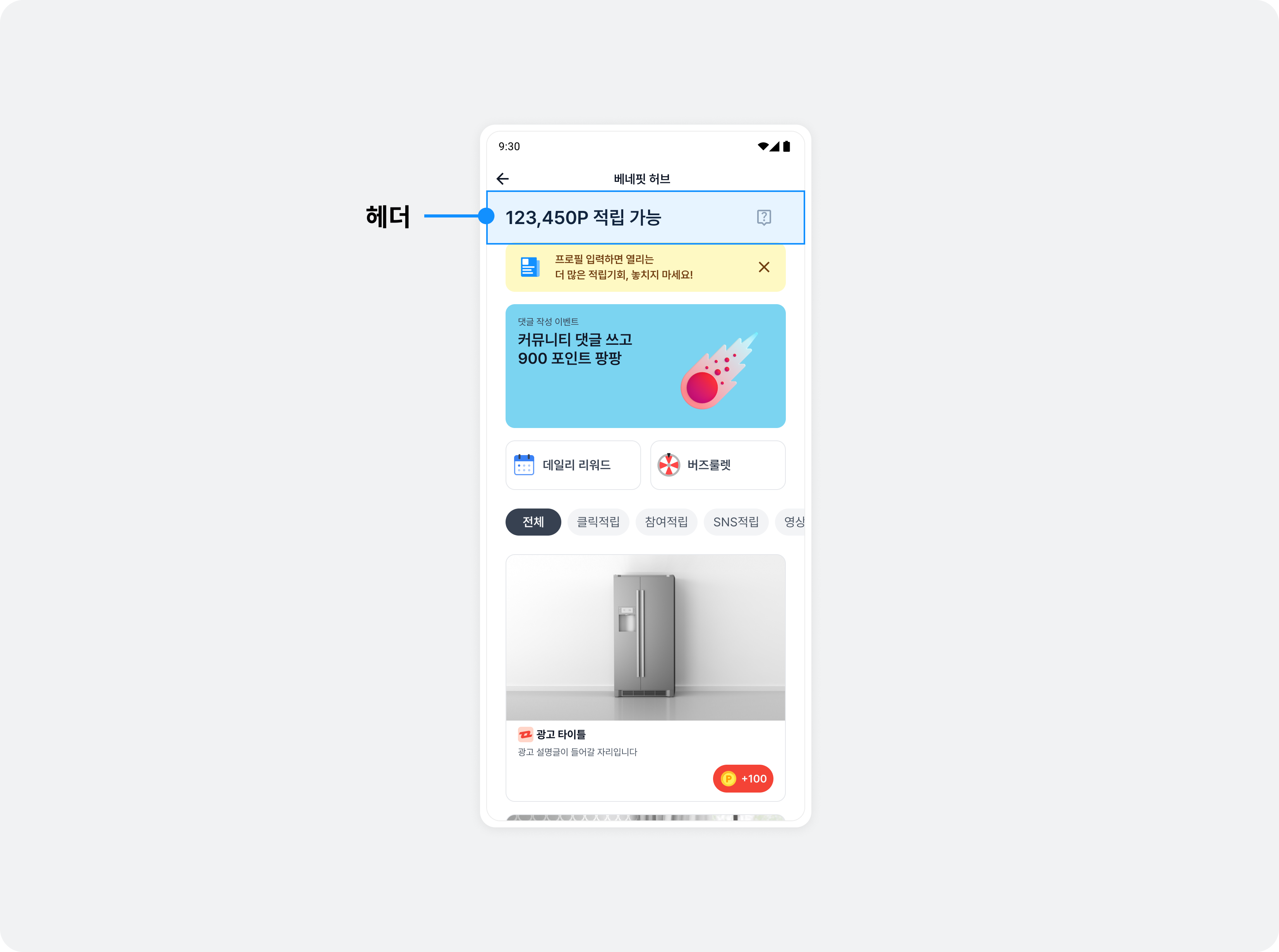
The following example changes the header.
Create a class implementing FeedHeaderViewAdapter and add your custom view (your_feed_header_layout) to the header. Register the class in the feedHeaderViewAdapterClass() property of FeedConfig.
import com.buzzvil.buzzad.benefit.presentation.feed.header.FeedHeaderViewAdapter

class CustomFeedHeaderViewAdapter: FeedHeaderViewAdapter {
    override fun onCreateView(context: Context, parent: ViewGroup): View {
        val inflater = context.getSystemService(Context.LAYOUT_INFLATER_SERVICE) as LayoutInflater
        return inflater.inflate(R.layout.feed_header_layout, parent, false)
    }

    override fun onBindView(view: View, reward: Int) {
        val rewardTextView: TextView = view.findViewById(R.id.textReward)
        rewardTextView.text = reward.toString()
    }

    override fun onDestroyView() {
        // Use this callback for clearing memory
    }
}
import com.buzzvil.buzzad.benefit.presentation.feed.FeedConfig

val feedConfig = FeedConfig.Builder("YOUR_FEED_UNIT_ID")
        .feedHeaderViewAdapterClass(CustomFeedHeaderViewAdapteri::class.java)
        .build();
Ad category filters
Ad category filters use monochrome colors by default. You can change them to follow the primary color.
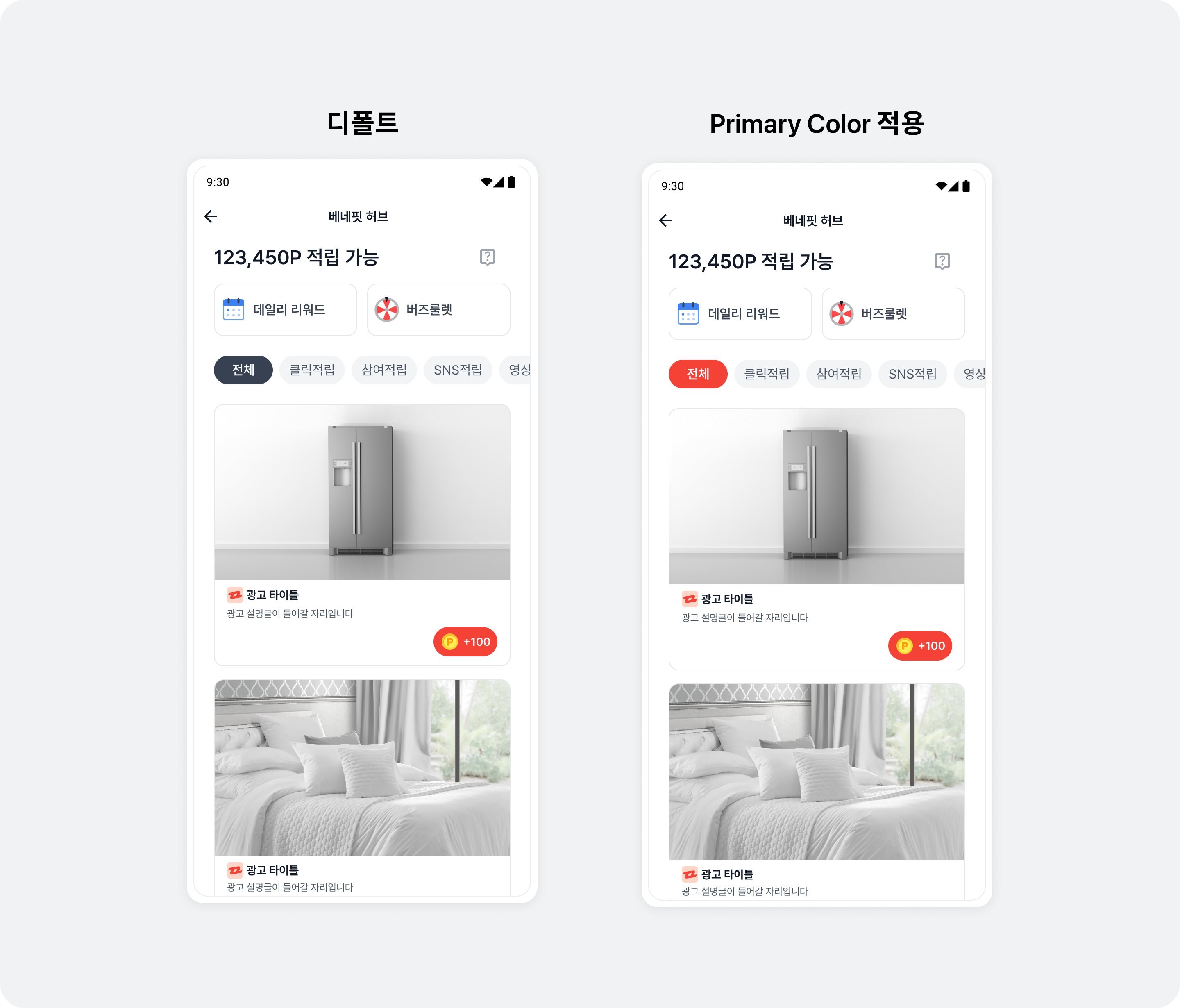
import com.buzzvil.buzzad.benefit.presentation.BuzzAdTheme
import com.buzzvil.sdk.BuzzvilSdk

class App : Application() {
    override fun onCreate() {
        super.onCreate()

        val buzzAdBenefitConfig = ...

        // BuzzvilSdk.initialize()를 호출하기 전에 GlobalTheme을 설정합니다.
        val buzzAdTheme = BuzzAdTheme()
            .usePrimaryColorInFilter(true) // true: primary color, false: monocrhome
        BuzzAdTheme.setGlobalTheme(buzzAdTheme)

        // Buzzvil SDK 초기화
        BuzzvilSdk.initialize(...)
    }
}
Ad design
Buzzvil SDK provides standard ads and shopping ads.
- Standard ads: All ad types other than shopping ads.
- Shopping ads: Users receive a percentage of their purchase amount as points after buying through the ad.
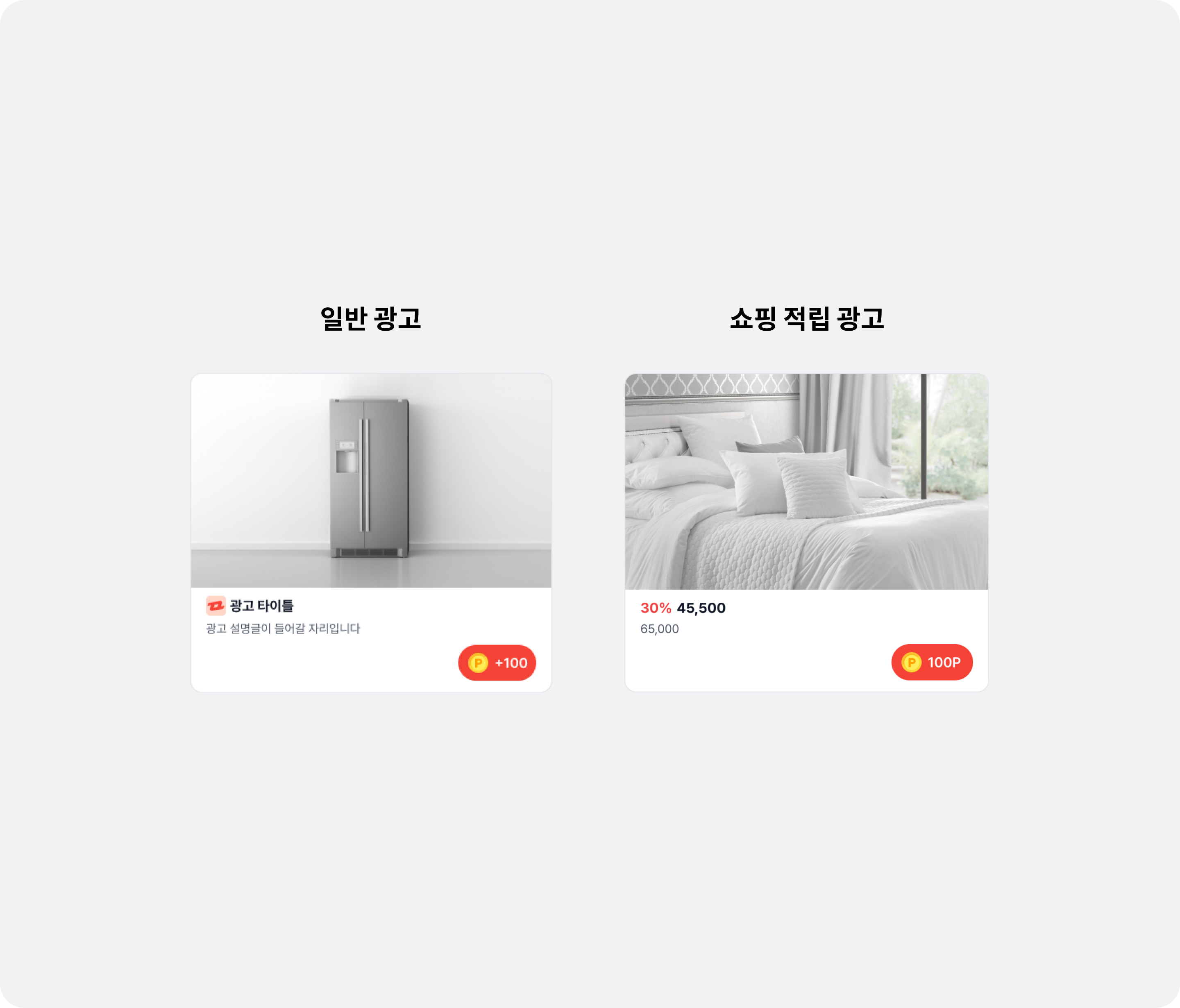
Both types contain multiple elements for displaying the ad. Their components and UI requirements are listed below.
| Component | Standard | Shopping | Description |
|---|---|---|---|
| Ad creative | Required | Required |
|
| Ad title | Required | Optional | The ad title. A maximum of 10 characters is recommended. You may truncate part of the text with an ellipsis as needed, regardless of length. |
| Ad description | Required | Optional | A detailed ad description. A maximum of 40 characters is recommended. You may truncate part of the text with an ellipsis as needed, regardless of length. |
| Advertiser icon | Required | Optional |
|
| CTA button | Required | Required |
✏️ Note See Implement a custom CTA button to change the design. |
| Ad disclosure | Recommended | Recommended | Text identifying the content as advertising, such as 광고, ad, 스폰서 or Sponsored. |
| OriginalPrice View | - | Recommended | Displays the original product price. |
| Price View | - | Required | Displays the discounted product price. |
| DiscountRate View | - | Recommended | Displays the discount rate. Calculate it from the original and discounted prices. |
Implement a custom ad design
Follow these steps to customize the ad design.
-
Implement a layout (
your_benefit_hub_ad.xml) that meets the requirements of the adNativeAdView.<com.buzzvil.buzzad.benefit.presentation.nativead.NativeAdView android:id="@+id/nativeAdView" ...> <LinearLayout ... > <com.buzzvil.buzzad.benefit.presentation.media.MediaView android:id="@+id/mediaView" ... /> <LinearLayout android:id="@+id/excpsLayout" ... > <androidx.appcompat.widget.AppCompatImageView android:id="@+id/adIconImage" ... /> <TextView android:id="@+id/adTitleText" ... /> <TextView android:id="@+id/adDescriptionText" ... /> </LinearLayout> <LinearLayout android:id="@+id/cpsLayout" ...> <TextView android:id="@+id/discountPercentageText" ... /> <TextView android:id="@+id/priceText" ... /> <TextView android:id="@+id/originalPriceText" ... /> </LinearLayout> <com.buzzvil.buzzad.benefit.presentation.media.DefaultCtaView android:id="@+id/ctaView" ... /> </LinearLayout> </com.buzzvil.buzzad.benefit.presentation.nativead.NativeAdView> -
Implement a subclass of
BenefitHubAdViewAdapter.- In
onCreateView(), useyour_benefit_hub_ad.xmlto create the view.
- In
-
In
onBindView(), useNativeAdViewBinderto bind ad data (NativeAd) to theNativeAdViewyou created. -onBindView()must returnNativeAdView.- Release listeners and views in
onDestroyView().
- Release listeners and views in
-
Optionally receive ad callbacks through
NativeAdEventListener.import com.buzzvil.buzzad.benefit.core.models.Product import com.buzzvil.buzzad.benefit.feed.benefithub.list.adapter.BenefitHubAdViewAdapter import com.buzzvil.buzzad.benefit.presentation.nativead.NativeAd import com.buzzvil.buzzad.benefit.presentation.nativead.NativeAdEventListener import com.buzzvil.buzzad.benefit.presentation.nativead.NativeAdView import com.buzzvil.buzzad.benefit.presentation.nativead.NativeAdViewBinder import com.buzzvil.buzzad.benefit.presentation.reward.RewardResult class CustomBenefitHubAdViewAdapter : BenefitHubAdViewAdapter { private lateinit var binding: YourBenefitHubAdBinding private var nativeAd: NativeAd? = null private var nativeAdViewBinder: NativeAdViewBinder? = null // 리스너 구현은 선택 사항입니다. private val listener = object : NativeAdEventListener { override fun onImpressed(nativeAd: NativeAd) {} override fun onClicked(nativeAd: NativeAd) {} override fun onRewardRequested(nativeAd: NativeAd) {} override fun onRewarded(nativeAd: NativeAd, nativeAdRewardResult: RewardResult?) {} override fun onParticipated(nativeAd: NativeAd) {} } override fun onCreateView(context: Context, parent: ViewGroup): View { val inflater = context.getSystemService(Context.LAYOUT_INFLATER_SERVICE) as LayoutInflater binding = YourBenefitHubAdBinding.inflate(inflater, parent, false) return binding.root } override fun getNativeAdView(): NativeAdView { return binding.nativeAdView } override fun onBindView(nativeAd: NativeAd) { val builder = NativeAdViewBinder.Builder(binding.root, binding.adMediaView) .ctaView(binding.adCtaView) .iconImageView(binding.adIconImage) .titleTextView(binding.adTitleText) .descriptionTextView(binding.adDescriptionText) .addClickableView(binding.yourClickableArea) // (Optional) 클릭 가능한 영역을 추가합니다. if (nativeAd.shoppingProduct == null) { // 일반 광고 (CPS 외) binding.excpsLayout.visibility = View.VISIBLE binding.cpsLayout.visibility = View.GONE } else { // 쇼핑 광고 (CPS) binding.excpsLayout.visibility = View.GONE binding.cpsLayout.visibility = View.VISIBLE setCpsView(nativeAd.shoppingProduct!!) } val nativeAdViewBinder = builder.build() nativeAdViewBinder.bind(nativeAd) nativeAd.addNativeAdEventListener(listener) this.nativeAd = nativeAd this.nativeAdViewBinder = nativeAdViewBinder } override fun onDestroyView() { nativeAd?.removeNativeAdEventListener(listener) nativeAdViewBinder?.unbind() nativeAd = null nativeAdViewBinder = null } private fun setCpsView(product: Product) { val discountedPrice = product.discountedPrice if (discountedPrice != null) { // 할인이 있는 쇼핑 광고 binding.originalPriceText.paintFlags = binding.originalPriceText.paintFlags or Paint.STRIKE_THRU_TEXT_FLAG var percentage = 0 if (product.price > discountedPrice) { percentage = ((product.price - discountedPrice) / product.price * 100).roundToInt() } if (percentage > 0) { binding.priceText.text = getCommaSeparatedPrice(discountedPrice.toLong()) binding.originalPriceText.text = getCommaSeparatedPrice(product.price.toLong()) binding.discountPercentageText.text = String.format(Locale.ROOT, "%d%%", percentage) binding.discountPercentageText.visibility = View.VISIBLE } else { binding.priceText.text = getCommaSeparatedPrice(product.price.toLong()) binding.originalPriceText.text = "" binding.discountPercentageText.visibility = View.GONE } } else { // 할인이 없는 쇼핑 광고 binding.priceText.text = getCommaSeparatedPrice(product.price.toLong()) binding.originalPriceText.text = "" binding.discountPercentageText.visibility = View.GONE } } private fun getCommaSeparatedPrice(price: Long): String { val contextForResource = binding.root.context return String.format( Locale.getDefault(), contextForResource.getString(R.string.custom_cps_price_unit), price ) } }<resources> <string name="custom_cps_price_unit">%,d원</string> </resources>
-
Set your
CustomBenefitHubAdViewAdapteras the ad adapter class inFeedConfig.import com.buzzvil.buzzad.benefit.presentation.feed.FeedConfig val feedConfig = FeedConfig.Builder(context, "YOUR_FEED_UNIT_ID") .benefitHubAdViewAdapterClass(CustomBenefitHubAdViewAdapter::class.java) .build()
No-ads UI
Users can retry up to three times when no ads are available. Customize the UI strings and images for each attempt.
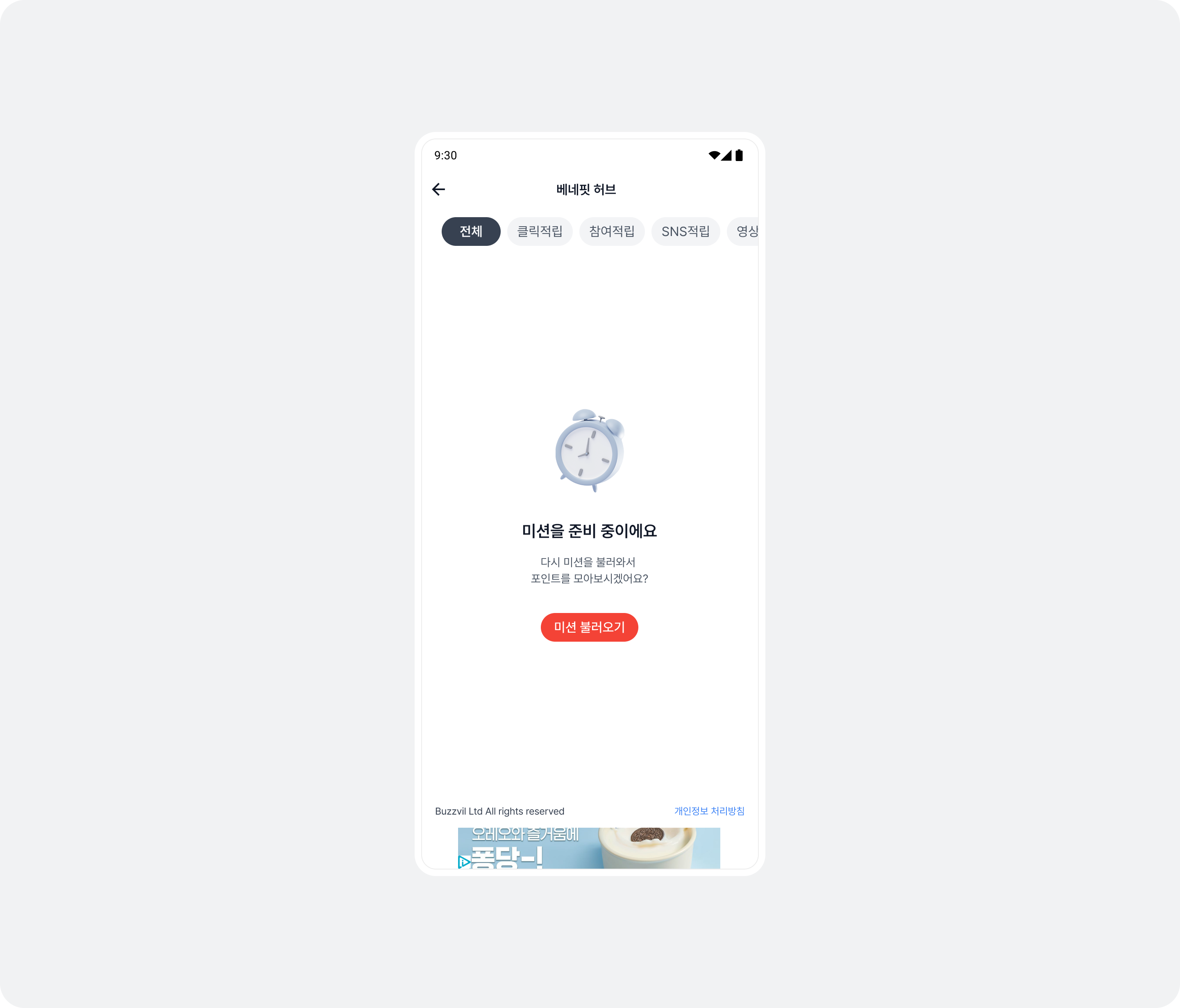
| Retry attempt | Title | Content | Button |
|---|---|---|---|
| Initial attempt | 미션을 준비 중이에요 | 다시 미션을 불러와서 포인트를 모아보시겠어요? | 미션 불러오기 |
| First retry | 미션을 준비 중이에요 | 미션을 로딩 중이에요. 잠시 후 다시 시도해주세요. | 다시 불러오기 |
| Second retry | 미션을 준비 중이에요 | 미션 준비에 시간이 걸리고 있습니다. 잠시 후 다시 시도해주세요. | 한번 더 불러오기 |
| Third retry (last) | 미션을 준비 중이에요 | All filter: 지금은 참여 가능한 미션이 없습니다. 잠시 후 다시 방문해주세요.Other filters: 지금은 참여 가능한 미션이 없습니다. 다른 미션에 참여해서 포인트를 모아보세요! | All filter: 나중에 다시 올게요Other filters: 다른 미션 참여하기 |
<string name="your_no_fill_error_title">미션을 준비 중이에요</string>

<string name="your_no_fill_error_description_1st">다시 미션을 불러와서 포인트를 모아보시겠어요?</string>
<string name="your_no_fill_error_description_2nd">미션을 로딩 중이에요. 잠시 후 다시 시도해주세요.</string>
<string name="your_no_fill_error_description_3rd">미션 준비에 시간이 걸리고 있습니다. 잠시 후 다시 시도해주세요.</string>
<string name="your_no_fill_error_description_final_all_filter">지금은 참여 가능한 미션이 없습니다. 잠시 후 다시 방문해주세요.</string>
<string name="your_no_fill_error_description_final_other_filters">다른 미션 참여하기</string>

<string name="your_no_fill_error_button_1st">미션 불러오기</string>
<string name="your_no_fill_error_button_2nd">다시 불러오기</string>
<string name="your_no_fill_error_button_3rd">한번 더 불러오기</string>
<string name="your_no_fill_error_button_final_all_filter">나중에 다시 올게요</string>
<string name="your_no_fill_error_button_final_other_filters">지금은 참여 가능한 미션이 없습니다. 다른 미션에 참여해서 포인트를 모아보세요!</string>
import com.buzzvil.buzzad.benefit.presentation.feed.BuzzAdFeed
import com.buzzvil.buzzad.benefit.presentation.feed.BuzzAdFeedTheme
import com.buzzvil.sdk.BuzzvilSdk

class App : Application() {
    override fun onCreate() {
        super.onCreate()

        val buzzAdBenefitConfig = ...

        // BuzzvilSdk.initialize()를 호출하기 전에 FeedTheme을 설정합니다.
        val buzzAdFeedTheme = BuzzAdFeedTheme()
            .noFillErrorImage(R.drawable.your_no_fill_error_image)
            .noFillErrorTitle(R.string.your_no_fill_error_title)
            .noFillErrorDescription1st(R.string.your_no_fill_error_description_1st)
            .noFillErrorDescription2nd(R.string.your_no_fill_error_description_2nd)
            .noFillErrorDescription3rd(R.string.your_no_fill_error_description_3rd)
            .noFillErrorDescriptionFinalAllFilter(R.string.your_no_fill_error_description_final_all_filter)
            .noFillErrorDescriptionFinalOtherFilters(R.string.your_no_fill_error_description_final_other_filters)
            .noFillErrorButton1st(R.string.your_no_fill_error_button_1st)
            .noFillErrorButton2nd(R.string.your_no_fill_error_button_2nd)
            .noFillErrorButton3rd(R.string.your_no_fill_error_button_3rd)
            .noFillErrorButtonFinalAllFilter(R.string.your_no_fill_error_button_final_all_filter)
            .noFillErrorButtonFinalOtherFilters(R.string.your_no_fill_error_button_final_other_filters)
        BuzzAdFeed.setDefaultTheme(buzzAdFeedTheme)

        // Buzzvil SDK 초기화
        BuzzvilSdk.initialize(...)
    }
}
User profile error UI
Customize the strings and images shown when no user profile is set.
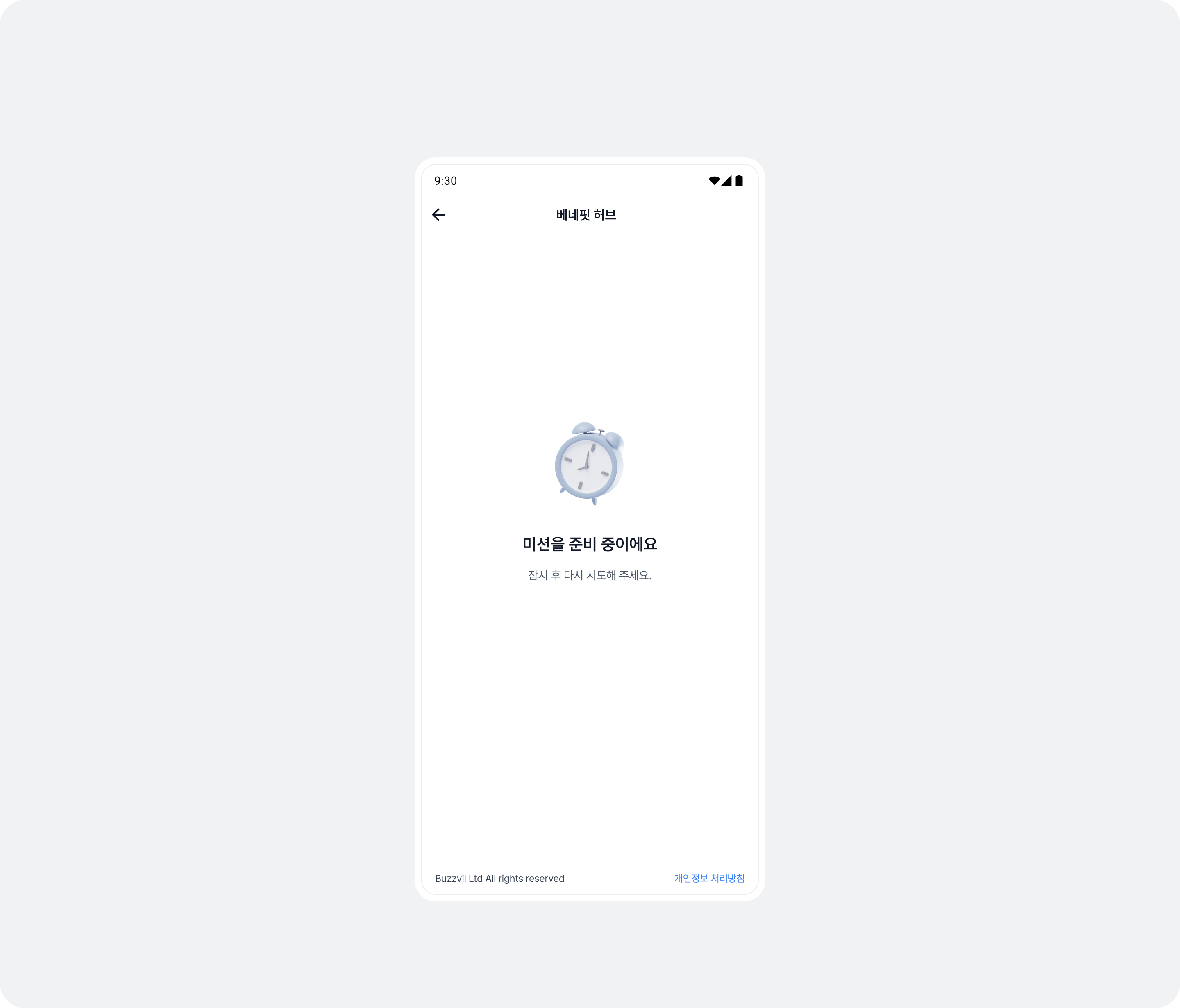
<string name="your_user_profile_error_title">미션을 준비 중이에요</string>
<string name="your_user_profile_error_description">잠시 후 다시 시도해주세요.</string>
import com.buzzvil.buzzad.benefit.presentation.feed.BuzzAdFeed
import com.buzzvil.buzzad.benefit.presentation.feed.BuzzAdFeedTheme

class App : Application() {
    override fun onCreate() {
        super.onCreate()

        val buzzAdBenefitConfig = ...

        // BuzzvilSdk.initialize()를 호출하기 전에 FeedTheme을 설정합니다.
        val buzzAdFeedTheme = BuzzAdFeedTheme()
            .userProfileErrorImage(R.drawable.your_user_profile_error_image)
            .userProfileErrorTitle(R.string.your_user_profile_error_title)
            .userProfileErrorDescription(R.string.your_user_profile_error_description)
        BuzzAdFeed.setDefaultTheme(buzzAdFeedTheme)

        // Buzzvil SDK 초기화
        BuzzvilSdk.initialize(...)
    }
}
Server error UI
Customize the strings and images shown on the server error screen.
<string name="your_server_error_title">미션을 준비 중이에요</string>
<string name="your_server_error_description">잠시 후 다시 시도해주세요.</string>
import com.buzzvil.buzzad.benefit.presentation.feed.BuzzAdFeed
import com.buzzvil.buzzad.benefit.presentation.feed.BuzzAdFeedTheme
import com.buzzvil.sdk.BuzzvilSdk

class App : Application() {
    override fun onCreate() {
        super.onCreate()

        val buzzAdBenefitConfig = ...

        // BuzzvilSdk.initialize()를 호출하기 전에 FeedTheme을 설정합니다.
        val buzzAdFeedTheme = BuzzAdFeedTheme()
            .serverErrorImage(R.drawable.your_server_error_image)
            .serverErrorTitle(R.string.your_user_profile_error_title)
            .serverErrorDescription(R.string.your_server_error_description)
        BuzzAdFeed.setDefaultTheme(buzzAdFeedTheme)

        // Buzzvil SDK 초기화
        BuzzvilSdk.initialize(...)
    }
}
Other error screens
Customize the image for each error screen.
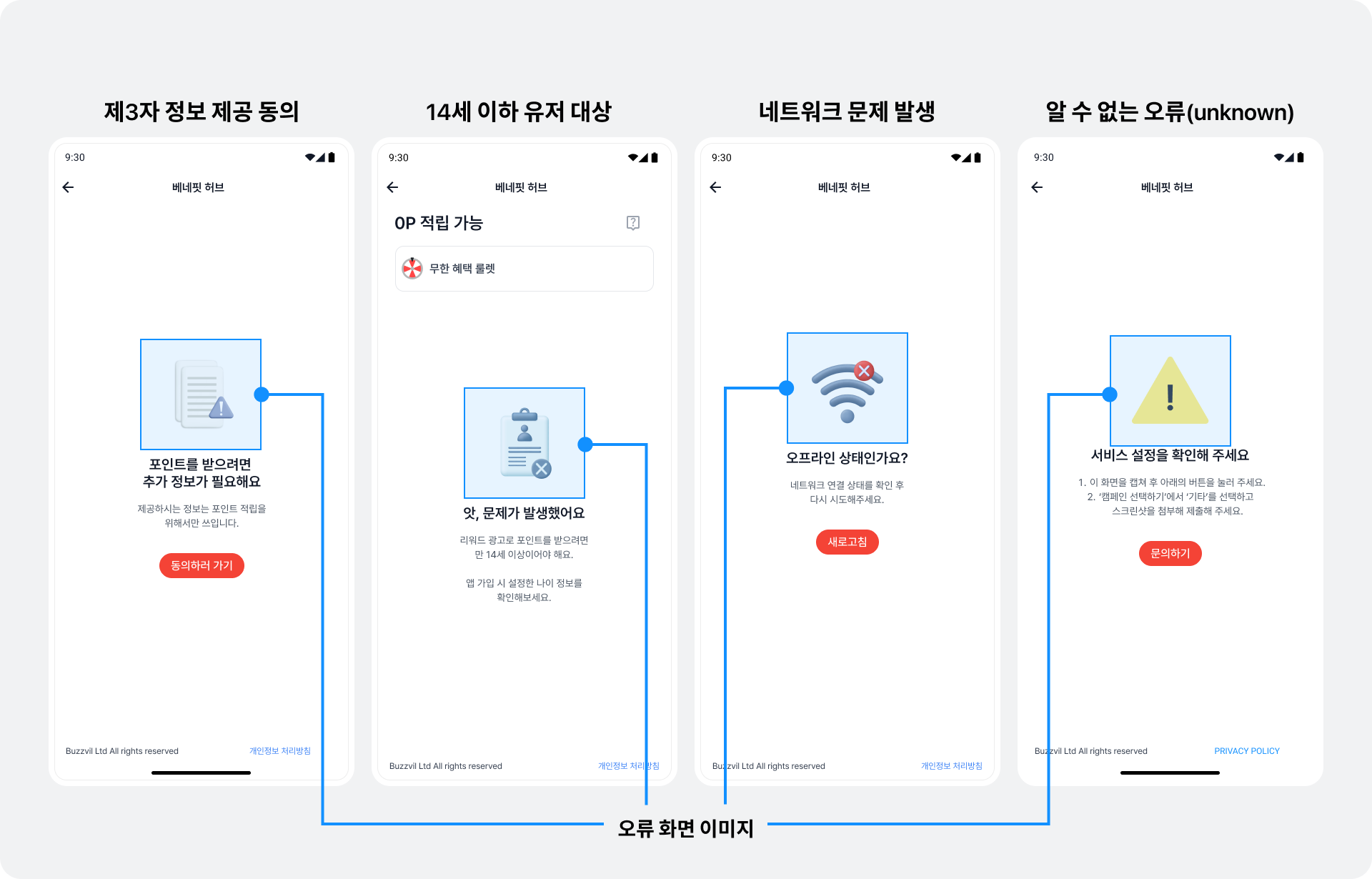
| Property | Description |
|---|---|
privacyPolicyErrorIcon | Changes the image shown when third-party sharing consent is required. |
agePolicyErrorIcon | Changes the image shown for a network error. |
networkErrorIcon | Changes the image shown for a network error. |
unknownErrorIcon | Changes the image shown for an unknown error. |
import com.buzzvil.buzzad.benefit.presentation.feed.BuzzAdFeed
import com.buzzvil.buzzad.benefit.presentation.feed.BuzzAdFeedTheme
import com.buzzvil.sdk.BuzzvilSdk

class App : Application() {
    override fun onCreate() {
        super.onCreate()

        val buzzAdBenefitConfig = ...

        // BuzzvilSdk.initialize()를 호출하기 전에 FeedTheme을 설정합니다.
        val buzzAdFeedTheme = BuzzAdFeedTheme()
            .privacyPolicyErrorImage(R.drawable.your_privacy_policy_error_image)
            .agePolicyErrorImage(R.drawable.your_age_policy_error_image)
            .networkErrorImage(R.drawable.your_nework_error_image)
            .unknownErrorImage(R.drawable.your_unknown_error_image)
        BuzzAdFeed.setDefaultTheme(buzzAdFeedTheme)

        // Buzzvil SDK 초기화
        BuzzvilSdk.initialize(...)
    }
}
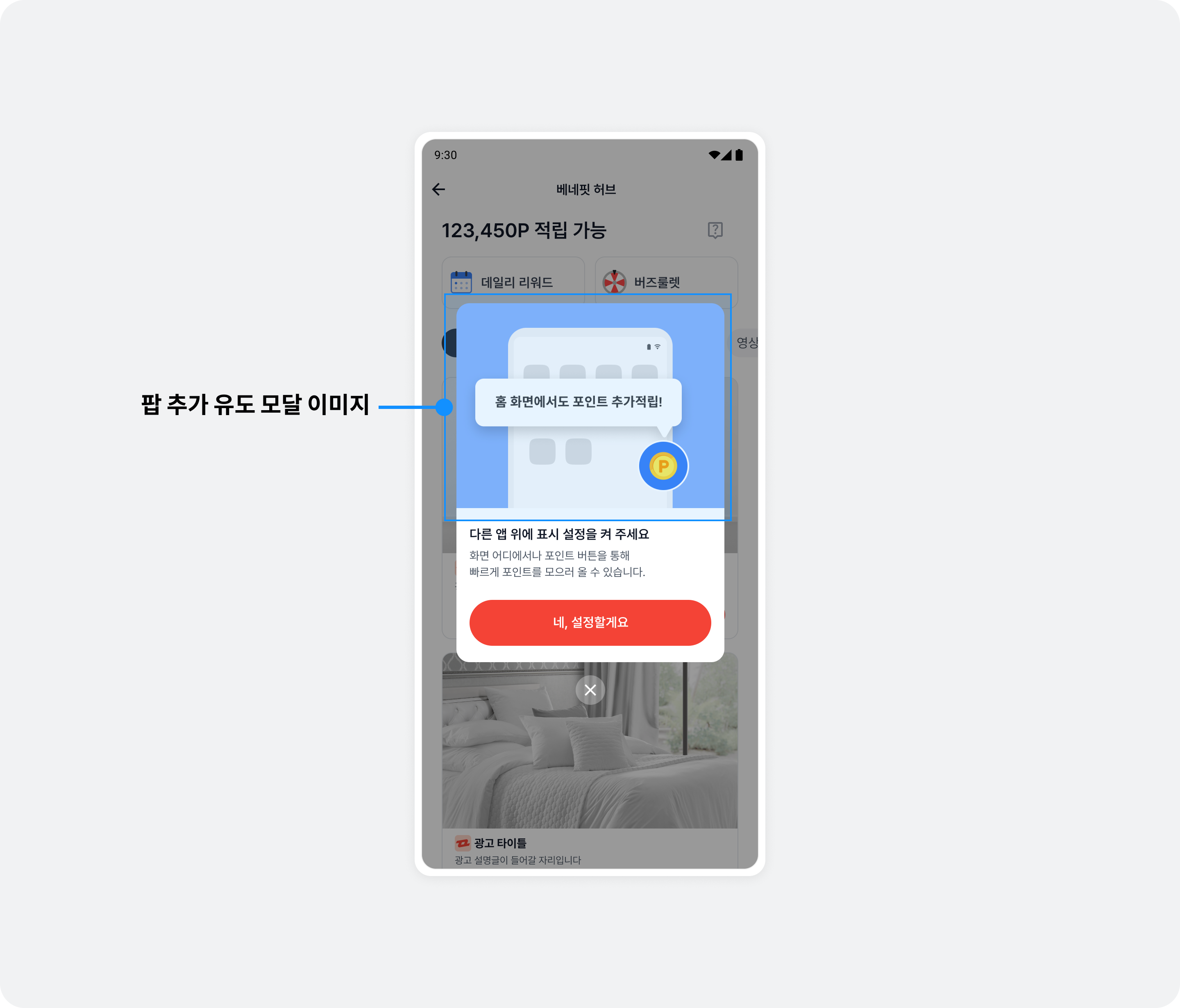
Prompt to add Pop
If Pop is integrated, customize the image in the modal that encourages users to enable it.
import com.buzzvil.buzzad.benefit.presentation.feed.BuzzAdFeed
import com.buzzvil.buzzad.benefit.presentation.feed.BuzzAdFeedTheme
import com.buzzvil.sdk.BuzzvilSdk

class App : Application() {
    override fun onCreate() {
        super.onCreate()

        val buzzAdBenefitConfig = ...

        // BuzzvilSdk.initialize()를 호출하기 전에 FeedTheme을 설정합니다.
        val buzzAdFeedTheme = BuzzAdFeedTheme()
            .popModalImage(R.drawable.your_pop_modal_image)
        BuzzAdFeed.setDefaultTheme(buzzAdFeedTheme)

        // Buzzvil SDK 초기화
        BuzzvilSdk.initialize(...)
    }
}
Implement a custom UI for consent to share personal information with third parties
If you implement your own UI for consent to share personal information with third parties, you must pass the user's consent status to the SDK. Refer to the table below and call the appropriate function.
| Class | API | Description |
|---|---|---|
BuzzAdBenefit | getPrivacyPolicyManager() (static method) | Returns a PrivacyPolicyManager instance. |
PrivacyPolicyManager | grantConsent() | Grants consent to collect personal information. Call this before the user's first Feed visit to skip the third-party sharing consent UI. |
revokeConsent() | Revokes consent to collect personal information. The consent UI reappears when the user next enters Feed. | |
isConsentGranted() | Checks whether consent to collect personal information has been granted. |
Usage example
import com.buzzvil.buzzad.benefit.BuzzAdBenefit

val privacyPolicyManager = BuzzAdBenefit.getPrivacyPolicyManager()

// 직접 구현한 개인정보 제3자 제공 동의 UI에서 동의를 받았을 경우 아래 코드를 실행하면, 피드 화면에서 개인정보 제3자 제공 동의 UI가 노출되지 않으면서 광고 할당이 정상적으로 진행 됩니다.
// 아래의 코드를 실행하지 않을 경우 피드 진입 시 개인정보 제3자 제공 동의 UI가 노출되기 때문에 필수적으로 실행이 필요합니다.
privacyPolicyManager.grantConsent()

// 아래 코드를 통해서 수집 동의를 철회할 수 있습니다. 이 코드가 실행되면 피드에서 광고 할당이 이루어지지 않습니다.
privacyPolicyManager.revokeConsent()
Change the initial filter when BenefitHub opens
Open BenefitHub with a selected filter other than 전체.
import com.buzzvil.buzzad.benefit.presentation.feed.FeedConfig

// Feed(베네핏허브) 설정
val feedConfig = FeedConfig.Builder("YOUR_FEED_UNIT_ID")
    .initialSelectedFilterName("쇼핑적립")
    .build()
Change the initial page when BenefitHub opens
Open BenefitHub directly to a specific page.
- Available pages:
- Lucky Box (LuckyBox).
import com.buzzvil.buzzad.benefit.presentation.feed.FeedConfig

// Feed(베네핏허브) 설정
val feedConfig = FeedConfig.Builder("YOUR_FEED_UNIT_ID")
    .initialNavigationPage(FeedInitialNavigationPage.LUCKYBOX)
    .build()
Interstitial
Use GlobalTheme to change the primary color, updating the BenefitHub entry prompt, CTA background and reward icon together. See Global theme.