Migrate from v3 to v5
Learn how to migrate from BuzzAd Android SDK v3 to Buzzvil Android SDK v5.
Getting started
Requirements
- Review the updated Buzzvil SDK v5 requirements below and apply them to your project.
- Android 5.0 Lollipop (API level 21) or later
- compileSdkVersion 35 or later
- Android Studio Ladybug or later
- Android Gradle Plugin 8.8 or later
- Gradle 8.10.2 or later
- Kotlin 1.9.25 or later
- JDK 1.8
- For each module that uses Java 8 language features directly or through dependencies, update its
build.gradleorbuild.gradle.ktsfile as follows.
// 공식 문서 링크: https://developer.android.com/studio/write/java8-support?hl=ko#supported_features

android {
    ...
    // Configure only for each module that uses Java 8
    // language features (either in its source code or
    // through dependencies).
    compileOptions {
        sourceCompatibility JavaVersion.VERSION_1_8
        targetCompatibility JavaVersion.VERSION_1_8
    }
    // For Kotlin projects
    kotlinOptions {
        jvmTarget = "1.8"
    }
}
Obtain integration IDs
You can keep your existing App ID and Unit IDs.
Install the SDK
The buzzvil-bom now manages version dependencies across Buzzvil products. Configure the Buzzvil SDK libraries in the module-level build.gradle file.
BuzzAdBenefit SDK v5
// 모듈 레벨의 build.gradle

dependencies {

    def buzzvilBomVersion = 5.36.+


    api platform("com.buzzvil:buzzvil-bom:$buzzvilBomVersion")

    implementation "com.buzzvil:buzzvil-sdk"

}
Reference: previous code (BuzzAdBenefit SDK v3)
/** 참고 - 변경 전 코드(BuzzAd SDK v3) **/

// 모듈 레벨의 build.gradle

dependencies {
    implementation ("com.buzzvil:buzzad-benefit:3.45.+") // BuzzAd SDK 라이브러리 예시
}
Initialize the SDK
The initialization class BuzzAdBenefit has been replaced by BuzzvilSdk. Follow the instructions below to migrate from BuzzAdBenefit to BuzzvilSdk.
Add the App ID
The App ID configuration and SDK initialization methods have changed.
- Remove the Buzzvil
APP_KEYregistered inAndroidManifest.xml.
<manifest>
    <application>


        <meta-data
          android:name="com.buzzvil.APP_KEY"
          android:value="app-pub-{YOUR_APP_ID}" />

    </application>
</manifest>
- Register your App ID and initialize the SDK as shown below.
import android.app.Application
import com.buzzvil.buzzad.benefit.BuzzAdBenefitConfig
import com.buzzvil.sdk.BuzzvilSdk

class App : Application() {
    override fun onCreate() {
        super.onCreate()

        // BuzzBenefit 설정
        val buzzAdBenefitConfig = BuzzAdBenefitConfig.Builder("YOUR_APP_ID")
            .build()

        // Buzzvil SDK 초기화
        BuzzvilSdk.initialize(
            application = this@App,
            buzzAdBenefitConfig = buzzAdBenefitConfig
        )
    }
}
Reference: previous code (BuzzAd SDK v3)
/** 참고 - 변경 전 코드(BuzzAd SDK v3) **/

public class App extends Application {
    @Override
    public void onCreate() {
        super.onCreate();

        // BuzzAdBenefit 초기화
        final BuzzAdBenefitConfig buzzAdBenefitConfig = new BuzzAdBenefitConfig.Builder(getApplicationContext())
                .build();
        BuzzAdBenefit.init(getApplicationContext(), buzzAdBenefitConfig);
    }
}
Register a user profile
- Use
BuzzvilSdk.setUserProfile()instead ofBuzzAdBenefit.setUserProfile().
// 유저 정보를 등록합니다.
BuzzvilSdk.setUserProfile(
    userId = "SAMPLE_USER_ID",
    gender = UserProfile.Gender.MALE,
    birthYear = 1980
)

// 유저 정보를 삭제합니다.
BuzzvilSdk.setUserProfile(null)
Reference: previous code (BuzzAd SDK v3)
/** 참고 - 변경 전 코드(BuzzAd SDK v3) **/

// 사용자 정보를 등록하는 코드입니다.
final UserProfile.Builder builder = new UserProfile.Builder(BuzzAdBenefit.getUserProfile());
final UserProfile userProfile = builder
        .userId("USER_ID")
        .gender(UserProfile.Gender.MALE) //남성 사용자
        .birthYear(YYYY)
        .build();
BuzzAdBenefit.setUserProfile(userProfile);

// SDK에 등록한 사용자 프로필을 삭제하는 코드입니다.
// BuzzAdBenefit.setUserProfile(null);
Migrate BenefitHub (Feed)
v3 Basic setup → v5 Integration
Features previously documented under “Basic setup” in v3 are now under “Integration” in v5. Without additional features, initializing and displaying BenefitHub works the same way.
Initialize BenefitHub
Continue using FeedConfig to configure BenefitHub and register it in BuzzAdBenefitConfig.
import android.app.Application
import com.buzzvil.buzzad.benefit.BuzzAdBenefitConfig
import com.buzzvil.buzzad.benefit.presentation.feed.FeedConfig
import com.buzzvil.sdk.BuzzvilSdk

class App : Application() {
    override fun onCreate() {
        super.onCreate()

        // Feed(베네핏허브) 설정
        val feedConfig = FeedConfig.Builder("YOUR_FEED_UNIT_ID")
            .build()

        // BuzzBenefit 설정
        val buzzAdBenefitConfig = BuzzAdBenefitConfig.Builder("YOUR_APP_ID")
            .setDefaultFeedConfig(feedConfig)
            .build()

        // Buzzvil SDK 초기화
        BuzzvilSdk.initialize(
            application = this@App,
            buzzAdBenefitConfig = buzzAdBenefitConfig
        )
    }
}
Reference: previous code (BuzzAd SDK v3)
/** 참고 - 변경 전 코드(BuzzAd SDK v3) **/

public class App extends Application {
    @Override
    public void onCreate() {
        super.onCreate();

        final FeedConfig feedConfig = new FeedConfig.Builder("YOUR_FEED_UNIT_ID")
            .build();

        final BuzzAdBenefitConfig buzzAdBenefitConfig = new BuzzAdBenefitConfig.Builder(getApplicationContext())
            .setDefaultFeedConfig(feedConfig)
            .build();

        BuzzAdBenefit.init(getApplicationContext(), buzzAdBenefitConfig);

        ...
    }
}
Display BenefitHub
Continue calling BuzzAdFeed.show() to display BenefitHub.
val buzzAdFeed = BuzzAdFeed.Builder().build()
buzzAdFeed.show(activity)
Reference: previous code (BuzzAd SDK v3)
/** 참고 - 변경 전 코드(BuzzAd SDK v3) **/

new BuzzAdFeed.Builder().build().show(context);
Display BenefitHub with a non-default configuration
Continue configuring FeedConfig to display BenefitHub with non-default settings.
val secondFeedConfig = FeedConfig.Builder("SECOND_FEED_UNIT_ID")
    .build()
BuzzAdFeed.Builder()
    .feedConfig(secondFeedConfig)
    .build()
    .show(this@MainActivity)
Reference: previous code (BuzzAd SDK v3)
/** 참고 - 변경 전 코드(BuzzAd SDK v3) **/

final FeedConfig feedConfig = new FeedConfig.Builder("SECOND_FEED_UNIT_ID").build();
BuzzAdFeed buzzAdFeed = new BuzzAdFeed.Builder()
  .feedConfig(feedConfig)
  .build();
buzzAdFeed.show(context);
v3 Advanced settings → v5 Basic settings
Features previously documented under “Advanced settings” in v3 are now under “Basic settings” in v5.
v3 Ad category tabs and filters → v5 Ad category filters
Buzzvil SDK v5 removes tabs and displays only filters. Filters cannot be disabled. Contact help@buzzvil.com to change UI strings, filter types or other settings.
v3 Add entry points to app UI → v5 Implement entry points in app UI
View interaction tracking (buzzvilFeedEntryViewName) has been removed. Remove app:buzzvilFeedEntryViewName from FeedEntryView.
<com.buzzvil.buzzad.benefit.presentation.feed.entrypoint.FeedEntryView
    android:layout_width="wrap_content"
    android:layout_height="wrap_content">


    ...
</com.buzzvil.buzzad.benefit.presentation.feed.entrypoint.FeedEntryView>
v3 Custom toolbar → v5 Navigation bar
In v5, “toolbar” is renamed “navigation bar.” Instead of applying a custom view within Feed, implement the navigation bar outside BenefitHub (Feed). Remove the following code.
- The
DefaultFeedToolbarHolderclass. FeedConfig.Builder.feedToolbarHolderClass()BuzzAdFeedTheme.toolbarHeight()
- v3 Use the default SDK UI → v5 Change navigation bar UI strings
The default UI is simplified to allow only title text changes. To add or change icons, see the custom implementation instructions.
Use the following code to change navigation bar UI strings.
<resources>
    <string name="your_custom_title">원하는 타이틀 입력</string>
</resources>
val buzzAdFeedTheme = BuzzAdFeedTheme.getDefault()
    .navigationBarTitle(R.string.your_custom_title)
BuzzAdFeed.setDefaultTheme(buzzAdFeedTheme)
Reference: previous code (BuzzAd SDK v3)
/** 참고 - 변경 전 코드(BuzzAd SDK v3) **/

public class YourFeedToolbarHolder extends DefaultFeedToolbarHolder {

    @Override
    public View getView(Activity activity, @NonNull final String unitId) {
        super.toolbar = new FeedToolbar(activity); // FeedToolbar 에서 제공하는 기본 템플릿을 사용합니다.
        toolbar.setTitle("YourFeedToolbarHolder");
        toolbar.setIconResource(R.drawable.your_icon); // 이미지 사이즈 규격은 24dp 입니다.
        toolbar.setBackgroundColor(Color.parseColor("#123456"));

        super.addInquiryMenuItemView(activity); // 문의하기 버튼은 이 함수를 통해 추가할 수 있습니다.
        super.addSettingsMenuItemView(activity); // 세팅 버튼은 이 함수를 통해 추가할 수 있습니다.
        addRightMenuItemView1(activity); // 자체 구현한 버튼을 추가할 수 있습니다.
        return toolbar;
    }

    // 자체 구현한 버튼을 추가하려면 DefaultMenuLayout 를 사용하여 View 를 생성하고
    // toolbar.addRightMenuButton 를 사용하여 toolbar 에 추가합니다.
    private void addRightMenuItemView1(@NonNull final Activity activity) {
        MenuLayout menuLayout = new DefaultMenuLayout(activity, R.mipmap.ic_launcher);
        menuLayout.setOnClickListener(new View.OnClickListener() {
            @Override
            public void onClick(View v) {
                showInquiry(); // showInquiry 를 호출하여 문의하기 페이지로 연결합니다.
            }
        });
        toolbar.addRightMenuButton(menuLayout);
    }
}
/** 참고 - 변경 전 코드(BuzzAd SDK v3) **/

final FeedConfig feedConfig = new FeedConfig.Builder("YOUR_FEED_UNIT_ID")
        .feedToolbarHolderClass(YourFeedToolbarHolder.class)
        .build();
- v3 Use your own custom view → v5 Implement a custom navigation bar
Implement your custom toolbar (navigation bar) outside the BenefitHub Fragment.
To use your app's navigation bar instead of BenefitHub's navigation bar, integrate BenefitHub as a fragment.
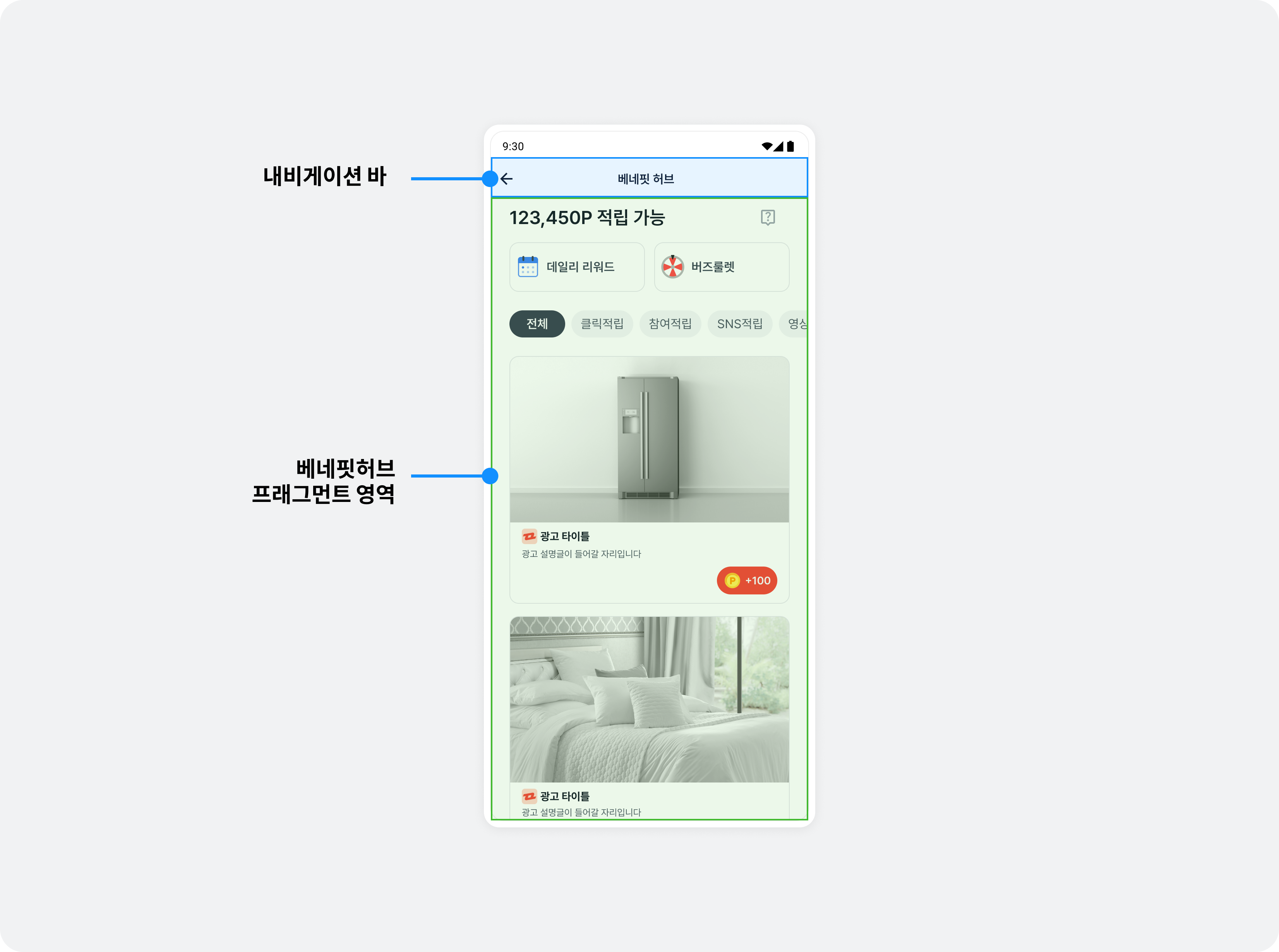
Add the fragment to an activity and initialize it in that activity's onCreate().
The following example integrates BenefitHubFragment.
class YourBenefitHubActivity : AppCompatActivity() {
    override fun onCreate(savedInstanceState: Bundle?) {
        super.onCreate(savedInstanceState)
        setContentView(R.layout.activity_your_benefit_hub)

        if (savedInstanceState == null) {
            val buzzAdFeed = BuzzAdFeed.Builder().build()
            val benefitHubFragment = buzzAdFeed.getBenefitHubFragment()

            supportFragmentManager.beginTransaction().apply {
                add(com.buzzvil.buzzad.benefit.presentation.feed.R.id.fragmentContainer, benefitHubFragment)
                commit()
            }
        }
    }
}
<?xml version="1.0" encoding="utf-8"?>
<androidx.constraintlayout.widget.ConstraintLayout xmlns:android="http://schemas.android.com/apk/res/android"
    xmlns:app="http://schemas.android.com/apk/res-auto"
    xmlns:tools="http://schemas.android.com/tools"
    android:layout_width="match_parent"
    android:layout_height="match_parent"
    tools:context=".YourBenefitHubActivity">


    <LinearLayout
        android:id="@+id/toolbar"
        android:layout_width="0dp"
        android:layout_height="64dp"
        android:gravity="center"
        android:orientation="horizontal"
        app:layout_constraintEnd_toEndOf="parent"
        app:layout_constraintStart_toStartOf="parent"
        app:layout_constraintTop_toTopOf="parent">

        <TextView
            android:layout_width="wrap_content"
            android:layout_height="wrap_content"
            android:text="Title" />
    </LinearLayout>

    <androidx.fragment.app.FragmentContainerView
        android:id="@+id/fragmentContainer"
        android:layout_width="0dp"
        android:layout_height="0dp"
        app:layout_constraintBottom_toBottomOf="parent"
        app:layout_constraintEnd_toEndOf="parent"
        app:layout_constraintStart_toStartOf="parent"
        app:layout_constraintTop_toBottomOf="@+id/toolbar" />
</androidx.constraintlayout.widget.ConstraintLayout>
Remove the navigation bar as shown below.
class YourBenefitHubActivity : AppCompatActivity() {
    override fun onCreate(savedInstanceState: Bundle?) {
        super.onCreate(savedInstanceState)
        setContentView(R.layout.activity_your_benefit_hub)

        if (savedInstanceState == null) {
            // 기본 내비게이션 바 제거
            val feedConfig = FeedConfig.Builder("YOUR_FEED_UNIT_ID")
                .navigationBarVisibility(false)
                .build()

            // 베네핏허브 프래그먼트 연동
            val buzzAdFeed = BuzzAdFeed.Builder()
                .feedConfig(feedConfig)
                .build()
            val benefitHubFragment = buzzAdFeed.getBenefitHubFragment()

            supportFragmentManager.beginTransaction().apply {
                add(com.buzzvil.buzzad.benefit.presentation.feed.R.id.fragmentContainer, benefitHubFragment)
                commit()
            }
        }
    }
}
Reference: previous code (BuzzAd SDK v3)
/** 참고 - 변경 전 코드(BuzzAd SDK v3) **/

public class YourFeedToolbarHolder extends DefaultFeedToolbarHolder {

    @Override
    public View getView(final Activity activity, @NonNull final String unitId) {
        final LayoutInflater inflater = (LayoutInflater) activity.getSystemService(Context.LAYOUT_INFLATER_SERVICE);
        return inflater.inflate(R.layout.your_toolbar_holder_layout, null);
    }

    @Override
    public void onTotalRewardUpdated(int totalReward) {
        // 적립 가능한 리워드를 UI에 적용할 수 있습니다.
    }
}
/** 참고 - 변경 전 코드(BuzzAd SDK v3) **/

final FeedConfig feedConfig = new FeedConfig.Builder("YOUR_FEED_UNIT_ID")
        .feedToolbarHolderClass(YourFeedToolbarHolder.class)
        .build();
/** 참고 - 변경 전 코드(BuzzAd SDK v3) **/

final BuzzAdFeedTheme buzzAdFeedTheme =
        BuzzAdFeedTheme.getDefault()
            .toolbarHeight(R.dimen.YOUR_TOOL_BAR_HEIGHT);
BuzzAdFeed.setDefaultTheme(buzzAdFeedTheme);
Implement a custom header
Header implementation is unchanged, but spacing around it has changed. Review the design and add spacing as needed.
Implement a custom base reward notification
In v5, the base reward UI is a modal at the bottom of the screen. Remove any custom notification implementation from v3.
- The
BaseRewardNotificationAdapterclass has been removed. FeedConfig.Builder.baseRewardNotificationAdapterClass()has been removed.
Reference: previous code (BuzzAd SDK v3)
/** 참고 - 변경 전 코드(BuzzAd SDK v3) **/

public class CustomBaseRewardNotificationAdapter implements BaseRewardNotificationAdapter {

    @NonNull
    @Override
    public View onCreateView(@NonNull Context context, @NonNull ViewGroup viewGroup) {
        return LayoutInflater.from(context).inflate(R.layout.YOUR_LAYOUT, viewGroup, false);
    }

    @Override
    public void onBindView(@NonNull View view, int reward) {
        TextView textView = view.findViewById(R.id.YOUR_TEXT_ID);
        textView.setText(reward + " 포인트가 적립되었습니다.");
    }
}
/** 참고 - 변경 전 코드(BuzzAd SDK v3) **/

final FeedConfig feedConfig = new FeedConfig.Builder("YOUR_FEED_UNIT_ID")
      .baseRewardNotificationAdapterClass(CustomBaseRewardNotificationAdapter.class)
      .build();
Implement a custom ad design
In v5, AdsAdapter is removed and BenefitHubAdViewAdapter is added. Remove all existing integration code (AdsAdapter) and use the new approach (BenefitHubAdViewAdapter).
AdsAdapterrequired extendingRecyclerViewAdapterand implementing behavior.BenefitHubAdViewAdapterlets you replace only the view, similarly to custom header implementation.
Contact help@buzzvil.com if you need help migrating to the new approach.
Remove the following code from your existing integration.
- Remove classes extending
AdsAdapter. - Remove
adsAdapterClass()andcpsAdsAdapterClass()fromFeedConfig.Builder.
Follow these steps to customize the ad design.
-
Implement a layout (
your_benefit_hub_ad.xml) that meets the requirements of the adNativeAdView.<com.buzzvil.buzzad.benefit.presentation.nativead.NativeAdView android:id="@+id/nativeAdView" ...> <LinearLayout ... > <com.buzzvil.buzzad.benefit.presentation.media.MediaView android:id="@+id/mediaView" ... /> <LinearLayout android:id="@+id/excpsLayout" ... > <androidx.appcompat.widget.AppCompatImageView android:id="@+id/adIconImage" ... /> <TextView android:id="@+id/adTitleText" ... /> <TextView android:id="@+id/adDescriptionText" ... /> </LinearLayout> <LinearLayout android:id="@+id/cpsLayout" ...> <TextView android:id="@+id/discountPercentageText" ... /> <TextView android:id="@+id/priceText" ... /> <TextView android:id="@+id/originalPriceText" ... /> </LinearLayout> <com.buzzvil.buzzad.benefit.presentation.media.DefaultCtaView android:id="@+id/ctaView" ... /> </LinearLayout> </com.buzzvil.buzzad.benefit.presentation.nativead.NativeAdView> -
Implement a subclass of
BenefitHubAdViewAdapter.- In
onCreateView(), useyour_benefit_hub_ad.xmlto create the view.
- In
-
In
onBindView(), useNativeAdViewBinderto bind ad data (NativeAd) to theNativeAdViewyou created. -onBindView()must returnNativeAdView.- Release listeners and views in
onDestroyView().
- Release listeners and views in
-
Optionally receive ad callbacks through
NativeAdEventListener.class CustomBenefitHubAdViewAdapter : BenefitHubAdViewAdapter { private lateinit var binding: YourBenefitHubAdBinding private var nativeAd: NativeAd? = null private var nativeAdViewBinder: NativeAdViewBinder? = null // 리스너 구현은 선택 사항입니다. private val listener = object : NativeAdEventListener { override fun onImpressed(nativeAd: NativeAd) {} override fun onClicked(nativeAd: NativeAd) {} override fun onRewardRequested(nativeAd: NativeAd) {} override fun onRewarded(nativeAd: NativeAd, nativeAdRewardResult: RewardResult?) {} override fun onParticipated(nativeAd: NativeAd) {} } override fun onCreateView(context: Context, parent: ViewGroup): View { val inflater = context.getSystemService(Context.LAYOUT_INFLATER_SERVICE) as LayoutInflater binding = YourBenefitHubAdBinding.inflate(inflater, parent, false) return binding.root } override fun getNativeAdView(): NativeAdView { return binding.nativeAdView } override fun onBindView(nativeAd: NativeAd) { val builder = NativeAdViewBinder.Builder(binding.root, binding.adMediaView) .addClickableView(binding.clickableArea) .ctaView(binding.adCtaView) .iconImageView(binding.adIconImage) .titleTextView(binding.adTitleText) .descriptionTextView(binding.adDescriptionText) if (nativeAd.shoppingProduct == null) { // 일반 광고 (CPS 외) binding.excpsLayout.visibility = View.VISIBLE binding.cpsLayout.visibility = View.GONE } else { // 쇼핑 광고 (CPS) binding.excpsLayout.visibility = View.GONE binding.cpsLayout.visibility = View.VISIBLE setCpsView(nativeAd.shoppingProduct!!) } val nativeAdViewBinder = builder.build() nativeAdViewBinder.bind(nativeAd) nativeAd.addNativeAdEventListener(listener) this.nativeAd = nativeAd this.nativeAdViewBinder = nativeAdViewBinder } override fun onDestroyView() { nativeAd?.removeNativeAdEventListener(listener) nativeAdViewBinder?.unbind() nativeAd = null nativeAdViewBinder = null } private fun setCpsView(product: Product) { val discountedPrice = product.discountedPrice if (discountedPrice != null) { // 할인이 있는 쇼핑 광고 binding.originalPriceText.paintFlags = binding.originalPriceText.paintFlags or Paint.STRIKE_THRU_TEXT_FLAG var percentage = 0 if (product.price > discountedPrice) { percentage = ((product.price - discountedPrice) / product.price * 100).roundToInt() } if (percentage > 0) { binding.priceText.text = getCommaSeparatedPrice(discountedPrice.toLong()) binding.originalPriceText.text = getCommaSeparatedPrice(product.price.toLong()) binding.discountPercentageText.text = String.format(Locale.ROOT, "%d%%", percentage) binding.discountPercentageText.visibility = View.VISIBLE } else { binding.priceText.text = getCommaSeparatedPrice(product.price.toLong()) binding.originalPriceText.text = "" binding.discountPercentageText.visibility = View.GONE } } else { // 할인이 없는 쇼핑 광고 binding.priceText.text = getCommaSeparatedPrice(product.price.toLong()) binding.originalPriceText.text = "" binding.discountPercentageText.visibility = View.GONE } } private fun getCommaSeparatedPrice(price: Long): String { val contextForResource = binding.root.context return String.format( Locale.getDefault(), contextForResource.getString(R.string.custom_cps_price_unit), price ) } }<resources> <string name="custom_cps_price_unit">%,d원</string> </resources>
-
Set your
CustomBenefitHubAdViewAdapteras the ad adapter class inFeedConfig.val feedConfig = FeedConfig.Builder(context, "YOUR_FEED_UNIT_ID") .benefitHubAdViewAdapterClass(CustomBenefitHubAdViewAdapter::class.java) .build()
Reference: previous code (BuzzAd SDK v3)
/** 참고 - 변경 전 코드(BuzzAd SDK v3) **/

public class CustomAdsAdapter extends AdsAdapter<AdsAdapter.NativeAdViewHolder> {

   @NonNull
   @Override
   public NativeAdViewHolder onCreateViewHolder(ViewGroup parent, int viewType) {
       final LayoutInflater inflater = LayoutInflater.from(parent.getContext());
       final NativeAdView feedNativeAdView = (NativeAdView) inflater.inflate(R.layout.your_feed_ad, parent, false);
       return new NativeAdViewHolder(feedNativeAdView);
   }

   @Override
   public void onBindViewHolder(NativeAdViewHolder holder, NativeAd nativeAd) {
       super.onBindViewHolder(holder, nativeAd);
       final NativeAdView view = (NativeAdView) holder.itemView;

       // 광고 레이아웃 컴포넌트를 생성합니다.
       final MediaView mediaView = view.findViewById(R.id.mediaView);
       final TextView titleView = view.findViewById(R.id.textTitle);
       final ImageView iconView = view.findViewById(R.id.imageIcon);
       final TextView descriptionView = view.findViewById(R.id.textDescription);
       final DefaultCtaView ctaView = view.findViewById(R.id.ctaView);

       // 광고 데이터(NativeAd)를 바인딩합니다.
       final NativeAdViewBinder viewBinder = new NativeAdViewBinder.Builder(view, mediaView)
           .titleTextView(titleView)
           .descriptionTextView(descriptionView)
           .iconImageView(iconView)
           .ctaView(ctaView)
           .build();
       viewBinder.bind(nativeAd);
   }
}
Implement a custom CTA button
This feature is unchanged in Buzzvil SDK v5.
Implement a custom no-ads screen
In v5, you can change images and strings instead of replacing the entire view. Remove the following code.
- Your custom error view class extending
FeedErrorViewHolder. feedErrorViewHolderClass()inFeedConfig.Builder.
Users can retry up to three times when no ads are available. Customize the UI strings and images for each attempt.
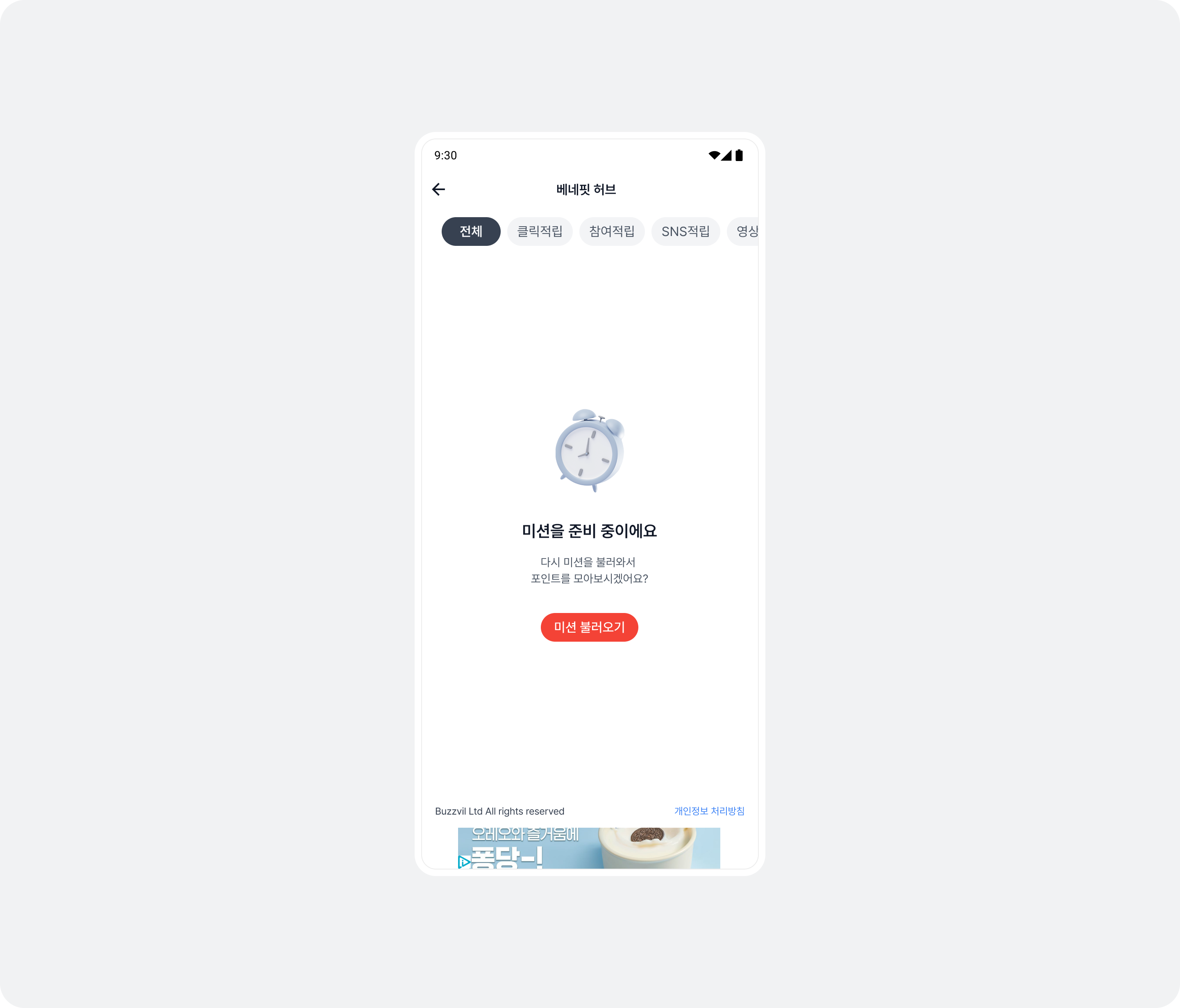
| Retry attempt | Title | Content | Button |
|---|---|---|---|
| Initial attempt | 미션을 준비 중이에요 | 다시 미션을 불러와서 포인트를 모아보시겠어요? | 미션 불러오기 |
| First retry | 미션을 준비 중이에요 | 미션을 로딩 중이에요. 잠시 후 다시 시도해주세요. | 다시 불러오기 |
| Second retry | 미션을 준비 중이에요 | 미션 준비에 시간이 걸리고 있습니다. 잠시 후 다시 시도해주세요. | 한번 더 불러오기 |
| Third retry (last) | 미션을 준비 중이에요 | All filter: 지금은 참여 가능한 미션이 없습니다. 잠시 후 다시 방문해주세요.Other filters: 지금은 참여 가능한 미션이 없습니다. 다른 미션에 참여해서 포인트를 모아보세요! | All filter: 나중에 다시 올게요Other filters: 다른 미션 참여하기 |
<string name="your_no_fill_error_title">미션을 준비 중이에요</string>

<string name="your_no_fill_error_description_1st">다시 미션을 불러와서 포인트를 모아보시겠어요?</string>
<string name="your_no_fill_error_description_2nd">미션을 로딩 중이에요. 잠시 후 다시 시도해주세요.</string>
<string name="your_no_fill_error_description_3rd">미션 준비에 시간이 걸리고 있습니다. 잠시 후 다시 시도해주세요.</string>
<string name="your_no_fill_error_description_final_all_filter">지금은 참여 가능한 미션이 없습니다. 잠시 후 다시 방문해주세요.</string>
<string name="your_no_fill_error_description_final_other_filters">다른 미션 참여하기</string>

<string name="your_no_fill_error_button_1st">미션 불러오기</string>
<string name="your_no_fill_error_button_2nd">다시 불러오기</string>
<string name="your_no_fill_error_button_3rd">한번 더 불러오기</string>
<string name="your_no_fill_error_button_final_all_filter">나중에 다시 올게요</string>
<string name="your_no_fill_error_button_final_other_filters">지금은 참여 가능한 미션이 없습니다. 다른 미션에 참여해서 포인트를 모아보세요!</string>
class App : Application() {
    override fun onCreate() {
        super.onCreate()

        val buzzAdBenefitConfig = ...

        // BuzzvilSdk.initialize()를 호출하기 전에 FeedTheme을 설정합니다.
        val buzzAdFeedTheme = BuzzAdFeedTheme()
            .noFillErrorImage(R.drawable.your_no_fill_error_image)
            .noFillErrorTitle(R.string.your_no_fill_error_title)
            .noFillErrorDescription1st(R.string.your_no_fill_error_description_1st)
            .noFillErrorDescription2nd(R.string.your_no_fill_error_description_2nd)
            .noFillErrorDescription3rd(R.string.your_no_fill_error_description_3rd)
            .noFillErrorDescriptionFinalAllFilter(R.string.your_no_fill_error_description_final_all_filter)
            .noFillErrorDescriptionFinalOtherFilters(R.string.your_no_fill_error_description_final_other_filters)
            .noFillErrorButton1st(R.string.your_no_fill_error_button_1st)
            .noFillErrorButton2nd(R.string.your_no_fill_error_button_2nd)
            .noFillErrorButton3rd(R.string.your_no_fill_error_button_3rd)
            .noFillErrorButtonFinalAllFilter(R.string.your_no_fill_error_button_final_all_filter)
            .noFillErrorButtonFinalOtherFilters(R.string.your_no_fill_error_button_final_other_filters)
        BuzzAdFeed.setDefaultTheme(buzzAdFeedTheme)

        // Buzzvil SDK 초기화
        BuzzvilSdk.initialize(...)
    }
}
Reference: previous code (BuzzAd SDK v3)
/** 참고 - 변경 전 코드(BuzzAd SDK v3) **/

public class CustomErrorView extends FeedErrorViewHolder {
    View errorView = activity.getLayoutInflater().inflate(R.layout.custom_feed_error_view, null, false);
    final ImageView errorImageView = errorView.findViewById(R.id.feedErrorImageView);
    final TextView errorTitle = errorView.findViewById(R.id.feedErrorTitle);
    final TextView errorDescription = errorView.findViewById(R.id.feedErrorDescription);

    @NonNull
    @Override
    public View getErrorView(@NonNull Activity activity) {
        // TODO: 1번에서 생성한 custom_feed_error_view 레이아웃을 inflate

        errorImageView.setImageResource(R.drawable.bz_ic_feed_profile_coin); // 에러 이미지 설정
        errorTitle.setText("타이틀: 광고가 없습니다. "); // 에러 타이틀 텍스트 설정
        errorDescription.setText("디스크립션: 할당된 광고가 없습니다!"); // 에러 상세 텍스트 설정

        return errorView;
    }

    @Override
    public updateErrorView(AdErrorType adErrorType) {
    // TODO: 위에서 선언한 View를 업데이트 할 수 있는 코드를 작성하세요.
    ...
    }
}
/** 참고 - 변경 전 코드(BuzzAd SDK v3) **/

// Feed 지면 초기화
// TODO: feedErrorViewHolderClass 속성에 2번에서 생성한 CustomErrorView 클래스를 설정합니다.
final FeedConfig feedConfig = new FeedConfig.Builder(YOUR_FEED_UNIT_ID)
                .feedErrorViewHolderClass(CustomErrorView.class)
                .build();
Implement custom error screens
In addition to the no-ads UI, v5 adds custom error screen support. See User profile error UI and Other error screens.
UI for consent to share personal information with third parties
In v5, this consent UI is a modal configured remotely without a code deployment. Remove the following code.
BuzzAdBenefit.getPrivacyPolicyManager()PrivacyPolicyManager.showConsentUI()PrivacyPolicyManager.grantConsent()PrivacyPolicyManager.revokeConsent()PrivacyPolicyManager.isConsentGranted()
Reference: previous code (BuzzAd SDK v3)
/** 참고 - 변경 전 코드(BuzzAd SDK v3) **/

PrivacyPolicyManager privacyPolicyManager = BuzzAdBenefit.getPrivacyPolicyManager();
privacyPolicyManager.grantConsent();
privacyPolicyManager.revokeConsent();
privacyPolicyManager.showConsentUI(context, new PrivacyPolicyEventListener() {
    @Override
    void onUpdated(boolean accepted) {}
});
Configure the profile input banner
In v5, this is configured remotely without a code deployment. Remove the following code.
profileBannerEnabled()inFeedConfig.Builder.
Reference: previous code (BuzzAd SDK v3)
/** 참고 - 변경 전 코드(BuzzAd SDK v3) **/

final FeedConfig feedConfig = new FeedConfig.Builder("YOUR_FEED_UNIT_ID")
        .profileBannerEnabled(false) // 프로필 배너 미노출
        .build();
Integrate BenefitHub (Feed) as a Fragment
The method for retrieving the Fragment has changed in v5. Remove your existing integration code and follow the new guide.
Add the fragment to an activity and initialize it in that activity's onCreate().
The following example integrates BenefitHubFragment.
class YourBenefitHubActivity : AppCompatActivity() {
    override fun onCreate(savedInstanceState: Bundle?) {
        super.onCreate(savedInstanceState)
        setContentView(R.layout.activity_your_benefit_hub)

        if (savedInstanceState == null) {
            val buzzAdFeed = BuzzAdFeed.Builder().build()
            val benefitHubFragment = buzzAdFeed.getBenefitHubFragment()

            supportFragmentManager.beginTransaction().apply {
                add(com.buzzvil.buzzad.benefit.presentation.feed.R.id.fragmentContainer, benefitHubFragment)
                commit()
            }
        }
    }
}
<?xml version="1.0" encoding="utf-8"?>
<androidx.constraintlayout.widget.ConstraintLayout xmlns:android="http://schemas.android.com/apk/res/android"
    xmlns:app="http://schemas.android.com/apk/res-auto"
    xmlns:tools="http://schemas.android.com/tools"
    android:layout_width="match_parent"
    android:layout_height="match_parent"
    tools:context=".YourBenefitHubActivity">

    <androidx.fragment.app.FragmentContainerView
        android:id="@+id/fragmentContainer"
        android:layout_width="0dp"
        android:layout_height="0dp"
        app:layout_constraintBottom_toBottomOf="parent"
        app:layout_constraintEnd_toEndOf="parent"
        app:layout_constraintStart_toStartOf="parent"
        app:layout_constraintTop_toBottomOf="@+id/toolbar" />
</androidx.constraintlayout.widget.ConstraintLayout>
Reference: previous code (BuzzAd SDK v3)
/** 참고 - 변경 전 코드(BuzzAd SDK v3) **/

class YourActivity extends Activity {

    @Override
    protected void onCreate(Bundle savedInstanceState) {
        super.onCreate(savedInstanceState);
        setContentView(R.layout.activity_your);

        // 광고를 새로 할당 받기 위해 필요한 부분입니다.
        final BuzzAdFeed buzzAdFeed = new BuzzAdFeed.Builder().build();

        final FeedFragment feedFragment = buzzAdFeed.getFragment();
        getSupportFragmentManager()
                .beginTransaction()
                .replace(R.id.content, feedFragment)
                .commitAllowingStateLoss();

    }
}
<?xml version="1.0" encoding="utf-8"?>

<androidx.constraintlayout.widget.ConstraintLayout xmlns:android="http://schemas.android.com/apk/res/android"
    xmlns:app="http://schemas.android.com/apk/res-auto"
    xmlns:tools="http://schemas.android.com/tools"
    android:layout_width="match_parent"
    android:layout_height="match_parent"
    tools:context=".feed.FeedFragmentActivity">

    <FrameLayout
        android:id="@+id/content"
        android:layout_width="match_parent"
        android:layout_height="0dp"
        app:layout_constraintBottom_toBottomOf="parent"
        app:layout_constraintEnd_toEndOf="parent"
        app:layout_constraintStart_toStartOf="parent"
        app:layout_constraintTop_toTopOf="parent" />

</androidx.constraintlayout.widget.ConstraintLayout>
UI settings
Change Feed colors
Buzzvil SDK v5 no longer supports changing Feed colors. Remove the following code.
backgroundColor()inBuzzAdFeedTheme.
Reference: previous code (BuzzAd SDK v3)
/** 참고 - 변경 전 코드(BuzzAd SDK v3) **/

final BuzzAdFeedTheme buzzAdFeedTheme =
      BuzzAdFeedTheme.getDefault()
        .backgroundColor(R.color.YOUR_BACKGROUND_COLOR) // Feed의 배경 색상
BuzzAdFeed.setDefaultTheme(buzzAdFeedTheme);
Customize tabs
Buzzvil SDK v5 no longer supports tab UI. Remove the following code.
tabTextColorSelector()inBuzzAdFeedTheme.tabBackgroundColor()inBuzzAdFeedTheme.tabIndicatorSelector()inBuzzAdFeedTheme.
Reference: previous code (BuzzAd SDK v3)
/** 참고 - 변경 전 코드(BuzzAd SDK v3) **/

final BuzzAdFeedTheme buzzAdFeedTheme =
      BuzzAdFeedTheme.getDefault()
          ...생략...
          .tabTextColorSelector(R.color.YOUR_TEXT_COLOR) // 탭의 텍스트 색상(state_selected 필수 적용)
          .tabBackgroundColor(R.color.YOUR_TAB_BACKGROUND_COLOR) // 탭의 배경 색상
          .tabIndicatorSelector(R.drawable.YOUR_TAB_INDICATOR_SELECTOR); // 탭의 인디케이터에 대한 Selector
BuzzAdFeed.setDefaultTheme(buzzAdFeedTheme);
Customize filters
The available filter UI settings have changed in v5. Remove the following code.
filterTextColorSelector()inBuzzAdFeedTheme.filterBackgroundColorSelector()inBuzzAdFeedTheme.
Reference: previous code (BuzzAd SDK v3)
/** 참고 - 변경 전 코드(BuzzAd SDK v3) **/

final BuzzAdFeedTheme buzzAdFeedTheme =
      BuzzAdFeedTheme.getDefault()
          ...생략...
          .filterTextColorSelector(R.color.YOUR_TEXT_COLOR) // 필터의 텍스트 색상(state_selected 필수 적용)
          .filterBackgroundColorSelector(R.color.YOUR_BACKGROUND_COLOR); // 필터의 배경 색상
BuzzAdFeed.setDefaultTheme(buzzAdFeedTheme);
Customize or implement CTA buttons
The available CTA UI settings have changed in v5. Remove the following code.
ctaBackgroundSelector()inBuzzAdFeedTheme.ctaTextColorSelector()inBuzzAdFeedTheme.ctaTextSize()inBuzzAdFeedTheme.
The CTA background uses the global theme's primary color. Add color resources as shown below to change it.
<?xml version="1.0" encoding="utf-8"?>
<resources>
    <color name="your_primary_color">#FF0000</color>
    <color name="your_primary_light_color">#99FF0000</color>

    <color name="buzzvil_benefit_hub_brand_primary">@color/your_primary_color</color>
    <color name="buzzvil_benefit_hub_brand_primary_light">@color/your_primary_light_color</color>
</resources>
Customize icons in SDK UI elements such as CTA buttons, Pop buttons and the profile input banner.
The following example adds rewardIcon to BuzzAdTheme to change the reward icon. The table lists the UI controlled by each property.
| Property | Configurable UI |
|---|---|
rewardIcon |
|
participatedIcon |
|
class App : Application() {
    override fun onCreate() {
        super.onCreate()

        val buzzAdBenefitConfig = ...

        // BuzzvilSdk.initialize()를 호출하기 전에  GlobalTheme을 설정합니다.
        val buzzAdTheme = BuzzAdTheme()
            .rewardIcon(R.drawable.your_reward_icon)
            .participatedIcon(R.drawable.your_participated_icon)
        BuzzAdTheme.setGlobalTheme(buzzAdTheme)

        // Buzzvil SDK 초기화
        BuzzvilSdk.initialize(...)
    }
}
Change how ads open: custom in-app browser
This feature is unchanged in Buzzvil SDK v5.
Native migration
From v5, the NativeAdView integration guide is no longer supported. Follow the Native 2.0 migration guide to migrate to NativeAd2View.
Interstitial migration
Some UI settings are no longer supported in v5. Remove the following code.
textColor()inBuzzAdInterstitialTheme.backgroundColor()inBuzzAdInterstitialTheme.
Pop migration
Potto
Buzzvil SDK v5 no longer supports Potto, which was developed to encourage in-app Pop usage.
PopConfig moved to Kotlin
In v5, PopConfig is written in Kotlin. If compilation fails, switch to property access.
See the following example.
| Before: Java | After: Kotlin |
|---|---|
popConfig.getFeedConfig() | popConfig.feedConfig |
popConfig.getPopExitUnitId() | popConfig.popExitUnitId |
popConfig.getPopControlServiceClass() | popConfig.popControlServiceClass |
popConfig.getPopUtilityLayoutHandlerClass() | popConfig.popUtilityLayoutHandlerClass |
Custom toolbar interface changes
Feed
BenefitHub (Feed) now uses full-screen UI instead of a bottom sheet and no longer supports a toolbar. Remove the FeedToolbarHolder used in Feed.
Pop
Pop's FeedConfig.Builder.feedToolbarHolderClass() has been replaced by PopConfig.Builder.popToolbarHolderClass().
val popFeedConfig: FeedConfig = FeedConfig.Builder("YOUR_POP_UNIT_ID")
    .build()
val popConfig = PopConfig.Builder(popFeedConfig)
    .popToolbarHolderClass(YourPopToolbarHolder.class)
    .build()
Reference: previous code (BuzzAd SDK v3)
/** 참고 - 변경 전 코드(BuzzAd SDK v3) **/

final FeedConfig popFeedConfig = new FeedConfig.Builder("YOUR_POP_UNIT_ID")
    .feedToolbarHolderClass(YourPopToolbarHolder.class)
    .build();
new PopConfig.Builder(popFeedConfig)
    .build();
Roulette and Potto methods have been removed from PopToolbarHolder. Remove UI settings that use the following methods.
onFeedInitshowRouletteshouldShowPottoshowPotto
Deprecated methods have been removed. Use the replacements below.
- Remove
showInquiry(final Context context, @NonNull final String unitId)and useshowInquiry(context: Context). - Remove
showSettings(final Context context, @NonNull final String unitId)and useshowSettings(context: Context).
Removed BuzzAppHelper.setLifecycleCallbackListener()
BuzzAppHelper.setLifecycleCallbackListener(), which indirectly exposed Pop's lifecycle, has been removed.
Push migration
Buzzvil SDK v5 no longer supports ad subscription push notifications.
Theme settings
Some theme settings are no longer supported in v5. Remove the following code.
- Primary colors.
BuzzAdFeedTheme.colorPrimaryDark()BuzzAdFeedTheme.colorPrimary()BuzzAdFeedTheme.colorPrimaryLight()BuzzAdFeedTheme.colorPrimaryLighter()BuzzAdFeedTheme.colorPrimaryLightest()
- Feed settings.
BuzzAdFeedTheme.backgroundColor()BuzzAdFeedTheme.separatorColor()BuzzAdFeedTheme.separatorHeight()BuzzAdFeedTheme.separatorHorizontalMargin()
- Tabs and filters.
BuzzAdFeedTheme.tabTextColorSelector()BuzzAdFeedTheme.tabBackgroundColor()BuzzAdFeedTheme.tabIndicatorSelector()BuzzAdFeedTheme.tabIndicatorColor()BuzzAdFeedTheme.filterTextColorSelector()BuzzAdFeedTheme.filterBackgroundColorSelector()
- CTA views.
BuzzAdFeedTheme.ctaBackgroundSelector()BuzzAdFeedTheme.ctaTextColorSelector()BuzzAdFeedTheme.ctaTextSize()
In v5, CTA theme settings apply only to GlobalTheme. The following settings do not apply to classes extending BuzzvilTheme, such as BuzzAdFeedTheme.
BuzzAdTheme.rewardIcon()BuzzAdTheme.participatedIcon()BuzzAdTheme.ctaViewClass()BuzzAdTheme.usePrimaryColorInFilter()
BuzzBanner migration
Update the ad network version from 2.0.0.5 to 3.2.2.32.
OkHttp version migration
SDK v3 uses OkHttp 3.x, while SDK v5 uses OkHttp 4.x. If build issues occur, follow the OkHttp v4 migration guide.