BenefitHub
Learn how to add and configure BenefitHub and implement additional features through the SDK interface.
Key features
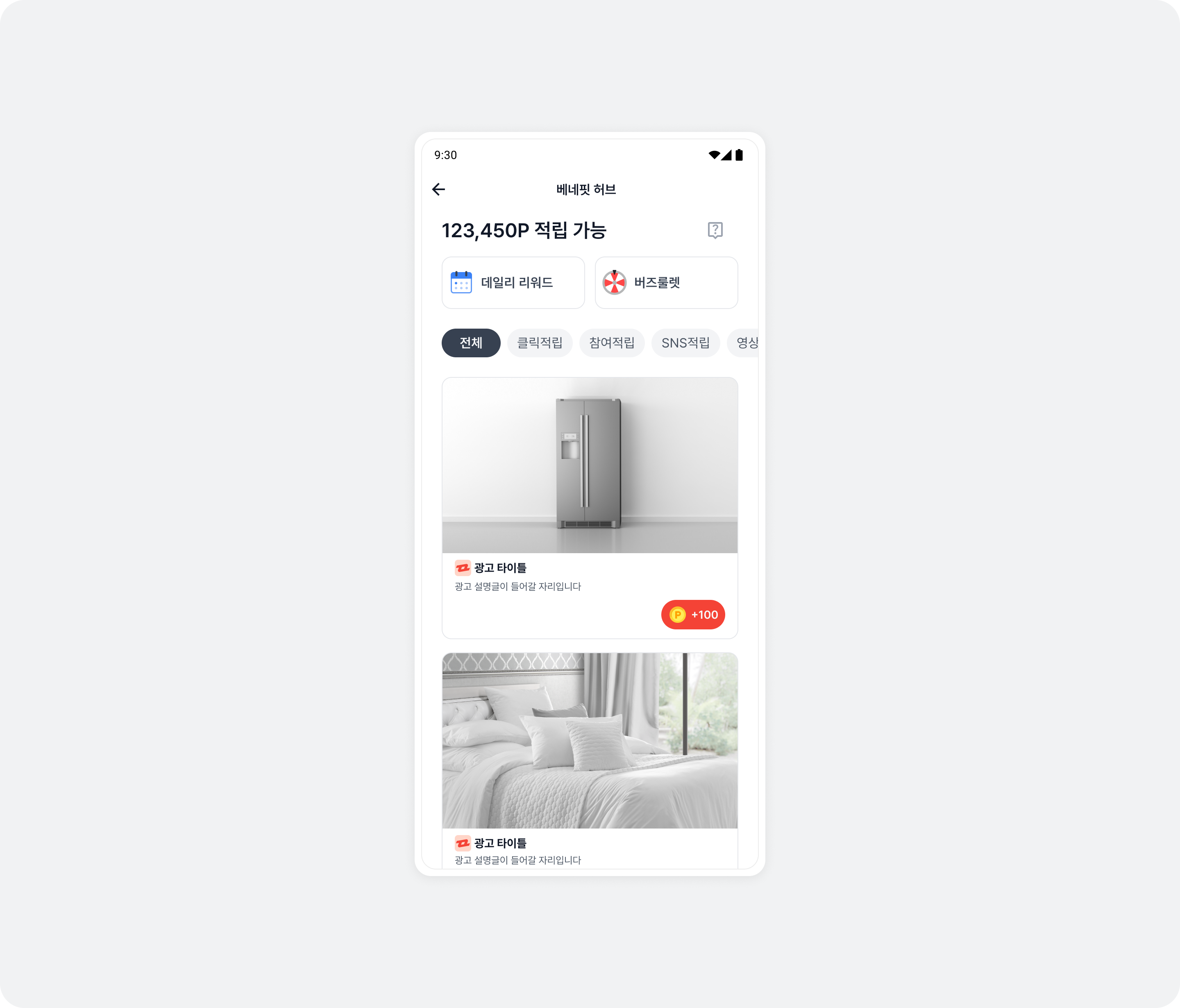
BenefitHub is an offerwall-style placement that supports many ads while matching your app's UI like a native placement. Buzzvil supports entry paths from other placements into BenefitHub to expose users to more ads.
Integration
Follow these steps to integrate BenefitHub.
Step 1. Prepare
- Complete Getting started.
- A Unit ID for BenefitHub, referred to below as
YOUR_FEED_UNIT_ID.
Step 2. Initialize BenefitHub
Add FeedConfig to BuzzAdBenefitConfig.
import android.app.Application
import com.buzzvil.buzzad.benefit.BuzzAdBenefitConfig
import com.buzzvil.buzzad.benefit.presentation.feed.FeedConfig
import com.buzzvil.sdk.BuzzvilSdk

class App : Application() {
    override fun onCreate() {
        super.onCreate()

        // Feed(베네핏허브) 설정
        val feedConfig = FeedConfig.Builder("YOUR_FEED_UNIT_ID")
            .build()

        // BuzzBenefit 설정
        val buzzAdBenefitConfig = BuzzAdBenefitConfig.Builder("YOUR_APP_ID")
            .setDefaultFeedConfig(feedConfig)
            .build()

        // Buzzvil SDK 초기화
        BuzzvilSdk.initialize(
            application = this@App,
            buzzAdBenefitConfig = buzzAdBenefitConfig
        )
    }
}
Step 3. Display BenefitHub
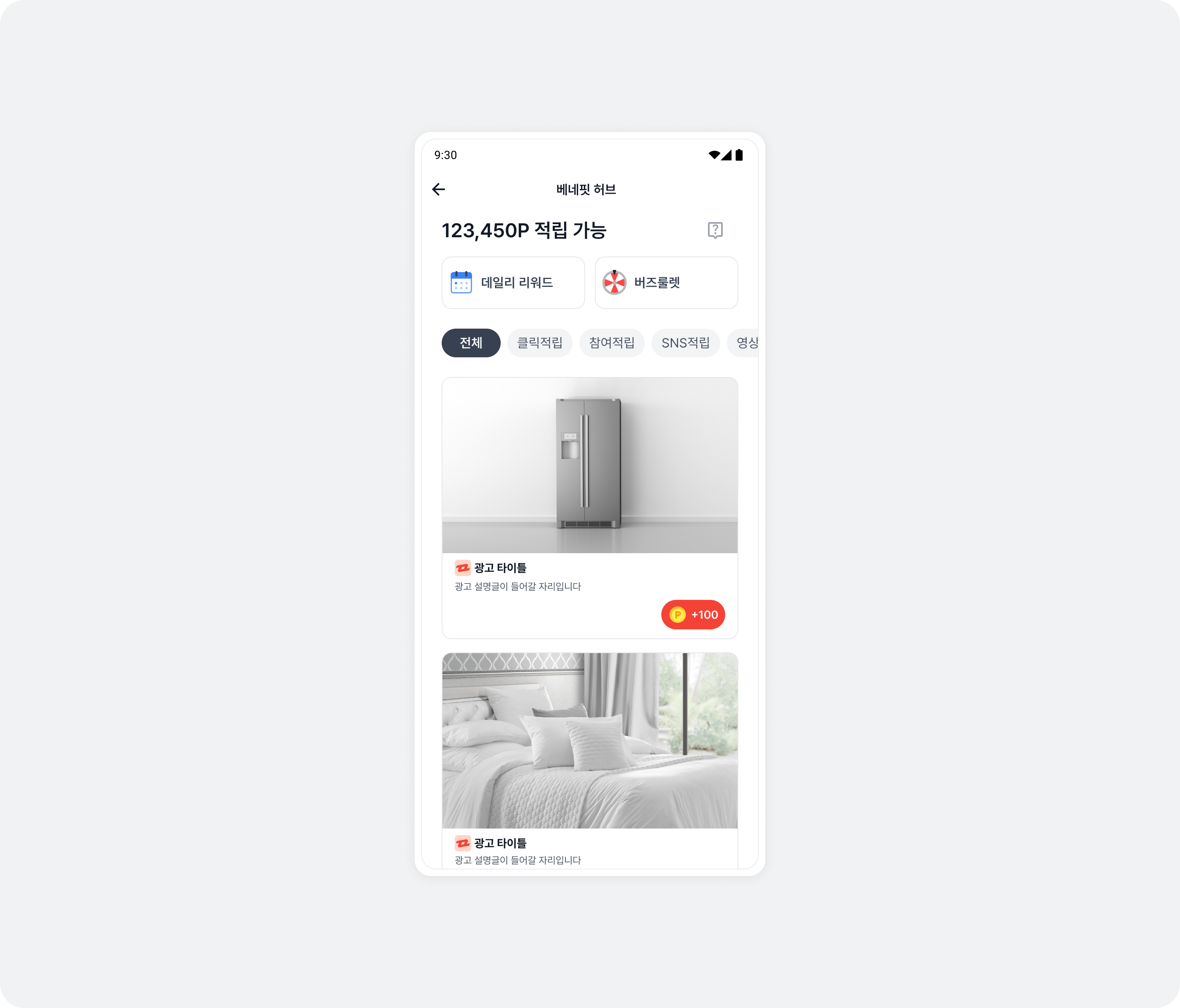
BenefitHub opens full screen. If ads have not already been allocated, it requests them automatically.
import com.buzzvil.buzzad.benefit.presentation.feed.BuzzAdFeed

val buzzAdFeed = BuzzAdFeed.Builder().build()
buzzAdFeed.show(activity)
Display BenefitHub with a non-default configuration
In addition to the default BenefitHub using FeedConfig configured through DefaultFeedConfig, you can display a different configuration. Create a new FeedConfig and pass it as an argument to BuzzAdFeed.Builder().feedConfig(), as shown below.
import com.buzzvil.buzzad.benefit.presentation.feed.BuzzAdFeed
import com.buzzvil.buzzad.benefit.presentation.feed.FeedConfig

val secondFeedConfig = FeedConfig.Builder("SECOND_FEED_UNIT_ID")
    .build()
BuzzAdFeed.Builder()
    .feedConfig(secondFeedConfig)
    .build()
    .show(this@MainActivity)
Basic settings
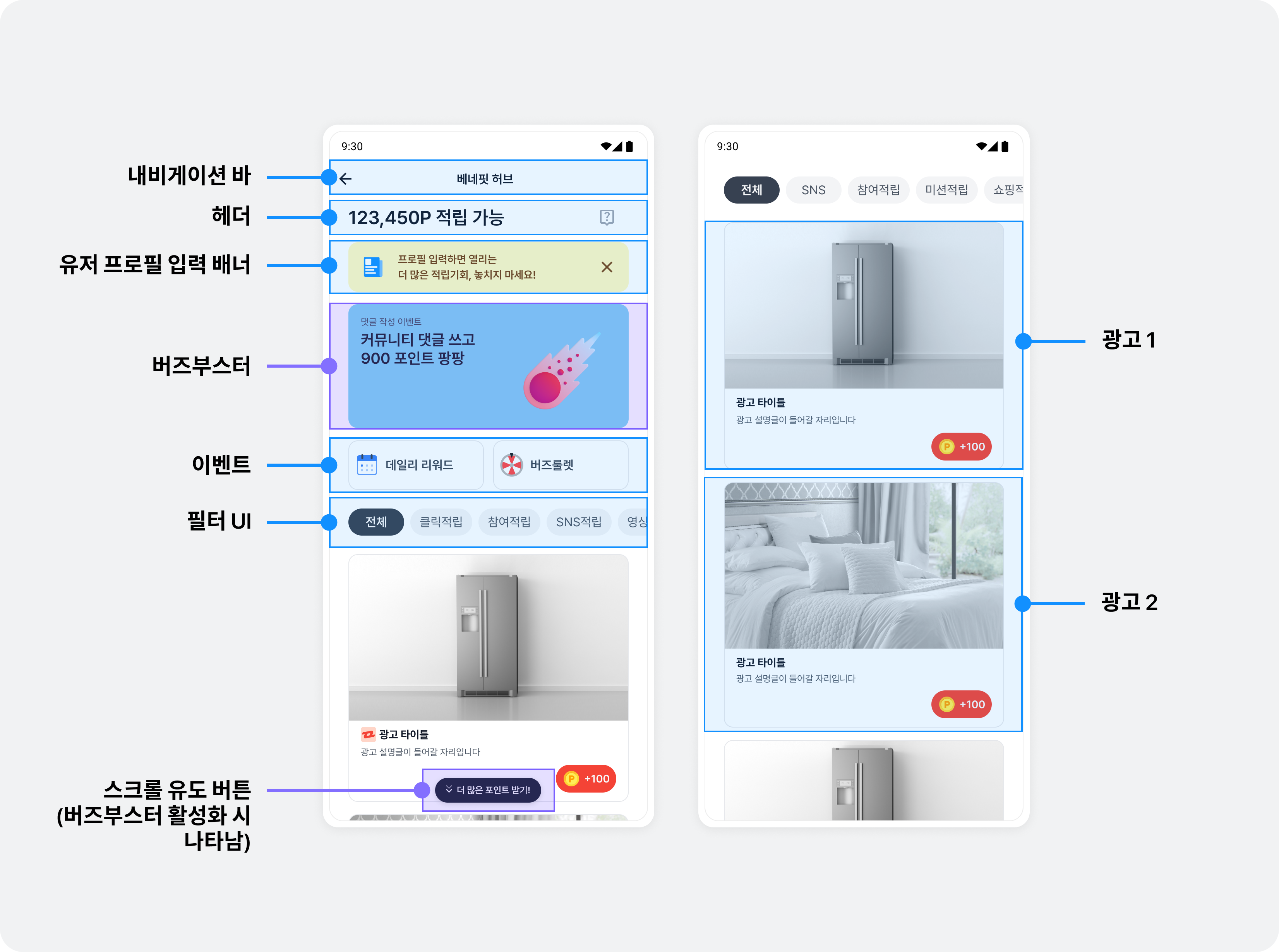
This section covers the basic features to configure in BenefitHub. You can enable them or change their settings without modifying or redeploying your app. See the illustration below for BenefitHub's main features.
Lucky Box
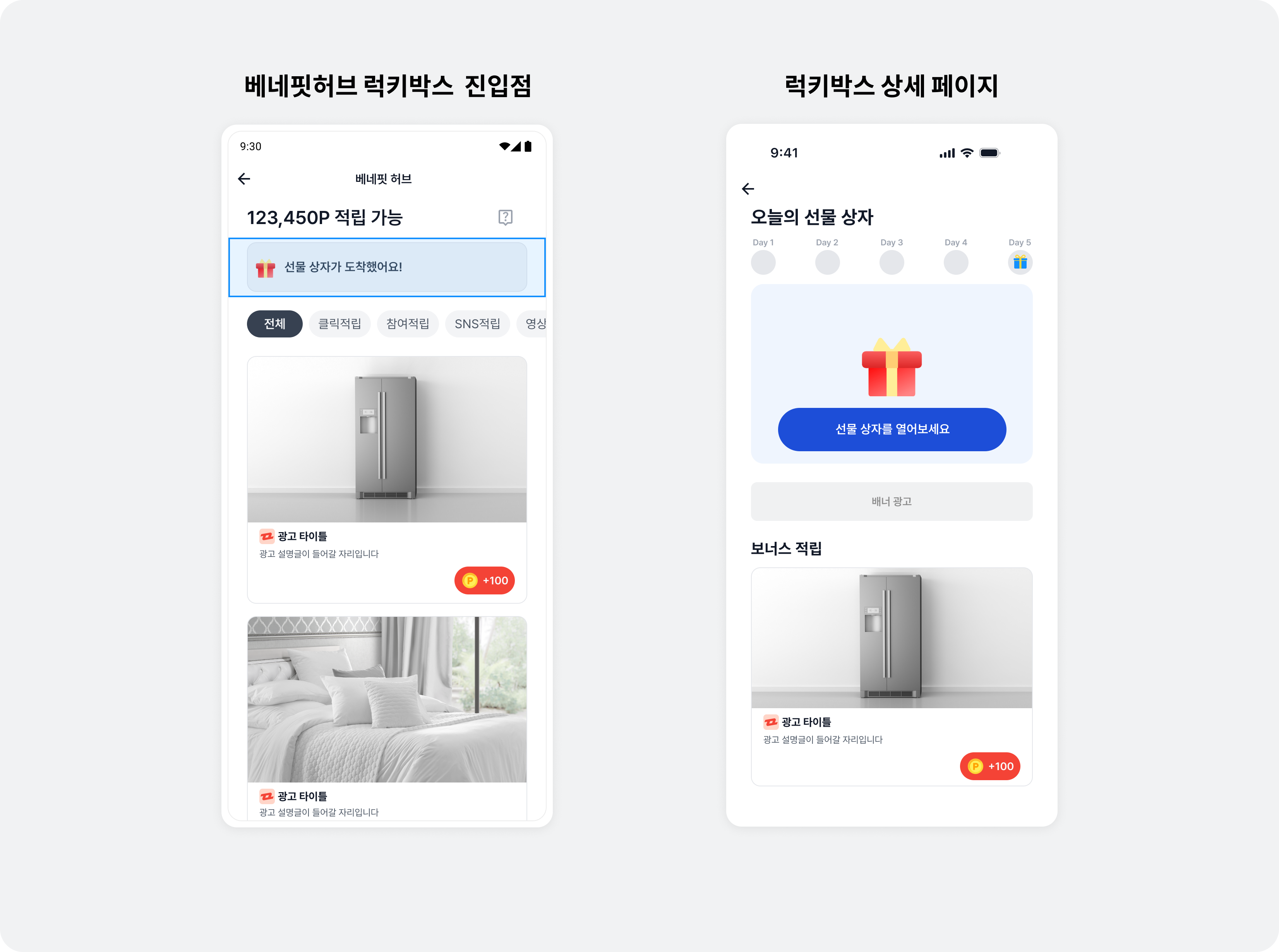
Lucky Box upgrades the Daily Reward feature that increases BenefitHub retention. Its revival system encourages users to maintain participation streaks, while network impression and video ads generate revenue through the basic Lucky Box reward flow. It also presents Buzzvil's direct-sales and network ads by category in a horizontally swipeable interface with infinite scrolling and automatic loading.
Enable this feature by integrating SDK 5.17.x or later, without additional development. It operates as a separate LuckyBox placement, and you can monitor Lucky Box DAU and revenue in Dash Admin.
After completing ad allocation and display in BenefitHub, contact your Buzzvil representative at help@buzzvil.com to enable the Lucky Box placement.
Mission Pack
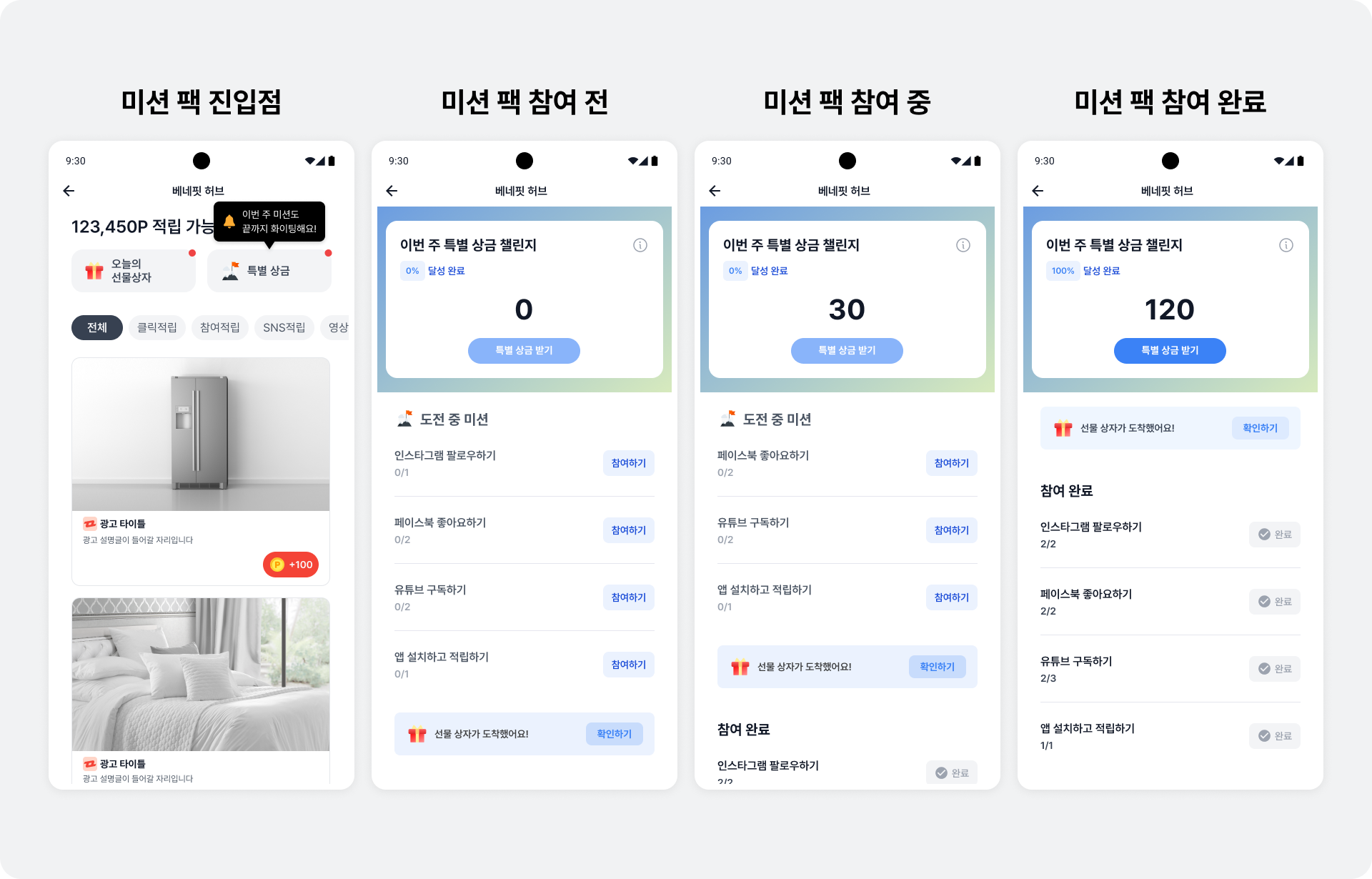
Mission Pack awards a percentage of the rewards users earn from ads as a special bonus when they complete all missions. These weekly missions start automatically on Monday and end at midnight on Sunday. Gamification introduces users to ads with strong revenue potential and can improve revenue. When a user clicks the Participate button on the Mission Pack screen, a screen opens where they can immediately engage with an ad that matches the mission.
- Choose the number of ads and missions to display.
- A clean, polished, user-centered UI and UX
- Customize a wide range of UI settings without changing code.
- Adjust bonus reward rates based on revenue and user engagement.
- Support for opening the Mission Pack screen first when displaying BenefitHub
Enable this feature by integrating SDK 5.23.x or later, without additional development. After completing ad allocation and display in BenefitHub, contact your Buzzvil representative at help@buzzvil.com to enable Mission Pack.
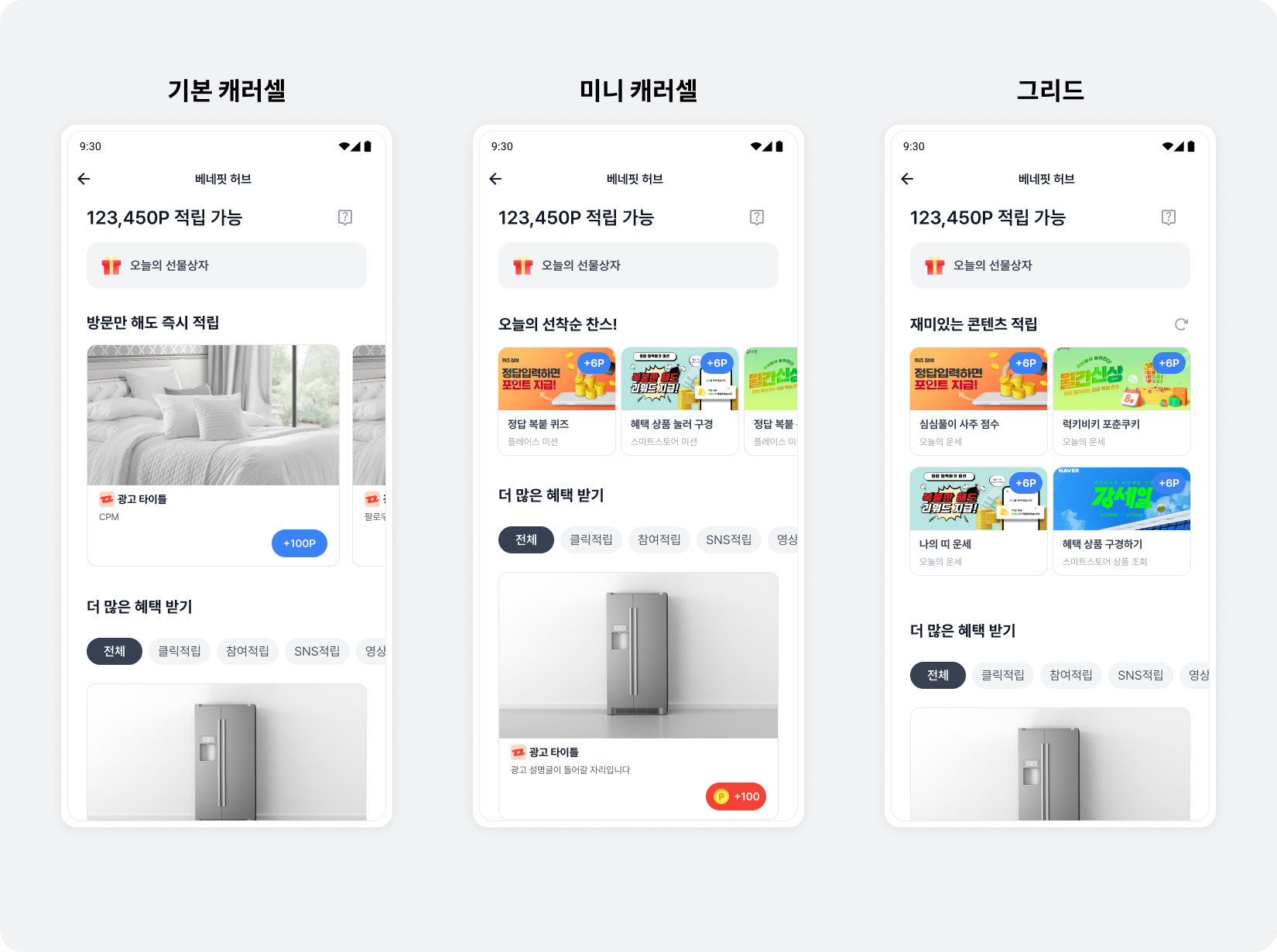
Ad category sections
Add mini carousel, standard carousel or grid sections above the existing BenefitHub content to highlight ads you want to grow or products users prefer, helping improve revenue and app activity.
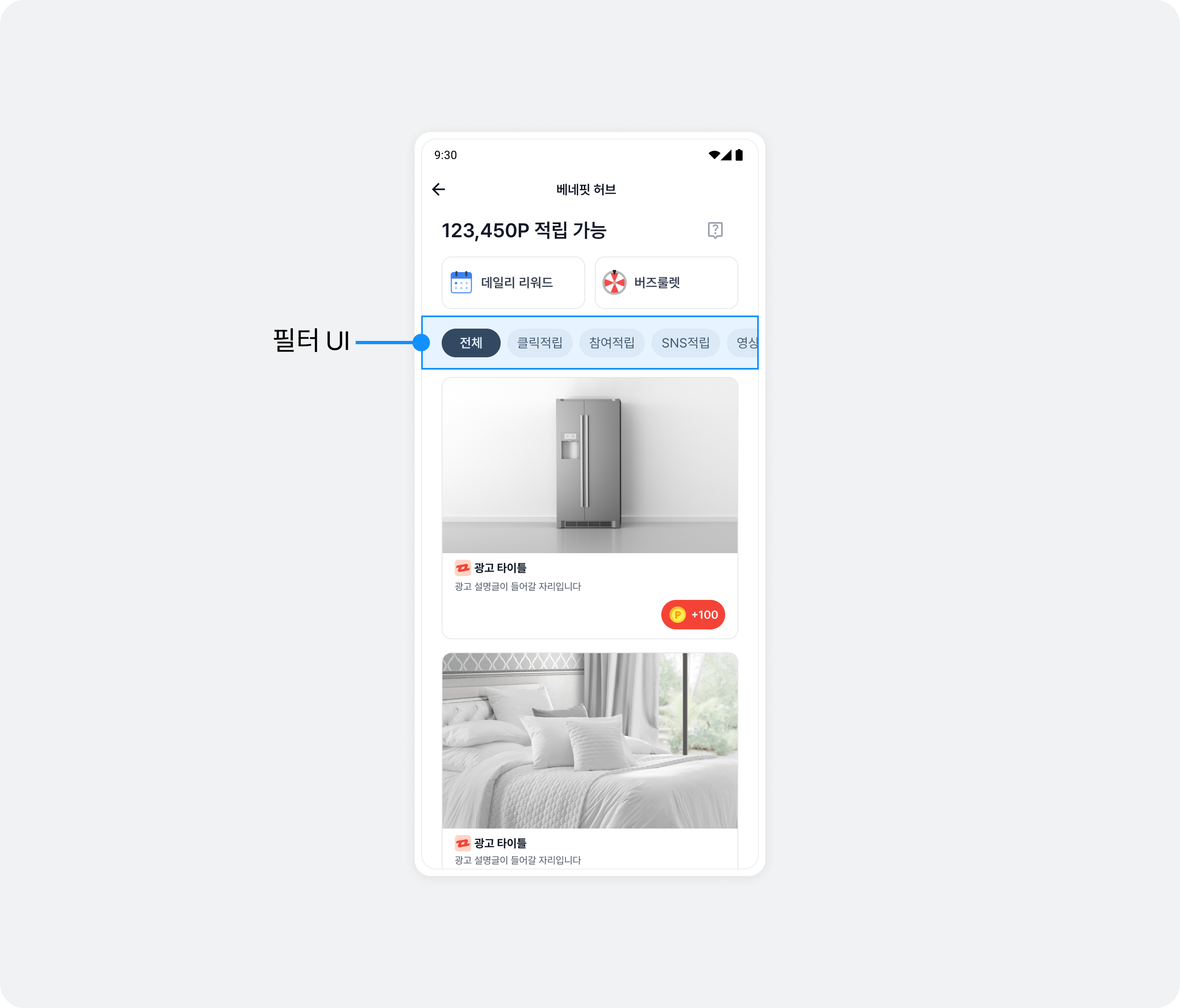
Ad category filters
Filters let users focus on ad types they want to participate in, improving the experience and ad efficiency. Contact help@buzzvil.com to change UI strings, filter types or other settings.
Infinite scrolling
When users reach the end of the allocated ad list, more ads load automatically. Enabled by default, this can be toggled without editing code or redeploying the app. Contact help@buzzvil.com to change the setting.
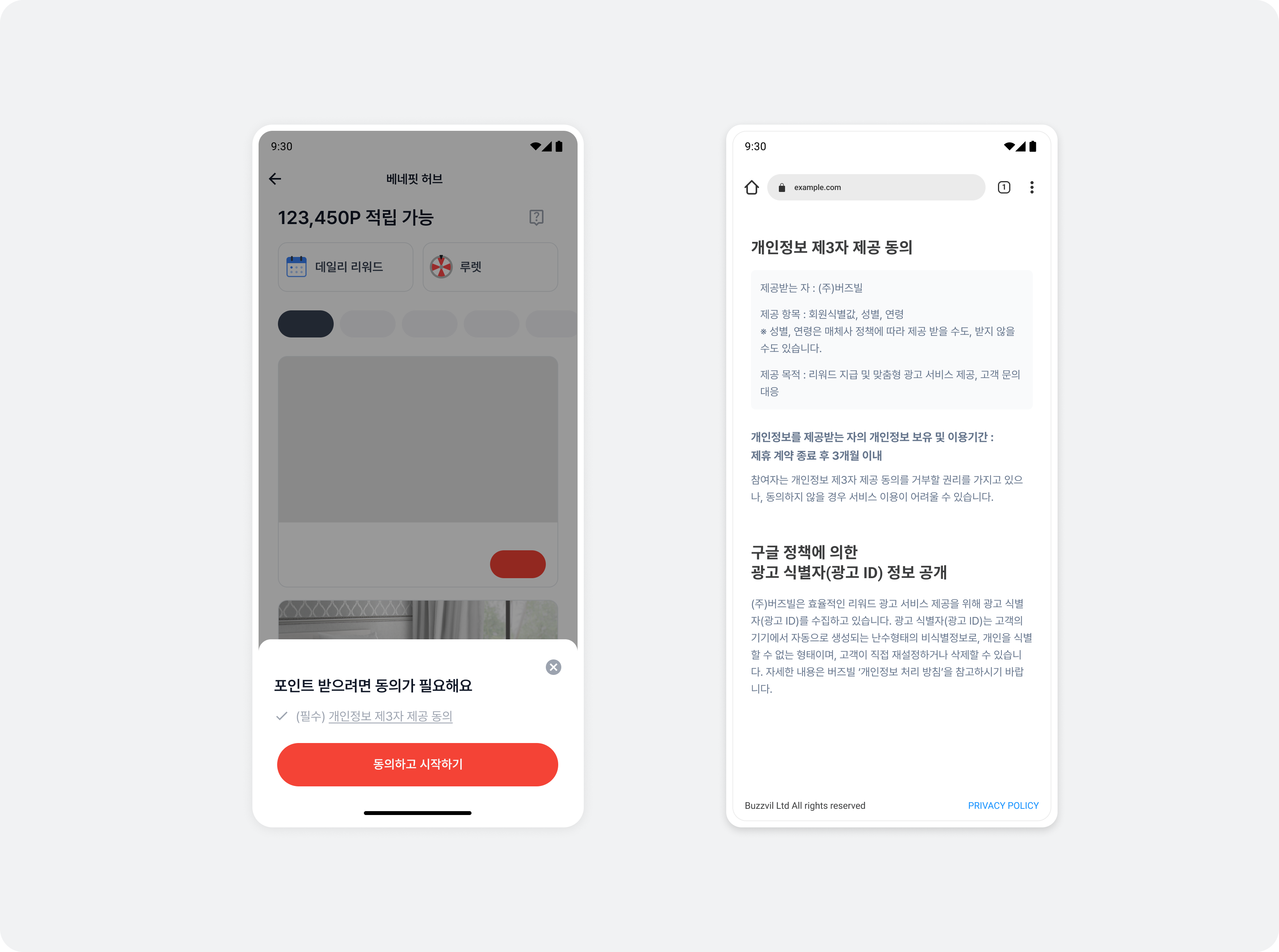
Consent modal for sharing personal information with third parties
Personal information protection law and Google policy require user consent to collect and use personal information. The Buzzvil SDK provides a UI to obtain consent. If a user does not consent to collection, ads are not allocated to BenefitHub. Users entering BenefitHub for the first time see the following UI.
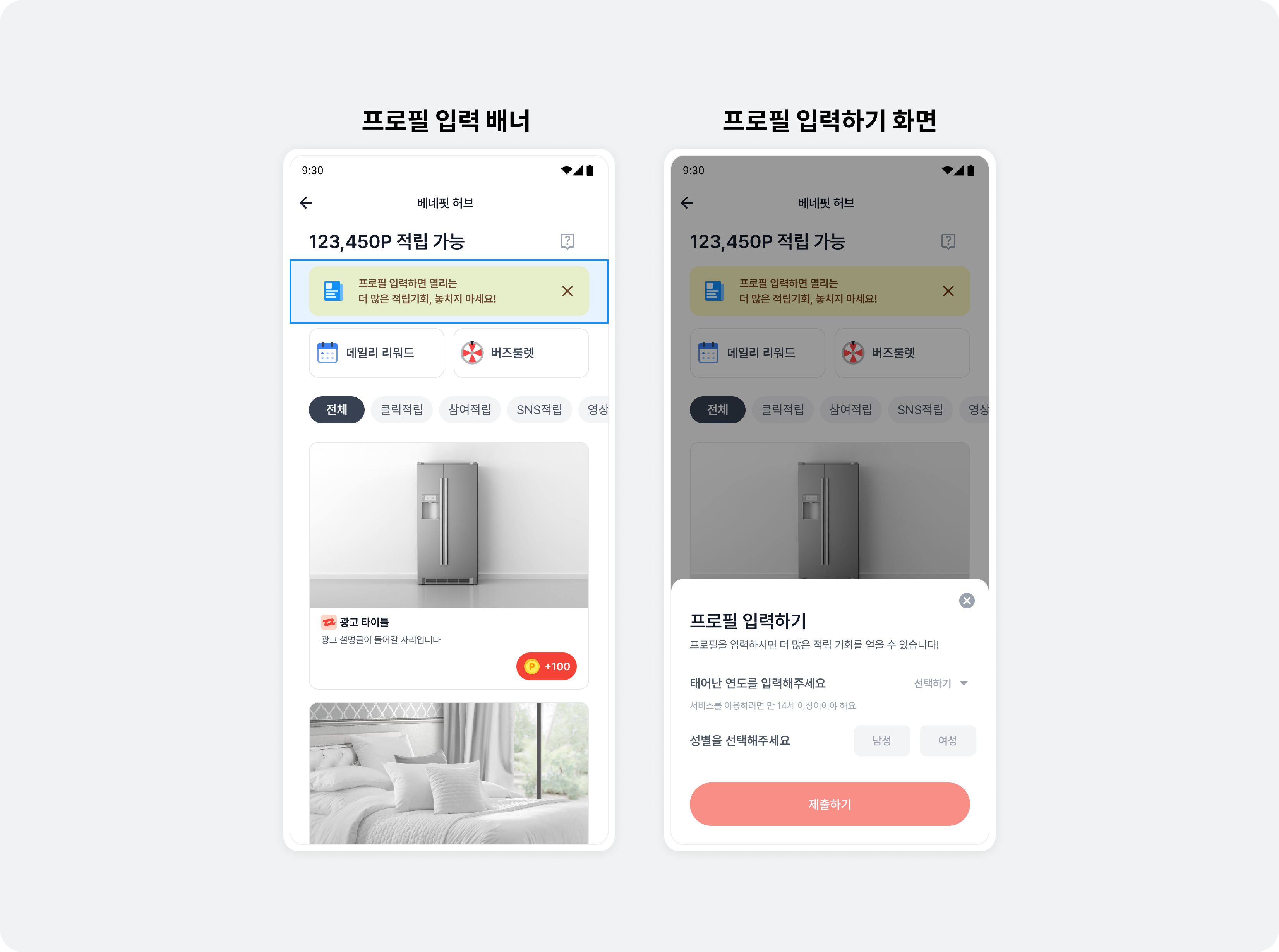
Profile input banner
For users without a birth year or gender, a banner appears at the top of BenefitHub after they participate in at least one ad. It opens the profile input screen, appears once per day and disappears when dismissed.
Prompt to add Pop
This feature is available when you integrate Pop as a BenefitHub entry point. A modal appears over the placement when a user enters BenefitHub, clicks an ad, and returns. Tapping the modal's CTA opens Display over other apps in system settings.
Implement entry paths in your app UI
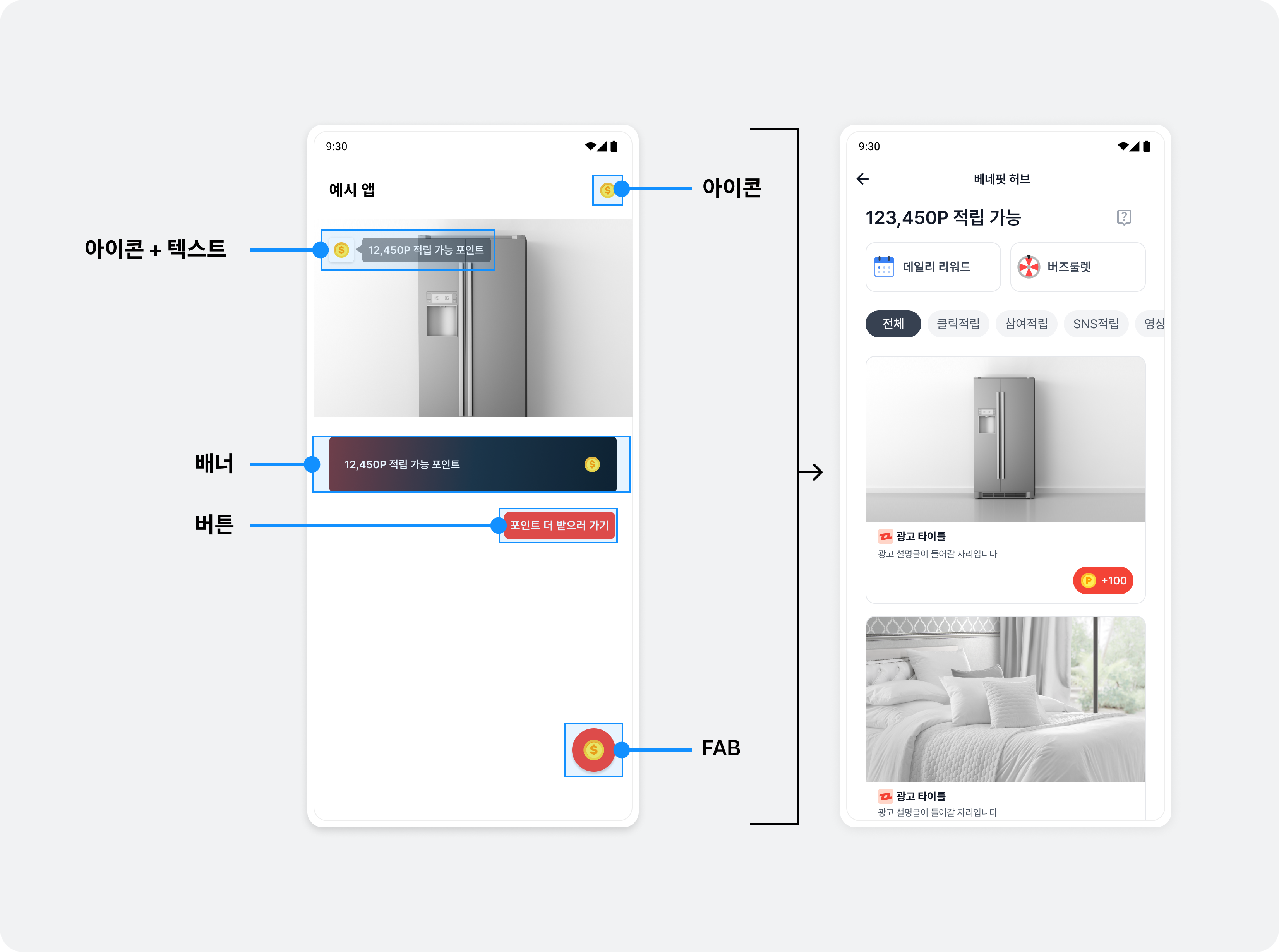
You can implement views in your app layout, such as icons, buttons, or banners, to create entry paths into BenefitHub.
See the diagram below for example entry point components. The sample app includes code for several custom entry points.
Step 1. Prepare
- Complete BenefitHub integration.
Step 2. Add an entry point
Add BenefitHub entry points inside activities, fragments or views. Implement your layout, then add a FeedEntryView ViewGroup.
The following XML example opens BenefitHub when your_image is tapped.
<?xml version="1.0" encoding="utf-8"?>

<com.buzzvil.buzzad.benefit.presentation.feed.entrypoint.FeedEntryView
    android:layout_width="wrap_content"
    android:layout_height="wrap_content">


    <ImageView
        android:layout_width="wrap_content"
        android:layout_height="wrap_content"
        android:src="@drawable/your_image" />
</com.buzzvil.buzzad.benefit.presentation.feed.entrypoint.FeedEntryView>
Step 3. Display available points
Preview the available points, as shown below, to encourage users who have not yet entered BenefitHub to participate.

Use the following code to show available points in advance.
import com.buzzvil.buzzad.benefit.core.ad.AdError
import com.buzzvil.buzzad.benefit.presentation.feed.BuzzAdFeed

buzzAdFeed.load(object : BuzzAdFeed.FeedLoadListener {
    override fun onSuccess() {
        val availableReward = buzzAdFeed.getAvailableRewards()
        // 적립 가능한 포인트를 직접 구현한 UI에 업데이트합니다.
    }

    override fun onError(error: AdError?) {
        // 적립 가능한 포인트를 가져올 수 없는 경우
    }
})
Additional features
This section explains how to implement additional BenefitHub features.
Check ad types
Buzzvil SDK provides APIs to identify ad types so you can offer different rewards or experiences for impression-based, action-based and other ads. See Check the ad type in User experience features.
Integrate BenefitHub as a fragment
To use your app's navigation bar instead of BenefitHub's navigation bar, integrate BenefitHub as a fragment.
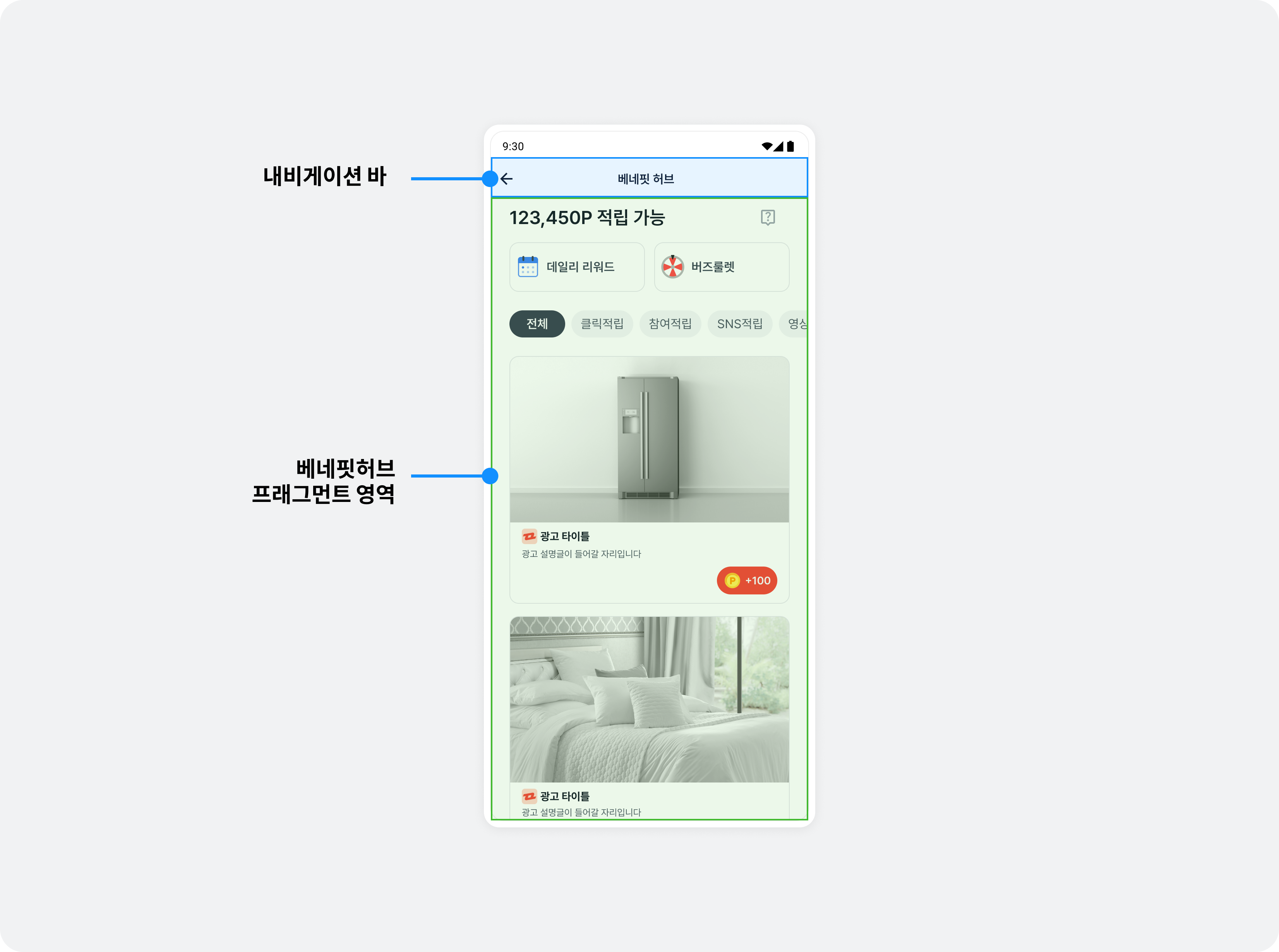
Add the fragment to an activity and initialize it in that activity's onCreate().
The following example integrates BenefitHubFragment.
import com.buzzvil.buzzad.benefit.presentation.feed.BuzzAdFeed

class YourBenefitHubActivity : AppCompatActivity() {
    override fun onCreate(savedInstanceState: Bundle?) {
        super.onCreate(savedInstanceState)
        setContentView(R.layout.activity_your_benefit_hub)

        if (savedInstanceState == null) {
            val buzzAdFeed = BuzzAdFeed.Builder().build()
            val benefitHubFragment = buzzAdFeed.getBenefitHubFragment()

            supportFragmentManager.beginTransaction().apply {
                add(com.buzzvil.buzzad.benefit.presentation.feed.R.id.fragmentContainer, benefitHubFragment)
                commit()
            }
        }
    }
}
<?xml version="1.0" encoding="utf-8"?>
<androidx.constraintlayout.widget.ConstraintLayout xmlns:android="http://schemas.android.com/apk/res/android"
    xmlns:app="http://schemas.android.com/apk/res-auto"
    xmlns:tools="http://schemas.android.com/tools"
    android:layout_width="match_parent"
    android:layout_height="match_parent"
    tools:context=".YourBenefitHubActivity">


    <LinearLayout
        android:id="@+id/toolbar"
        android:layout_width="0dp"
        android:layout_height="64dp"
        android:gravity="center"
        android:orientation="horizontal"
        app:layout_constraintEnd_toEndOf="parent"
        app:layout_constraintStart_toStartOf="parent"
        app:layout_constraintTop_toTopOf="parent">

        <TextView
            android:layout_width="wrap_content"
            android:layout_height="wrap_content"
            android:text="Title" />
    </LinearLayout>

    <androidx.fragment.app.FragmentContainerView
        android:id="@+id/fragmentContainer"
        android:layout_width="0dp"
        android:layout_height="0dp"
        app:layout_constraintBottom_toBottomOf="parent"
        app:layout_constraintEnd_toEndOf="parent"
        app:layout_constraintStart_toStartOf="parent"
        app:layout_constraintTop_toBottomOf="@+id/toolbar" />
</androidx.constraintlayout.widget.ConstraintLayout>
Remove the default navigation bar
Remove the default navigation bar as shown below.
import com.buzzvil.buzzad.benefit.presentation.feed.BuzzAdFeed
import com.buzzvil.buzzad.benefit.presentation.feed.FeedConfig

class YourBenefitHubActivity : AppCompatActivity() {
    override fun onCreate(savedInstanceState: Bundle?) {
        super.onCreate(savedInstanceState)
        setContentView(R.layout.activity_your_benefit_hub)

        if (savedInstanceState == null) {
            // 기본 내비게이션 바 제거
            val feedConfig = FeedConfig.Builder("YOUR_FEED_UNIT_ID")
                .navigationBarVisibility(false)
                .build()

            // 베네핏허브 프래그먼트 연동
            val buzzAdFeed = BuzzAdFeed.Builder()
                .feedConfig(feedConfig)
                .build()
            val benefitHubFragment = buzzAdFeed.getBenefitHubFragment()

            supportFragmentManager.beginTransaction().apply {
                add(com.buzzvil.buzzad.benefit.presentation.feed.R.id.fragmentContainer, benefitHubFragment)
                commit()
            }
        }
    }
}
Reload ads
Call buzzAdFeed.load() before buzzAdFeed.show() to allocate new ads.
import com.buzzvil.buzzad.benefit.core.ad.AdError
import com.buzzvil.buzzad.benefit.presentation.feed.BuzzAdFeed

buzzAdFeed.load(object : BuzzAdFeed.FeedLoadListener {
    override fun onSuccess() {
        // 광고 재할당에 성공한 경우 호출됩니다.
    }
    override fun onError(error: AdError?) {
        // 광고 재할당에 실패한 경우 호출됩니다.
    }
})
Change the initial BenefitHub screen
Select a filter when opening BenefitHub
Open BenefitHub with a selected filter other than 전체.
import com.buzzvil.buzzad.benefit.presentation.feed.FeedConfig

// Feed(베네핏허브) 설정
val feedConfig = FeedConfig.Builder("YOUR_FEED_UNIT_ID")
    .initialSelectedFilterName("쇼핑적립")
    .build()
Open Lucky Box directly
Use BuzzAdFeed to display Lucky Box directly. BenefitHub launches alongside it.
import com.buzzvil.buzzad.benefit.presentation.feed.FeedConfig
import com.buzzvil.buzzad.benefit.presentation.feed.FeedInitialNavigationPage

// Feed(베네핏허브) 설정
val feedConfig = FeedConfig.Builder("YOUR_FEED_UNIT_ID")
    .initialNavigationPage(FeedInitialNavigationPage.LUCKYBOX)
    .build()
Lucky Box entry point example
See MainActivity.kt in the sample code for a Lucky Box entry point implementation.
Use only the initialNavigationPage(FeedInitialNavigationPage.LUCKYBOX) option in the getCustomBuzzAdFeed() example, as shown below, to implement a Lucky Box entry point.
import com.buzzvil.buzzad.benefit.annotation.BuzzExperimentalApi
import com.buzzvil.buzzad.benefit.presentation.feed.BuzzAdFeed
import com.buzzvil.buzzad.benefit.presentation.feed.FeedConfig
import com.buzzvil.buzzad.benefit.presentation.feed.FeedInitialNavigationPage

@OptIn(BuzzExperimentalApi::class) // 실험 기능을 사용하기 위한 어노테이션
private fun getCustomBuzzAdFeed(): BuzzAdFeed {
    if (customBuzzAdFeed == null) {
        val feedConfig = FeedConfig.Builder(Constant.YOUR_FEED_UNIT_ID)
            .initialNavigationPage(FeedInitialNavigationPage.LUCKYBOX) // (실험 기능) 초기 페이지 선택하기
            .build()

        // 하나의 피드에 하나의 buzzAdFeed 인스턴스를 생성하여 사용합니다.
        customBuzzAdFeed = BuzzAdFeed.Builder()
            .feedConfig(feedConfig)
            .build()
    }

    return customBuzzAdFeed!!
}
Open MissionPack directly
See MainActivity.kt in the sample code for an entry point implementation.
Use only the initialNavigationPage(FeedInitialNavigationPage.MISSION_PACK) option in the getCustomBuzzAdFeed() example, as shown below, to implement a MissionPack entry point.
import com.buzzvil.buzzad.benefit.annotation.BuzzExperimentalApi
import com.buzzvil.buzzad.benefit.presentation.feed.BuzzAdFeed
import com.buzzvil.buzzad.benefit.presentation.feed.FeedConfig
import com.buzzvil.buzzad.benefit.presentation.feed.FeedInitialNavigationPage

@OptIn(BuzzExperimentalApi::class) // 실험 기능을 사용하기 위한 어노테이션
private fun getCustomBuzzAdFeed(): BuzzAdFeed {
    if (customBuzzAdFeed == null) {
        val feedConfig = FeedConfig.Builder(Constant.YOUR_FEED_UNIT_ID)
            .initialNavigationPage(FeedInitialNavigationPage.MISSION_PACK) // (실험 기능) 초기 페이지 선택하기
            .build()

        // 하나의 피드에 하나의 buzzAdFeed 인스턴스를 생성하여 사용합니다.
        customBuzzAdFeed = BuzzAdFeed.Builder()
            .feedConfig(feedConfig)
            .build()
    }

    return customBuzzAdFeed!!
}