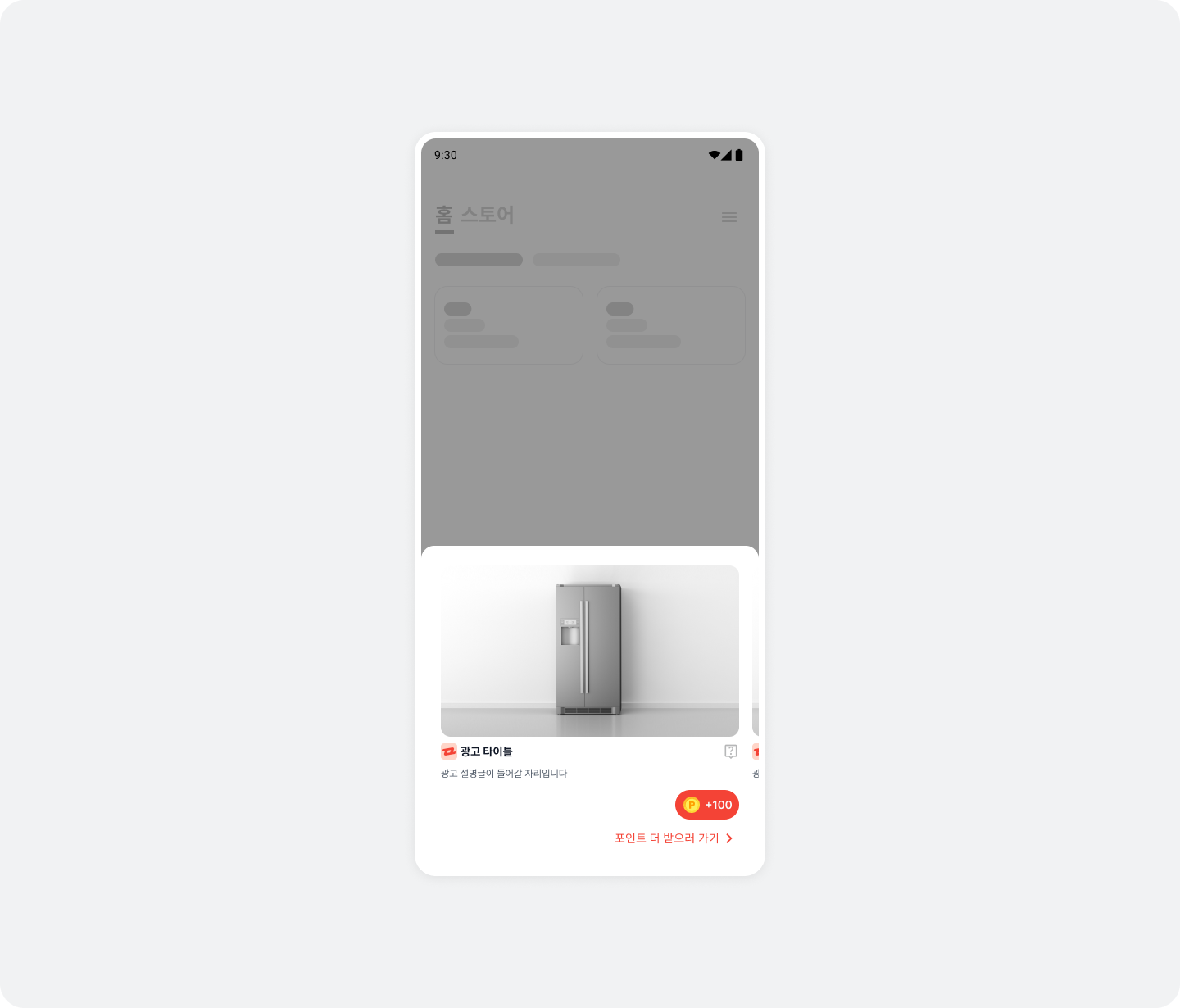
Interstitial
Learn how to add and configure an interstitial placement and implement additional features through the SDK interface.
Key features
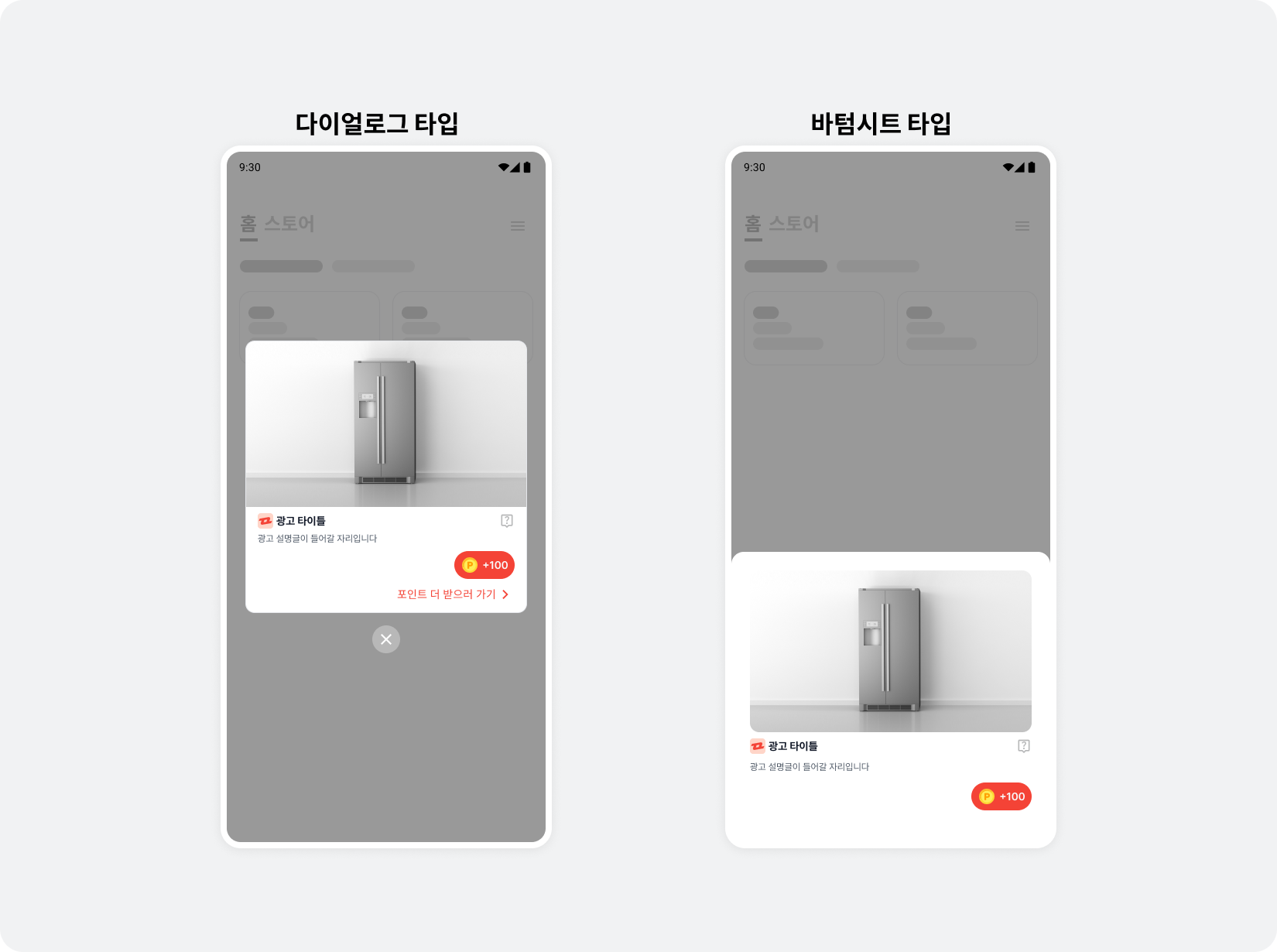
Interstitial placements cover the app completely and are easy to integrate. Because they overlay your app, you can show them without considering how they fit with the app UI. Choose either a dialog or bottom sheet UI to suit your design.
Integration
Follow these steps to integrate an interstitial placement.
Step 1. Prepare
- Complete Getting started.
- Obtain a Unit ID for the interstitial placement (referred to below as
YOUR_INTERSTITIAL_UNIT_ID).
Step 2. Allocate and display ads
Follow these steps to allocate and display ads in an interstitial placement.
- Choose an interstitial UI type and create
BuzzAdInterstitial.
- Dialog UI: Call
BuzzAdInterstitial.Builder().buildDialog(). - Bottom sheet UI: Call
BuzzAdInterstitial.Builder().buildBottomSheet().
-
Call
load()to allocate an ad. -
Call
show(context)to display the ad.import com.buzzvil.buzzad.benefit.core.ad.AdError import com.buzzvil.buzzad.benefit.presentation.interstitial.BuzzAdInterstitial import com.buzzvil.buzzad.benefit.presentation.interstitial.InterstitialAdListener val buzzAdInterstitial = BuzzAdInterstitial.Builder(Constant.YOUR_INTERSTITIAL_ID).buildDialog() buzzAdInterstitial.load(object: InterstitialAdListener() { override fun onAdLoaded() { // 할당된 광고가 있으면 호출됩니다. // Interstitial 광고를 화면에 표시합니다. buzzAdInterstitial.show(this@MainActivity) } override fun onAdLoadFailed(error: AdError?) { // 할당된 광고가 없으면 호출됩니다. Log.e(TAG, "Failed to load a interstitial ad.", error); } override fun onAdClosed() { super.onAdClosed() // Interstitial 지면이 종료되면 호출됩니다. // 필요에 따라 추가 기능을 구현하세요. } })
Step 3. Add a BenefitHub entry point to the interstitial
Add an entry point that takes users from Interstitial to BenefitHub.
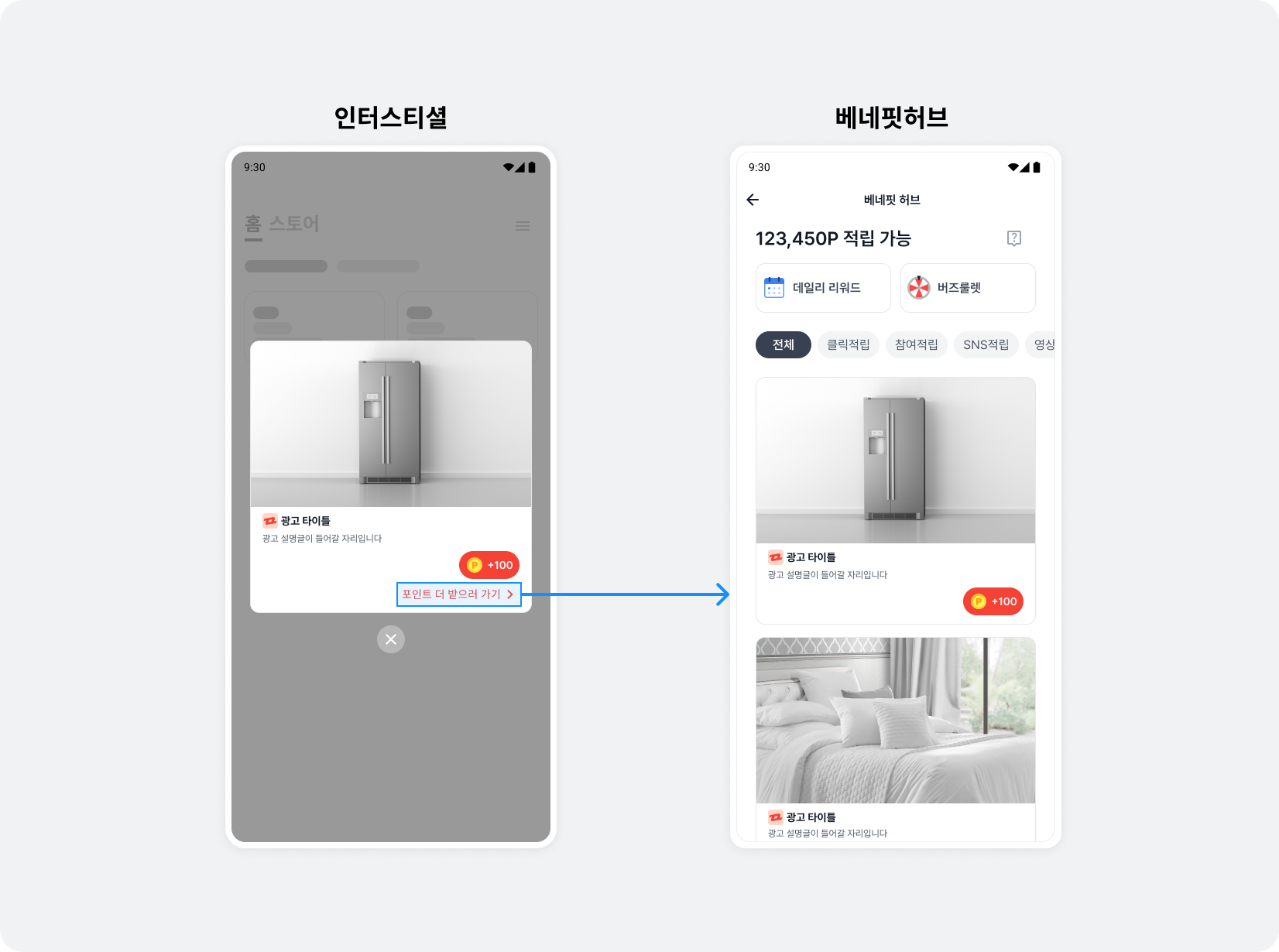
Interstitial displays an entry point to BenefitHub. Tapping it opens BenefitHub using the FeedConfig object configured through setDefaultFeedConfig(). To use a different FeedConfig, follow these steps. The entry point layout cannot be changed.
-
Create a new
FeedConfig. -
Create a
BuzzAdNavigatorinstance using theFeedConfigfrom step 1. -
Add the
BuzzAdNavigatorinstance toBuzzAdInterstitial.buzzAdNavigator()to changeFeedConfig.import com.buzzvil.buzzad.benefit.presentation.feed.BuzzAdFeed import com.buzzvil.buzzad.benefit.presentation.feed.FeedConfig import com.buzzvil.buzzad.benefit.presentation.interstitial.BuzzAdInterstitial val feedConfig = FeedConfig.Builder("YOURD_FEED_UNIT_ID").build() val feedNavigator = BuzzAdFeed.createFeedNavigator(feedConfig) val buzzAdInterstitial = BuzzAdInterstitial.Builder(Constant.YOUR_INTERSTITIAL_ID) .buzzAdNavigator(feedNavigator) .buildDialog()
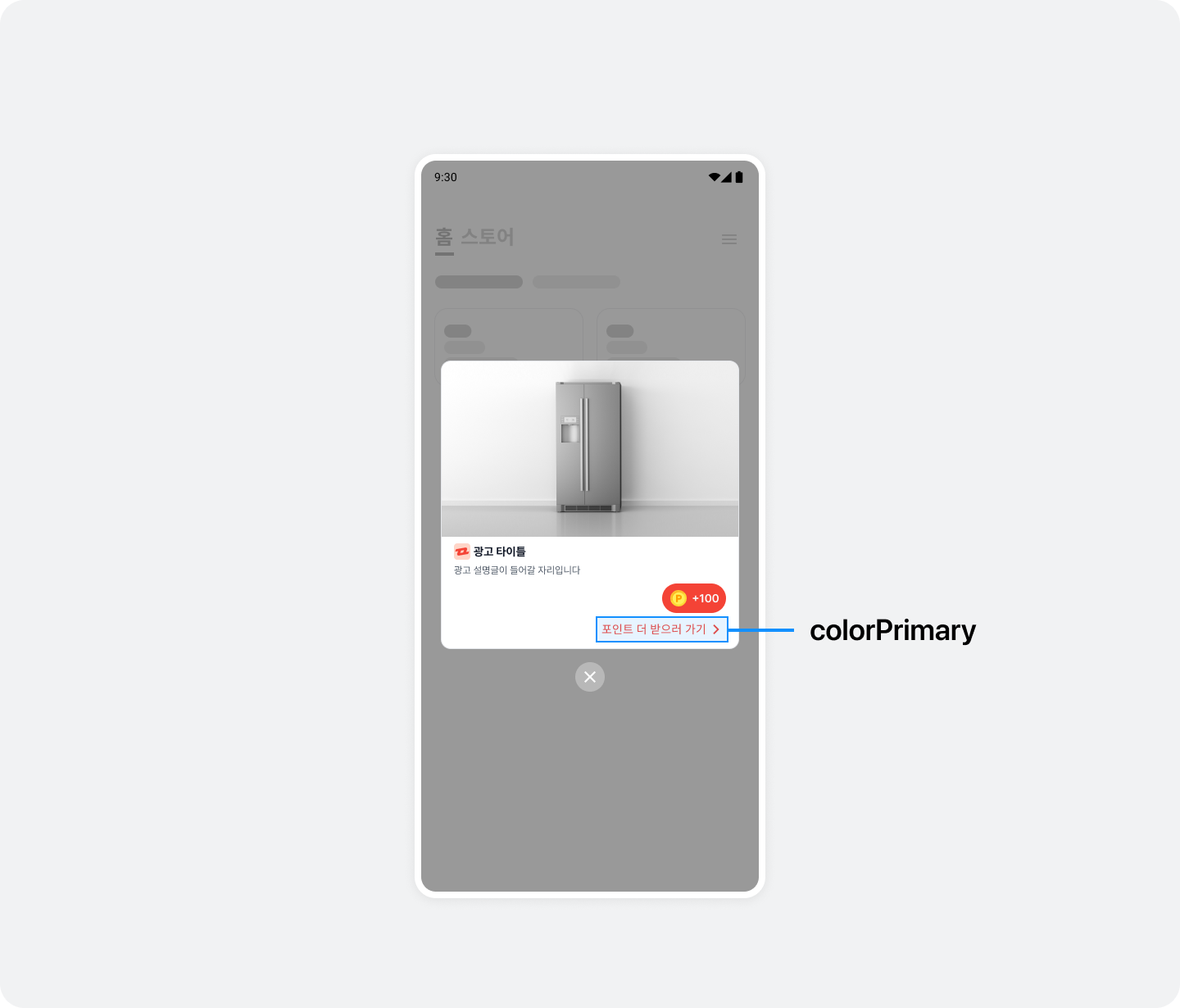
Change the BuzzBenefit entry point UI color
See Change the global theme for details.
Step 4. Test the basic integration
After completing the basic integration, check that ads are allocated and displayed correctly. Also verify that clicking the BenefitHub entry point opens BenefitHub.
Additional features
Set the number of ads
A bottom sheet interstitial can display up to five ads from a single ad request.
The number of ads can be configured on Buzzvil's server without code changes. To display multiple ads, send your preferred number to your Buzzvil representative at help@buzzvil.com.